

optimind.darkfunnels.ai/ajustes.) In some notices in
the playbook this screen appears as Ajustes: it is the same one.The dashboard is in Spanish, so buttons and labels are written here as you see
them on screen, with their English meaning in parentheses.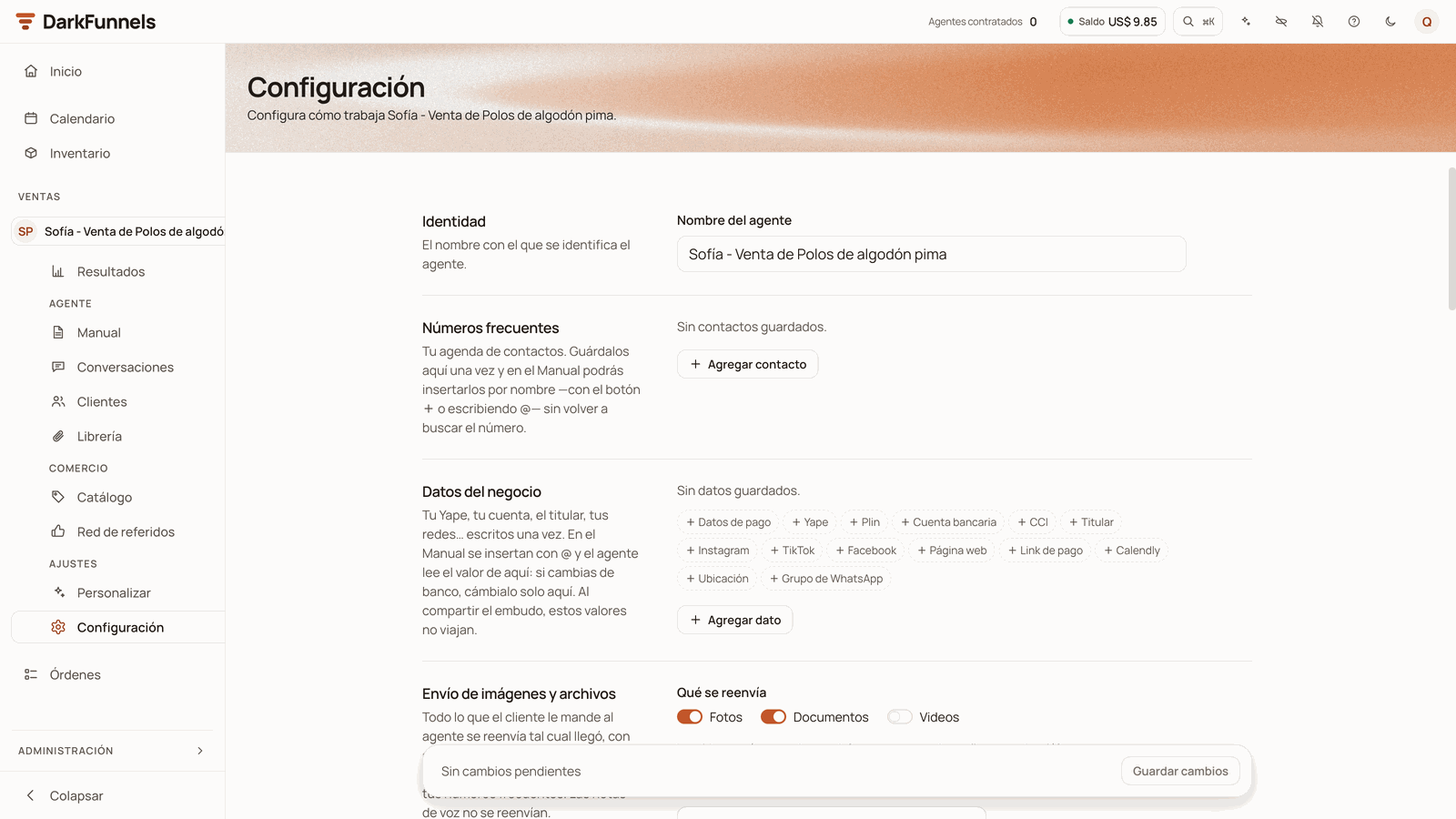
The top of Configuración: the agent's name and the first sections; at the bottom, the fixed bar with «Guardar cambios» (Save changes).
The sections at a glance
Identity
A single field: Nombre del agente (Agent name). It is the name you see this agent by in your dashboard —the menu, Inicio (Home)— and the one that appears in the summary and in the notices you get on WhatsApp. If you have several agents, give them names that tell them apart («Moda Sol · Store», «Moda Sol · Wholesale»). It cannot be left empty: the screen warns «El nombre no puede estar vacío» (The name cannot be empty) and does not let you save.Frequent numbers: your contact book
It is the list of people your agent can notify: you, your salesperson, the warehouse. Each contact is a name and a WhatsApp number. You save the number once and afterwards you pick it by its name: in the lists on this same screen and in the playbook.Click «Agregar contacto» (Add contact)
Type the name
Choose the country and type the number without the code
987654321. The list has 16
countries: a good part of Latin America, Spain and the United States /
Canada.Save
How it is used in the playbook
In the playbook editor, type@ (or use the + button) and look for the
Números (Numbers) group: when you choose a contact, its full number, with
the country code, is pasted in as text. If that number changes, you will
have to fix it in the playbook too.
What does stay up to date is the notice by name. In the Avisar a un tercero
(Notify a third party) tool you choose the person by their name: the
playbook says «Andrea» and the number stays here. If tomorrow Andrea changes
phones, you fix it on this screen and that notice is not touched.
The agent’s tools explains it.
Rules worth knowing
- If you fix a contact’s number, the lists it is in update themselves. You do not have to look for it in Reportes or in Alertas.
- A contact that is in a list cannot be deleted. The trash can is greyed out and the row says, for example, «Se usa en Informar de las ventas y Reportes. Quítalo de ahí primero.» (Used in Informar de las ventas and Reportes. Remove it from there first.) Take it out of those lists and then delete it.
- If a notice in the playbook names it, the contact book and the playbook move together. Renaming it here also renames it in the playbook’s notices, and a new version is left in the Historial (History). That holds if you only change its name: if in the same save you change its name and its number, it is treated as removing it. Do it in two saves. Removing it, on the other hand, is refused on save with ««Andrea» avisa en el manual de este embudo: cámbialo en el manual antes de quitarlo de la agenda» («Andrea» sends a notice in this funnel’s playbook: change it in the playbook before removing it from the contact book).
- There can be «pending» contacts. If you received a funnel that another account shared with you, it may bring contacts with a name and no number: their field says «Pendiente: escribe su WhatsApp» (Pending: type their WhatsApp). They can be saved like that, but the notices to that contact do not go out until you give it its number. See Your funnels.
Business details
Your Yape number, your bank account, the account holder, your Instagram, your payment link. You write them once here and in the playbook you insert them as a mention. The agent reads the value from this screen: if tomorrow you change banks, you change it in a single place and every chapter is up to date.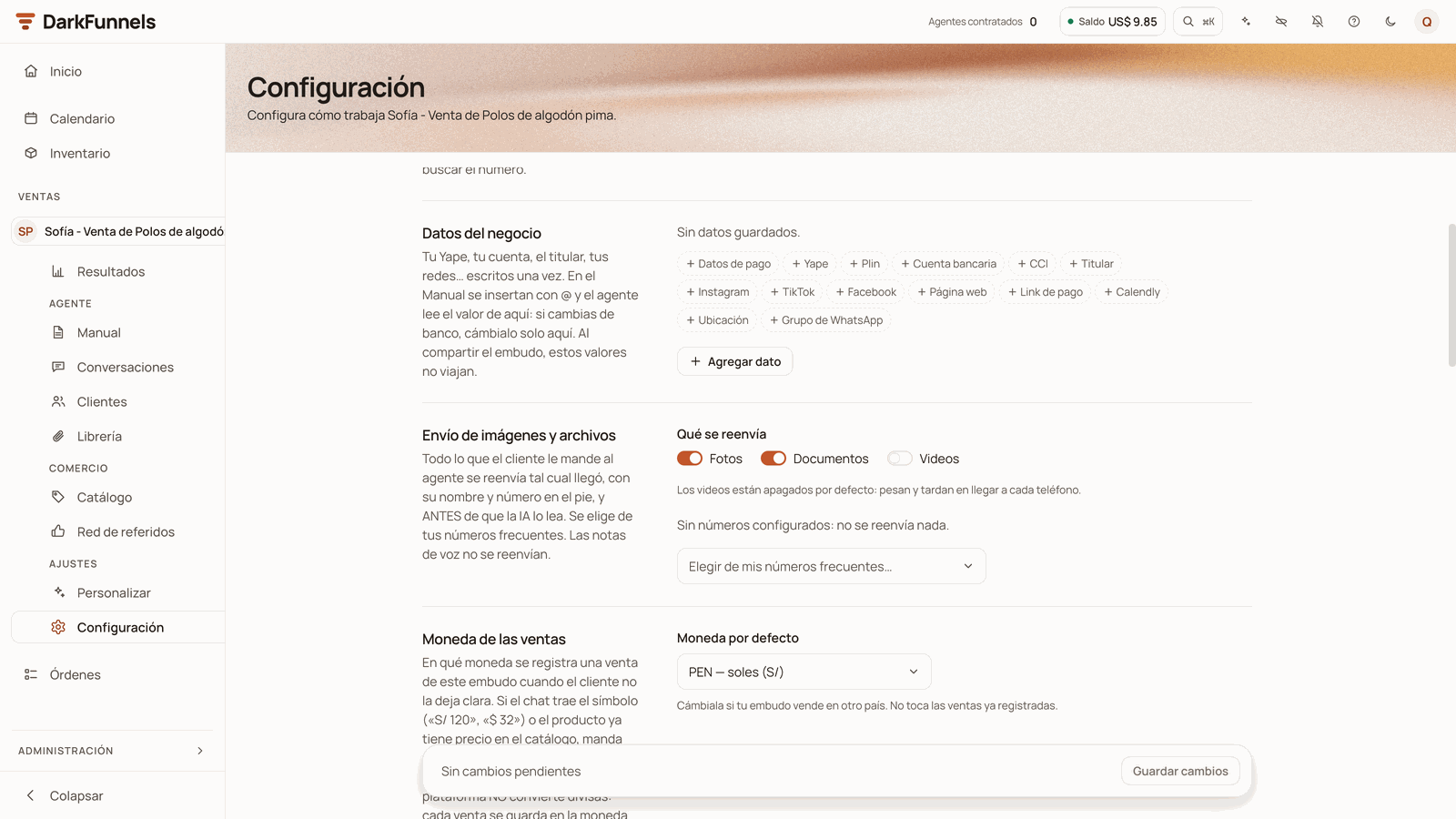
Datos del negocio, still empty («Sin datos guardados» — No details saved): the one-click suggestions and «Agregar dato» (Add detail).
Create the item
Type the value
Save
{{dato:yape}}. It is the way the playbook names it.Insert it in the playbook
@ and look for the Datos del negocio
group. The item goes in as a pill with a tag icon.- An item with no value stays pending. You can save «Titular» (Account holder) empty and fill it in later; the field says «Pendiente: escribe el dato» (Pending: type the detail). Meanwhile, the agent reads «Titular (pendiente)» instead of the value and does not make it up. The playbook Doctor flags it for you: «Titular» no tiene valor en Ajustes («Titular» has no value in Settings).
- You can rename an item without breaking anything. The code is born from the first name and does not change after that: if «Yape» becomes «Yape de la tienda» (Store Yape), the playbook keeps working.
- You cannot remove an item the playbook uses. On save you get «El manual
usa
{{dato:yape}}: cámbialo en el manual antes de quitar ese dato» (The playbook uses{{dato:yape}}: change it in the playbook before removing that item). Remove it from the playbook first. - «Copiar de otro embudo…» (Copy from another funnel…), which appears if you have more than one agent, adds the items from another agent that you do not have here yet, with their values.
- They can also be created from the playbook. In the
@menu, the option «+ Crear dato del negocio «X»» (Create business detail «X») creates it right here, with no value: then you come back to this screen to write it. - When you share the funnel with another account, your values do not travel. The item’s name travels and whoever receives it puts in their own. When you duplicate it within your account, on the other hand, the copy keeps your values. See Your funnels.
How the numbers in the lists are chosen
Five sections on this screen are lists of phones: Envío de imágenes y archivos, Informar de las ventas, Números de prueba, Reportes and Alertas de error. In them you do not type a loose number: they are chosen from your contact book, or added to it at that moment.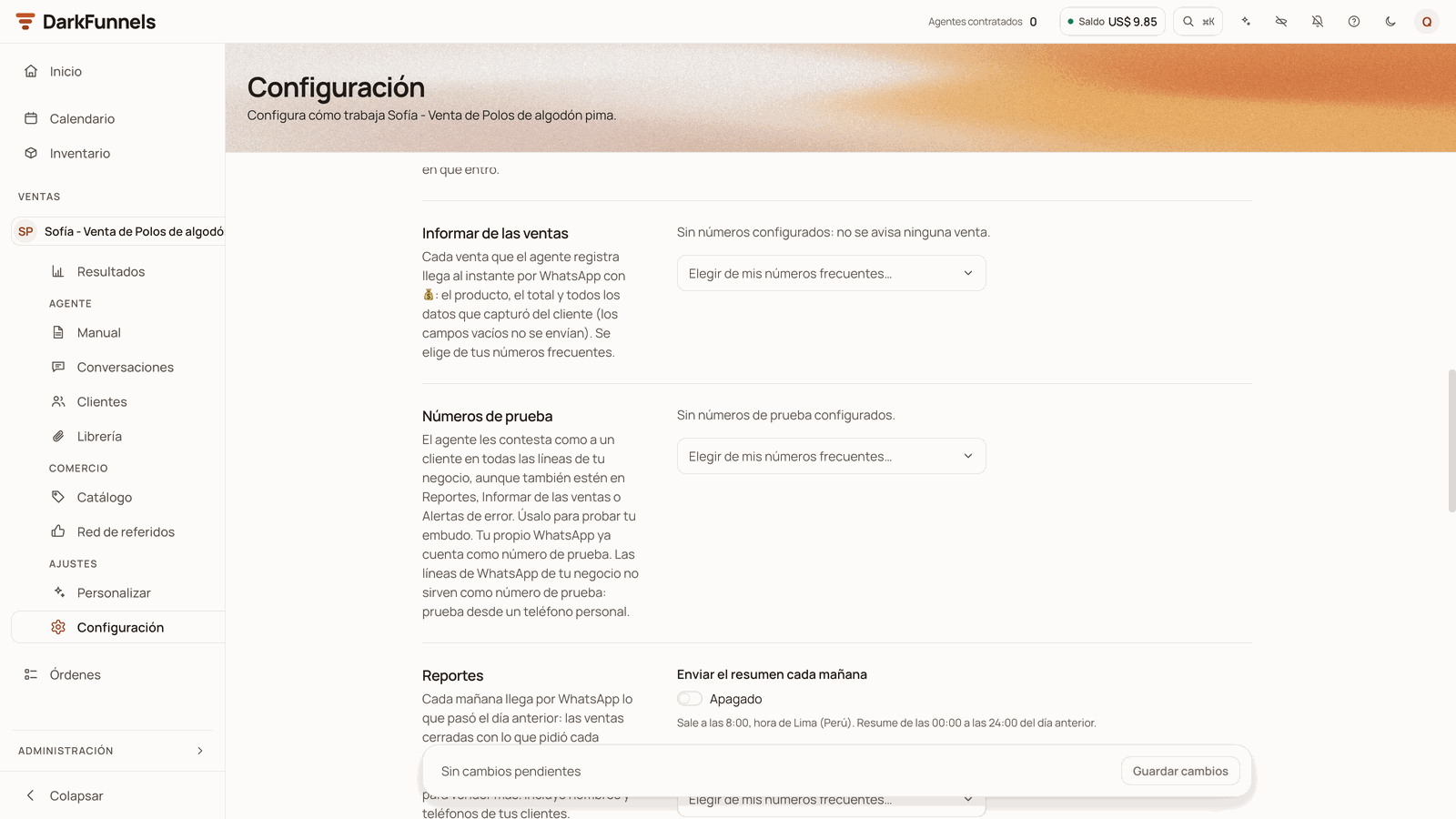
The notice lists are filled by choosing contacts from Números frecuentes; here, still empty.
- To add someone, open «Elegir de mis números frecuentes…» (Choose from my frequent numbers…) and click their name. Each contact comes with its number, for example «Andrea · +51 987654321».
- If they are not in your contact book yet, choose «+ Agregar un número nuevo» (Add a new number): type name, country and number and click Guardar (Save). As the screen itself warns, «Se guardará también en «Números frecuentes»» (It will also be saved in «Números frecuentes»).
- To take someone out, click the trash can on their row. They leave that list, but stay in your contact book.
- The same contact can be in several lists at once. The usual thing is for your own number to be in Informar de las ventas, Reportes and Alertas de error.
Sending images and files
What the customer sends your agent —the Yape screenshot, the photo of the product they want, a PDF— is forwarded just as it arrived to the numbers on this list, with the customer’s name and number at the bottom. It goes out before the AI reads it, so it arrives even if the AI fails to read it. It is the most practical way to check payment receipts without opening the dashboard. In Qué se reenvía (What gets forwarded) you choose the types with three switches: Fotos (Photos), Documentos (Documents) and Videos. Videos come switched off: as the screen explains, they are heavy and take a while to reach each phone.- Voice notes are not forwarded. They are conversation, not receipts; you see them in the inbox.
- With the list empty, nothing is forwarded to your team. The screen says so: «Sin números configurados: no se reenvía nada.» (No numbers set up: nothing is forwarded.) Watch out: photos and documents still reach a WhatsApp of the DarkFunnels team, with the list empty or full. Security and privacy explains it.
- If you choose numbers but switch off all three types, it does not let you save: «Elige al menos un tipo de archivo para reenviar» (Choose at least one file type to forward).
Sales currency
When the agent records a sale, it needs to know in what currency. What the chat says wins: if the customer wrote the symbol (for example «S/ 120») or the product already has a price in the catalog, that currency is used. The Moneda por defecto (Default currency) in this section is the one used when there is neither of those two clues. The list has eight: PEN (soles), USD (dollars), COP, MXN, CLP, ARS, BOB and EUR. It comes set to soles.Reporting sales
Every sale the agent records arrives instantly on WhatsApp to the numbers on this list, with a 💰 in front: the product, the total and the details the agent captured from the customer. Empty fields are not sent.- It reports sales and services. Appointments and leads do not come in here: appointments appear in the morning summary.
- It reports the sales that get recorded. Almost always your agent records them with the Registrar una venta / conversión (Record a sale / conversion) tool: if your playbook does not ask for it, do not count on the agent recording sales. With the Órdenes (Orders) app, you also get the notice when an order from a chat is paid in full and nobody had recorded that sale. See The agent’s tools.
- With the list empty, the notice does not reach anyone on your team: «Sin números configurados: no se avisa ninguna venta.» (No numbers set up: no sale is reported.) A copy of each notice still reaches a WhatsApp of the DarkFunnels team. Security and privacy explains it.
Test numbers
The phones you test your agent from as if you were a customer. The screen explains it like this: «El agente les contesta como a un cliente en todas las líneas de tu negocio, aunque también estén en Reportes, Informar de las ventas o Alertas de error.» (The agent replies to them as to a customer on all your business’s lines, even if they are also in Reportes, Informar de las ventas or Alertas de error.)Add the phone you are going to test with
Write to your agent's number from that phone
- Your own WhatsApp already counts as a test number: the one you entered when signing up does not need to be added. The exception: if that same number is the line you connected to an agent, it does not work for testing (see the next point).
- It applies to all your business’s lines, even if you save it in a single agent.
- Your business’s WhatsApp lines do not work as test numbers, even if you put them on this list: it is the protection so that two of your agents do not reply to each other in a loop. If you have two agents, do not test one by writing to it from the other’s line: test from a personal phone.
Reports
Every morning you get on WhatsApp what happened the day before: the sales closed with what each customer ordered, the appointments booked, how many people were talked to and an idea for selling more.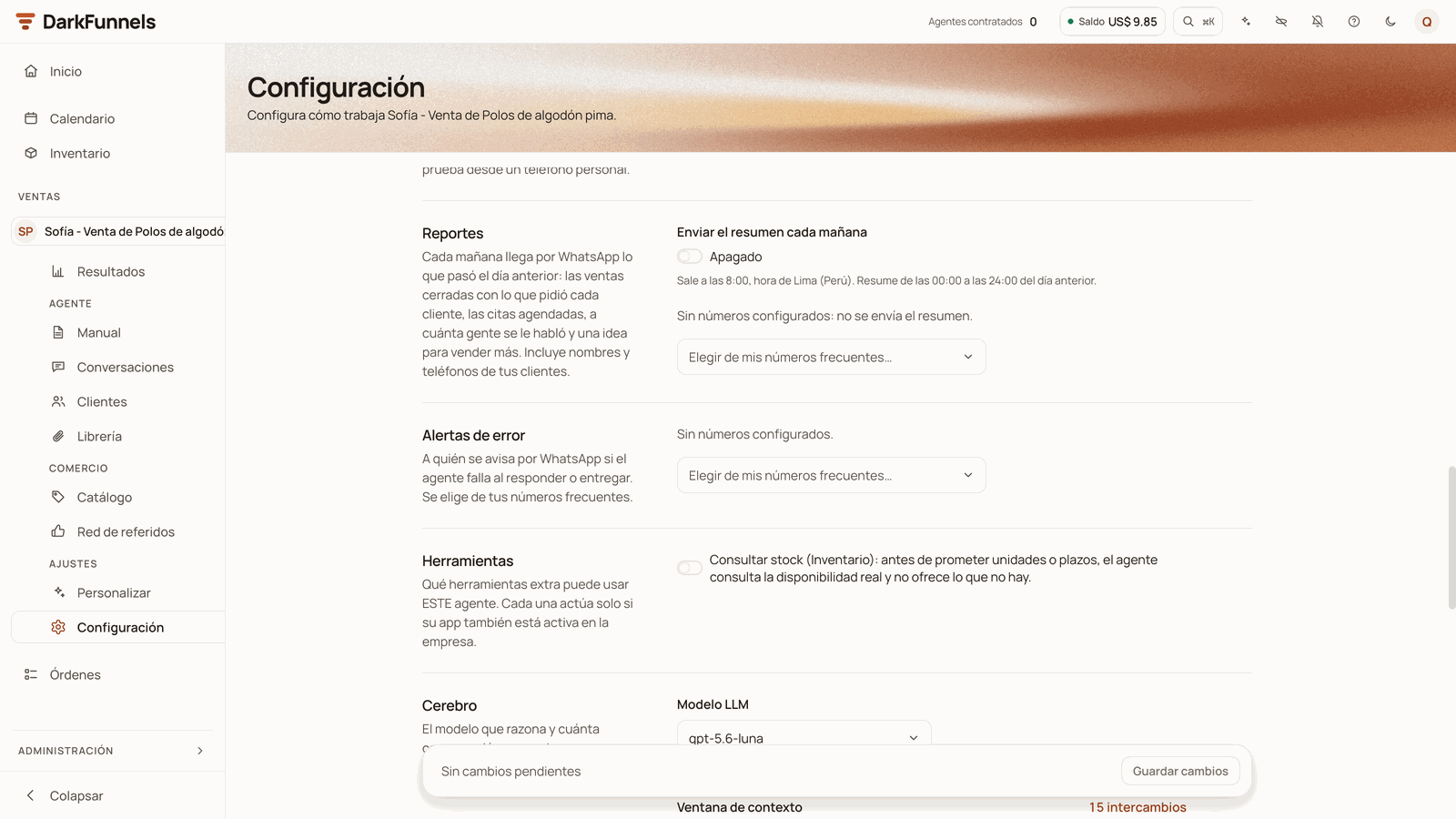
Reportes, with the «Enviar el resumen cada mañana» (Send the summary every morning) switch (here Apagado — Off — and with no numbers); below, Alertas de error, Herramientas and Cerebro.
Check that «Enviar el resumen cada mañana» is switched on
Choose who receives it
Save
- The list is empty: «Sin números configurados: no se envía el resumen.» (No numbers set up: the summary is not sent.)
- The agent is paused and had no activity yesterday. With the agent active, the summary goes out even if the day was a zero: that zero also tells you something.
- The summary goes out through your agent’s WhatsApp line. If that line has been disconnected for more than a day, or you never connected it, it does not go out that day. See Connect your WhatsApp.
Error alerts
Who is notified on WhatsApp if the agent fails when replying or when delivering a message. The notice names the agent and what happened, and asks you to check that conversation. It does not notify every bump. If the agent could not reply, it is retried first, and the notice goes out when the retry also fails. If what failed is the sending, it goes out when the failure is not a passing one. This list also gets your account’s notices: that your agent stopped replying because you ran out of enough balance, or because your trial ended. Those notices do not reach your customer. See Credits and top-ups.Tools
This section only appears if the Inventario (Inventory) app is active in your business. It has one switch: Consultar stock (Inventario) (Check stock (Inventory)). Switched on, the agent checks the real availability before promising units or delivery times, and does not offer what is not there. For it to work you also need products in the catalog. The agent’s tools explains it.Brain
Modelo LLM (LLM model) is the AI model that reasons and writes the replies. As the screen says, «Determina la capacidad de razonamiento y el costo por mensaje» (It determines the reasoning ability and the cost per message): how much each conversation spends is explained in Credits and top-ups. Ventana de contexto (Context window) is how much conversation the agent reads before replying. It is measured in intercambios (exchanges): each customer message with its reply. It goes from 1 to 50 and comes set to 15. With more exchanges, the agent remembers further back in the conversation.Writing
Deslices de tipeo (Typing slips) makes some bubbles come out with a small, natural mistake, the way a person in a hurry would write:- a stretched letter («holaa»),
- an irregular laugh («jajaj»),
- a missing accent («esta» for «está»),
- or the first letter in lowercase.
Behavior
The last section, Comportamiento, brings together several loose settings.Time zone and business time zone
- Zona horaria (Time zone) is the agent’s. It uses it to greet («buenas noches», good evening) and to talk about dates and times. It also rules the 8:00 summary and the do-not-disturb hours.
- Zona horaria del negocio (Business time zone) is the company’s: the copilot and the dates across your whole business use it. It comes set to «Default de la plataforma (Lima)» (Platform default (Lima)). Changing it requires admin permissions.
Do not disturb: from / to
No molestar: desde / hasta (Do not disturb: from / to) is a range of hours in which scheduled follow-ups do not go out: the ones due within the range wait until it ends. It is there so that a follow-up does not reach your customer at 3 in the morning. It goes by the agent’s time and comes set to 12:00 a.m. to 6:00 a.m. Reminders of a booked appointment and notices to the customer about their order do not wait: they go out on time. What piled up does not all go out at once when the range ends: it is spread at random over the following hour. With the factory range, between 6:00 a.m. and 7:00 a.m. To remove it, choose «Sin franja (a cualquier hora)» (No range (any time)) in either of the two fields: both are cleared and follow-ups go out on time, also in the small hours.Voice-note language
Idioma de las notas de voz (Voice-note language) is what language your customers speak to you in their audio messages. It is passed on to the system that turns them into text. It comes set to Español (Spanish); there are also Inglés, Portugués, Francés, Italiano, Alemán (English, Portuguese, French, Italian, German) and Detectar automáticamente (Detect automatically). Leave it on your customers’ real language. If you set it to «Detectar automáticamente», an audio in Spanish may come out transcribed into another language and the agent reply that it did not understand.Deletion phrase
Frase de borrado (Deletion phrase) is the word a customer writes to your agent to delete their data. It comes set to «borrar» (delete). It works when the message is only that phrase: upper or lower case does not matter, but it does not work inside a longer sentence. On receiving it, their data with this agent is deleted and their next message starts a conversation from scratch. What exactly the deletion reaches is covered in Security and privacy. You can change it to another one (up to 64 characters). If you leave the field empty, it goes back to «borrar». The change can take up to a minute to take effect.Base location: name and address
Ubicación base (Base location) is where your business is, as a reference for the agent: a name («Downtown Store») and an address. This does not send the map pin. For the agent to send your location on WhatsApp, save the branch in the Library, Ubicaciones (Locations) tab: The file Library explains it.Saving: the bar at the bottom
The bar stays fixed at the bottom while you move around the screen. On the left it says what state you are in:If something does not work
Frequently asked questions
Can I put the same number in several lists?
Can I put the same number in several lists?
I entered my WhatsApp number wrong when signing up
I entered my WhatsApp number wrong when signing up
Does changing the model affect conversations already in progress?
Does changing the model affect conversations already in progress?
The same thing, from your assistant
agents_write group in your connection URL (or
features=all); how the URL is put together is explained in
The connection URL. With that group it can
change the name, the model, the context window, the typing slips, the deletion
phrase, the agent’s time zone, the do-not-disturb hours, the voice-note
language, the currency, the daily summary, the notice lists, the file
forwarding, «Consultar stock» and the location.
It cannot touch Números frecuentes, Números de prueba, Datos del negocio
or the business time zone: that belongs to the dashboard. Two more things:
- A list you ask it to change replaces the existing one entirely. Always give it the complete list.
- If your assistant puts a number on a list that is not in your contact book, in the dashboard it shows as «Sin nombre» until you save it in Números frecuentes. It receives the notices all the same.
- “Tell me how my sales agent is set up: model, daily summary and who gets the notices.”
- “Raise my agent’s typing slips to 5%.”
- “Set my agent’s do-not-disturb hours from 10 at night to 7 in the morning.”