

optimind.darkfunnels.ai/manual.)And the other way round: the Guía (Guide) button in the Playbook’s bar
opens this very page in another tab.- «App no activa» (App not active): the Ventas app is not switched on in your business. If you manage the account, the message comes with the Ir a Apps (Go to Apps) button to activate it; if not, it asks you to tell whoever manages it.
- «No tienes acceso a Ventas» (You don’t have access to Ventas): the app is active, but your user does not have permission to use it. Permission is given from Personas y accesos (People and access): Invite your team explains how.
What reaches your agent in every message
Of the chapters, only one reaches it: the one that conversation is in. (The exception is a jump marked «ejecuta ya» — run now: in that same message the destination chapter reaches it too.) What you wrote in chapter 4 does not exist for it while the conversation is in chapter 1. If a rule has to hold in all of them, write it in every chapter where it matters — or put it in a shared section §, which you will see further down. The chapter does not travel alone. Along with it, on every turn, go:- the active persona (if none is chosen, nothing from the persona travels),
- the customer’s data, their notes and their appointments,
- the style rules for writing on WhatsApp,
- the tools and the files of that chapter,
- and, if the playbook uses business details (your Yape, your account, your social media), the value they have today in Configuración (Settings).
One change, start to finish
This is the complete cycle. The rest of the page explains each step in detail.Choose the funnel
Write the change
@ (see
The «@» menu).Check the Doctor
Save
Test it
See how it did
The first thing you see when you go in
If you have not chosen a funnel yet: the sample view
With no funnel selected, the Playbook loads a complete sample playbook, so you can see what a well-written one looks like. The top bar warns you: «Vista de ejemplo · selecciona un embudo para editar su manual» (Sample view · select a funnel to edit its playbook), and Historial (History), Cambios medidos, Datos (Data), Doctor, Probar and the save button are grayed out. You are not editing anything of yours. Choose your funnel in the selector of the left-hand menu, below Ventas, and the document is swapped for yours.If your funnel does not have a playbook yet
This screen appears when the playbook is left with no chapters (for example, if you delete the last one). It brings no explanations: only the ways out. On a computer there are four:The notices above the document
Between the bar and the document several bands can appear. Some coexist; others take turns. The ones that can show at the same time:- «Tu agente está listo. Conéctalo a WhatsApp para que empiece a responder a tus clientes.» (Your agent is ready. Connect it to WhatsApp so it starts replying to your customers.), with the Conectar WhatsApp → (Connect WhatsApp) button. It shows when your playbook has chapters and your WhatsApp is not connected yet (if the copilot is walking you through the setup, it may not show). In a funnel from the Ecommerce template that is still missing something, you see «Antes de conectar:» (Before connecting:) instead, with the list of what is missing.
- «Datos por revisar de la copia.» (Data to review from the copy.) Only in a funnel that another account shared with you and that still carries their data. It offers you Completar en Ajustes (Complete in Settings), Buscar en el manual (Search the playbook) or Ver archivos (See files), and it goes away when you click Ya lo revisé (I’ve reviewed it). See Your funnels.
- «Faltan N datos por completar…» (N details left to complete…), with Ayúdame a completarlo (Help me complete it). Only in a funnel born from the Ecommerce template: its section covers it.
- The copilot’s proposals waiting for your decision: see What the copilot proposes to you.
✏️ The whole document is the editor: click any line and type · type @ to mention files, tools, variables and chapters · clicking a mention changes it, ⌫ deletes it · «Si…» and «Nunca…» color themselves · create chapters and § sections from the index · save whenever you want (a backup stays in the history)That is why your screen may not match a colleague’s.
The screen, top to bottom
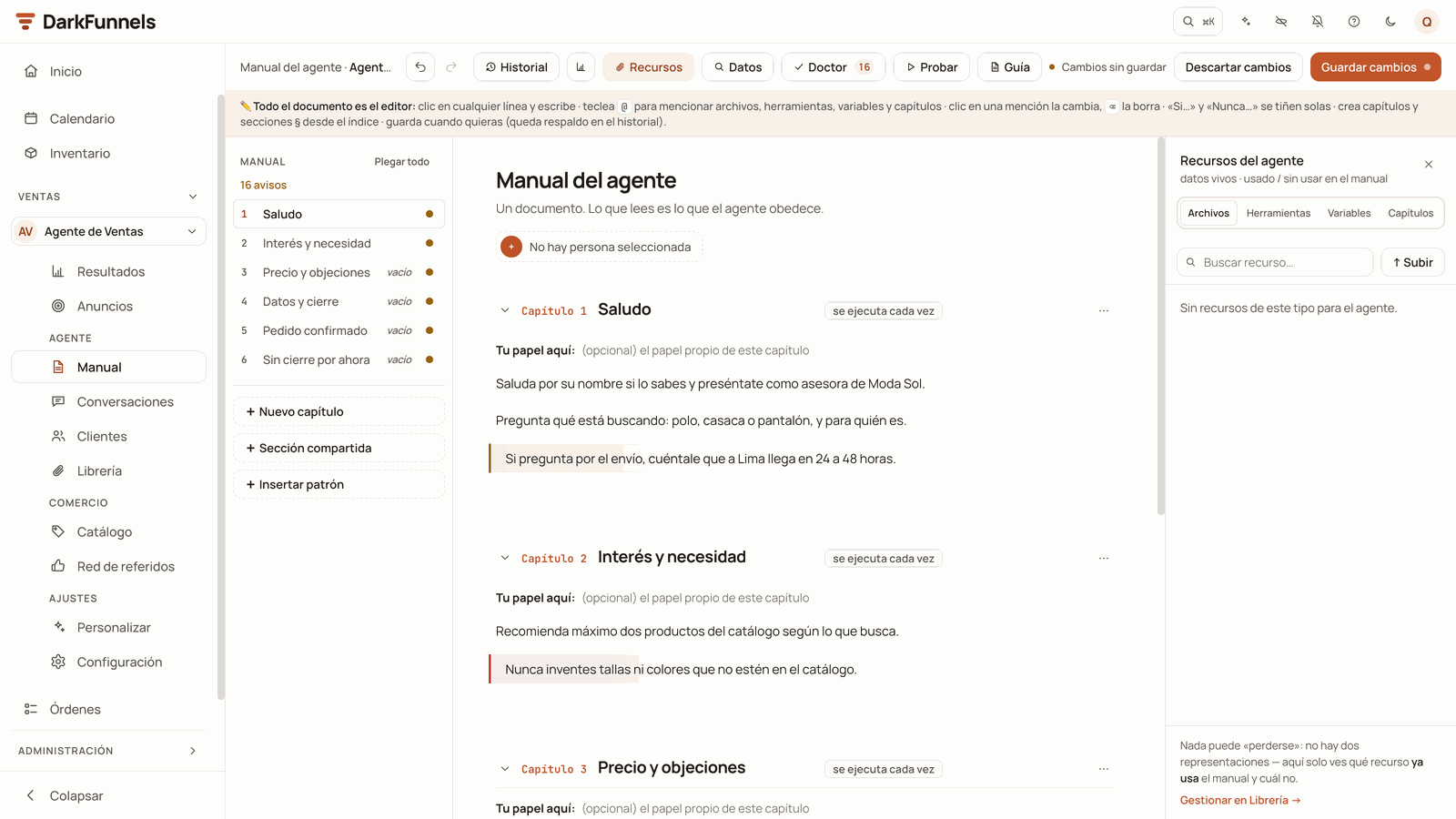
The editor on a computer: the button bar at the top, the chapter index on the left, the document in the center and the Recursos (Resources) drawer open on the right.
The button bar
On a computer, left to right:⌘Z and company work only
on a computer, and not while you have the Historial or the Cambios
medidos window open, nor with the cursor inside a form field. The undo and
redo buttons do keep working in those cases. (On the phone those buttons
only appear when you have unsaved changes.)The index on the left
It lists your chapters with their number and their name, and after them the shared sections § with the chapters they apply to. Below, it brings the buttons for creating new things:- + Nuevo capítulo (New chapter)
- + Sección compartida (Shared section)
- + Insertar patrón (Insert pattern) — which also opens by typing
/on an empty line. - + Cargar plantilla de Ecommerce (Load the Ecommerce template) — only in a sales funnel with one chapter, when the template can be loaded. Its section, near the end, covers it.
The document
Right at the top, the title «Manual del agente» (Agent playbook) and the sentence that sums up why it exists. Below it, the persona pill (with its photo or its initial, and its name) and, in funnels created with the new system, the «Memoria a Largo Plazo (RAG)» (Long-Term Memory (RAG)) button. Then the chapters begin, and after them the shared sections §. On a computer, the Recursos drawer opens by itself when you go in. If you close it, the document gains width.Inside a chapter
The whole document is the editor: you click a line and type. Inside the document there are no forms and no labeled fields. This is what you see in each chapter: The number and the name. On the left, the label «Capítulo 3» (Chapter 3); next to it, the name, which you write. The same number appears in the index on the left. If you leave the name blank, the chapter stays unnamed: in the index you will see «(sin nombre)» ((no name)) and your agent will only receive its number. It is worth giving it a short one. The chapter’s lines. This is the script: what your agent executes. It carries no label inside the editor; they are simply the lines you write under the name. It is the part you will touch the most. To add a line at the end, hover over the chapter: a thin «+ añadir instrucción» (add instruction) line appears; clicking it turns it into the box «+ Escribe una instrucción — teclea @ para mencionar» (Write an instruction — type @ to mention) (in an empty chapter and on touch screens it is visible without hovering). «Tu papel aquí:» (Your role here:). This is who your agent is in that chapter. On a computer it appears in every chapter, even if it is empty, with the hint «(opcional) el papel propio de este capítulo» ((optional) this chapter’s own role). On the phone it only shows if it has something written.- «Ver» (View) — opens a window with that chapter’s text as it will be saved.
- «✦ Reescribir» (Rewrite) — selects the whole chapter and opens the ✦ IA (AI) actions.
- In the ⋯ menu: «Ver como lo recibe el agente» (See it as the agent receives it), «✦ Reescribir el capítulo» (Rewrite the chapter), «Probar desde aquí» (Test from here; it starts the test chat at that chapter), «Ayúdame a completarlo» (Help me complete it; only in a template funnel, if that chapter has placeholders left) and «Eliminar capítulo» (Delete chapter; read Deleting a chapter before using it).
Lines color themselves
Don’t be alarmed if you see colors you did not put there: the editor detects each line’s intent by how it starts. Those beginning with «Si…» (If…) are painted as a condition, and those beginning with «Nunca…» (Never…) or «Siempre…» (Always…) as a fixed rule. It also works after a heading: «PASO 2: Si el cliente insiste…» (STEP 2: If the customer insists…) gets colored. It is a visual aid in the editor: the text that gets saved is exactly the one you wrote.The index as a map
On the left, each chapter carries a colored dot: red if the Doctor found an error in it, amber if it has warnings, green if there is nothing. Hover over the row and the tooltip tells you what is wrong with it; a click on the dot takes you to the line of the first finding. Under the «Manual» label the total is summarized («1 error · 2 avisos» — 1 error · 2 warnings). Also:- «1×» marks the chapters that run only once.
- «vacío» (empty) marks those with no lines of their own (only the § sections apply to them).
- «N por completar» (N to complete) marks, in a funnel from the Ecommerce template, the chapters and sections that still have placeholders to fill.
Collapsing chapters
With six chapters the document gets long. The chevron to the left of each label collapses the chapter: what is left is the heading and one line summarizing it (how many PASOS it has, how many files and tools it mentions, which chapters it exits to and how many § sections apply to it). A click on the chevron or on that summary opens it again. In the index, «Plegar todo» (Collapse all) collapses every chapter at once and «Desplegar todo» (Expand all) opens them. Collapsing does not touch the text: what is written is still there, it just stops being visible. And any jump (a chapter from the index, the Doctor’s «Ir al sitio», the first use of a resource, the chapter the test chat walks through) expands the chapter before taking you there.The shared sections §
A shared section is a block marked with the § symbol that applies to several chapters at once. You write it once and it serves all the ones you choose. It carries a chip saying which ones it applies to: «aplica a capítulos 1–2, 4» (applies to chapters 1–2, 4 — consecutive numbers are joined with a dash) or «sin capítulos» (no chapters) if it applies to none. On a computer, a click on that chip lets you change the scope.Writing the script: the PASOS (steps)
«PASO 1:», «PASO 2:»… (STEP 1:, STEP 2:…) are not a button or a field: they are a way of writing inside the chapter’s lines. Your agent understands it, and so does the system: when a scheduled reminder has to start at PASO 4, it trims the text so it starts right there.- Each step carries its action and its exit («Si …», «Cuando tengas X, salta al PASO N» — If …, When you have X, jump to STEP N).
- If the chapter takes a different path depending on the customer’s situation (typical of the first one), the condition goes inside the step it affects, not in a paragraph before PASO 1. For example: «PASO 2: Si el cliente ya dijo qué busca, sáltate este paso y ve al PASO 3» (STEP 2: If the customer already said what they are looking for, skip this step and go to STEP 3).
- Scripts that must come out verbatim go with «dile esto:» or «dile esto exactamente:» (tell them this: / tell them this exactly:).
The «✦ IA» pill: let the AI tidy up your text
You do not have to structure it by hand. Select a piece of the chapter and click the «✦ IA» (AI) pill that appears above it:Making the conversation advance
There are two ways for the conversation to move from one chapter to another. The usual one is a mark inside the chapter’s text, written in the script’s lines. The other is the «se ejecuta 1 vez» chip, which jumps to the chosen chapter as soon as that chapter finishes; it is explained further down in this same section. The convenient way: type@, choose the Capítulos (Chapters)
group and choose the destination chapter. A mention is left on the line
(that colored “ink” of the editor). One click on it changes it; ⌫ deletes it.
The literal way, which is what you will see written in old playbooks and
what you can type by hand:
- The destination has to exist. If there is no chapter with that number — for example, if your agent tries to advance beyond the last one —, the advance is rejected and the conversation stays where it was. The Doctor detects mentions of chapters that no longer exist.
- The advance is applied when the reply is delivered. A turn that gets interrupted (the customer writes over it) does not advance.
Jumping within the same message
Normally the jump happens and your agent waits for the customer’s next reply. If you want it to execute the destination chapter in that same message, there is a mark for that: Click a chapter mention that is already written and the checkbox «Ejecutar ese capítulo de inmediato» (Execute that chapter immediately) appears, with its explanation: «en el mismo turno, sin esperar a que el cliente escriba» (in the same turn, without waiting for the customer to write). With the checkbox ticked, the mention says so: «· ejecuta ya» (· runs now).Chapters that run only once
The greeting is the typical case: it is said once and it moves on to the next one. That is handled from the chip next to the chapter’s name, which says «se ejecuta cada vez» or «se ejecuta 1 vez → pasa a capítulo N». Clicking it opens a small window — «Ejecución de «Saludo»» (Execution of “Greeting”), with your chapter’s name — with two controls:- The checkbox «Se ejecuta una sola vez» (Runs only once).
- The list «al terminar pasa a» (on finishing, go to), whose default option is «siguiente (capítulo N+1)» (next (chapter N+1)).
/manual, on a
computer). From the phone, or from the playbook embedded in Conversaciones
(Conversations), the chip does not respond to the click and, on top of that,
it is only visible when the chapter is set to «una sola vez» (only once): if
it says «se ejecuta cada vez», nothing is shown there.The «@» menu: mentioning things
Type@ on any line and the mentions menu opens, with up to seven groups:
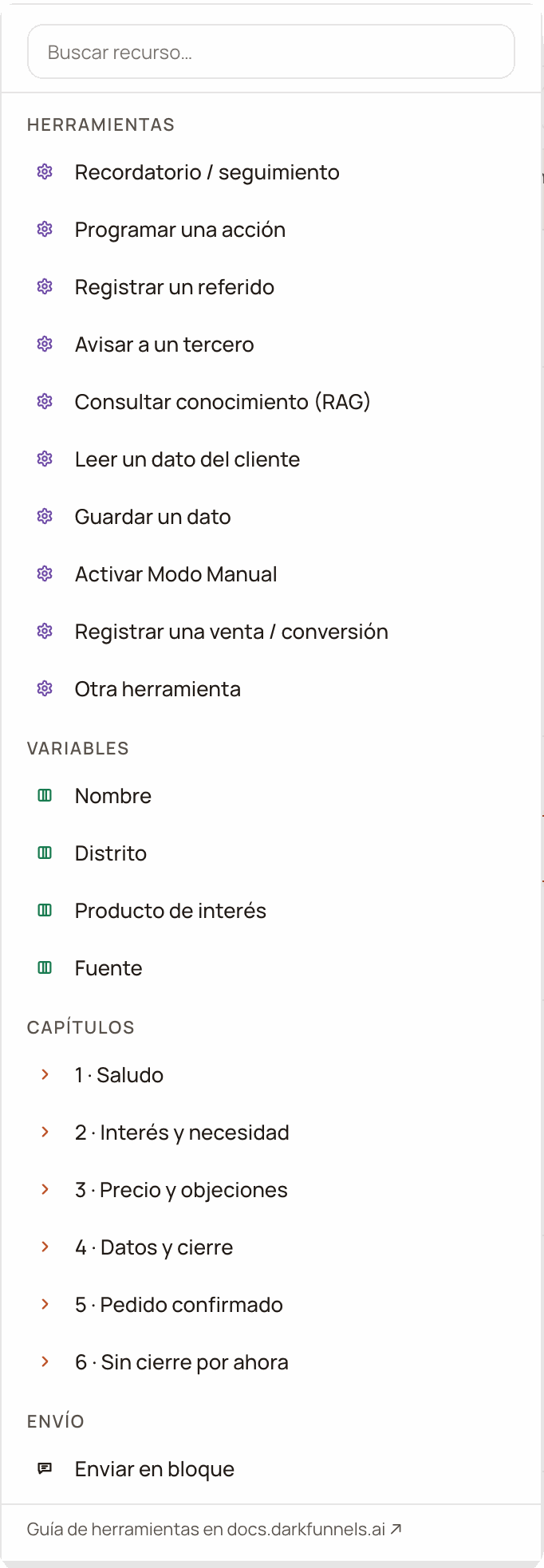
The @ menu: each group is a kind of thing you can mention. This funnel shows four: Herramientas (Tools), Variables, Capítulos (Chapters) and Envío (Sending).
⌫ deletes it. If the mention is broken and there is a resource that
resembles it, the menu proposes at the top «✓ Corregir a «…»» (Correct to
”…”).
Notifying someone by name
The Avisar a un tercero (Notify a third party) tool (your agent sends a WhatsApp message to someone else, like the warehouse manager) has a field for saying to whom. There, type@ or press + and choose:
- Equipo de ventas (Sales team): your «Informar de las ventas» (Report sales) list from Configuración.
- Any contact from your Números frecuentes.
Dile a «Equipo de ventas» que … (Tell “Sales team” that …). That way, if
the number changes, you change it in Configuración and the playbook is not
touched. If you do not have any saved contacts yet, the form reminds you. A
number typed by hand also works, with its country code.
Business details: your details, in one place
Your Yape, your account number, the account holder, your Instagram or your payment link do not have to be written by hand in every chapter. They are written once in Configuración (Settings) and the playbook mentions them.Write the detail in Configuración
Mention it in the playbook
@ → Datos del negocio and choose the
detail. A mention with a tag icon is left. Internally it is stored as
{{dato:yape}}.Save the playbook
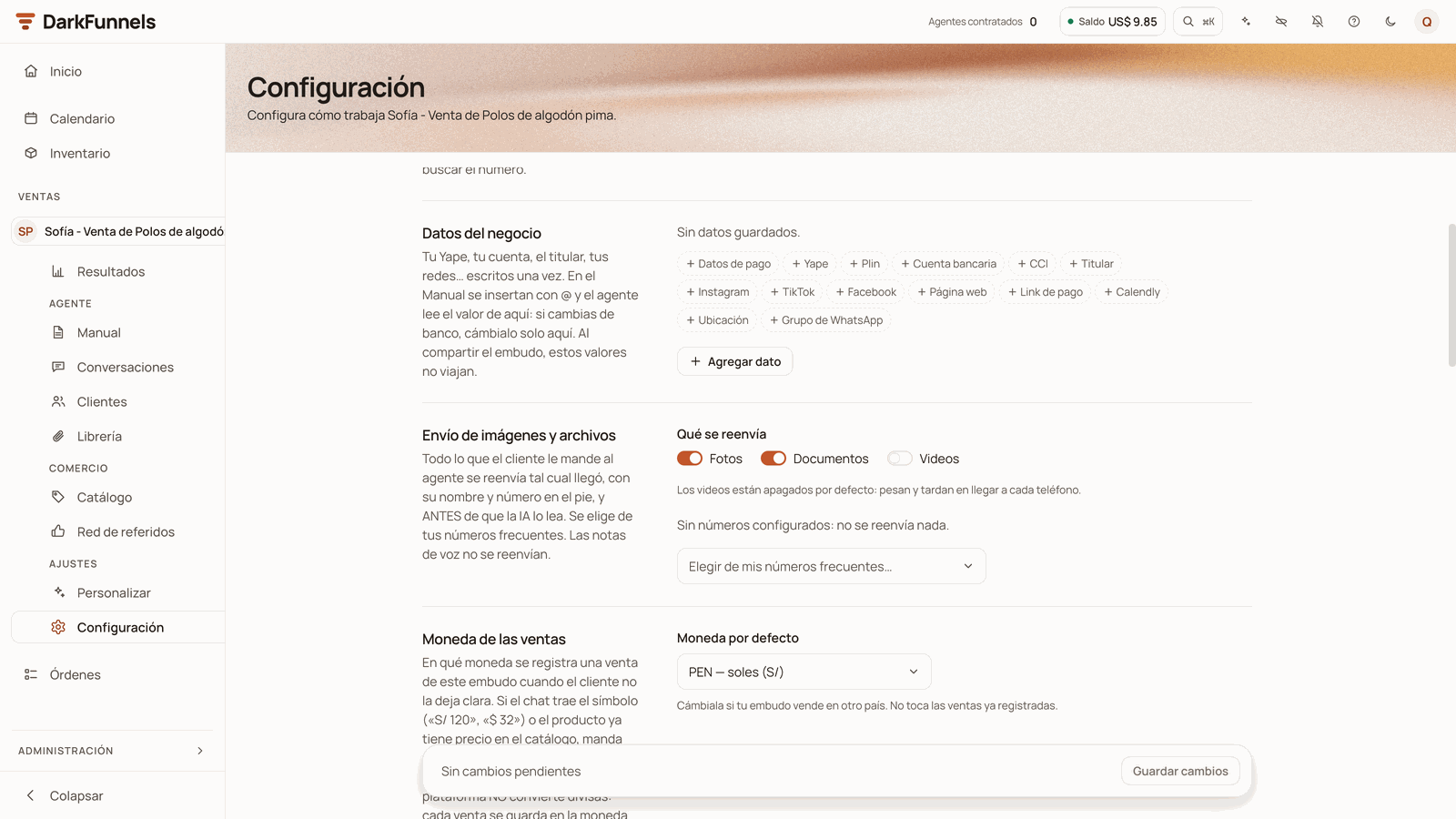
The «Datos del negocio» (Business details) section in Configuración, still with no details: the one-click suggestions and «Agregar dato» (Add detail).
- If you change banks, you change it in one place: in Configuración. The playbook is not touched.
- A detail without a value stays «pendiente» (pending). Your agent reads «Yape (pendiente)» and does not make it up; the Doctor warns you.
- «+ Crear dato del negocio «X»», from the
@menu, creates it instantly in Configuración, with no value. A message offers to take you there to write it. - When you share the funnel with another account, your values do not travel: whoever receives it puts in their own. See Your funnels.
Sending a file from the script
For your agent to send a file from your Library you write a marker at the exact point in the script where it should go out. Inside it goes the file’s nickname (its send trigger), exactly as it appears in the Library:@ → Archivos menu, or the ✦ ¿Dónde? (Where?) button in
Recursos, which asks the AI for the sentence with the marker already inside.
- The default nickname is the file’s name without the extension, and it is
the one worth keeping: that way the marker, your agent’s search and the
@menu all name the same thing. Files linked a long time ago may keep a different, older nickname. - If the marker is written correctly, the customer does not see it: it is
replaced by the file. If it is missing a
#sign, on the other hand, that text goes out as-is in the chat; and if the nickname does not resolve, the marker disappears and the message goes out with no attachment, with no visible error. - The editor’s red underline compares against the nicknames, not against the file names: a marker written with the name may come out underlined and still be saved and work. If you leave nickname = name, the two match and the doubt is over.
- Every file mention carries a status dot in the editor: green if the file is active, amber if it is paused in the Library (it exists, but the agent will not send it even if the playbook asks for it) and red if it does not exist. Hover over the mention and a card shows the file (type and size), its status, the condition that triggers it and which other chapters use it; from there you can view the file, swap it for another, reactivate it if it is paused or, if it does not exist, reconnect it to another one or open Recursos to upload it.
- If you take away the file’s send permission, the markers that named it are left with nothing to resolve. The playbook’s text is not touched by itself: the Doctor points it out to you.
A passage that goes out as-is
Your agent splits its reply into several short bubbles. If you have a text that must go out whole and untouched — some payment details, some terms —, wrap it. Select it and choose «Enviar en bloque» in the ✦ IA pill (or in the@ menu → Envío), and the editor puts in the markers:
The «Datos» (Data) panel
The Datos button in the bar opens a panel titled «Datos duros» (Hard data) that gathers, in a single list, the playbook’s links · prices · phone numbers · exact phrases. It is the answer to “my price changed, where do I change it?” without having to reread the whole playbook.- Each value says how many times it appears and in which chapters. A click takes you to the first appearance. At the top you have a search box, «Buscar valor…» (Search value…).
- The links, prices and phone numbers come with an «Actualizar» (Update) button. It opens a window where you write the new value and choose which appearances to apply it to (all of them come ticked). It finishes with «Actualizar N» (Update N).
- The exact phrases are only listed: you can jump to them and edit them by hand, but they do not have an «Actualizar» button.
- If the same product appears with different prices, or the same link with variants, the panel warns you at the top.
The «Recursos» (Resources) panel
The Recursos button opens a drawer on the right (computer only) with what your agent has available, in four tabs: Archivos (Files), Herramientas (Tools), Variables and Capítulos (Chapters). Under the title it tells you whether each thing is usado / sin usar en el manual (used / unused in the playbook).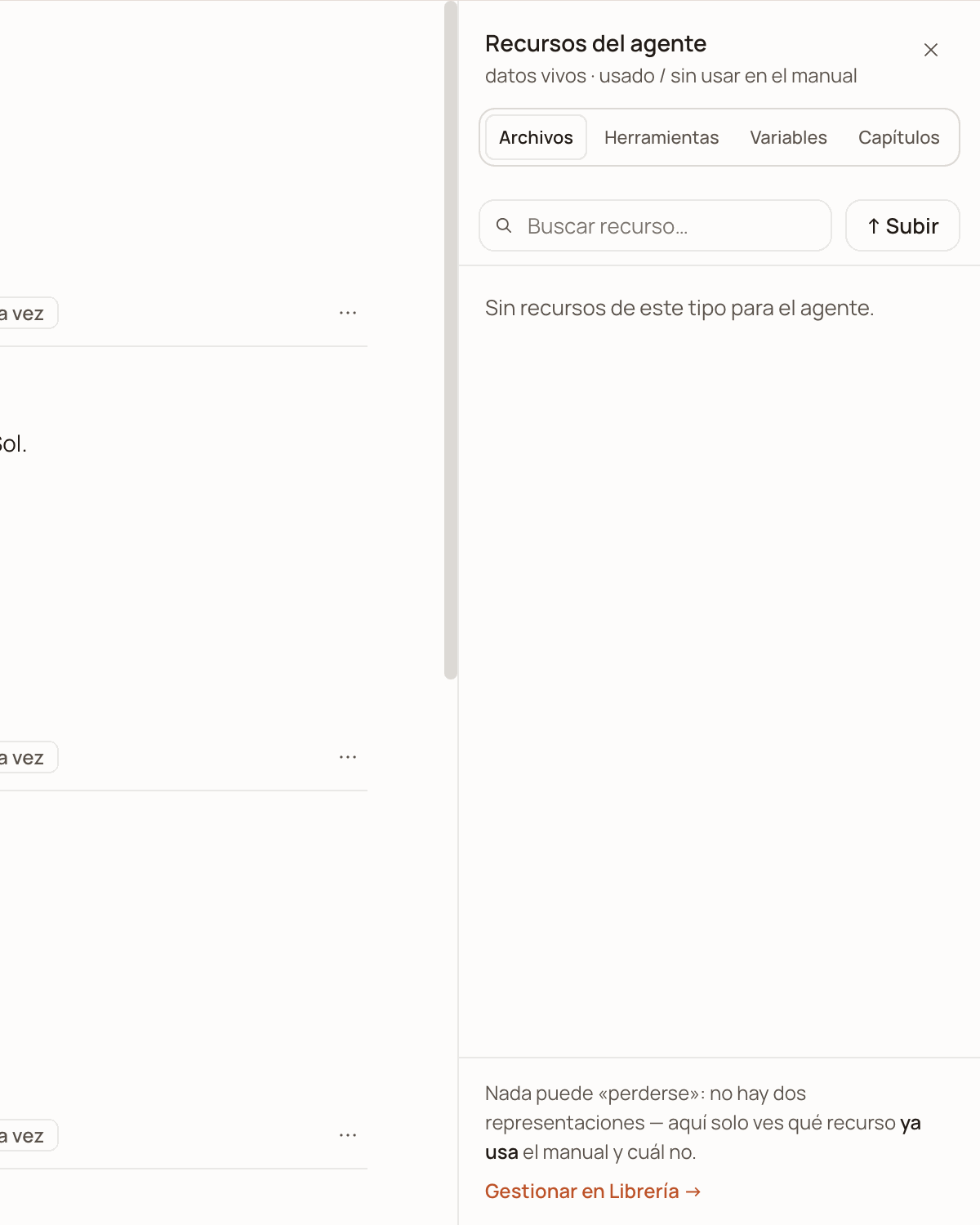
The «Recursos del agente» (Agent resources) drawer, docked to the playbook, on the Archivos (Files) tab: this funnel has none yet.
- upload a file without leaving the playbook (↑ Subir — Upload, in the Archivos tab),
- jump to where each resource is used inside the script,
- insert it at the point where you have the cursor (Insertar — Insert),
- and, for a file the playbook does not use yet, ask the AI where to put it (✦ ¿Dónde?): it proposes a sentence with the marker already inside, and you decide whether to insert it.
The agent’s persona
- its name and its job title (or «Sin cargo» — No job title),
- two marks, «Cara» (Face) and «Voz» (Voice), which light up if it has a photo and a voice configured,
- the label «Activa» (Active) on the chosen one, and an «Activar» (Activate) button on the others,
- and an «Editar» (Edit) button.
Long-Term Memory (RAG)
Next to the persona there may be a second button, «Memoria a Largo Plazo (RAG)» (Long-Term Memory (RAG)). It opens a knowledge document separate from the playbook, with a ceiling of 200,000 characters. Your agent consults it with the Consultar conocimiento (RAG) (Consult knowledge (RAG)) tool when a customer asks something. The difference from the playbook, in one line: the playbook is orders; the memory is knowledge. What your agent must do goes in the playbook; what it must know in order to answer questions, in the memory. Inside it has:- Editar (Edit) and Vista previa (Preview): the document accepts headings, bold and lists (Markdown format), and the bar at the top puts them in for you.
- Probar (Test): a search box where you write a question the way a customer would and see what your agent would receive. It helps you check whether something is already written before writing it again. What you have just saved can take up to a minute to be found by meaning; in the meantime, the search finds it by the exact words.
- Its own Guardar (Save) button, separate from the playbook’s: it saves instantly and tells you how many fragments it ended up in. Saving the document empty withdraws the memory: your agent stops consulting it.
How it saves
The button on the right tells you where you stand:The local copy: a net from one day to the next
While you write, the editor saves a copy in your browser: half a second after you stop typing, and instantly when you create or delete a chapter. It is there so you do not lose the work if you reload the page or go to another screen: when you come back, your changes are still there and «Guardar cambios» is still lit. If it is the first time you open the Playbook since you opened or reloaded the dashboard, the notice «Todavía tienes cambios en el manual sin guardar» (You still have unsaved changes in the playbook) also comes up, with Seguir editando (Keep editing) and Guardar (Save).One save, one version
Every time you press save, ONE version is created in the Historial, even if you changed ten chapters at once. If you did not really change anything, no version is created. These also create a version: saving from the Conversaciones panel or from your assistant, applying a copilot proposal, loading the Ecommerce template and «Volver a como estaba» (Go back to how it was) from Cambios medidos. The Historial keeps only the 10 most recent versions: number 11 pushes the oldest off the list.The History: rolling back
The Historial button (on a computer) opens a window titled «Historial del embudo» (Funnel history). There you see the saved versions, the most recent at the top, with when each one was saved and how many chapters it had.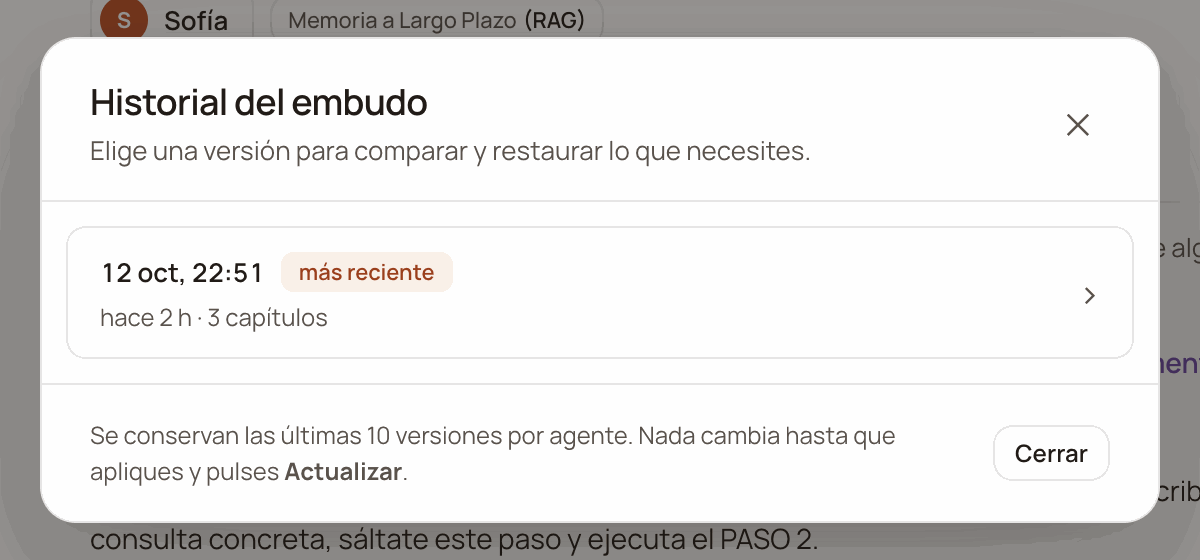
The «Historial del embudo» (Funnel history): each saved version with its date, how long ago it was saved and how many chapters it had. Here there is only one, the most recent.
Measured changes: what happened after each change
You changed the greeting — did you sell more or less? Cambios medidos (Measured changes) tells you. Every change you save is measured on its own: the dashboard compares the week before with the week after and gives you a reading. If the change went badly, you can return the playbook to how it was with one button.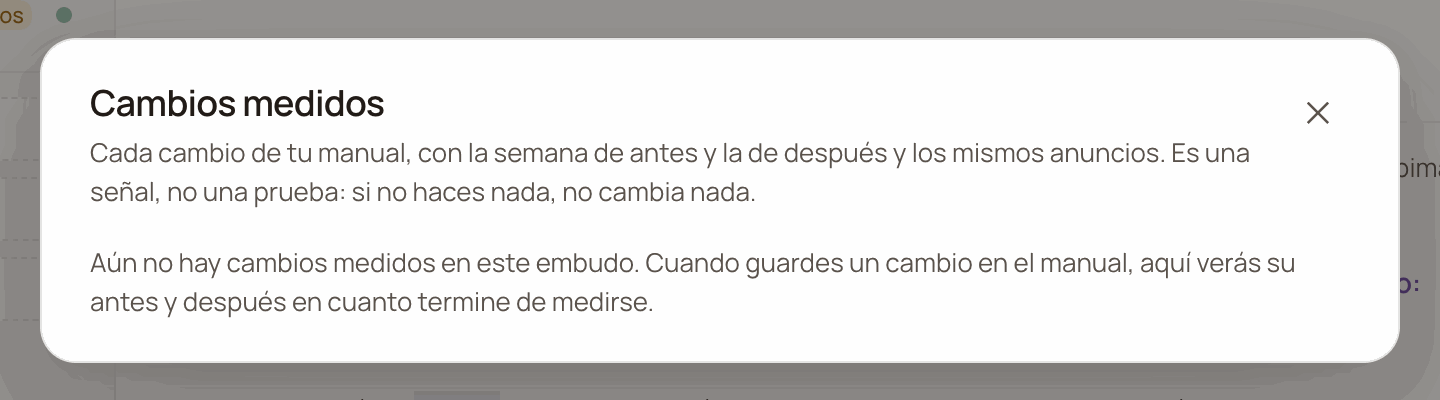
The «Cambios medidos» (Measured changes) window for a funnel that has none yet: once you save a change, its before and after will show up here.
Going back to how it was
Expand the change’s row and click «Volver a como estaba el …» (Go back to how it was on …, with the date). It asks you to confirm: your agent will use that day’s playbook from its next message, and your persona and your funnel’s data do not change. If you had unsaved changes in the playbook, they are discarded.- The rollback creates a new version in the Historial, and it is measured like any other change.
- It also works from the phone: it is not an edit of the script, the server does it.
- It requires the same permission as saving the playbook.
- after that change you made others — to choose what to recover, use the Historial;
- the change did not touch the text of any chapter;
- you already rolled it back;
- that version is no longer stored;
- that version has no chapters;
- going back would delete a chapter where there are customers today, or one they have a pending advance towards: move them first;
- your referrals chapter or a shipping rule points to a chapter the rollback would delete;
- you do not have permission to change the playbook.
What the copilot proposes to you
When you ask the copilot to change your playbook, it does not change it on its own: it leaves you a proposal. Proposals for playbook changes that are waiting for your decision appear in a strip above the document — on the phone too —: «El copiloto propuso cambios en el manual y esperan tu decisión» (The copilot proposed changes to the playbook and they are waiting for your decision), one row per proposal.Open the proposal
Choose what to apply
Apply
The Doctor
The Doctor button reviews the whole playbook and lists what is broken, with the number of errors and warnings in view. It is not AI and not opinion: they are «problemas verificados del manual, con su arreglo» (verified playbook problems, with their fix), as the button itself says. It checks while you write, without waiting for you to save.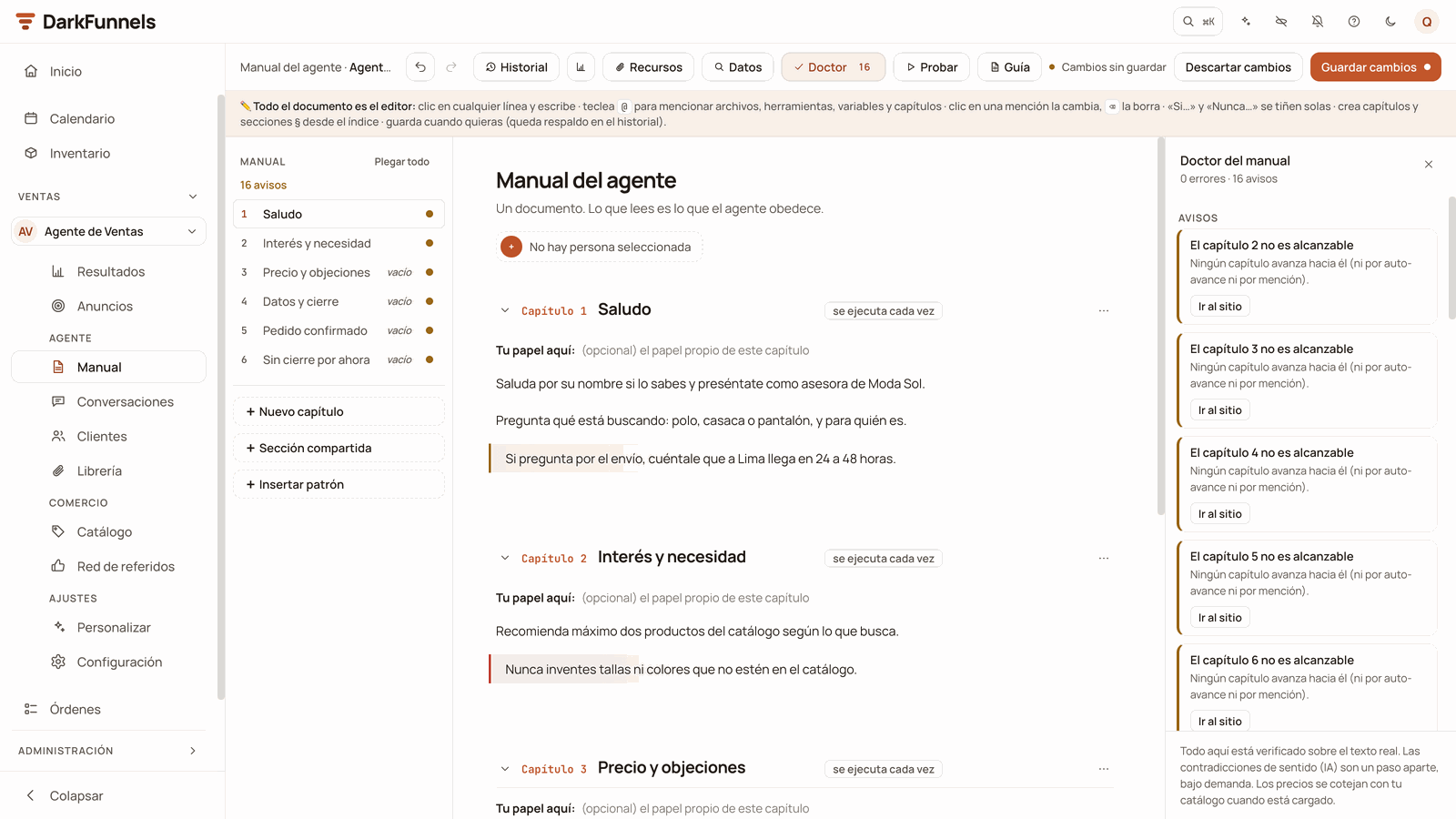
The «Doctor del manual» (Playbook Doctor) panel with 0 errors and 16 warnings: each warning with its explanation and its «Ir al sitio» (Go to the spot) button.
- The script’s structure. Chapters not written in PASOS; PASOS out of order or not starting at 1 (renumbered in one click, references included); references to a PASO that does not exist; in-between chapters that advance to no chapter; chapters that cannot be reached; gaps in the numbering; chapters with the same name; and a rule that would hold for the whole conversation stuck inside a chapter (that one goes in PUNTOS CLAVE of the shared section).
- Mentions. Broken mentions (a file or a variable that does not exist), mentions of a chapter that no longer exists, chapter markers in the old format, tools written without formatting or with their data outside the mention, unclosed send blocks and § sections without scope.
- Prices. A price in the playbook that differs from your catalog’s for that product. (It is checked when the catalog is loaded.)
- Business details. A mention of a detail that does not exist in Configuración (error) or of one without a value (warning).
- Notices to third parties. A number the tool is going to reject (no country code, spaces inside…) and a notice by name to someone who is not in your Números frecuentes. In both cases, the notice does not go out.
Data written by hand
In its own section, the Doctor shows you your business’s numbers, accounts, social media and links written inside the playbook: a payment line, the account holder, an @username, a link. They are not wrong, but it is worth taking them out of the text:- a detail of your own written by hand → «Pasar a Datos del negocio» (Move to Business details): it creates the detail in Configuración with that value and puts its mention where it was written;
- a notice to the number of someone you already have saved → «Avisar a «…» por nombre» (Notify ”…” by name).
The blanks the agent fills in
At the end, the Doctor lists separately the text in square brackets that your agent completes when writing, like[nombre si lo da] ([name if they
give it]). It is not an error and there is nothing to fix: they are only
listed in case one of them should really be a variable. They do not count in
the button’s number.
«PRECIO_1» kind (in capitals, with an underscore and inside angle quotes).
Those are counted by the «Faltan N datos por completar» notice, the index and
the Por completar panel, only in a funnel born from the Ecommerce template. In any funnel, the
line that contains one of those placeholders does not reach your agent: it is
left out entirely, without warning. If you see one in another playbook, replace
it with the real data or delete the sentence.A playbook born from the Ecommerce template
If your funnel was born from the Ecommerce template (from the setup of a sales funnel, or with Cargar plantilla de Ecommerce), the playbook brings a shared block and three chapters — Saludo, En venta and Pedido confirmado (Greeting, Selling, Order confirmed) — with placeholders (datos por completar) of the«PRODUCTO_MARCA» kind where what belongs to your business goes. The editor
paints them amber, and above the document a notice says how many are missing:
«Faltan N datos por completar: X en el bloque y Y en los capítulos» (N
details left to complete: X in the block and Y in the chapters).
All of this also applies if in the setup you chose Armar mi flujo desde 0
(Build my flow from scratch): it brings the same block and the same three
chapters, but with the chapters’ steps blank.
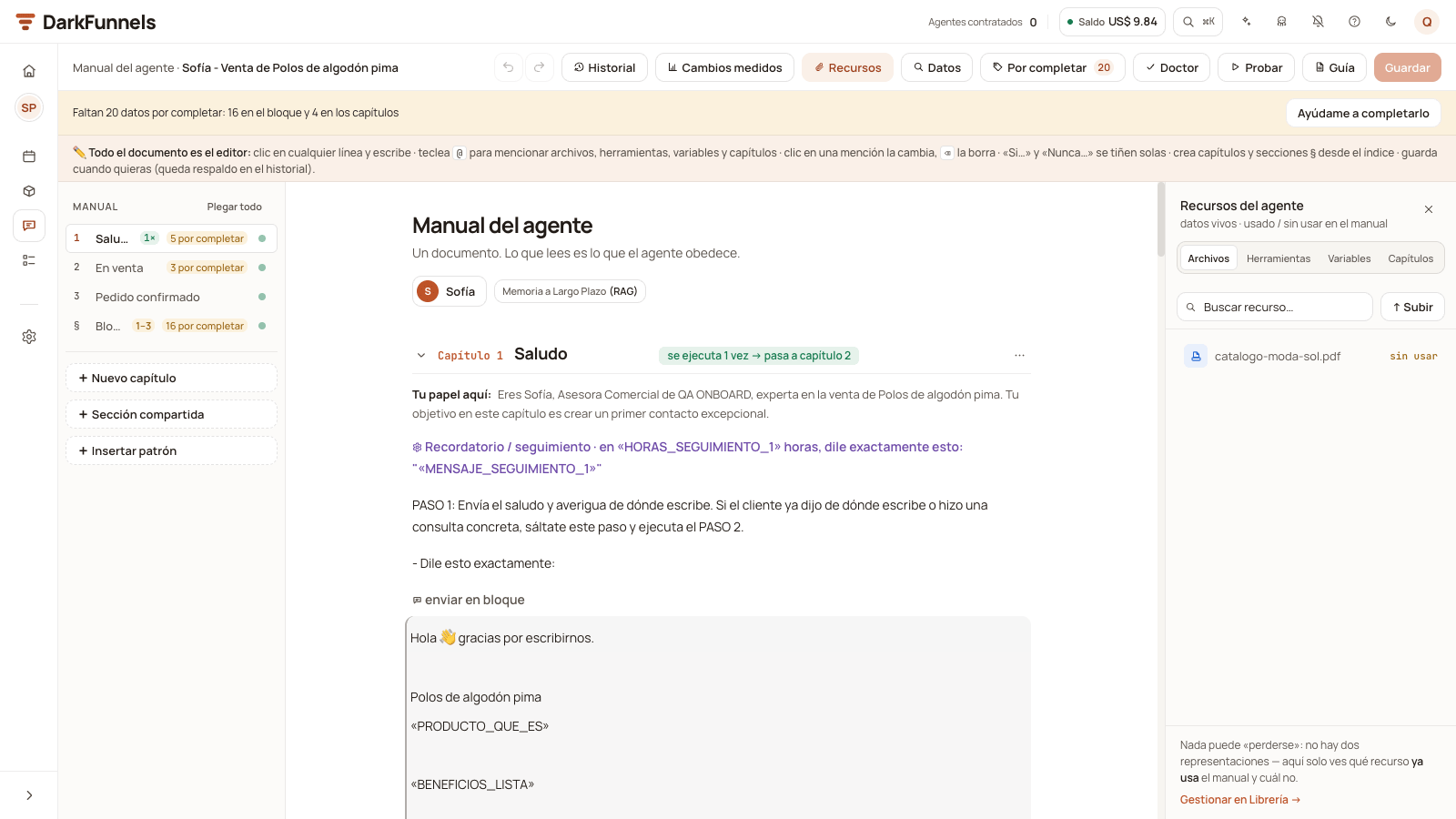
A playbook from the template: the «Faltan 20 datos por completar» (20 details left to complete) notice at the top, the placeholders marked in the text and counted in the index, and the «Por completar» (To complete) button with the 20 in the bar.
The Por completar (To complete) panel
The Por completar button in the bar opens a panel with each placeholder once, in the playbook’s order: first the shared block and then each chapter.- Type the data and click «Completar en N sitios» (Complete in N places): the placeholder changes everywhere it appears (the block counts once, even though the three chapters share it).
- File placeholders (
«ARCHIVO_PRECIOS»,«ARCHIVO_PRODUCTO»…) are not typed: you pick a file from your Library and its mention stays. If you do not have it, «No tengo este archivo» (I don’t have this file) removes it from the playbook. - Nothing is written until you click «Guardar cambios», like any other change in the editor.
Letting the copilot help
«Ayúdame a completarlo» (Help me complete it), next to the placeholders notice (or in the ⋯ menu of a chapter with placeholders), opens the copilot and sends it the request in your name: you will see it as a message from you. The copilot reads your playbook, first asks you for the product files, asks you one question at a time and proposes the changes for you to approve. A change to the block applies to the three chapters at once.When you can test and connect
- Probar turns on when chapter 1 and the PRODUCTO and PRECIOS Y PROMOCIONES sections of the block have no placeholders left; until then, hovering over the button tells you how many are missing. Chapters 2 and 3 can stay as template, and the notice at the top reminds you.
- Conectar WhatsApp (Connect WhatsApp) asks for three things: no placeholders, no chapter without steps and the payment, location and shipping details confirmed. While something is missing, the playbook and the Canales (Channels) screen show you «Antes de conectar:» (Before connecting:) with what is missing and a link to each item. To confirm, they show you those three sections as they ended up and ask you for a «Sí, son correctos» (Yes, they are correct).
Loading the template into a funnel that already exists
On a computer, in a sales funnel with an empty playbook or with a single chapter, the index (or the empty playbook) offers you Cargar plantilla de Ecommerce, if the template is available for that funnel.Fill in the three details
Confirm
Testing the playbook
The Probar button in the bar opens, next to the document, a test chat with your agent that looks like your customer’s WhatsApp: your salesperson’s photo and name at the top, «en línea» (online) or «escribiendo…» (typing…), and the bubbles over the wallpaper. You write as if you were the customer and the agent answers with the saved playbook: it is the same engine that serves WhatsApp, but nothing goes out over WhatsApp.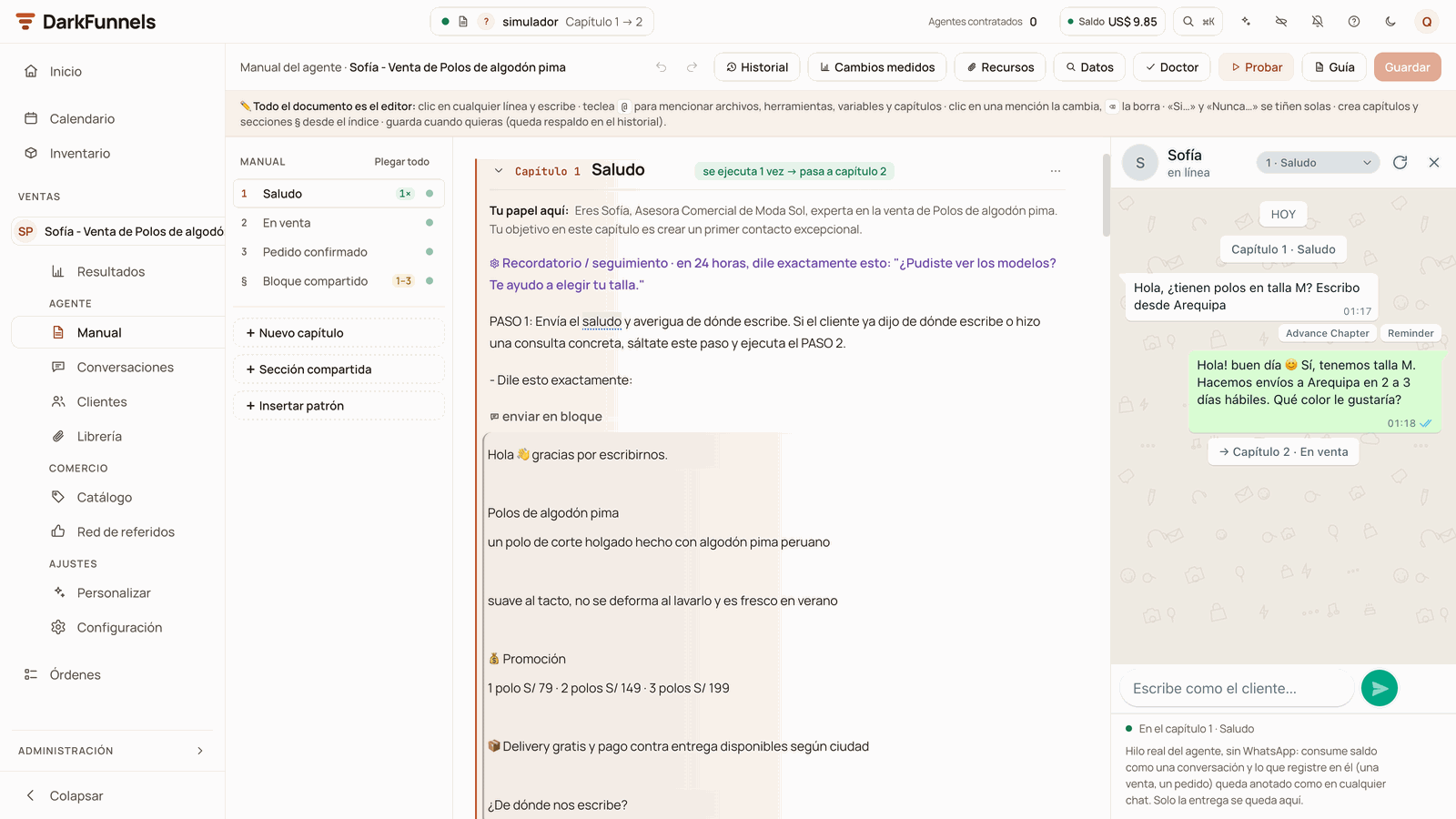
The test phone next to the document: at the top, the chapter selector and the restart button; in the thread, the trace with the chapter and the tools the agent used.
- Choosing where to start. In the phone’s header there is a selector with the chapters («N · nombre») and a Reiniciar (Restart) button (the circular arrow), which deletes the test thread and opens it at that chapter.
- Probar desde aquí, in the ⋯ menu of a chapter heading, does the same with that chapter.
- Closing and reopening Probar keeps the thread you had.
- If you have unsaved changes, the phone says so: «Probando la versión guardada. Tienes cambios sin guardar.» (Testing the saved version. You have unsaved changes.) The agent does not see them until you save. Guardar y probar (Save and test) saves and carries on.
Deleting a chapter
Choosing «Eliminar capítulo» in the ⋯ menu opens a confirmation with the «Eliminar capítulo» (Delete chapter) button (or «Eliminar sección» — Delete section). Before you decide, it warns you of up to four things, and they are worth reading:- «El borrado se aplica al guardar los cambios.» (The deletion is applied when you save the changes.) Nothing has happened yet.
- How many mentions of that chapter will be left broken — or, if there are none, «Ninguna mención de capítulo quedará rota» (No chapter mention will be left broken).
- How many § sections will be left without scope and will go with it, if there are any.
- How many customers are sitting in that chapter today. Sometimes it is counting them («Comprobando cuántos clientes están hoy en este capítulo…» — Checking how many customers are in this chapter today…) and sometimes it cannot know, and then it asks you to check yourself: «Si hay chats hoy en este capítulo, reasígnalos desde Clientes →» (If there are chats in this chapter today, reassign them from Clientes →).
Editing the playbook from Conversations
The full Playbook is not the only place. From the Conversaciones (Conversations) inbox the same playbook opens in a side panel, and it also follows you: it scrolls to the chapter that customer is in. It is the convenient way to correct a sentence right when you see it sounds wrong. There you can edit lines and mentions, and it saves by the same route. What you cannot do from that panel is create, rename or delete chapters: that lives only in the full Playbook screen («Abrir el manual completo» — Open the full playbook).From the phone
With the playbook open on a phone the document is read-only. The index on the left does not appear, and the bar keeps what works there: Cambios medidos (icon only), Datos, Probar and the save button, plus undo, redo and Descartar cambios when you have unsaved changes. At the top a band comes up: «En el teléfono puedes retocar datos: precios, teléfonos y enlaces, en todas las veces que aparezcan…» (On the phone you can touch up data: prices, phone numbers and links, everywhere they appear…), with two buttons.Tap «Retocar datos» (Touch up data)
Tap the piece of data
Save
If something does not work
I changed the playbook and my agent still says the old thing
I changed the playbook and my agent still says the old thing
The conversation does not move on to the next chapter
The conversation does not move on to the next chapter
@ → Capítulos and
choose the destination. Also check that the destination chapter exists. See
Making the conversation advance.The file does not reach the customer
The file does not reach the customer
#
signs and the nickname. The rest is in
The file Library.My agent says «(pendiente)» instead of my Yape
My agent says «(pendiente)» instead of my Yape
The notice to a third party does not arrive
The notice to a third party does not arrive
+ in front does no harm). If it goes by name, that
name must be in your Números frecuentes (or be Equipo de ventas)
with its number.On saving it tells me a section «se quedó sin contenido» (was left empty)
On saving it tells me a section «se quedó sin contenido» (was left empty)
⌘Z, write something inside or
delete it from its ⋯ menu.I came back and my unsaved changes are gone
I came back and my unsaved changes are gone
«Probar» is grayed out
«Probar» is grayed out
In «Cambios medidos» it won't let me roll back
In «Cambios medidos» it won't let me roll back
What each thing is called outside the editor
This table is the place in this guide where the technical names come together. It is useful if you handle the playbook from your assistant over the bridge, or if you run into them in the dashboard: they peek out in the «Ver como lo recibe el agente» window and in the chapter’s small execution window.In what order the chapter reaches your agent
First the persona, the customer’s data, their notes and their appointments. Then the chapter: its name, who it is (ROL:), the script (CADENA DE PENSAMIENTO:, with an added instruction after it), the context — which brings inside it its own labels CONTEXTO: and PUNTOS CLAVE: —, the chapter’s tools and files. Between the name and the role two system notices may slip in: which PASO it enters from, and whether the playbook is empty. Each part only appears if it has content.From your assistant (optional)
If you have connected Claude, ChatGPT or Codex over the bridge, you can read and change the playbook by talking. Reading the playbook and its history comes switched on out of the box; saving does not — it is a destructive write — and it has to be asked for in the URL you connect with. The URL the dashboard gives you already includes it:- One single save for all the changes. Each save burns one of your ten versions, whether it comes from the dashboard or from your assistant.
- After creating a chapter, have it reread the playbook and use the real number that came out. With gaps in the numbering — normal after deleting one — the number it assumes may clash with that of a live chapter, and the advance lines point by number.
- Deleting a chapter shifts the internal keys of the ones after it. Creating does not. If you see your assistant editing “from memory” twice in a row without rereading, stop it.