Claude Code is Anthropic’s assistant that works from your computer’s terminal. If you already use it, you can connect it to your business and ask it for things in plain conversation: to review your conversations, to suggest an improvement to the playbook, or to bring your catalog up to date.
You don’t need it to sell. It is a convenience for people who already work with Claude Code. If you don’t use the terminal, the simplest option is claude.ai: it works in the browser, in the desktop app and on your phone.
Already connected it in claude.ai? If you sign in to Claude Code with your Claude account (not with an API key), Claude Code inherits that account’s connectors and you can skip the steps below. Type /mcp inside Claude Code to see which connectors you have.
The dashboard interface is in Spanish, so buttons and labels are named here in Spanish, the way you will see them on screen, with their English meaning in parentheses the first time.

Before you start

  • Claude Code installed on your computer.
  • The same account you use to sign in to the DarkFunnels dashboard. That is the one you are going to authorize. With a different account you get no error: Claude connects to that other account’s business and simply can’t see your data.
Today, authorizing from the terminal may not complete. It is a limitation of our identity provider with the way the terminal receives the response. It can look like an error in the browser instead of the Autorizar acceso (Authorize access) screen, or like a terminal that keeps waiting after you press Autorizar (Authorize). If that happens to you, connect it in claude.ai and sign in to Claude Code with that same Claude account: Claude Code inherits your account’s connectors.

Connect it from the terminal

1

Copy the command

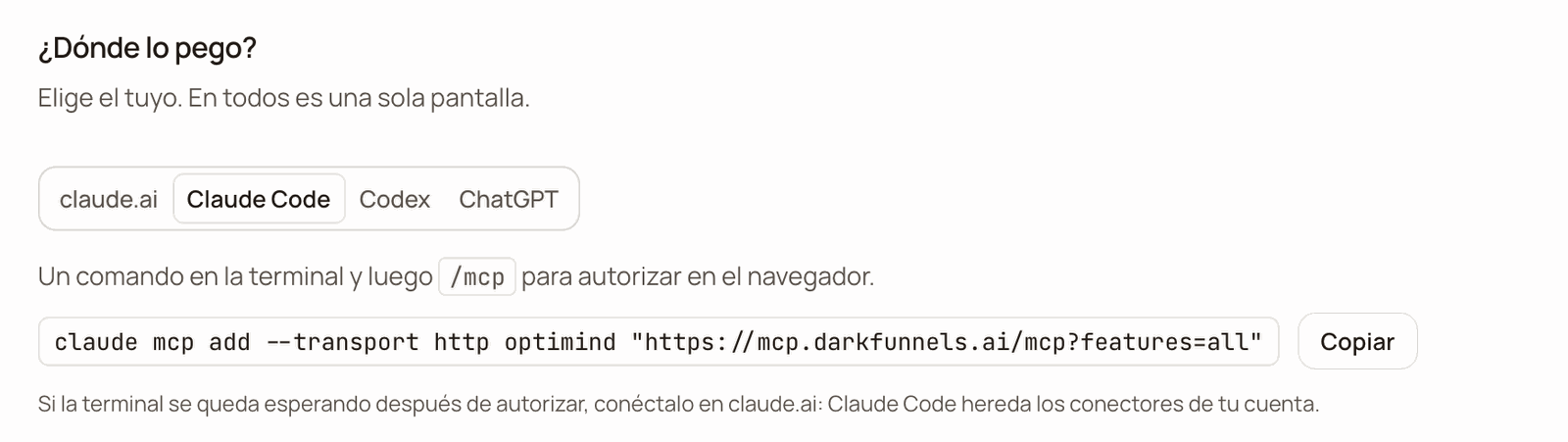
It is in the dashboard. In the left-hand menu, under Ventas (Sales), click Personalizar (Customize, in the Ajustes / Settings group) and choose Asistentes IA (AI assistants). In the ¿Dónde lo pego? (Where do I paste it?) card, open the Claude Code tab and click Copiar (Copy). If you don’t see Ventas in your menu, use the command below: it is the same one.
¿Dónde lo pego? (Where do I paste it?) card in the Asistentes IA (AI assistants) panel with the claude.ai, Claude Code, Codex and ChatGPT tabs, the Claude Code one selected and its claude mcp add command with the Copiar (Copy) button

The «¿Dónde lo pego?» (Where do I paste it?) card has one tab per assistant; the Claude Code tab carries the command with its «Copiar» (Copy) button.

2

Paste it into the terminal

Paste it exactly as it is and press Enter. The quotes are part of it: without them, the Mac terminal may answer no matches found because of the ? sign in the link.optimind is the name under which Claude Code saves the connection. It is the one you will see when you type /mcp, and the one the other commands on this page use.
3

Open the authorization

Open Claude Code in the same folder where you pasted the command, type /mcp and choose optimind to authorize it. If you’d rather not open a session, this command does the same:
Your browser opens on the DarkFunnels Autorizar acceso (Authorize access) screen. If you weren’t signed in to the dashboard, it asks you to sign in first.
4

Check the account and press «Autorizar» (Authorize)

Below the title, the screen says «Autorizas como» (You are authorizing as) followed by an email. If it is your dashboard email, press Autorizar (Authorize). You will see Acceso autorizado (Access authorized): you can now go back to Claude Code.If it is a different email, press Denegar (Deny). In the dashboard, open your account menu (top right) and click Cerrar sesión (Sign out). Sign in with the right account and repeat the previous step.
Want it in all your folders? The command above leaves the connection only in the folder where you run it. To have it in any folder, add --scope user:

Try it

Open a new Claude Code session and paste one of these messages. They are the same ones the dashboard suggests (there, in Spanish):
  • “Go through yesterday’s conversations and tell me where I’m losing sales.”
  • “Read my agent’s playbook and suggest an improvement to the closing chapter; save it once I approve it.”
  • “Give me the customers who have gone more than 3 days without a reply and what the agent would say to them to pick things up again.”
To confirm it is connected properly, ask it “which DarkFunnels account are you connected to, and in which company?”. It should answer with your email and your company’s name. If you manage your company’s apps, in Personalizar → Asistentes IA (Customize → AI assistants) you will see the Conectado · última actividad (Connected · last activity) badge, with the date, as soon as an assistant has worked in your company. People who don’t manage the apps don’t see that badge.

What it can do and how to rein it in

The link carries ?features=all: it switches on every feature, including the ones that save changes (the playbook, the catalog) and the ones that send messages over WhatsApp. Features we publish later arrive on their own, without touching the link. Depending on how you have Claude Code set up, it asks your permission before using one of the connector’s tools. When it does, read what it is about to do before accepting, especially if it is going to save, delete or send something. Would you rather it only read? Add &read_only=true to the end of the link:
If you had already added it, first remove it with claude mcp remove optimind, then add it with the new link (if you had it with --scope user, add --scope user too) and authorize it again: changing the link requires connecting it again. All the link’s options are in The connection URL, and the list of features is in the Tools reference.

What permissions it has and which company it works in

Claude works with your permissions. Whatever your account can’t do in the dashboard, it can’t do either. It gets the tools of the apps that you can use in that company and that are switched on there. If it ever tries to use one your account can’t use, the request is rejected and no change is made. For example, if you don’t have access to Ventas (Sales), it won’t see your conversations or your funnels’ playbook. Each connection is pinned to one company. If your account is in several companies, the connection keeps the one you had active when Claude connected for the first time, which is usually right after you authorize it. If you later switch company in the dashboard, Claude stops saving changes: it rejects the action without touching anything and explains what to do. What it reads, however, already comes from the company you have active now. If you were comparing figures, go back to the connection’s company first. And if you open a new Claude Code session in the meantime, it may be left with only the basic features, such as telling you which account and which company it is connected to.
  • To stay in the connection’s company, go back to it from your account menu (Cambiar a esta empresa, Switch to this company).
  • To work in the other one, disconnect and connect again:
    Then, with the company you want to work in already active in the dashboard, authorize again with /mcp (or with claude mcp login optimind). The new connection keeps whichever company is active when Claude connects.
If your account is in only one company, you don’t need to do any of this. How to switch company is explained in Invite your team.

Cutting off access

1

Revoke it in the dashboard

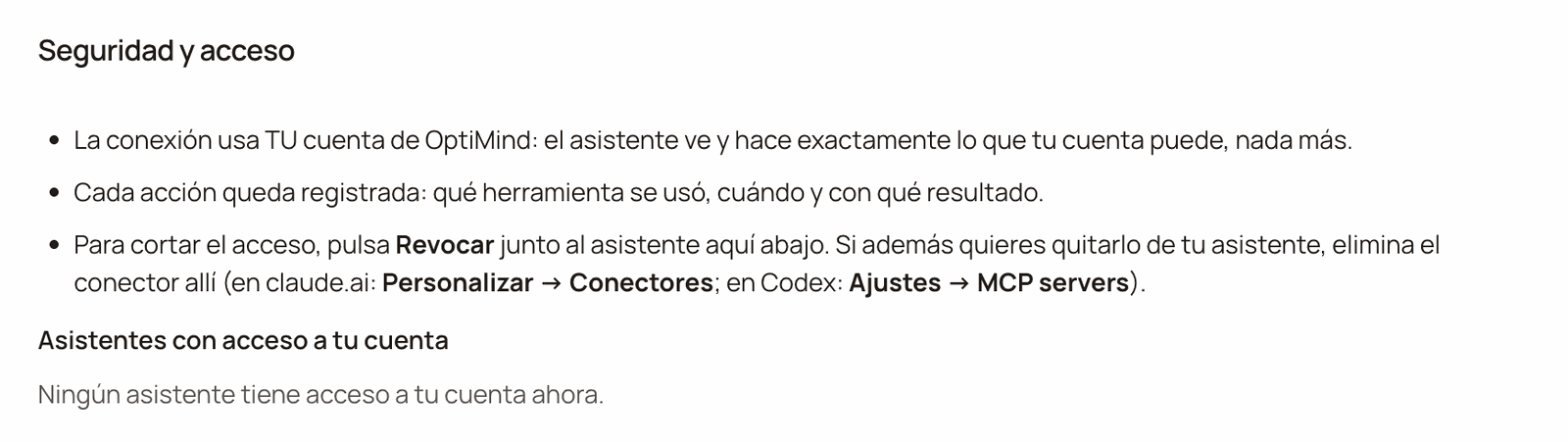
In Personalizar → Asistentes IA (Customize → AI assistants), scroll down to the Seguridad y acceso (Security and access) card. Under Asistentes con acceso a tu cuenta (Assistants with access to your account) you see each assistant you authorized, with the date you did it. Click Revocar (Revoke) next to the one you want to cut off and confirm with Revocar.It loses access to your account within a few seconds. To use it again, you will have to connect it again.
2

Remove it from Claude Code too

Revoking cuts off access, but the optimind connection is still in your Claude Code list. To remove it:
If you had it inherited from claude.ai, remove it there: Customize → Connectors.
Seguridad y acceso (Security and access) card with three bullet points about the connection and the Asistentes con acceso a tu cuenta (Assistants with access to your account) list, which reads Ningún asistente tiene acceso a tu cuenta ahora (No assistant has access to your account right now)

«Seguridad y acceso» (Security and access): how the connection is protected and the «Asistentes con acceso a tu cuenta» (Assistants with access to your account) list. In this screenshot it is empty; each assistant you authorize shows up there with its «Revocar» (Revoke) button.

What gets logged and what your assistant sees of your customers is covered in Security.

If something goes wrong

It is the identity provider limitation described in the notice under Before you start. Connect it in claude.ai and sign in to Claude Code with that same Claude account: it inherits the connection without going through the terminal.
The most common cause is that you authorized with a different account. Ask it “which DarkFunnels account are you connected to?”. If it isn’t yours, run claude mcp logout optimind, sign out of the dashboard, sign in with the right account and authorize again with /mcp.If the account is the right one, check two more things: which company your account has active in the dashboard (if you are in several) and whether you have access to Ventas (Sales) in that company.
The connection is pinned to another company. Go back to that company in the dashboard, or disconnect and connect again from the company you want. It is explained in What permissions it has and which company it works in.
Claude works with your own permissions. If you don’t have access to that app, ask whoever manages your company to give it to you (Invite your team). If the app isn’t switched on in your company, whoever manages your company switches it on in Administración → Apps (Administration → Apps) (The apps).After a change in permissions or apps, wait a minute and open a new Claude Code session.
There are two common causes. You added it under a different name (if you followed an earlier version of this page, it may be called DarkFunnels), or you added it in another folder. Run claude mcp list in the folder where you added it to see what it is called, and use that name in the commands. If it doesn’t show up, add it again with the command from step 1, or with --scope user to have it in all your folders.
Open a new Claude Code session: each session keeps the list of features that existed when it started.
The AI features stay paused until you top up. Top up in the dashboard, in Administración → Dinero → Saldo y facturación (Administration → Money → Balance and billing) → Recargar créditos (Top up credits); the notice itself carries the link. If you don’t see that screen, ask whoever manages your company for access to the balance. It is explained in Credits and top-ups.
Last modified on October 19, 2026