Upload photos, catalogs, PDFs and audio so your WhatsApp AI agent can send them or use them as memory, and what to do if a file doesn’t arrive.
Your agent doesn’t only write: it sends the product photo, the PDF catalog, the
price list, the welcome audio. All those files live in the Library. Some of
them it can also read to answer questions. This guide is the full
walkthrough, click by click.The dashboard is in Spanish, so buttons and menus are named here the way you’ll
see them on screen, with the English meaning in parentheses the first time they
appear.
Where it is. Go to the dashboard at
optimind.darkfunnels.ai. In the left-hand
menu, inside Ventas (Sales), press Librería (Library) — it’s in the
Embudo (Funnel) group. The screen that opens is titled «Archivos»
(Files): it’s the same one. You can also type optimind.darkfunnels.ai/files
in the browser’s address bar. On your phone, you’ll find it under Más
(More).The people on your team who have access to the Ventas app can see it. How
that access is given is explained in
Invite your team.
The golden rule, before anything else: first you grant the permission, then
you name the file in the script. If you do it the other way round, the
customer gets a sentence promising a photo that doesn’t arrive — or, worse, a
different photo arrives — and they don’t see any error. Everything else in this
guide exists so that order is kept.
These five words come up throughout this guide. Once they’re clear to you, the
rest is mechanical.
Word
What it means, in plain language
File (Archivo)
The PDF, the photo or the audio itself. It’s uploaded once for your whole business, and each funnel uses it with its own permissions.
Permission (Permiso)
What each funnel’s agent can do with that file. There are two, independent of each other: send it or study it.
Send via WhatsApp (Enviar por WhatsApp)
The permission to send it to the customer. It’s the switch in the enviar por WhatsApp column.
Agent memory (Memoria del agente)
The permission to read it in order to answer questions. With this permission alone, the agent doesn’t send it: it learns what it says.
Send trigger (Condición de envío)
The file’s nickname: the word you call it by from the agent’s script. By default it’s the file’s name without the extension.
The table’s columns can be dragged to another position, and the table remembers
the order. Look for them by their title, not by where they sit.
Three words that look alike and aren’t the same thing.The customer is
the person who writes to you on WhatsApp — the one who buys from you. The
copilot is the help that lives inside the dashboard. And your assistant is
Claude, ChatGPT, Codex or another assistant connected from outside: optional,
and it only shows up in the last section.
Step by step: getting your agent to send the catalog
1
Open the Library and choose the right funnel
The Library belongs to your whole business, but the table shows you the
files of one funnel: the one you have selected in the funnel selector.With the menu open, that selector is inside Ventas, right below its
title: it shows the funnel’s name, with its agent’s photo or an initial.
Press it and choose the funnel whose agent you want to send the file. With
the menu collapsed, the selector moves to the very top; on your phone it’s
under Más.
Ventas → Librería in the menu, and the «Archivos» (Files) screen with its Archivos, Ubicaciones and Papelera (Files, Locations, Trash) tabs, still empty: «Aún no hay archivos» (No files yet).
The list you see depends on the selected funnel. If you switch funnels,
you may see «Aún no hay archivos» (There are no files yet) even if you have
fifty uploaded: the files are still there; what changes is whose
permissions they are. Check which funnel is selected before concluding that
you’ve lost something.
2
Upload the file with the «+ Insertar» (Insert) button
The button is called Insertar (Insert), not «Subir» (Upload). It’s
at the top, next to the three tabs (Archivos · Ubicaciones · Papelera —
Files · Locations · Trash), and it only appears on the Archivos tab: if
you’re on Papelera, you won’t see it.A window opens titled «Agregar archivos enviables» (Add sendable
files). Drag the files onto it or press Seleccionar archivos (Select
files). You can drop several at once.
The upload window accepts drag and drop, or your computer's file browser.
Below it appears «Archivos seleccionados (N)» (Selected files (N))
with each one’s size, a trash-can icon to take it off the list and a
Sticker checkbox. That checkbox can only be ticked on images: on a
PDF or an audio it’s greyed out, and if you hover over it, it says «Sólo
las imágenes pueden ser stickers» (Only images can be stickers). Finish
with Agregar archivos (Add files).
The error notice arrives AFTER the window closes. When you press
«Agregar archivos», the window closes right away and the list empties. If
some file wasn’t valid, the error shows up afterwards as a floating message
(«El archivo X excede el límite de 20MB» — File X exceeds the 20MB
limit — or «El tipo de archivo X no está permitido» — File type X is
not allowed), along with «Error al agregar archivos» (Error adding
files). In that case the table may not show the ones that did go in yet:
press Actualizar (Refresh), at the top right, and count the rows.
An audio can take as long to upload as it lasts. Before uploading it,
the dashboard converts it to the WhatsApp voice-note format, and that
conversion runs in real time: a one-minute audio takes about a minute.
Don’t close the tab in the meantime.
3
Switch on «enviar por WhatsApp» (send via WhatsApp)
Here’s the trap that trips everyone up: the window is called «archivos
enviables» (sendable files), but what you upload with Insertar is not born
sendable.
A PDF, an image, a DOCX or a CSV are born with memoria del agente
(agent memory) switched on and sending switched off.
An audio, a video or an image you marked as Sticker are born with no
memory and with sending switched off. In audio and video the memory can’t
even be switched on: the switch is locked.
Two files in the table: the PDF with «enviar por WhatsApp» (send via WhatsApp) already on and its condición de envío filled in by itself (catalogo-moda-sol); the image, with sending off and the dash. Both have «memoria del agente» (agent memory) on.
Press the switch in the enviar por WhatsApp column: it saves instantly.
The first time you switch it on, the condición de envío (send
trigger) column fills itself in with the file’s name without the
extension: catalogo_verano.pdf ⇒ catalogo_verano. It’s the nickname the
script will ask for the file by, so it’s best not to touch it.
The switch goes first. With sending off, the «condición de envío» and
«mensaje» (message) cells show a dash —. They let you open them and
type, but when you confirm, the change is discarded with the notice
«Activa “Enviar por WhatsApp” para editar la condición de envío» (Switch
on “Send via WhatsApp” to edit the send trigger) (or «…para editar el
mensaje» — …to edit the message). What you typed may stay on screen until
the table refreshes (for example, when you press Actualizar), but it
wasn’t saved.Careful: the dash means «nothing is written here», not «this file isn’t
sent». With sending on, «mensaje» also shows — if you didn’t give it a
message. To know whether a file is sent, look at the switch, not the dash.
If you upload the file from the playbook, on the other hand, it’s born
sendable: you’ll see that in step 6.
4
Write the message that goes with the file
A click on the mensaje cell opens a box over the cell itself. Enter
leaves the text ready, Esc cancels and Shift+Enter starts a new
line. If the text is long, the Abrir en grande (Open large) button
opens it in a window: there, Enter starts a new line and the text is
confirmed with Guardar cambios (Save changes).That text is the caption the file travels with. If you leave it empty,
the file goes out without a text caption.
You can use your business details. If next to the photo of your QR
code you write Paga al {{dato:yape}} (Pay to …), the customer receives
the value you have saved in Configuración → Datos del negocio
(Settings → Business details), not the label. Copy the label exactly as
it appears next to each detail in that section. If the detail is empty, the
customer reads its name followed by «(pendiente)» (pending), so fill it
in first. It’s all explained in
Funnel settings.
On audio and on stickers, that message isn’t sent. WhatsApp doesn’t
show a text caption on voice notes or on stickers, so whatever you write
there is wasted work. Whatever you want to say around an audio, write it in
the script, before or after the marker. Photos, videos, PDFs and other
documents, on the other hand, do carry it visibly.
5
Save — because half the table doesn't save itself
This is the number-one cause of «my changes were lost»:
The two switches (enviar por WhatsApp, memoria del agente) save
instantly, without pressing anything.
The name, the send trigger and the message stay pending
until you press the button at the top right. Neither Enter in the cell
nor «Guardar cambios» in the large window saves them yet: they only leave
them ready.
While something is pending, that button stops saying «Actualizar» and
says «Guardar N cambio(s)» (Save N change(s)), and next to it the
notice «Cambios sin guardar» (Unsaved changes) appears.
Switching tab, funnel or page discards the pending changes, without
asking. If you have «Cambios sin guardar» and you press Ubicaciones
or Papelera, choose another funnel or go to another screen, what you
wrote is lost silently. Save before you move.
6
Tell the agent WHEN to send it (in the playbook)
Granting the permission doesn’t make the file go out: it only authorizes
it. What decides the moment is the agent’s script, in
the playbook — Ventas → Manual (Sales →
Playbook).Inside a chapter’s text you write a mark at the exact point where you want
the file to go out. We call that mark a marker, and it looks like this:
Te dejo el catálogo completo. ###SEND_FILES: catalogo_verano### Dime si lo abres bien.
(Here’s the full catalog. ###SEND_FILES: catalogo_verano### Let me know if
it opens fine.)You don’t need to type it by hand — and it’s better not to. In the
playbook editor you have three ways to insert it correctly:
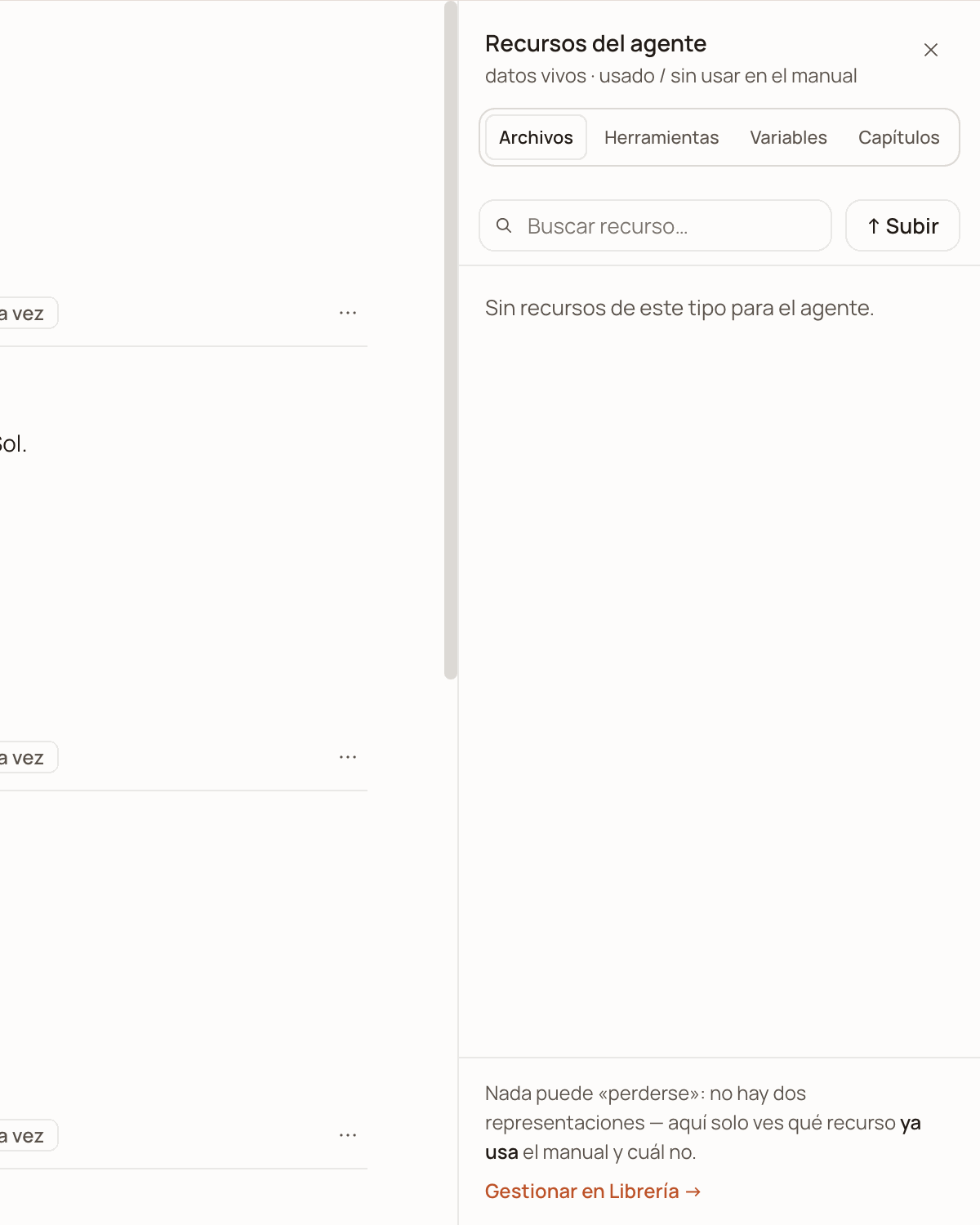
The Recursos (Resources) button in the bar opens the «Recursos
del agente» (Agent resources) drawer on the Archivos tab: hover
over the file and press Insertar.
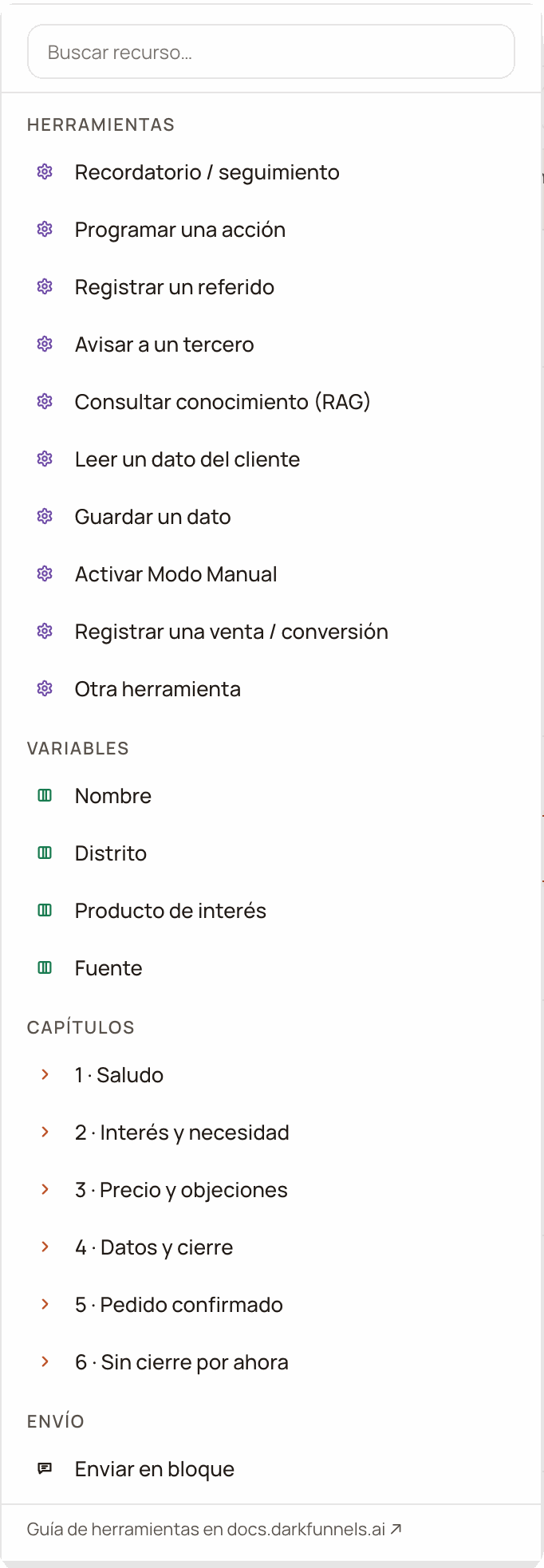
Type @ and choose the file in the Archivos group.
The ✦ ¿Dónde? (✦ Where?) button, which appears on files that no
chapter uses yet: the AI suggests a chapter and a sentence with the
marker already inside, and you decide whether to insert it.
The «Recursos del agente» (Agent resources) drawer on the Archivos (Files) tab: the search box, the ↑ Subir (Upload) button and, since this funnel has no files yet, «Sin recursos de este tipo para el agente» (No resources of this type for the agent). At the bottom, the «Gestionar en Librería →» (Manage in Library) link.
The playbook's @ menu. This funnel has no files yet, so you see the Herramientas, Variables, Capítulos and Envío groups; once you upload files, the Archivos (Files) group appears too.
In the drawer, each file tells you whether the playbook already uses it
(en N cap. — in N chapters) or not (sin usar — unused), and it has
pausado (paused) in front of it if its sending is switched off in the
Library.
Shortcut: upload the file without leaving the playbook. In the Recursos
drawer, Archivos tab, the ↑ Subir (↑ Upload) button uploads one file
at a time. That file is born already sendable for the selected funnel,
with its send trigger set and no memory: «Archivo subido — ya puedes
insertarlo con @ o desde esta lista.» (File uploaded — you can now insert
it with @ or from this list.) If you also want the agent to study it,
switch on memoria del agente in the Library.
This is a computer job. On a screen less than 900 px wide, the playbook
opens read-only: from your phone you can’t rewrite the script or insert
files. What you can fix from your phone is the data — prices, phone
numbers, links — with the Retocar datos (Touch up data) button.
If you write the marker by hand, copy its exact shape. Three # signs,
the word SEND_FILES, a colon, the nickname and ### again. The space
after the colon doesn’t matter.With fewer than three # (##SEND_FILES: catalogo##) the system
doesn’t recognize it as a marker and that text may reach the customer’s
chat as-is. If the mistake is a different one — you’re missing the colon,
or you write another word — the mark is deleted from the text and the file
may not go out.
7
Test it yourself before a customer does
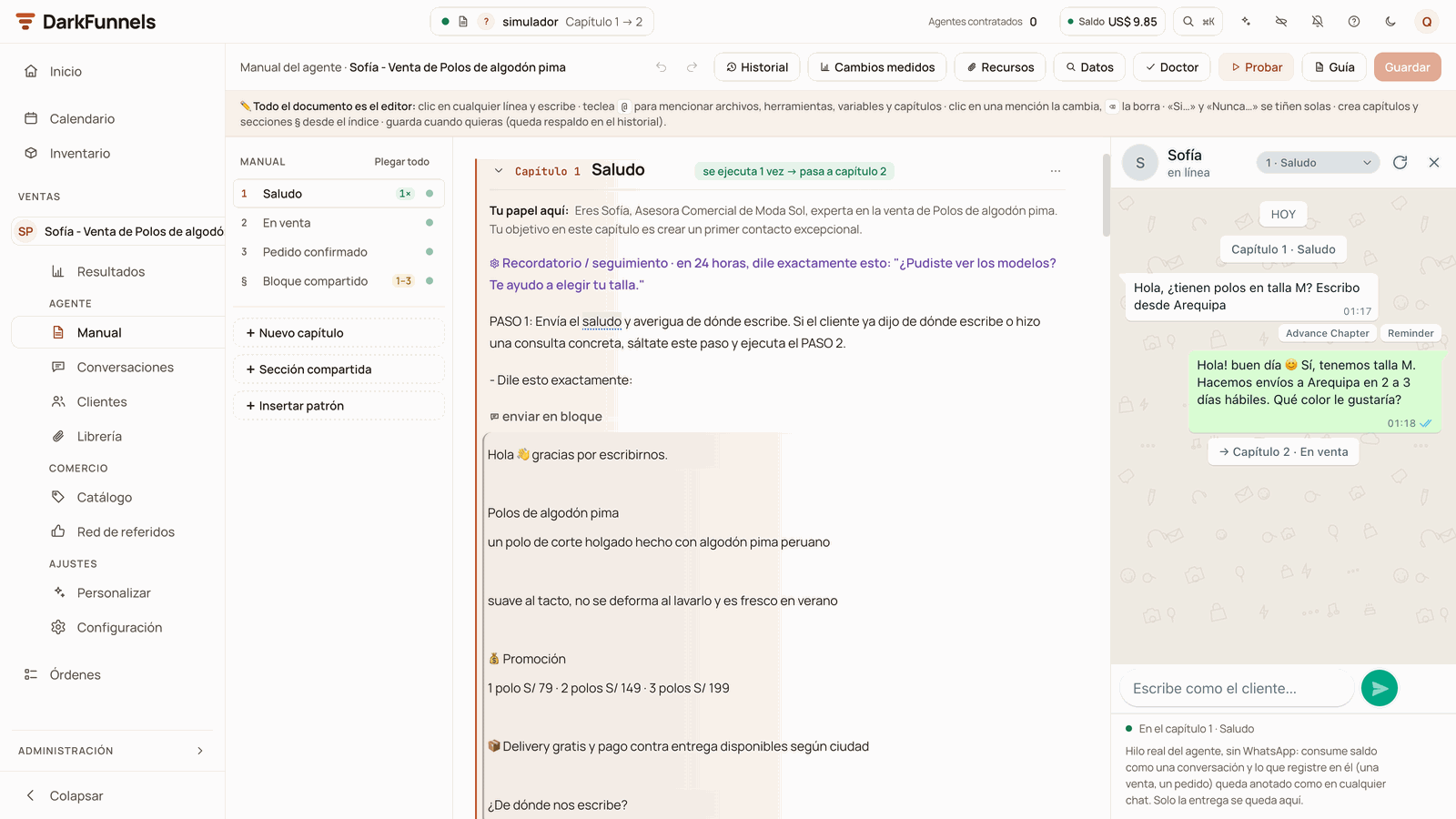
It’s worth doing two tests, in this order.1. In the dashboard, with Probar. The Probar (Test) button in the
playbook’s bar opens a test chat next to the document. Write as if you were
the customer and ask for the file. If the button is grey, hover over it: it
tells you what’s missing.The agent replies with the saved playbook and along the same path as on
WhatsApp, but nothing goes out on WhatsApp. In the test chat the file shows
up as «Archivo adjunto» (Attached file), or as «Archivo ·» followed by
its message if you gave it one.Below each reply, the trace tells you which tools the agent used. If the
sending tool couldn’t send anything, it’s marked as skipped. Careful: the
test thread consumes balance like a real conversation. More in
the playbook guide.
The test chat sits next to the document: you write as a customer, the agent replies, and the trace marks the tools it used («Advance Chapter», «Reminder») and the move to «Capítulo 2 · En venta».
2. On a real phone. That way you see the file exactly as it reaches the
customer: the PDF thumbnail, the voice note, the photo caption. Write to
your funnel’s number from a personal phone and ask for it the way a customer
would. Yours works if it’s the one you entered when you signed up. Another
WhatsApp line connected to your business won’t work. If you use another
phone that receives reports, sales notices or alerts — yours or someone on
your team’s — add it first under Números de prueba (Test numbers), in
Settings.If it doesn’t arrive, go down to
If something is not working: the list is in
the order it’s worth checking.
For photos, use JPG or PNG; for videos, MP4. An SVG or an MKV can be uploaded,
but we can’t guarantee that WhatsApp will show them as a photo or a video.Word (DOCX), PDF and lists saved as CSV (a spreadsheet saved as text)
are accepted. Excel (XLSX), PowerPoint (PPTX), old Word (DOC), ZIP and TXT
are not. If your price list is in Excel, open it and use «Save as → CSV», or
export it to PDF.The limit is 20 MB per file. There’s no limit on the number of files.
Audio files usually change extension when you upload them, and that’s
normal. Unless they already come as a WhatsApp voice note, the dashboard
converts them: you upload bienvenida.mp3 and the table shows
bienvenida.webm (or .opus, depending on the browser). It’s the same audio.
If your browser can’t do that conversion, the audio is uploaded as-is, with its
original name.
Uploading the same document or photo twice doesn’t duplicate it. The system
compares the content, not the name: if those bytes were already in your Library
(outside the trash), it tells you «Ya tenías este archivo» (You already had
this file) and reuses the row that already existed, with the name it already
had. If the selected funnel is missing the permission that upload is born with
(memory, for PDFs, photos, DOCX and CSV), it gets it. Careful: if you had
switched that file’s memory off, uploading it again switches it back on and it’s
processed again. Renaming it on your computer and uploading it again doesn’t
create a copy either.
How the message looks on WhatsApp is decided by the format, not by you:
What you upload
How it arrives
Does it carry the «mensaje» (message)?
Image or video
Photo or video, with the text underneath
Yes
PDF
Document, with a thumbnail of the first page
Yes
DOCX, CSV
Document, as a card with an icon
Yes
Audio
Voice note
No
Sticker
Sticker (if the image can’t be converted, it arrives as a photo)
No
The name you gave the file is the one the customer sees on documents. Give it a
readable one.
A PDF looks better than a DOCX. A PDF usually arrives with a preview of its
first page; a DOCX arrives as a card with an icon. For a catalog, that
difference sells — but the preview isn’t guaranteed: PDFs over 15 MB and those
the system can’t render also arrive as a plain card.
Audio goes out as a voice note, and the sending is delayed by the length of
the audio, as if a person were recording it: the customer may see «recording
audio…» during that time. The ceiling on that wait is 2 minutes, even if
the audio is longer.Count that time: a two-minute welcome audio leaves the customer two minutes
without receiving anything else. For greetings, stay under 20 or 30
seconds.
If the agent already sent that file to that conversation less than 6 hours
ago, it doesn’t repeat it: the customer who insists three times in five minutes
gets the quote only once. The text message does go out; what’s missing is the
attachment.
Two consequences that come as a surprise. (1) The block counts per
Library row, not per document: two PDFs of the same catalog exported
separately aren’t the same file even if they look identical, and if both are
sendable, each one has its own block — the customer may receive it twice. (2) A
scheduled reminder is subject to the same block: if you send the catalog now
and the reminder falls due within those 6 hours, the follow-up arrives
without the attachment.
Each time the agent replies it can send at most 12 messages in a row, and
each file takes up one. Normally the text isn’t lost: if it doesn’t fit, the
ending is merged into the last message, so the closing arrives cramped instead
of nicely spread out. But if a single reply sends so many files that they alone
nearly fill the 12, the reply can go over the ceiling, and what’s left over
doesn’t arrive: precisely the closing. One file per chapter is the healthy
amount.
It’s the part that causes the most problems, so it’s worth understanding. When
the time comes to send, the agent looks for the file among its funnel’s
sendable files, in this order:
The file’s name, as-is (with its extension).
The file’s name without the extension. Here capitals, accents and dashes
don’t bother it.
The send trigger, with that same tolerance — but it has to be the
whole nickname, not part of it.
If none of the above matches: word similarity.
Three practical rules come out of that order:
1. The send trigger is a nickname, not a sentence. The field is called
«condición» (condition), and that invites you to write «cuando el cliente
pida la lista de precios» (when the customer asks for the price list).
Written like that, it only matches if the agent copies it whole, word for
word: to find the file by nickname, the nickname has to match in full. If the
agent changes a single word when copying it, a condition written as a sentence
can only win on the last layer, word similarity — the same one that can deliver
the wrong file. Leave the default value (the name without the
extension) or put a single short word. Capitals and accents don’t matter.
2. If the marker names a file that doesn’t exist, ANOTHER file may go out.
This is the expensive failure on this screen. When the nickname doesn’t match
anything, the system doesn’t always stay quiet: it falls back to word
similarity and may deliver a different file that shares a word — the price
list for another city, last year’s catalog. If no file resembles it at all,
what you’d expect happens: the marker is deleted from the text and the message
goes out without an attachment, without the customer seeing any error.That’s why the golden rule holds: permission first, marker second, copying
the nickname exactly as it appears in the table.
3. Give each file a different nickname. Watch out for extensions:
catalogo.pdf and catalogo.jpg are two different files, but without the
extension both are called catalogo and inherit the same nickname. If the
marker says catalogo, the system doesn’t choose on its own: it hands both
names back to the agent so it asks for an exact one, and the agent may end up
sending the one you didn’t want, or neither. (If both names are identical — a
re-upload — the most recent one wins.) Rename one before making both sendable
for the same funnel.
The playbook helps you follow the rule. If you hover over a file mention in
the script, you see its status: Activo (Active), Pausado en la Librería
(Paused in the Library — it exists, but the agent won’t send it) or No
existe en la Librería (Doesn’t exist in the Library). And the playbook’s
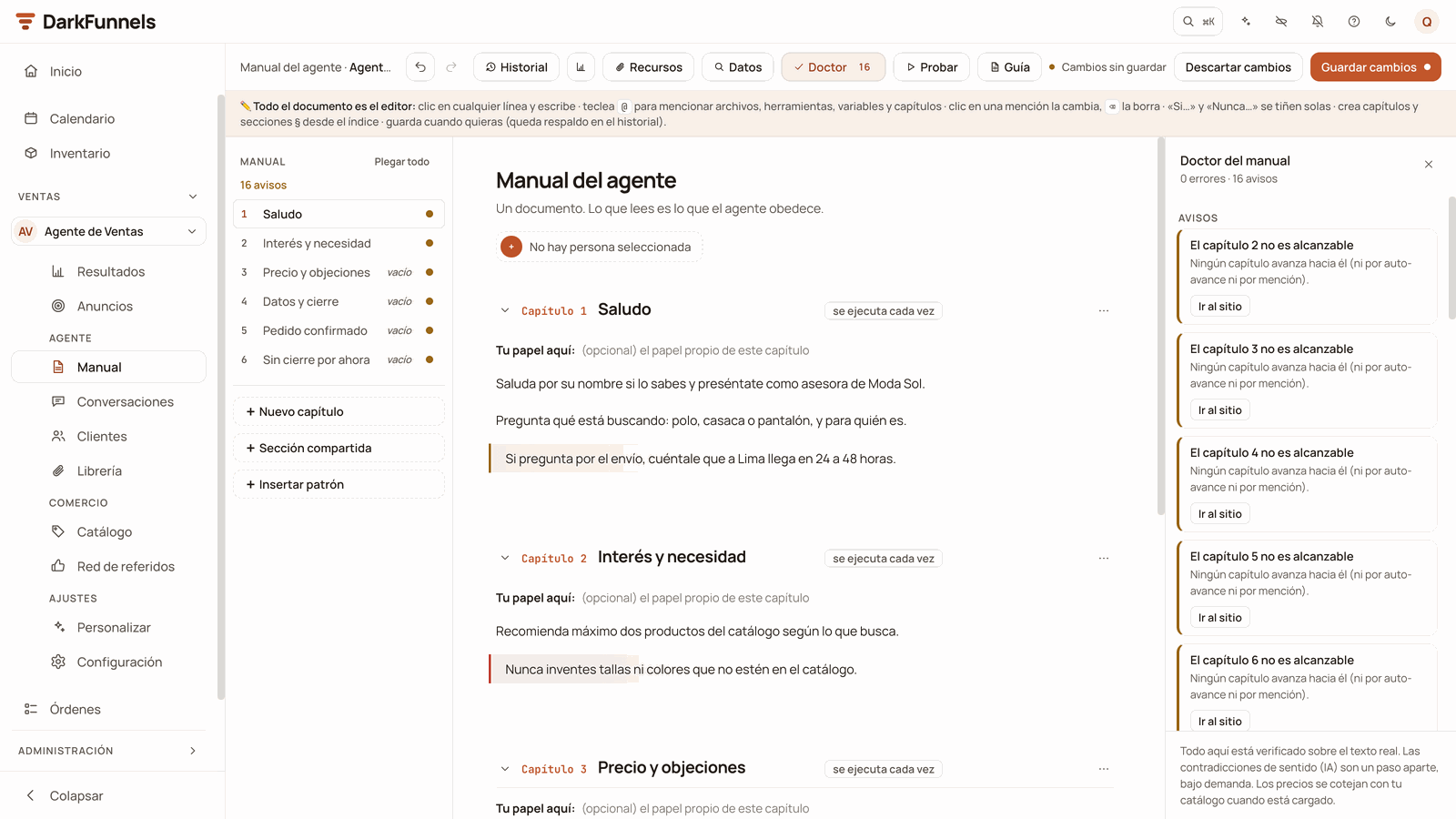
Doctor lists the mentions whose status is No existe en la Librería, with a
button to reconnect them when it finds a candidate. More about the Doctor in
the playbook guide.
The playbook's Doctor: at the top, the count («0 errores · 16 avisos», 0 errors · 16 warnings); below, each warning with its «Ir al sitio» (Go to the spot) button. Here they are all «El capítulo N no es alcanzable» (Chapter N is unreachable).
If you don’t write any marker, the file may go out anyway — but at the end
of the reply, not where you wanted it. The marker doesn’t authorize the
sending: it decides where it lands. And if the marker ended up inside a
passage you marked with «Enviar en bloque» (Send as a block, so it all goes
out together in a single message), the file goes out right after that
passage, not in the middle. If your playbook has no passages marked with
«Enviar en bloque», forget about this.
The other switch: «memoria del agente» (agent memory)
With this permission the agent reads the file so it can answer questions
about its content. It’s what you want for the warranty manual, the shipping
policies or a spec sheet. With images, the agent «looks at» the photo and learns
the text, the figures and the details visible in it.When you switch it on, the system starts reading the file by itself and cutting
it into pieces so it can search inside it. The estado (status) column
keeps you posted, and the table refreshes itself every 5 seconds while
something is in progress:
What «estado» says
What it means
El agente está aprendiendo… (The agent is learning…)
In progress. It can’t answer with that content yet.
Aprendido ✓ (Learned ✓)
Ready. It can use it now.
Hubo un problema (There was a problem) + Reintentar (Retry)
It failed. Leave the cursor over it for a second and a small label comes up with the reason.
The most common reasons you’ll see in that label, and what to do about each one
(if you see a different one, write to us from Ayuda → Escríbenos por
WhatsApp — Help → Write to us on WhatsApp):
The reason says
What to do
sin créditos: recarga el saldo para procesar este archivo (no credits: top up your balance to process this file)
It’s not a fault in your file: top up and press Reintentar. It’s explained in Credits and top-ups.
no se pudo extraer texto del archivo (¿escaneado sin OCR?) (couldn’t extract text from the file (scanned without OCR?))
It’s a PDF made of photos of the pages, with no text inside. Export it again from the original program, or upload the pages as images (JPG or PNG): images do get read.
el CSV no tiene filas con datos (the CSV has no rows with data)
Check that the CSV has rows below the column headings.
no se pudo descargar el archivo (couldn’t download the file)
Press Reintentar. If it happens again, write to us from Ayuda → Escríbenos por WhatsApp.
Other things worth knowing:
Audio and video don’t add memory. The switch won’t even let you touch it
and warns «Este formato aún no aporta memoria» (This format doesn’t add
memory yet). If the content matters to you, write it as text in the
playbook.
Switching memory off isn’t cosmetic: the agent stops seeing that content
immediately. Switching it back on recovers it at once, but it also
processes the file again from scratch, so it consumes balance again.
Careful: if that file was born with memory switched on (you uploaded it
with Insertar) and you never switched «enviar por WhatsApp» on for it in
this funnel, switching memory off makes it disappear from the funnel’s table,
even though the file is still stored in your business. To get it back, upload
it again with Insertar: the system recognizes it’s the same file and gives
it its memory back, which is processed again.
A very long document is learned up to 200,000 characters. Whatever goes
beyond that, the agent doesn’t see. If your catalog is huge, split it into
several files.
To check what it learned, open the playbook and press Memoria a Largo
Plazo (RAG) (Long-term memory), above the document. Its Probar
(Test) search box runs the same search as the agent: type a question the way
a customer would and you’ll see which passages it finds and which file each
one comes from. If you don’t see that button in your playbook, this check
isn’t available for your funnel.
Audio files do get transcribed, even though they don’t add memory. In the
«estado» column you’ll see Transcribiendo… (Transcribing…), Transcrito ✓
(Transcribed ✓) or No se pudo transcribir (Couldn’t be transcribed). It
lets the agent know what the voice note it sends says, so it writes what goes
around it without contradicting it; it doesn’t use it to answer questions.
Press the file’s name in the archivo (file) column and the viewer shows
you, under the player, «Lo que dice (transcripción automática):» (What it
says (automatic transcription):). If it failed, there’s no retry button: use
Reemplazar (Replace), choose the same audio, and it’s transcribed again.
Swap the file for a new version (without breaking the script)
Use Reemplazar (Replace): the paperclip button in the acciones
(actions) column, with the hint «Sube una versión nueva de este
archivo» (Upload a new version of this file). It keeps the name, the
nickname, the message and the switches; only the content changes. If the
file was memory, the agent learns it again (and that consumes balance); if
it’s an audio, it’s transcribed again.It’s the right way to update a price list in this funnel. Sending it to
the trash and uploading another one leaves the markers that named it
without a file, or pointing to a similar one, until the new one has the
same name and sending switched on; if the name changes, they stay broken.
Replacing it doesn’t touch them.
If several funnels use that file, the replacement doesn’t reach them.
When you replace it, a copy is split off for the funnel you have selected
and the others keep the old version. Repeat the replacement in each funnel.
If the new version is in another format and the name had an extension, the
system corrects it and keeps the stem: catalogo.pdf becomes
catalogo.png — and then it will reach the customer as a photo, not as a
document. If the name had no extension, none is made up for it.
Rename a file (and what happens to the playbook)
Click the nombre (name) cell, then Guardar N cambio(s). Careful:
if the nickname was the default name, renaming also changes the nickname
and rewrites the playbook, and it tells you so when you save: «También
se actualizó 1 mención de ese archivo en el manual.» (1 mention of that
file in the playbook was also updated.)If that notice doesn’t appear and you expected the playbook to change, open
the playbook and search for the old name. It happens, for example, when
another file of the same funnel uses the same nickname: this file’s
nickname does change, but the playbook isn’t touched, and the markers with
the old nickname will keep delivering the other file. Fix them by hand.If several funnels use the file, the new name only applies to the selected
funnel; the others keep theirs.
Take a file away from a funnel (without deleting it)
Switch off enviar por WhatsApp. The file stays in the Library and stays
available to your other funnels; what disappears is that funnel’s permission
to send it. With it, the markers that named it in its playbook are left
without their file (there the mention shows as Pausado en la Librería)
and, as rule 2 of
How the agent chooses which file to send
explains, they may end up delivering another similar file: remove them or
reconnect them with the Doctor. If the agent also had it in memory, switch
off memoria del agente.
Send a file to the trash (and get it back)
In the acciones column, the three-dot menu → Enviar a la papelera
(Send to trash, in red). It asks for confirmation at the top center of the
screen — «¿Enviar “catalogo_verano.pdf” a la papelera?» (Send
“catalogo_verano.pdf” to the trash?), with Confirmar (Confirm) and
Cancelar (Cancel) — so don’t look for it next to the row.You can also tick several rows with the checkboxes: at the top,
«N seleccionado(s)» (N selected) appears with the Eliminar
(Delete) and Limpiar (Clear) buttons. Despite the name,
«Eliminar» doesn’t delete: it sends to the trash.As soon as it’s in the trash, the agent stops sending it and, if the file
belongs only to this funnel, it also stops using what it learned from it. If
several funnels used the file, it only leaves the selected funnel’s Library:
the others keep it. In that case, if it had memory switched on, switch it
off first and then send it to the trash: that way you make sure the
selected funnel’s agent stops using its content. (If the file disappears
from the table when you switch it off, you’re done: nothing else is
needed.)In the Papelera tab each row has a Restaurar (Restore) button
that acts instantly, without asking for confirmation. The file comes back
with everything it had configured. The notice says «…el agente lo está
re-aprendiendo» (…the agent is re-learning it), but if it was memory, it
actually recovers what it had already learned instantly, without
processing it again or consuming balance.
The trash empties itself after 30 days. A daily process permanently
deletes the files that have been in the trash for 30 days, and then you can
no longer recover them. The screen doesn’t warn you about this deadline:
don’t use the trash as a historical archive.
Turn an image into a sticker
In the three-dot menu: Marcar como sticker (Mark as sticker) /
Quitar de stickers (Remove from stickers). It only appears on images.
Remember that a sticker carries no text caption. If several funnels use
the image, the change only applies to the selected funnel.
View a file without leaving the dashboard
Press the name in the archivo column: a viewer opens with Abrir en
una pestaña nueva (Open in a new tab) and Descargar (Download).
DOCX and CSV files aren’t rendered in the browser and show «Este formato
no se puede ver aquí» (This format can’t be viewed here) — the file is
fine, it’s the browser that can’t display it.If the viewer says «No pudimos mostrar este archivo» (We couldn’t
display this file), reload the page: the link the dashboard uses to open
each file expires after 24 hours. If it’s still the same after that, your
browser can’t play that format (it happens with some MKV videos). Press
Descargar and open it on your computer.
The «Ubicaciones» (Locations) tab is a different thing
It shares a screen with the Library but has nothing to do with files: these
are your business’s premises (your shop, your pickup point), which the
agent sends as a map pin. Like file permissions, they belong to each
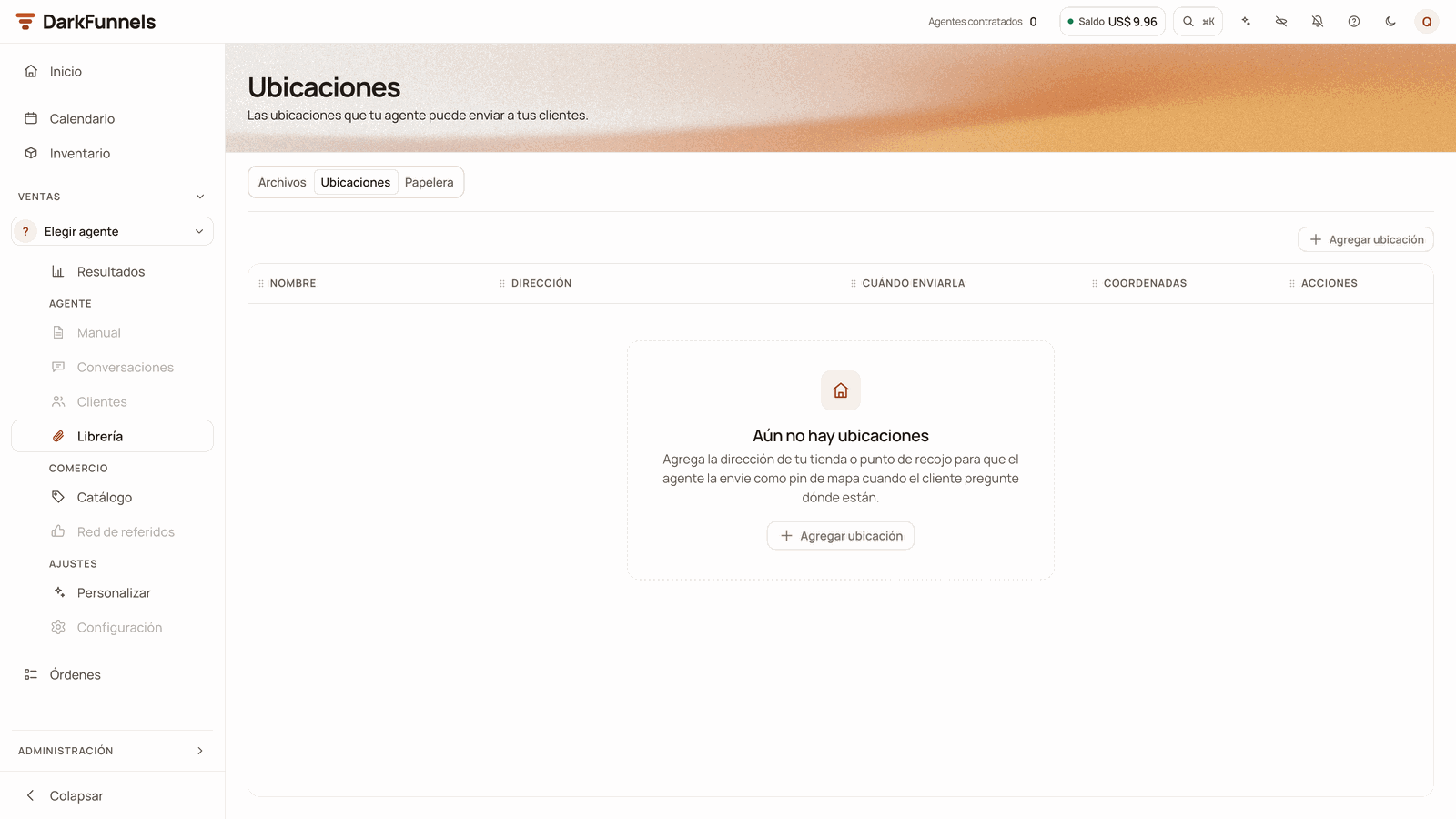
funnel: the ones you add apply to the selected funnel.The button is Agregar ubicación (Add location) and it asks for
Nombre de la sede (Name of the premises), Dirección (Address)
and Cuándo enviarla (opcional) (When to send it (optional)). Here
there is a Guardar (Save) button inside the window: it doesn’t work
like the rest of the screen.
The Ubicaciones (Locations) tab, still empty («Aún no hay ubicaciones», No locations yet), with the «Agregar ubicación» (Add location) button at the top.
When you save, the address is placed on the map by itself. If you get
«No pudimos ubicar esa dirección en el mapa» (We couldn’t find that
address on the map), complete it with street, number, district and city.
To remove a location, open the three-dot menu on its row → Eliminar
(Delete): it asks for confirmation and the agent can no longer send it.
«Aún no hay archivos» (There are no files yet) and you know you uploaded them
You have another funnel selected
Switch funnels in the selector, inside Ventas in the menu
I uploaded the file and the agent doesn’t send it
You uploaded it with Insertar and sending was born switched off
Switch on «enviar por WhatsApp»; the send trigger fills itself in
The text goes out, but without the attachment
The nickname doesn’t match any sendable file of that funnel (files in the trash or with sending off don’t count), or it already sent it less than 6 hours ago
Copy the nickname exactly as it appears in the «condición de envío» column and check the mention’s status in the playbook
The wrong file arrives
Two files with similar names and the marker didn’t match either of them
Give them different, clear nicknames
The marker shows up written in the chat
The marker is malformed
Delete it and insert it again with Recursos or with @
My changes were lost
Name, nickname and message don’t save themselves
Press Guardar N cambio(s) before switching tab, funnel or screen
«Hubo un problema» in the memory
No balance, a scanned PDF with no text, or an empty CSV
The Library keeps your files private. The dashboard opens them with temporary
links that expire after 24 hours, and within your team, the people with access
to the Ventas app can see it.
Even so, keep three things in mind:
While a temporary link is valid, anyone who has it can open it without
signing in. Don’t paste the «Abrir en una pestaña nueva» link in public
places.
What the agent sends on WhatsApp stays on the customer’s phone.
What you put in memory, the agent uses to answer your customers.
So don’t upload internal costs, margins, other customers’ data or contracts
to the Library: neither to send nor as memory.
Sending a file has no charge of its own, separate from the conversation’s.
Two things that happen on their own do consume balance: processing a file
for memory and transcribing an audio.The first happens when you upload a PDF, a photo (unless you mark it as
Sticker), a DOCX or a CSV with Insertar, because they’re born with
memory switched on; and also when you switch memory on, when you replace
the file or when you switch memory back on; without balance, it fails with
«sin créditos» (no credits). If a photo is only for sending, switch off
memoria del agente. The second is done for every audio, even though
audio doesn’t add memory and even if you never send it. The details are in
Credits and top-ups.
Can I have the same file in two funnels?
Yes. The file is uploaded once and each funnel has its own permissions. You
can have the catalog sendable for one funnel and in memory for another, or
both at once for the same funnel.If you later change the file itself from one of them — replace it, rename
it, turn it into a sticker or send it to the trash — the change only
applies to the selected funnel: the others keep their version.
What happens to the Library if I duplicate a funnel?
The new funnel uses the same files with the same permissions: they aren’t
copied, and the ones in the trash are left out. Whatever was in memory, the
new agent learns again, and that consumes balance. How to duplicate one is
in Your funnels.
Does the customer see my file's name?
On documents, yes: WhatsApp shows the name. On photos and videos, no. Give
a presentable name to whatever you’re going to send as a document.
Can I change the nickname without touching the playbook?
You can, and you don’t need to touch the playbook: when you save a new send
trigger, the system repoints the markers that named the old one by itself.
The exception is when another sendable file of the same funnel still uses
the old nickname; then the playbook isn’t touched and you have to review it
by hand.
How many files fit?
There’s no limit on the number of files. The limit is 20 MB per file.
My catalog is 40 MB, what do I do?
Split it into two PDFs (by category, for example) or export it at a lower
resolution. Almost any PDF program has a «reduce size» option.
The customer says the audio won't play
Before sending it, the system converts the audio to the WhatsApp voice-note
format, so it also plays on iPhone. If the file can’t be processed when you
upload it, the upload fails with the notice «No se pudo procesar el archivo
de audio» (The audio file couldn’t be processed). If a customer tells you
it won’t play, or it happens to you repeatedly, write to us from Ayuda →
Escríbenos por WhatsApp and tell us the file’s name.
This section is optional and only applies if you connected an assistant
(Claude, ChatGPT, Codex or another) to your business. If you work in the
dashboard, you’re done.
With the assistant connection you can ask for all of this in your own language.
If you connected with the dashboard link (Personalizar → Asistentes IA →
Copiar link — Customize → AI assistants → Copy link), the Library is
already included. You’d only be missing it if you use the bare address with
nothing after it, or a list of groups that doesn’t include library:
The connection URL explains it, with the
address ready to copy and paste. Also, it only works if your user has access to
the Ventas app.What it can and can’t do:
It can upload files (up to 2.5 MB, much less than the dashboard’s
20 MB), list them (including the ones in the trash), read a file’s text,
grant and revoke the send and memory permissions, and change the nickname,
which repoints the playbook’s markers by itself. If you also gave it
permission to edit the playbook, it can write the markers too.
It can write the message that goes with the file, but only when uploading
it or granting the permission: to change it later it would have to revoke the
permission and grant it again, so it’s easier to do in the dashboard. It
can’t send files to the trash or restore them, or mark stickers. That’s
done in the dashboard.
It can’t upload SVG, for security reasons, even though the dashboard
accepts it.
If you have many files, the list reaches it trimmed, and it will tell
you so. Ask for it filtered: «list the sendable files of my sales funnel».
Phrases that work:
“List my funnel’s sendable files with their send trigger.”
“Upload this PDF to the library and make it sendable for my sales funnel,
with the send trigger ‘catalogo’.”
“Search the playbook for all the file markers and tell me which ones don’t
match any active sendable file.”
“Before touching the playbook, tell me the exact send triggers of this
funnel’s files.”
“I already uploaded the catalog to the Library: read it, make it sendable
for my funnel and write the shared section with what it says.”
If the file is over 2.5 MB, the upload fails. Your assistant may explain it
to you, or you may only see an error. Either way the fix is the same: upload it
through the dashboard and then ask your assistant to link it.
The agent's playbook
Where the markers are written and how the script is tested.
Credits and top-ups
What consumes balance and how to top up.
Tool reference
The Library’s tools, with their exact parameters.
Last modified on October 19, 2026
{"docsConfig":{"theme":"mint","$schema":"https://mintlify.com/docs.json","name":"DarkFunnels","description":"Vende por WhatsApp con un agente de ventas IA — y opéralo desde tu asistente.","colors":{"primary":"#C2562A","light":"#D86A3C","dark":"#9A3F1C"},"logo":{"light":"https://mintcdn.com/darkfunnels/Df-1lKh1Aj5k8c-r/logo/light.svg?fit=max\u0026auto=format\u0026n=Df-1lKh1Aj5k8c-r\u0026q=85\u0026s=db60a9a883ed42e13a06aded18a08fb0","dark":"https://mintcdn.com/darkfunnels/Df-1lKh1Aj5k8c-r/logo/dark.svg?fit=max\u0026auto=format\u0026n=Df-1lKh1Aj5k8c-r\u0026q=85\u0026s=ab6a8b17d7e5e0d3b45de82ecd342327"},"favicon":"https://mintcdn.com/darkfunnels/Df-1lKh1Aj5k8c-r/favicon.svg?fit=max\u0026auto=format\u0026n=Df-1lKh1Aj5k8c-r\u0026q=85\u0026s=caa397a60f25d85c3d14d40fc8bb4841","navbar":{"primary":{"type":"button","label":"Entrar al panel","href":"https://optimind.darkfunnels.ai"}},"footer":{"socials":{"website":"https://darkfunnels.ai"}},"seo":{"metatags":{"og:locale":"es_PE"},"organization":{"id":"https://darkfunnels.ai/#organization","name":"DarkFunnels","url":"https://darkfunnels.ai","sameAs":["https://github.com/darkfunnels-ai"]},"indexing":"navigable"},"fonts":{"family":"Manrope"},"errors":{"404":{"redirect":false}},"contextual":{"options":["copy","view","claude","chatgpt","perplexity","cursor","vscode","mcp"],"display":"header"},"metadata":{"timestamp":true},"markdown":{"instructions":["DarkFunnels is a WhatsApp AI sales-agent platform used mainly in Peru and Latin America. The product interface and most of this documentation are in Spanish; the /en tree is the English mirror.","A business connects the WhatsApp number it already uses by scanning a QR code from the dashboard, the same linked-device mechanism as WhatsApp Web. It does not go through the Meta Cloud API (WhatsApp Business Platform), so there is no application to get approved and no message templates to submit. DarkFunnels is not a Meta product and is not affiliated with Meta.","DarkFunnels also publishes a remote MCP server at https://mcp.darkfunnels.ai/mcp?features=all (without parameters it only carries the default, mostly read-only set) so an assistant such as Claude, ChatGPT or Codex can operate the workspace on the owner's behalf, in one company and within the permissions of the person who connects it. The tool reference is at /referencia/tools and the connection parameters at /referencia/url-de-conexion.","The dashboard is https://optimind.darkfunnels.ai, the marketing site is https://darkfunnels.ai and the page written for AI agents is https://darkfunnels.ai/agents."]},"styling":{"latex":false},"navigation":{"languages":[{"language":"es","default":true,"href":""},{"language":"en","href":"en"}]}},"deployment":{"deploymentMetadataValue":{"subdomain":"darkfunnels","hasAudioNarration":false,"actualSubdomain":"darkfunnels","customDomains":["docs.darkfunnels.ai"],"gitSource":{"type":"github","owner":"darkfunnels-ai","repo":"optimind-docs","deployBranch":"main","contentDirectory":"","isPrivate":true,"mountPath":"","label":""},"chroma":{"latestBuiltDeploymentHistoryId":"6ad6a0705c698d64cc0b179c","collectionId":"09c1a31a-e794-4676-b353-1de0e8edd33d","liveDeploymentHistoryId":"6ad6a0705c698d64cc0b179c","schemaVersion":"v3"},"entitlements":{"AI_CHAT":{"status":"DISABLED"}},"buildId":"6ad6a0705c698d64cc0b179c","clientVersion":"0.0.3894","searchFilterCounts":[{"language":"en","tag":"Guides","count":11},{"language":"es","tag":"Guías","count":11},{"language":"en","tag":"Getting started","count":8},{"language":"es","tag":"Primeros pasos","count":8},{"language":"en","tag":"Optional: run it from Claude or ChatGPT","count":6},{"language":"es","tag":"Opcional: opéralo desde Claude o ChatGPT","count":6},{"language":"en","tag":"Reference","count":3},{"language":"es","tag":"Referencia","count":3},{"language":"en","tag":"Start","count":1},{"language":"en","tag":"Security","count":1},{"language":"es","tag":"Empezar","count":1},{"language":"es","tag":"Seguridad","count":1}]},"assistantConfig":{"enableAskAiButton":false,"enableStarterQuestions":false,"enableContextualStarterQuestions":false,"enableAskAiSearchBar":true},"hasChatPermissions":false,"hasWebMcpPermissions":false,"toggles":[{"name":"kill-isr","enabled":true,"variant":{"name":"disabled","enabled":false,"feature_enabled":true},"impressionData":false},{"name":"agent-mintlify-slack","enabled":true,"variant":{"name":"disabled","enabled":false,"feature_enabled":true},"impressionData":false},{"name":"editor-v7-file-tree","enabled":true,"variant":{"name":"disabled","enabled":false,"feature_enabled":true},"impressionData":false},{"name":"agent-integrations-settings","enabled":true,"variant":{"name":"disabled","enabled":false,"feature_enabled":true},"impressionData":false},{"name":"automations-pr-grouping","enabled":true,"variant":{"name":"disabled","enabled":false,"feature_enabled":true},"impressionData":false},{"name":"custom-prefix","enabled":true,"variant":{"name":"disabled","enabled":false,"feature_enabled":true},"impressionData":false},{"name":"analytics-v7","enabled":true,"variant":{"name":"disabled","enabled":false,"feature_enabled":true},"impressionData":false},{"name":"user-flows-analytics","enabled":true,"variant":{"name":"disabled","enabled":false,"feature_enabled":true},"impressionData":false},{"name":"no-publish-flow","enabled":true,"variant":{"name":"disabled","enabled":false,"feature_enabled":true},"impressionData":false},{"name":"workos-onboarding","enabled":true,"variant":{"name":"disabled","enabled":false,"feature_enabled":true},"impressionData":false},{"name":"llms-txt-v2","enabled":true,"variant":{"name":"disabled","enabled":false,"feature_enabled":true},"impressionData":false},{"name":"pause-universal-search-reconcile","enabled":true,"variant":{"name":"disabled","enabled":false,"feature_enabled":true},"impressionData":false},{"name":"snapshot-serving-live","enabled":true,"variant":{"name":"disabled","enabled":false,"feature_enabled":true},"impressionData":false},{"name":"stripTemperatureMiddleware","enabled":true,"variant":{"name":"disabled","enabled":false,"feature_enabled":true},"impressionData":false},{"name":"per-site-search-delta","enabled":true,"variant":{"name":"disabled","enabled":false,"feature_enabled":true},"impressionData":false},{"name":"support-platform-pylon-zendesk","enabled":true,"variant":{"name":"disabled","enabled":false,"feature_enabled":true},"impressionData":false},{"name":"editor-branches-v2-autocommit","enabled":true,"variant":{"name":"disabled","enabled":false,"feature_enabled":true},"impressionData":false},{"name":"editor-branches-v2","enabled":true,"variant":{"name":"disabled","enabled":false,"feature_enabled":true},"impressionData":false},{"name":"snapshot-serving","enabled":true,"variant":{"name":"disabled","enabled":false,"feature_enabled":true},"impressionData":false},{"name":"instant-rollback","enabled":true,"variant":{"name":"disabled","enabled":false,"feature_enabled":true},"impressionData":false},{"name":"granular-notifications-server","enabled":true,"variant":{"name":"disabled","enabled":false,"feature_enabled":true},"impressionData":false},{"name":"granular-notifications","enabled":true,"variant":{"name":"disabled","enabled":false,"feature_enabled":true},"impressionData":false},{"name":"editor-private-page-search","enabled":true,"variant":{"name":"disabled","enabled":false,"feature_enabled":true},"impressionData":false},{"name":"automations-fable","enabled":true,"variant":{"name":"disabled","enabled":false,"feature_enabled":true},"impressionData":false},{"name":"fixed-ai-action-pricing","enabled":true,"variant":{"name":"disabled","enabled":false,"feature_enabled":true},"impressionData":false},{"name":"automation-resolve-merge-conflict","enabled":true,"variant":{"name":"disabled","enabled":false,"feature_enabled":true},"impressionData":false},{"name":"scoped-publishing","enabled":true,"variant":{"name":"disabled","enabled":false,"feature_enabled":true},"impressionData":false},{"name":"mintql","enabled":true,"variant":{"name":"disabled","enabled":false,"feature_enabled":true},"impressionData":false},{"name":"page-level-analytics","enabled":true,"variant":{"name":"disabled","enabled":false,"feature_enabled":true},"impressionData":false},{"name":"teamspace","enabled":true,"variant":{"name":"disabled","enabled":false,"feature_enabled":true},"impressionData":false},{"name":"editor-version-history-v2","enabled":true,"variant":{"name":"disabled","enabled":false,"feature_enabled":true},"impressionData":false},{"name":"vite-origin","enabled":true,"variant":{"name":"disabled","enabled":false,"feature_enabled":true},"impressionData":false},{"name":"editor-nav-generations","enabled":true,"variant":{"name":"disabled","enabled":false,"feature_enabled":true},"impressionData":false},{"name":"workspace-projects","enabled":true,"variant":{"name":"disabled","enabled":false,"feature_enabled":true},"impressionData":false},{"name":"assistant-v5","enabled":true,"variant":{"name":"disabled","enabled":false,"feature_enabled":true},"impressionData":false},{"name":"byok-sep-25","enabled":true,"variant":{"name":"disabled","enabled":false,"feature_enabled":true},"impressionData":false},{"name":"revalidation-jwt","enabled":true,"variant":{"name":"disabled","enabled":false,"feature_enabled":true},"impressionData":false},{"name":"editor-agent-model-picker","enabled":true,"variant":{"name":"disabled","enabled":false,"feature_enabled":true},"impressionData":false},{"name":"client-snapshot-docs-config","enabled":true,"variant":{"name":"disabled","enabled":false,"feature_enabled":true},"impressionData":false},{"name":"hobby-abuse-scan","enabled":true,"variant":{"name":"disabled","enabled":false,"feature_enabled":true},"impressionData":false}],"isAtlas":false,"googleFontsInlined":true},"customCss":[{"filePath":"style.css","content":"@font-face{font-family:'JetBrains Mono';src:url(/fonts/jetbrains-mono-latin.woff2) format('woff2');font-weight:100 800;font-style:normal;font-display:swap}:root{--primary:194 86 42;--primary-light:216 106 60;--primary-dark:154 63 28;--background-light:255 255 255;--background-dark:23 18 14;--gray-50:247 245 241;--gray-100:245 243 239;--gray-200:237 234 228;--gray-300:224 220 212;--gray-400:154 144 137;--gray-500:124 114 106;--gray-600:107 98 91;--gray-700:61 53 47;--gray-800:42 35 29;--gray-900:33 27 23;--gray-950:23 18 14;--font-paper-mono:'JetBrains Mono';--default-mono-font-family:'JetBrains Mono', ui-monospace, SFMono-Regular,\n Menlo, Monaco, Consolas, 'Liberation Mono', 'Courier New', monospace;--rounded-xl:18px}"}],"page":{"pagePath":"en/guides/library","slug":"/en/guides/library","pageMetadata":{"title":"Send files from a WhatsApp AI agent: the Library","sidebarTitle":"The file Library","description":"Upload photos, catalogs, PDFs and audio so your WhatsApp AI agent can send them or use them as memory, and what to do if a file doesn't arrive.","keywords":["send files from a WhatsApp AI agent","WhatsApp AI agent send PDF","AI agent file library","WhatsApp catalog automation","AI agent knowledge files"],"href":"/en/guides/library"},"description":{"compiledSource":"\"use strict\";\nconst {jsx: _jsx} = arguments[0];\nconst {useMDXComponents: _provideComponents} = arguments[0];\nfunction _createMdxContent(props) {\n const _components = {\n p: \"p\",\n ..._provideComponents(),\n ...props.components\n };\n return _jsx(_components.p, {\n children: \"Upload photos, catalogs, PDFs and audio so your WhatsApp AI agent can send them or use them as memory, and what to do if a file doesn’t arrive.\"\n });\n}\nfunction MDXContent(props = {}) {\n const {wrapper: MDXLayout} = {\n ..._provideComponents(),\n ...props.components\n };\n return MDXLayout ? _jsx(MDXLayout, {\n ...props,\n children: _jsx(_createMdxContent, {\n ...props\n })\n }) : _createMdxContent(props);\n}\nreturn {\n default: MDXContent\n};\n","frontmatter":{},"scope":{}},"pageType":"default","mdx":{"mdxSource":{"compiledSource":"\"use strict\";const{Fragment:_Fragment,jsx:_jsx,jsxs:_jsxs}=arguments[0];const{useMDXComponents:_provideComponents}=arguments[0];function _createMdxContent(props){const _components={a:`a`,code:`code`,em:`em`,li:`li`,ol:`ol`,p:`p`,pre:`pre`,span:`span`,strong:`strong`,tbody:`tbody`,td:`td`,th:`th`,thead:`thead`,tr:`tr`,ul:`ul`,..._provideComponents(),...props.components},{Accordion,AccordionGroup,Card,CardGroup,CodeBlock,Frame,Heading,Note,OptimizedImage,Step,Steps,Table,Tip,Warning}=_components;if(!Accordion)_missingMdxReference(`Accordion`,true);if(!AccordionGroup)_missingMdxReference(`AccordionGroup`,true);if(!Card)_missingMdxReference(`Card`,true);if(!CardGroup)_missingMdxReference(`CardGroup`,true);if(!CodeBlock)_missingMdxReference(`CodeBlock`,true);if(!Frame)_missingMdxReference(`Frame`,true);if(!Heading)_missingMdxReference(`Heading`,true);if(!Note)_missingMdxReference(`Note`,true);if(!OptimizedImage)_missingMdxReference(`OptimizedImage`,true);if(!Step)_missingMdxReference(`Step`,true);if(!Steps)_missingMdxReference(`Steps`,true);if(!Table)_missingMdxReference(`Table`,true);if(!Tip)_missingMdxReference(`Tip`,true);if(!Warning)_missingMdxReference(`Warning`,true);return _jsxs(_Fragment,{children:[_jsxs(_components.p,{children:[`Your agent doesn’t only write: it sends the product photo, the PDF catalog, the\nprice list, the welcome audio. `,_jsx(_components.strong,{children:`All those files live in the Library.`}),` Some of\nthem it can also `,_jsx(_components.em,{children:`read`}),` to answer questions. This guide is the full\nwalkthrough, click by click.`]}),`\n`,_jsx(_components.p,{children:`The dashboard is in Spanish, so buttons and menus are named here the way you’ll\nsee them on screen, with the English meaning in parentheses the first time they\nappear.`}),`\n`,_jsxs(Note,{children:[_jsxs(_components.p,{children:[_jsx(_components.strong,{children:`Where it is.`}),` Go to the dashboard at\n`,_jsx(_components.a,{href:`https://optimind.darkfunnels.ai`,children:`optimind.darkfunnels.ai`}),`. In the left-hand\nmenu, inside `,_jsx(_components.strong,{children:`Ventas`}),` (`,_jsx(_components.em,{children:`Sales`}),`), press `,_jsx(_components.strong,{children:`Librería`}),` (`,_jsx(_components.em,{children:`Library`}),`) — it’s in the\n`,_jsx(_components.strong,{children:`Embudo`}),` (`,_jsx(_components.em,{children:`Funnel`}),`) group. The screen that opens is titled `,_jsx(_components.strong,{children:`«Archivos»`}),`\n(`,_jsx(_components.em,{children:`Files`}),`): it’s the same one. You can also type `,_jsx(_components.code,{children:`optimind.darkfunnels.ai/files`}),`\nin the browser’s address bar. On your phone, you’ll find it under `,_jsx(_components.strong,{children:`Más`}),`\n(`,_jsx(_components.em,{children:`More`}),`).`]}),_jsxs(_components.p,{children:[`The people on your team who have access to the `,_jsx(_components.strong,{children:`Ventas`}),` app can see it. How\nthat access is given is explained in\n`,_jsx(_components.a,{href:`/en/getting-started/invite-your-team`,children:`Invite your team`}),`.`]})]}),`\n`,_jsx(Tip,{children:_jsxs(_components.p,{children:[_jsx(_components.strong,{children:`The golden rule, before anything else: first you grant the permission, then\nyou name the file in the script.`}),` If you do it the other way round, the\ncustomer gets a sentence promising a photo that doesn’t arrive — or, worse, a\ndifferent photo arrives — and they don’t see any error. Everything else in this\nguide exists so that order is kept.`]})}),`\n`,_jsx(Heading,{level:`2`,id:`the-five-words-on-this-screen`,children:`The five words on this screen`}),`\n`,_jsx(_components.p,{children:`These five words come up throughout this guide. Once they’re clear to you, the\nrest is mechanical.`}),`\n`,_jsxs(Table,{children:[_jsx(_components.thead,{children:_jsxs(_components.tr,{children:[_jsx(_components.th,{children:`Word`}),_jsx(_components.th,{children:`What it means, in plain language`})]})}),_jsxs(_components.tbody,{children:[_jsxs(_components.tr,{children:[_jsxs(_components.td,{children:[_jsx(_components.strong,{children:`File`}),` (`,_jsx(_components.em,{children:`Archivo`}),`)`]}),_jsxs(_components.td,{children:[`The PDF, the photo or the audio itself. It’s uploaded `,_jsx(_components.strong,{children:`once for your whole business`}),`, and each funnel uses it with its own permissions.`]})]}),_jsxs(_components.tr,{children:[_jsxs(_components.td,{children:[_jsx(_components.strong,{children:`Permission`}),` (`,_jsx(_components.em,{children:`Permiso`}),`)`]}),_jsxs(_components.td,{children:[`What each funnel’s agent can do with that file. There are two, independent of each other: `,_jsx(_components.strong,{children:`send it`}),` or `,_jsx(_components.strong,{children:`study it`}),`.`]})]}),_jsxs(_components.tr,{children:[_jsxs(_components.td,{children:[_jsx(_components.strong,{children:`Send via WhatsApp`}),` (`,_jsx(_components.em,{children:`Enviar por WhatsApp`}),`)`]}),_jsxs(_components.td,{children:[`The permission to send it to the customer. It’s the switch in the `,_jsx(_components.strong,{children:`enviar por WhatsApp`}),` column.`]})]}),_jsxs(_components.tr,{children:[_jsxs(_components.td,{children:[_jsx(_components.strong,{children:`Agent memory`}),` (`,_jsx(_components.em,{children:`Memoria del agente`}),`)`]}),_jsxs(_components.td,{children:[`The permission to `,_jsx(_components.em,{children:`read`}),` it in order to answer questions. With this permission alone, the agent doesn’t send it: it learns what it says.`]})]}),_jsxs(_components.tr,{children:[_jsxs(_components.td,{children:[_jsx(_components.strong,{children:`Send trigger`}),` (`,_jsx(_components.em,{children:`Condición de envío`}),`)`]}),_jsx(_components.td,{children:`The file’s nickname: the word you call it by from the agent’s script. By default it’s the file’s name without the extension.`})]})]})]}),`\n`,_jsx(_components.p,{children:`The table’s columns can be dragged to another position, and the table remembers\nthe order. Look for them by their title, not by where they sit.`}),`\n`,_jsx(Note,{children:_jsxs(_components.p,{children:[_jsx(_components.strong,{children:`Three words that look alike and aren’t the same thing.`}),` `,_jsx(_components.strong,{children:`The customer`}),` is\nthe person who writes to you on WhatsApp — the one who buys from you. `,_jsx(_components.strong,{children:`The\ncopilot`}),` is the help that lives inside the dashboard. And `,_jsx(_components.strong,{children:`your assistant`}),` is\nClaude, ChatGPT, Codex or another assistant connected from outside: optional,\nand it only shows up in the last section.`]})}),`\n`,_jsx(Heading,{level:`2`,id:`step-by-step-getting-your-agent-to-send-the-catalog`,children:`Step by step: getting your agent to send the catalog`}),`\n`,_jsxs(Steps,{children:[_jsxs(Step,{title:`Open the Library and choose the right funnel`,children:[_jsxs(_components.p,{children:[`The Library belongs to your whole business, but the table shows you the\nfiles `,_jsx(_components.strong,{children:`of one funnel`}),`: the one you have selected in the funnel selector.`]}),_jsxs(_components.p,{children:[`With the menu open, that selector is inside `,_jsx(_components.strong,{children:`Ventas`}),`, right below its\ntitle: it shows the funnel’s name, with its agent’s photo or an initial.\nPress it and choose the funnel whose agent you want to send the file. With\nthe menu collapsed, the selector moves to the very top; on your phone it’s\nunder `,_jsx(_components.strong,{children:`Más`}),`.`]}),_jsx(Frame,{caption:`Ventas → Librería in the menu, and the «Archivos» (Files) screen with its Archivos, Ubicaciones and Papelera (Files, Locations, Trash) tabs, still empty: «Aún no hay archivos» (No files yet).`,children:_jsx(OptimizedImage,{src:`https://mintcdn.com/darkfunnels/fypBH9q351iR9qsC/images/libreria/01-menu-libreria.png?fit=max\u0026auto=format\u0026n=fypBH9q351iR9qsC\u0026q=85\u0026s=cd0f004a61def32f2c61e4f5b8c22967`,alt:`Side menu with Ventas expanded and the Librería (Library) option highlighted, next to the empty Archivos (Files) screen with the «Aún no hay archivos» notice and the Insertar button`,\"data-og-width\":`1600`,width:`1600`,\"data-og-height\":`900`,height:`900`,\"data-path\":`images/libreria/01-menu-libreria.png`,\"data-optimize\":`true`,\"data-opv\":`3`,srcset:`https://mintcdn.com/darkfunnels/fypBH9q351iR9qsC/images/libreria/01-menu-libreria.png?w=280\u0026fit=max\u0026auto=format\u0026n=fypBH9q351iR9qsC\u0026q=85\u0026s=b3b225c0d61ef0c6143d4ad572880334 280w, https://mintcdn.com/darkfunnels/fypBH9q351iR9qsC/images/libreria/01-menu-libreria.png?w=560\u0026fit=max\u0026auto=format\u0026n=fypBH9q351iR9qsC\u0026q=85\u0026s=16c5730876d010a9914980e218335224 560w, https://mintcdn.com/darkfunnels/fypBH9q351iR9qsC/images/libreria/01-menu-libreria.png?w=840\u0026fit=max\u0026auto=format\u0026n=fypBH9q351iR9qsC\u0026q=85\u0026s=2ac0b45b1a50dc18296c6fdbb6722ca1 840w, https://mintcdn.com/darkfunnels/fypBH9q351iR9qsC/images/libreria/01-menu-libreria.png?w=1100\u0026fit=max\u0026auto=format\u0026n=fypBH9q351iR9qsC\u0026q=85\u0026s=abc0716ea6ab10ac5b959c92f35c19c9 1100w, https://mintcdn.com/darkfunnels/fypBH9q351iR9qsC/images/libreria/01-menu-libreria.png?w=1650\u0026fit=max\u0026auto=format\u0026n=fypBH9q351iR9qsC\u0026q=85\u0026s=31cfa9ba13ca7879670f083ebf31d6b3 1650w, https://mintcdn.com/darkfunnels/fypBH9q351iR9qsC/images/libreria/01-menu-libreria.png?w=2500\u0026fit=max\u0026auto=format\u0026n=fypBH9q351iR9qsC\u0026q=85\u0026s=ec5c33d0fad1aed0d6dff2ae15a53e6d 2500w`})}),_jsx(Warning,{children:_jsxs(_components.p,{children:[_jsx(_components.strong,{children:`The list you see depends on the selected funnel.`}),` If you switch funnels,\nyou may see «Aún no hay archivos» (`,_jsx(_components.em,{children:`There are no files yet`}),`) even if you have\nfifty uploaded: the files are still there; what changes is whose\npermissions they are. Check which funnel is selected before concluding that\nyou’ve lost something.`]})})]}),_jsxs(Step,{title:`Upload the file with the «+ Insertar» (Insert) button`,children:[_jsxs(_components.p,{children:[`The button is called `,_jsx(_components.strong,{children:`Insertar`}),` (`,_jsx(_components.em,{children:`Insert`}),`), not «Subir» (`,_jsx(_components.em,{children:`Upload`}),`). It’s\nat the top, next to the three tabs (`,_jsx(_components.strong,{children:`Archivos · Ubicaciones · Papelera`}),` —\n`,_jsx(_components.em,{children:`Files · Locations · Trash`}),`), and it `,_jsx(_components.strong,{children:`only appears on the Archivos tab`}),`: if\nyou’re on Papelera, you won’t see it.`]}),_jsxs(_components.p,{children:[`A window opens titled `,_jsx(_components.strong,{children:`«Agregar archivos enviables»`}),` (`,_jsx(_components.em,{children:`Add sendable\nfiles`}),`). Drag the files onto it or press `,_jsx(_components.strong,{children:`Seleccionar archivos`}),` (`,_jsx(_components.em,{children:`Select\nfiles`}),`). You can drop several at once.`]}),_jsx(Frame,{caption:`The upload window accepts drag and drop, or your computer's file browser.`,children:_jsx(OptimizedImage,{src:`https://mintcdn.com/darkfunnels/fypBH9q351iR9qsC/images/libreria/03-insertar-modal.png?fit=max\u0026auto=format\u0026n=fypBH9q351iR9qsC\u0026q=85\u0026s=4bc78f8af24b052f2e6c68e12847be4b`,alt:`«Agregar archivos enviables» (Add sendable files) window with the drop zone, the Seleccionar archivos (Select files) link and the Cancelar and Agregar archivos buttons`,\"data-og-width\":`1600`,width:`1600`,\"data-og-height\":`900`,height:`900`,\"data-path\":`images/libreria/03-insertar-modal.png`,\"data-optimize\":`true`,\"data-opv\":`3`,srcset:`https://mintcdn.com/darkfunnels/fypBH9q351iR9qsC/images/libreria/03-insertar-modal.png?w=280\u0026fit=max\u0026auto=format\u0026n=fypBH9q351iR9qsC\u0026q=85\u0026s=92124489deb3353bca20f07e64ec7f7b 280w, https://mintcdn.com/darkfunnels/fypBH9q351iR9qsC/images/libreria/03-insertar-modal.png?w=560\u0026fit=max\u0026auto=format\u0026n=fypBH9q351iR9qsC\u0026q=85\u0026s=73b56e278c3b30f3bf6d873d13b53519 560w, https://mintcdn.com/darkfunnels/fypBH9q351iR9qsC/images/libreria/03-insertar-modal.png?w=840\u0026fit=max\u0026auto=format\u0026n=fypBH9q351iR9qsC\u0026q=85\u0026s=5fccdf9e9e5a45965570503f3d3bfba1 840w, https://mintcdn.com/darkfunnels/fypBH9q351iR9qsC/images/libreria/03-insertar-modal.png?w=1100\u0026fit=max\u0026auto=format\u0026n=fypBH9q351iR9qsC\u0026q=85\u0026s=781373156f4253ef3e3f799ceb269e1d 1100w, https://mintcdn.com/darkfunnels/fypBH9q351iR9qsC/images/libreria/03-insertar-modal.png?w=1650\u0026fit=max\u0026auto=format\u0026n=fypBH9q351iR9qsC\u0026q=85\u0026s=d781336fcef7e8034ba95d1f25204fdd 1650w, https://mintcdn.com/darkfunnels/fypBH9q351iR9qsC/images/libreria/03-insertar-modal.png?w=2500\u0026fit=max\u0026auto=format\u0026n=fypBH9q351iR9qsC\u0026q=85\u0026s=79e13c346edd2350a5c23982ab6eca7b 2500w`})}),_jsxs(_components.p,{children:[`Below it appears `,_jsx(_components.strong,{children:`«Archivos seleccionados (N)»`}),` (`,_jsx(_components.em,{children:`Selected files (N)`}),`)\nwith each one’s size, a trash-can icon to take it off the list and a\n`,_jsx(_components.strong,{children:`Sticker`}),` checkbox. That checkbox `,_jsx(_components.strong,{children:`can only be ticked on images`}),`: on a\nPDF or an audio it’s greyed out, and if you hover over it, it says `,_jsx(_components.em,{children:`«Sólo\nlas imágenes pueden ser stickers»`}),` (`,_jsx(_components.em,{children:`Only images can be stickers`}),`). Finish\nwith `,_jsx(_components.strong,{children:`Agregar archivos`}),` (`,_jsx(_components.em,{children:`Add files`}),`).`]}),_jsx(Warning,{children:_jsxs(_components.p,{children:[_jsx(_components.strong,{children:`The error notice arrives AFTER the window closes.`}),` When you press\n«Agregar archivos», the window closes right away and the list empties. If\nsome file wasn’t valid, the error shows up afterwards as a floating message\n(`,_jsx(_components.em,{children:`«El archivo X excede el límite de 20MB»`}),` — `,_jsx(_components.em,{children:`File X exceeds the 20MB\nlimit`}),` — or `,_jsx(_components.em,{children:`«El tipo de archivo X no está permitido»`}),` — `,_jsx(_components.em,{children:`File type X is\nnot allowed`}),`), along with `,_jsx(_components.em,{children:`«Error al agregar archivos»`}),` (`,_jsx(_components.em,{children:`Error adding\nfiles`}),`). In that case the table may not show the ones that did go in yet:\npress `,_jsx(_components.strong,{children:`Actualizar`}),` (`,_jsx(_components.em,{children:`Refresh`}),`), at the top right, and count the rows.`]})}),_jsx(Note,{children:_jsxs(_components.p,{children:[_jsx(_components.strong,{children:`An audio can take as long to upload as it lasts.`}),` Before uploading it,\nthe dashboard converts it to the WhatsApp voice-note format, and that\nconversion runs in real time: a one-minute audio takes about a minute.\nDon’t close the tab in the meantime.`]})})]}),_jsxs(Step,{title:`Switch on «enviar por WhatsApp» (send via WhatsApp)`,children:[_jsxs(_components.p,{children:[`Here’s the trap that trips everyone up: `,_jsx(_components.strong,{children:`the window is called «archivos\nenviables» (sendable files), but what you upload with Insertar is not born\nsendable.`})]}),_jsxs(_components.ul,{children:[`\n`,_jsxs(_components.li,{children:[`A PDF, an image, a DOCX or a CSV are born with `,_jsx(_components.strong,{children:`memoria del agente`}),`\n(`,_jsx(_components.em,{children:`agent memory`}),`) switched on and sending switched `,_jsx(_components.strong,{children:`off`}),`.`]}),`\n`,_jsxs(_components.li,{children:[`An audio, a video or an image you marked as `,_jsx(_components.strong,{children:`Sticker`}),` are born with no\nmemory and with sending switched off. In audio and video the memory can’t\neven be switched on: the switch is locked.`]}),`\n`]}),_jsx(Frame,{caption:`Two files in the table: the PDF with «enviar por WhatsApp» (send via WhatsApp) already on and its condición de envío filled in by itself (catalogo-moda-sol); the image, with sending off and the dash. Both have «memoria del agente» (agent memory) on.`,children:_jsx(OptimizedImage,{src:`https://mintcdn.com/darkfunnels/fypBH9q351iR9qsC/images/libreria/05-tabla-recien-subido.png?fit=max\u0026auto=format\u0026n=fypBH9q351iR9qsC\u0026q=85\u0026s=4fc7536e228c675d19d91417a18aed80`,alt:`Library table with two files: catalogo-moda-sol.pdf with enviar por WhatsApp on, condición de envío catalogo-moda-sol and the status «Hubo un problema»; polo-pima-blanco.png with sending off, condición de envío and mensaje showing a dash, and the status «Aprendido ✓»; memoria del agente on for both`,\"data-og-width\":`1600`,width:`1600`,\"data-og-height\":`900`,height:`900`,\"data-path\":`images/libreria/05-tabla-recien-subido.png`,\"data-optimize\":`true`,\"data-opv\":`3`,srcset:`https://mintcdn.com/darkfunnels/fypBH9q351iR9qsC/images/libreria/05-tabla-recien-subido.png?w=280\u0026fit=max\u0026auto=format\u0026n=fypBH9q351iR9qsC\u0026q=85\u0026s=fc575553d754dfb0e7568c53d7547aa3 280w, https://mintcdn.com/darkfunnels/fypBH9q351iR9qsC/images/libreria/05-tabla-recien-subido.png?w=560\u0026fit=max\u0026auto=format\u0026n=fypBH9q351iR9qsC\u0026q=85\u0026s=a1b0458031874b4c49c2bd4d0b73be40 560w, https://mintcdn.com/darkfunnels/fypBH9q351iR9qsC/images/libreria/05-tabla-recien-subido.png?w=840\u0026fit=max\u0026auto=format\u0026n=fypBH9q351iR9qsC\u0026q=85\u0026s=9df7151a189f55348dab58e92a82e68a 840w, https://mintcdn.com/darkfunnels/fypBH9q351iR9qsC/images/libreria/05-tabla-recien-subido.png?w=1100\u0026fit=max\u0026auto=format\u0026n=fypBH9q351iR9qsC\u0026q=85\u0026s=caa6814d8e8a64becd6c7f335933466d 1100w, https://mintcdn.com/darkfunnels/fypBH9q351iR9qsC/images/libreria/05-tabla-recien-subido.png?w=1650\u0026fit=max\u0026auto=format\u0026n=fypBH9q351iR9qsC\u0026q=85\u0026s=f811152774d60ecc1924abe304cb7634 1650w, https://mintcdn.com/darkfunnels/fypBH9q351iR9qsC/images/libreria/05-tabla-recien-subido.png?w=2500\u0026fit=max\u0026auto=format\u0026n=fypBH9q351iR9qsC\u0026q=85\u0026s=0045dea826165c437a4b9fbfea4218f4 2500w`})}),_jsxs(_components.p,{children:[`Press the switch in the `,_jsx(_components.strong,{children:`enviar por WhatsApp`}),` column: it saves instantly.\nThe first time you switch it on, the `,_jsx(_components.strong,{children:`condición de envío`}),` (`,_jsx(_components.em,{children:`send\ntrigger`}),`) column fills itself in with the file’s name without the\nextension: `,_jsx(_components.code,{children:`catalogo_verano.pdf`}),` ⇒ `,_jsx(_components.code,{children:`catalogo_verano`}),`. It’s the nickname the\nscript will ask for the file by, so it’s best not to touch it.`]}),_jsxs(Note,{children:[_jsxs(_components.p,{children:[_jsx(_components.strong,{children:`The switch goes first.`}),` With sending off, the «condición de envío» and\n«mensaje» (`,_jsx(_components.em,{children:`message`}),`) cells show a dash `,_jsx(_components.strong,{children:`—`}),`. They let you open them and\ntype, but when you confirm, the change is discarded with the notice\n`,_jsx(_components.em,{children:`«Activa “Enviar por WhatsApp” para editar la condición de envío»`}),` (`,_jsx(_components.em,{children:`Switch\non “Send via WhatsApp” to edit the send trigger`}),`) (or `,_jsx(_components.em,{children:`«…para editar el\nmensaje»`}),` — `,_jsx(_components.em,{children:`…to edit the message`}),`). What you typed may stay on screen until\nthe table refreshes (for example, when you press `,_jsx(_components.strong,{children:`Actualizar`}),`), but it\nwasn’t saved.`]}),_jsxs(_components.p,{children:[`Careful: the dash means «nothing is written here», not «this file isn’t\nsent». With sending on, «mensaje» also shows `,_jsx(_components.strong,{children:`—`}),` if you didn’t give it a\nmessage. To know whether a file is sent, look at the switch, not the dash.`]})]}),_jsx(_components.p,{children:`If you upload the file from the playbook, on the other hand, it’s born\nsendable: you’ll see that in step 6.`})]}),_jsxs(Step,{title:`Write the message that goes with the file`,children:[_jsxs(_components.p,{children:[`A click on the `,_jsx(_components.strong,{children:`mensaje`}),` cell opens a box over the cell itself. `,_jsx(_components.strong,{children:`Enter`}),`\nleaves the text ready, `,_jsx(_components.strong,{children:`Esc`}),` cancels and `,_jsx(_components.strong,{children:`Shift+Enter`}),` starts a new\nline. If the text is long, the `,_jsx(_components.strong,{children:`Abrir en grande`}),` (`,_jsx(_components.em,{children:`Open large`}),`) button\nopens it in a window: there, Enter starts a new line and the text is\nconfirmed with `,_jsx(_components.strong,{children:`Guardar cambios`}),` (`,_jsx(_components.em,{children:`Save changes`}),`).`]}),_jsxs(_components.p,{children:[`That text is the `,_jsx(_components.strong,{children:`caption`}),` the file travels with. If you leave it empty,\nthe file goes out without a text caption.`]}),_jsx(Tip,{children:_jsxs(_components.p,{children:[_jsx(_components.strong,{children:`You can use your business details.`}),` If next to the photo of your QR\ncode you write `,_jsx(_components.code,{children:`Paga al {{dato:yape}}`}),` (`,_jsx(_components.em,{children:`Pay to …`}),`), the customer receives\nthe value you have saved in `,_jsx(_components.strong,{children:`Configuración → Datos del negocio`}),`\n(`,_jsx(_components.em,{children:`Settings → Business details`}),`), not the label. Copy the label exactly as\nit appears next to each detail in that section. If the detail is empty, the\ncustomer reads its name followed by «(pendiente)» (`,_jsx(_components.em,{children:`pending`}),`), so fill it\nin first. It’s all explained in\n`,_jsx(_components.a,{href:`/en/guides/funnel-settings`,children:`Funnel settings`}),`.`]})}),_jsx(Warning,{children:_jsxs(_components.p,{children:[_jsx(_components.strong,{children:`On audio and on stickers, that message isn’t sent.`}),` WhatsApp doesn’t\nshow a text caption on voice notes or on stickers, so whatever you write\nthere is wasted work. Whatever you want to say around an audio, write it in\nthe script, before or after the marker. Photos, videos, PDFs and other\ndocuments, on the other hand, `,_jsx(_components.strong,{children:`do`}),` carry it visibly.`]})})]}),_jsxs(Step,{title:`Save — because half the table doesn't save itself`,children:[_jsx(_components.p,{children:`This is the number-one cause of «my changes were lost»:`}),_jsxs(_components.ul,{children:[`\n`,_jsxs(_components.li,{children:[`The `,_jsx(_components.strong,{children:`two switches`}),` (enviar por WhatsApp, memoria del agente) save\n`,_jsx(_components.strong,{children:`instantly`}),`, without pressing anything.`]}),`\n`,_jsxs(_components.li,{children:[`The `,_jsx(_components.strong,{children:`name`}),`, the `,_jsx(_components.strong,{children:`send trigger`}),` and the `,_jsx(_components.strong,{children:`message`}),` stay `,_jsx(_components.em,{children:`pending`}),`\nuntil you press the button at the top right. Neither Enter in the cell\nnor «Guardar cambios» in the large window saves them yet: they only leave\nthem ready.`]}),`\n`]}),_jsxs(_components.p,{children:[`While something is pending, that button stops saying «Actualizar» and\nsays `,_jsx(_components.strong,{children:`«Guardar N cambio(s)»`}),` (`,_jsx(_components.em,{children:`Save N change(s)`}),`), and next to it the\nnotice `,_jsx(_components.strong,{children:`«Cambios sin guardar»`}),` (`,_jsx(_components.em,{children:`Unsaved changes`}),`) appears.`]}),_jsx(Warning,{children:_jsxs(_components.p,{children:[_jsx(_components.strong,{children:`Switching tab, funnel or page discards the pending changes, without\nasking.`}),` If you have «Cambios sin guardar» and you press `,_jsx(_components.strong,{children:`Ubicaciones`}),`\nor `,_jsx(_components.strong,{children:`Papelera`}),`, choose another funnel or go to another screen, what you\nwrote is lost silently. Save before you move.`]})})]}),_jsxs(Step,{title:`Tell the agent WHEN to send it (in the playbook)`,children:[_jsxs(_components.p,{children:[`Granting the permission doesn’t make the file go out: it only authorizes\nit. What decides the moment is `,_jsx(_components.strong,{children:`the agent’s script`}),`, in\n`,_jsx(_components.a,{href:`/en/guides/sales-playbook`,children:`the playbook`}),` — `,_jsx(_components.strong,{children:`Ventas → Manual`}),` (`,_jsx(_components.em,{children:`Sales →\nPlaybook`}),`).`]}),_jsxs(_components.p,{children:[`Inside a chapter’s text you write a mark at the exact point where you want\nthe file to go out. We call that mark a `,_jsx(_components.strong,{children:`marker`}),`, and it looks like this:`]}),_jsx(CodeBlock,{numberOfLines:`2`,language:`text`,children:_jsx(_components.pre,{className:`shiki shiki-themes github-light-default dark-plus`,style:{backgroundColor:`#ffffff`,\"--shiki-dark-bg\":`#0B0C0E`,color:`#1f2328`,\"--shiki-dark\":`#D4D4D4`},language:`text`,children:_jsxs(_components.code,{language:`text`,numberOfLines:`2`,children:[_jsx(_components.span,{className:`line`,children:_jsx(_components.span,{children:`Te dejo el catálogo completo. ###SEND_FILES: catalogo_verano### Dime si lo abres bien.`})}),`\n`,_jsx(_components.span,{className:`line`,children:_jsx(_components.span,{})})]})})}),_jsx(_components.p,{children:_jsx(_components.em,{children:`(Here’s the full catalog. ###SEND_FILES: catalogo_verano### Let me know if\nit opens fine.)`})}),_jsxs(_components.p,{children:[_jsx(_components.strong,{children:`You don’t need to type it by hand`}),` — and it’s better not to. In the\nplaybook editor you have three ways to insert it correctly:`]}),_jsxs(_components.ol,{children:[`\n`,_jsxs(_components.li,{children:[`The `,_jsx(_components.strong,{children:`Recursos`}),` (`,_jsx(_components.em,{children:`Resources`}),`) button in the bar opens the `,_jsx(_components.strong,{children:`«Recursos\ndel agente»`}),` (`,_jsx(_components.em,{children:`Agent resources`}),`) drawer on the `,_jsx(_components.strong,{children:`Archivos`}),` tab: hover\nover the file and press `,_jsx(_components.strong,{children:`Insertar`}),`.`]}),`\n`,_jsxs(_components.li,{children:[`Type `,_jsx(_components.strong,{children:_jsx(_components.code,{children:`@`})}),` and choose the file in the `,_jsx(_components.strong,{children:`Archivos`}),` group.`]}),`\n`,_jsxs(_components.li,{children:[`The `,_jsx(_components.strong,{children:`✦ ¿Dónde?`}),` (`,_jsx(_components.em,{children:`✦ Where?`}),`) button, which appears on files that no\nchapter uses yet: the AI suggests a chapter and a sentence with the\nmarker already inside, and you decide whether to insert it.`]}),`\n`]}),_jsx(Frame,{caption:`The «Recursos del agente» (Agent resources) drawer on the Archivos (Files) tab: the search box, the ↑ Subir (Upload) button and, since this funnel has no files yet, «Sin recursos de este tipo para el agente» (No resources of this type for the agent). At the bottom, the «Gestionar en Librería →» (Manage in Library) link.`,children:_jsx(OptimizedImage,{src:`https://mintcdn.com/darkfunnels/fypBH9q351iR9qsC/images/libreria/09-manual-recursos.png?fit=max\u0026auto=format\u0026n=fypBH9q351iR9qsC\u0026q=85\u0026s=a7ff90c9840ca4848fa71d7658b9f50e`,alt:`Recursos del agente (Agent resources) drawer next to the playbook editor, open on the Archivos (Files) tab, with the search box, the Subir button, the «Sin recursos de este tipo para el agente» notice and the Gestionar en Librería link`,\"data-og-width\":`1200`,width:`1200`,\"data-og-height\":`1500`,height:`1500`,\"data-path\":`images/libreria/09-manual-recursos.png`,\"data-optimize\":`true`,\"data-opv\":`3`,srcset:`https://mintcdn.com/darkfunnels/fypBH9q351iR9qsC/images/libreria/09-manual-recursos.png?w=280\u0026fit=max\u0026auto=format\u0026n=fypBH9q351iR9qsC\u0026q=85\u0026s=0dff28ae8e14db34d14bbc8d6db09a01 280w, https://mintcdn.com/darkfunnels/fypBH9q351iR9qsC/images/libreria/09-manual-recursos.png?w=560\u0026fit=max\u0026auto=format\u0026n=fypBH9q351iR9qsC\u0026q=85\u0026s=cb64d8404f3b6395e3a1de1e19ec1e77 560w, https://mintcdn.com/darkfunnels/fypBH9q351iR9qsC/images/libreria/09-manual-recursos.png?w=840\u0026fit=max\u0026auto=format\u0026n=fypBH9q351iR9qsC\u0026q=85\u0026s=3326a96bd78453067190c67f3a803807 840w, https://mintcdn.com/darkfunnels/fypBH9q351iR9qsC/images/libreria/09-manual-recursos.png?w=1100\u0026fit=max\u0026auto=format\u0026n=fypBH9q351iR9qsC\u0026q=85\u0026s=fb33442b8e92362f935e3f1d1d7b80b2 1100w, https://mintcdn.com/darkfunnels/fypBH9q351iR9qsC/images/libreria/09-manual-recursos.png?w=1650\u0026fit=max\u0026auto=format\u0026n=fypBH9q351iR9qsC\u0026q=85\u0026s=b7af1fb8fdfa53fc026712e5adb376be 1650w, https://mintcdn.com/darkfunnels/fypBH9q351iR9qsC/images/libreria/09-manual-recursos.png?w=2500\u0026fit=max\u0026auto=format\u0026n=fypBH9q351iR9qsC\u0026q=85\u0026s=6b4e935330552646358d4712534c089d 2500w`})}),_jsx(Frame,{caption:`The playbook's @ menu. This funnel has no files yet, so you see the Herramientas, Variables, Capítulos and Envío groups; once you upload files, the Archivos (Files) group appears too.`,children:_jsx(OptimizedImage,{src:`https://mintcdn.com/darkfunnels/fypBH9q351iR9qsC/images/manual/02-menu-arroba.png?fit=max\u0026auto=format\u0026n=fypBH9q351iR9qsC\u0026q=85\u0026s=bd41e05666ef09252200139ef53c649f`,alt:`The playbook's @ menu open with the «Buscar recurso…» search box and the Herramientas, Variables, Capítulos and Envío groups (Tools, Variables, Chapters, Sending)`,\"data-og-width\":`682`,width:`682`,\"data-og-height\":`1966`,height:`1966`,\"data-path\":`images/manual/02-menu-arroba.png`,\"data-optimize\":`true`,\"data-opv\":`3`,srcset:`https://mintcdn.com/darkfunnels/fypBH9q351iR9qsC/images/manual/02-menu-arroba.png?w=280\u0026fit=max\u0026auto=format\u0026n=fypBH9q351iR9qsC\u0026q=85\u0026s=748a828cb81efe0fe0e372149149452b 280w, https://mintcdn.com/darkfunnels/fypBH9q351iR9qsC/images/manual/02-menu-arroba.png?w=560\u0026fit=max\u0026auto=format\u0026n=fypBH9q351iR9qsC\u0026q=85\u0026s=6e7c4db1b3ba2e1ece8c20e181296902 560w, https://mintcdn.com/darkfunnels/fypBH9q351iR9qsC/images/manual/02-menu-arroba.png?w=840\u0026fit=max\u0026auto=format\u0026n=fypBH9q351iR9qsC\u0026q=85\u0026s=03e2f1dafc3454f287e60e31cebda35e 840w, https://mintcdn.com/darkfunnels/fypBH9q351iR9qsC/images/manual/02-menu-arroba.png?w=1100\u0026fit=max\u0026auto=format\u0026n=fypBH9q351iR9qsC\u0026q=85\u0026s=41b0e75d4af9190cc418efe5572dfd4a 1100w, https://mintcdn.com/darkfunnels/fypBH9q351iR9qsC/images/manual/02-menu-arroba.png?w=1650\u0026fit=max\u0026auto=format\u0026n=fypBH9q351iR9qsC\u0026q=85\u0026s=0fe285236aba98eb6ed28a3e748d2b23 1650w, https://mintcdn.com/darkfunnels/fypBH9q351iR9qsC/images/manual/02-menu-arroba.png?w=2500\u0026fit=max\u0026auto=format\u0026n=fypBH9q351iR9qsC\u0026q=85\u0026s=1197ddecd28cbb3c21a6cdb7dce37dab 2500w`})}),_jsxs(_components.p,{children:[`In the drawer, each file tells you whether the playbook already uses it\n(`,_jsx(_components.em,{children:`en N cap.`}),` — `,_jsx(_components.em,{children:`in N chapters`}),`) or not (`,_jsx(_components.em,{children:`sin usar`}),` — `,_jsx(_components.em,{children:`unused`}),`), and it has\n`,_jsx(_components.em,{children:`pausado`}),` (`,_jsx(_components.em,{children:`paused`}),`) in front of it if its sending is switched off in the\nLibrary.`]}),_jsx(Tip,{children:_jsxs(_components.p,{children:[_jsx(_components.strong,{children:`Shortcut: upload the file without leaving the playbook.`}),` In the Recursos\ndrawer, Archivos tab, the `,_jsx(_components.strong,{children:`↑ Subir`}),` (`,_jsx(_components.em,{children:`↑ Upload`}),`) button uploads one file\nat a time. That file is born `,_jsx(_components.strong,{children:`already sendable`}),` for the selected funnel,\nwith its send trigger set and `,_jsx(_components.strong,{children:`no memory`}),`: `,_jsx(_components.em,{children:`«Archivo subido — ya puedes\ninsertarlo con @ o desde esta lista.»`}),` (`,_jsx(_components.em,{children:`File uploaded — you can now insert\nit with @ or from this list.`}),`) If you also want the agent to study it,\nswitch on `,_jsx(_components.strong,{children:`memoria del agente`}),` in the Library.`]})}),_jsx(Note,{children:_jsxs(_components.p,{children:[_jsx(_components.strong,{children:`This is a computer job.`}),` On a screen less than 900 px wide, the playbook\nopens `,_jsx(_components.strong,{children:`read-only`}),`: from your phone you can’t rewrite the script or insert\nfiles. What you can fix from your phone is the data — prices, phone\nnumbers, links — with the `,_jsx(_components.strong,{children:`Retocar datos`}),` (`,_jsx(_components.em,{children:`Touch up data`}),`) button.`]})}),_jsxs(Warning,{children:[_jsxs(_components.p,{children:[_jsx(_components.strong,{children:`If you write the marker by hand, copy its exact shape.`}),` Three `,_jsx(_components.code,{children:`#`}),` signs,\nthe word `,_jsx(_components.code,{children:`SEND_FILES`}),`, a colon, the nickname and `,_jsx(_components.code,{children:`###`}),` again. The space\nafter the colon doesn’t matter.`]}),_jsxs(_components.p,{children:[`With `,_jsxs(_components.strong,{children:[`fewer than three `,_jsx(_components.code,{children:`#`})]}),` (`,_jsx(_components.code,{children:`##SEND_FILES: catalogo##`}),`) the system\ndoesn’t recognize it as a marker and `,_jsx(_components.strong,{children:`that text may reach the customer’s\nchat as-is`}),`. If the mistake is a different one — you’re missing the colon,\nor you write another word — the mark is deleted from the text and the file\nmay not go out.`]})]})]}),_jsxs(Step,{title:`Test it yourself before a customer does`,children:[_jsx(_components.p,{children:`It’s worth doing two tests, in this order.`}),_jsxs(_components.p,{children:[_jsx(_components.strong,{children:`1. In the dashboard, with Probar.`}),` The `,_jsx(_components.strong,{children:`Probar`}),` (`,_jsx(_components.em,{children:`Test`}),`) button in the\nplaybook’s bar opens a test chat next to the document. Write as if you were\nthe customer and ask for the file. If the button is grey, hover over it: it\ntells you what’s missing.`]}),_jsxs(_components.p,{children:[`The agent replies with the `,_jsx(_components.strong,{children:`saved`}),` playbook and along the same path as on\nWhatsApp, but nothing goes out on WhatsApp. In the test chat the file shows\nup as `,_jsx(_components.em,{children:`«Archivo adjunto»`}),` (`,_jsx(_components.em,{children:`Attached file`}),`), or as «Archivo ·» followed by\nits message if you gave it one.`]}),_jsxs(_components.p,{children:[`Below each reply, the trace tells you which tools the agent used. If the\nsending tool couldn’t send anything, it’s marked as skipped. Careful: the\ntest thread consumes balance like a real conversation. More in\n`,_jsx(_components.a,{href:`/en/guides/sales-playbook`,children:`the playbook guide`}),`.`]}),_jsx(Frame,{caption:`The test chat sits next to the document: you write as a customer, the agent replies, and the trace marks the tools it used («Advance Chapter», «Reminder») and the move to «Capítulo 2 · En venta».`,children:_jsx(OptimizedImage,{src:`https://mintcdn.com/darkfunnels/fypBH9q351iR9qsC/images/manual/04-probar.png?fit=max\u0026auto=format\u0026n=fypBH9q351iR9qsC\u0026q=85\u0026s=58f0604d5f25e5d070bc2928f1087d97`,alt:`Test phone docked next to the playbook, with the «1 · Saludo» chapter selector, the Reiniciar (Restart) button, a customer asking for polo shirts in size M, the agent's reply and the move to «Capítulo 2 · En venta»`,\"data-og-width\":`1600`,width:`1600`,\"data-og-height\":`900`,height:`900`,\"data-path\":`images/manual/04-probar.png`,\"data-optimize\":`true`,\"data-opv\":`3`,srcset:`https://mintcdn.com/darkfunnels/fypBH9q351iR9qsC/images/manual/04-probar.png?w=280\u0026fit=max\u0026auto=format\u0026n=fypBH9q351iR9qsC\u0026q=85\u0026s=d8038a081ae834bc192c1b96310edf9f 280w, https://mintcdn.com/darkfunnels/fypBH9q351iR9qsC/images/manual/04-probar.png?w=560\u0026fit=max\u0026auto=format\u0026n=fypBH9q351iR9qsC\u0026q=85\u0026s=1dfd8074702074b2e152bd241b6bc982 560w, https://mintcdn.com/darkfunnels/fypBH9q351iR9qsC/images/manual/04-probar.png?w=840\u0026fit=max\u0026auto=format\u0026n=fypBH9q351iR9qsC\u0026q=85\u0026s=3f6c1b1fb40f165250b84161af67084a 840w, https://mintcdn.com/darkfunnels/fypBH9q351iR9qsC/images/manual/04-probar.png?w=1100\u0026fit=max\u0026auto=format\u0026n=fypBH9q351iR9qsC\u0026q=85\u0026s=558769237ba61378a1f8ecb5e9d6c254 1100w, https://mintcdn.com/darkfunnels/fypBH9q351iR9qsC/images/manual/04-probar.png?w=1650\u0026fit=max\u0026auto=format\u0026n=fypBH9q351iR9qsC\u0026q=85\u0026s=3ca167eef7e8074a10dbcaf0a4ccb0a6 1650w, https://mintcdn.com/darkfunnels/fypBH9q351iR9qsC/images/manual/04-probar.png?w=2500\u0026fit=max\u0026auto=format\u0026n=fypBH9q351iR9qsC\u0026q=85\u0026s=35498e88793476d9e2696b34ca4222ce 2500w`})}),_jsxs(_components.p,{children:[_jsx(_components.strong,{children:`2. On a real phone.`}),` That way you see the file exactly as it reaches the\ncustomer: the PDF thumbnail, the voice note, the photo caption. Write to\nyour funnel’s number from a personal phone and ask for it the way a customer\nwould. Yours works if it’s the one you entered when you signed up. Another\nWhatsApp line connected to your business won’t work. If you use another\nphone that receives reports, sales notices or alerts — yours or someone on\nyour team’s — add it first under `,_jsx(_components.strong,{children:`Números de prueba`}),` (`,_jsx(_components.em,{children:`Test numbers`}),`), in\n`,_jsx(_components.a,{href:`/en/guides/funnel-settings`,children:`Settings`}),`.`]}),_jsxs(_components.p,{children:[`If it doesn’t arrive, go down to\n`,_jsx(_components.a,{href:`#if-something-is-not-working`,children:`If something is not working`}),`: the list is in\nthe order it’s worth checking.`]})]})]}),`\n`,_jsx(Heading,{level:`2`,id:`what-files-you-can-upload`,children:`What files you can upload`}),`\n`,_jsxs(Table,{children:[_jsx(_components.thead,{children:_jsxs(_components.tr,{children:[_jsx(_components.th,{children:`Family`}),_jsx(_components.th,{children:`Formats`})]})}),_jsxs(_components.tbody,{children:[_jsxs(_components.tr,{children:[_jsx(_components.td,{children:`Image`}),_jsx(_components.td,{children:`JPG, PNG, GIF, WebP, SVG`})]}),_jsxs(_components.tr,{children:[_jsx(_components.td,{children:`Document`}),_jsx(_components.td,{children:`PDF, DOCX, CSV`})]}),_jsxs(_components.tr,{children:[_jsx(_components.td,{children:`Audio`}),_jsx(_components.td,{children:`MP3, WAV, OGG, M4A, AAC, OPUS`})]}),_jsxs(_components.tr,{children:[_jsx(_components.td,{children:`Video`}),_jsx(_components.td,{children:`MP4, MKV`})]})]})]}),`\n`,_jsx(_components.p,{children:`For photos, use JPG or PNG; for videos, MP4. An SVG or an MKV can be uploaded,\nbut we can’t guarantee that WhatsApp will show them as a photo or a video.`}),`\n`,_jsxs(_components.p,{children:[_jsx(_components.strong,{children:`Word (DOCX)`}),`, PDF and lists saved as `,_jsx(_components.strong,{children:`CSV`}),` (a spreadsheet saved as text)\nare accepted. `,_jsx(_components.strong,{children:`Excel (XLSX), PowerPoint (PPTX), old Word (DOC), ZIP and TXT\nare not.`}),` If your price list is in Excel, open it and use «Save as → CSV», or\nexport it to PDF.`]}),`\n`,_jsxs(_components.p,{children:[_jsx(_components.strong,{children:`The limit is 20 MB per file.`}),` There’s no limit on the number of files.`]}),`\n`,_jsx(Note,{children:_jsxs(_components.p,{children:[_jsx(_components.strong,{children:`Audio files usually change extension when you upload them, and that’s\nnormal.`}),` Unless they already come as a WhatsApp voice note, the dashboard\nconverts them: you upload `,_jsx(_components.code,{children:`bienvenida.mp3`}),` and the table shows\n`,_jsx(_components.code,{children:`bienvenida.webm`}),` (or `,_jsx(_components.code,{children:`.opus`}),`, depending on the browser). It’s the same audio.\nIf your browser can’t do that conversion, the audio is uploaded as-is, with its\noriginal name.`]})}),`\n`,_jsx(Note,{children:_jsxs(_components.p,{children:[_jsx(_components.strong,{children:`Uploading the same document or photo twice doesn’t duplicate it.`}),` The system\ncompares the content, not the name: if those bytes were already in your Library\n(outside the trash), it tells you `,_jsx(_components.em,{children:`«Ya tenías este archivo»`}),` (`,_jsx(_components.em,{children:`You already had\nthis file`}),`) and reuses the row that already existed, with the name it already\nhad. If the selected funnel is missing the permission that upload is born with\n(memory, for PDFs, photos, DOCX and CSV), it gets it. Careful: if you had\nswitched that file’s memory off, uploading it again switches it back on and it’s\nprocessed again. Renaming it on your computer and uploading it again doesn’t\ncreate a copy either.`]})}),`\n`,_jsx(Heading,{level:`2`,id:`how-it-reaches-the-customer`,children:`How it reaches the customer`}),`\n`,_jsx(_components.p,{children:`How the message looks on WhatsApp is decided by the format, not by you:`}),`\n`,_jsxs(Table,{children:[_jsx(_components.thead,{children:_jsxs(_components.tr,{children:[_jsx(_components.th,{children:`What you upload`}),_jsx(_components.th,{children:`How it arrives`}),_jsx(_components.th,{children:`Does it carry the «mensaje» (message)?`})]})}),_jsxs(_components.tbody,{children:[_jsxs(_components.tr,{children:[_jsx(_components.td,{children:`Image or video`}),_jsx(_components.td,{children:`Photo or video, with the text underneath`}),_jsx(_components.td,{children:`Yes`})]}),_jsxs(_components.tr,{children:[_jsx(_components.td,{children:`PDF`}),_jsx(_components.td,{children:`Document, with a thumbnail of the first page`}),_jsx(_components.td,{children:`Yes`})]}),_jsxs(_components.tr,{children:[_jsx(_components.td,{children:`DOCX, CSV`}),_jsx(_components.td,{children:`Document, as a card with an icon`}),_jsx(_components.td,{children:`Yes`})]}),_jsxs(_components.tr,{children:[_jsx(_components.td,{children:`Audio`}),_jsx(_components.td,{children:_jsx(_components.strong,{children:`Voice note`})}),_jsx(_components.td,{children:_jsx(_components.strong,{children:`No`})})]}),_jsxs(_components.tr,{children:[_jsx(_components.td,{children:`Sticker`}),_jsx(_components.td,{children:`Sticker (if the image can’t be converted, it arrives as a photo)`}),_jsx(_components.td,{children:_jsx(_components.strong,{children:`No`})})]})]})]}),`\n`,_jsx(_components.p,{children:`The name you gave the file is the one the customer sees on documents. Give it a\nreadable one.`}),`\n`,_jsx(Note,{children:_jsxs(_components.p,{children:[_jsx(_components.strong,{children:`A PDF looks better than a DOCX.`}),` A PDF usually arrives with a preview of its\nfirst page; a DOCX arrives as a card with an icon. For a catalog, that\ndifference sells — but the preview isn’t guaranteed: PDFs over 15 MB and those\nthe system can’t render also arrive as a plain card.`]})}),`\n`,_jsx(Heading,{level:`3`,id:`the-voice-note-keeps-them-waiting`,children:`The voice note keeps them waiting`}),`\n`,_jsxs(_components.p,{children:[`Audio goes out as a voice note, and `,_jsx(_components.strong,{children:`the sending is delayed by the length of\nthe audio`}),`, as if a person were recording it: the customer may see «recording\naudio…» during that time. The ceiling on that wait is `,_jsx(_components.strong,{children:`2 minutes`}),`, even if\nthe audio is longer.`]}),`\n`,_jsxs(_components.p,{children:[`Count that time: a two-minute welcome audio leaves the customer two minutes\nwithout receiving anything else. `,_jsx(_components.strong,{children:`For greetings, stay under 20 or 30\nseconds.`})]}),`\n`,_jsx(Heading,{level:`3`,id:`the-same-file-isn’t-repeated-within-6-hours`,children:`The same file isn’t repeated within 6 hours`}),`\n`,_jsxs(_components.p,{children:[`If the agent already sent that file to that conversation less than `,_jsx(_components.strong,{children:`6 hours`}),`\nago, it doesn’t repeat it: the customer who insists three times in five minutes\ngets the quote only once. The text message does go out; what’s missing is the\nattachment.`]}),`\n`,_jsx(Warning,{children:_jsxs(_components.p,{children:[_jsx(_components.strong,{children:`Two consequences that come as a surprise.`}),` (1) The block counts per\n`,_jsx(_components.strong,{children:`Library row`}),`, not per document: two PDFs of the same catalog exported\nseparately aren’t the same file even if they look identical, and if both are\nsendable, each one has its own block — the customer may receive it twice. (2) A\nscheduled reminder is subject to the same block: if you send the catalog now\nand the reminder falls due within those 6 hours, the follow-up `,_jsx(_components.strong,{children:`arrives\nwithout the attachment`}),`.`]})}),`\n`,_jsx(Heading,{level:`3`,id:`each-reply-has-a-ceiling-of-12-messages`,children:`Each reply has a ceiling of 12 messages`}),`\n`,_jsxs(_components.p,{children:[`Each time the agent replies it can send at most `,_jsx(_components.strong,{children:`12 messages in a row`}),`, and\neach file takes up one. Normally the text isn’t lost: if it doesn’t fit, the\nending is merged into the last message, so the closing arrives cramped instead\nof nicely spread out. But if a single reply sends so many files that they alone\nnearly fill the 12, the reply can go over the ceiling, and what’s left over\ndoesn’t arrive: precisely the closing. One file per chapter is the healthy\namount.`]}),`\n`,_jsx(Heading,{level:`2`,id:`how-the-agent-chooses-which-file-to-send`,children:`How the agent chooses which file to send`}),`\n`,_jsxs(_components.p,{children:[`It’s the part that causes the most problems, so it’s worth understanding. When\nthe time comes to send, the agent looks for the file among `,_jsx(_components.strong,{children:`its funnel’s\nsendable files`}),`, `,_jsx(_components.strong,{children:`in this order`}),`:`]}),`\n`,_jsxs(_components.ol,{children:[`\n`,_jsxs(_components.li,{children:[_jsx(_components.strong,{children:`The file’s name, as-is`}),` (with its extension).`]}),`\n`,_jsxs(_components.li,{children:[_jsx(_components.strong,{children:`The file’s name without the extension.`}),` Here capitals, accents and dashes\ndon’t bother it.`]}),`\n`,_jsxs(_components.li,{children:[_jsx(_components.strong,{children:`The send trigger`}),`, with that same tolerance — but it has to be the\n`,_jsx(_components.strong,{children:`whole`}),` nickname, not part of it.`]}),`\n`,_jsxs(_components.li,{children:[`If none of the above matches: `,_jsx(_components.strong,{children:`word similarity`}),`.`]}),`\n`]}),`\n`,_jsx(_components.p,{children:`Three practical rules come out of that order:`}),`\n`,_jsx(Warning,{children:_jsxs(_components.p,{children:[_jsx(_components.strong,{children:`1. The send trigger is a nickname, not a sentence.`}),` The field is called\n«condición» (`,_jsx(_components.em,{children:`condition`}),`), and that invites you to write `,_jsx(_components.em,{children:`«cuando el cliente\npida la lista de precios»`}),` (`,_jsx(_components.em,{children:`when the customer asks for the price list`}),`).\n`,_jsx(_components.strong,{children:`Written like that, it only matches if the agent copies it whole, word for\nword`}),`: to find the file by nickname, the nickname has to match in full. If the\nagent changes a single word when copying it, a condition written as a sentence\ncan only win on the last layer, word similarity — the same one that can deliver\nthe wrong file. Leave the default value (the name without the\nextension) or put a single short word. Capitals and accents don’t matter.`]})}),`\n`,_jsxs(Warning,{children:[_jsxs(_components.p,{children:[_jsx(_components.strong,{children:`2. If the marker names a file that doesn’t exist, ANOTHER file may go out.`}),`\nThis is the expensive failure on this screen. When the nickname doesn’t match\nanything, the system doesn’t always stay quiet: it falls back to word\nsimilarity and `,_jsx(_components.strong,{children:`may deliver a different file that shares a word`}),` — the price\nlist for another city, last year’s catalog. If no file resembles it at all,\nwhat you’d expect happens: the marker is deleted from the text and the message\ngoes out without an attachment, without the customer seeing any error.`]}),_jsxs(_components.p,{children:[`That’s why the golden rule holds: `,_jsx(_components.strong,{children:`permission first, marker second`}),`, copying\nthe nickname exactly as it appears in the table.`]})]}),`\n`,_jsx(Warning,{children:_jsxs(_components.p,{children:[_jsx(_components.strong,{children:`3. Give each file a different nickname.`}),` Watch out for extensions:\n`,_jsx(_components.code,{children:`catalogo.pdf`}),` and `,_jsx(_components.code,{children:`catalogo.jpg`}),` are two different files, but without the\nextension both are called `,_jsx(_components.code,{children:`catalogo`}),` and inherit the same nickname. If the\nmarker says `,_jsx(_components.code,{children:`catalogo`}),`, the system doesn’t choose on its own: it hands both\nnames back to the agent so it asks for an exact one, and the agent may end up\nsending the one you didn’t want, or neither. (If both names are identical — a\nre-upload — the most recent one wins.) Rename one before making both sendable\nfor the same funnel.`]})}),`\n`,_jsxs(_components.p,{children:[_jsx(_components.strong,{children:`The playbook helps you follow the rule.`}),` If you hover over a file mention in\nthe script, you see its status: `,_jsx(_components.em,{children:`Activo`}),` (`,_jsx(_components.em,{children:`Active`}),`), `,_jsx(_components.em,{children:`Pausado en la Librería`}),`\n(`,_jsx(_components.em,{children:`Paused in the Library`}),` — it exists, but the agent won’t send it) or `,_jsx(_components.em,{children:`No\nexiste en la Librería`}),` (`,_jsx(_components.em,{children:`Doesn’t exist in the Library`}),`). And the playbook’s\n`,_jsx(_components.strong,{children:`Doctor`}),` lists the mentions whose status is `,_jsx(_components.em,{children:`No existe en la Librería`}),`, with a\nbutton to reconnect them when it finds a candidate. More about the Doctor in\n`,_jsx(_components.a,{href:`/en/guides/sales-playbook`,children:`the playbook guide`}),`.`]}),`\n`,_jsx(Frame,{caption:`The playbook's Doctor: at the top, the count («0 errores · 16 avisos», 0 errors · 16 warnings); below, each warning with its «Ir al sitio» (Go to the spot) button. Here they are all «El capítulo N no es alcanzable» (Chapter N is unreachable).`,children:_jsx(OptimizedImage,{src:`https://mintcdn.com/darkfunnels/fypBH9q351iR9qsC/images/manual/03-doctor.png?fit=max\u0026auto=format\u0026n=fypBH9q351iR9qsC\u0026q=85\u0026s=502746ed8a768b5b3b3392585f84f581`,alt:`«Doctor del manual» (Playbook Doctor) panel with 0 errors and 16 warnings of the «El capítulo N no es alcanzable» kind, each with the Ir al sitio button`,\"data-og-width\":`1600`,width:`1600`,\"data-og-height\":`900`,height:`900`,\"data-path\":`images/manual/03-doctor.png`,\"data-optimize\":`true`,\"data-opv\":`3`,srcset:`https://mintcdn.com/darkfunnels/fypBH9q351iR9qsC/images/manual/03-doctor.png?w=280\u0026fit=max\u0026auto=format\u0026n=fypBH9q351iR9qsC\u0026q=85\u0026s=0d3faeebfdb531f664617cd989a23cc7 280w, https://mintcdn.com/darkfunnels/fypBH9q351iR9qsC/images/manual/03-doctor.png?w=560\u0026fit=max\u0026auto=format\u0026n=fypBH9q351iR9qsC\u0026q=85\u0026s=23ba203f160e5ef7fb216216fa6018fc 560w, https://mintcdn.com/darkfunnels/fypBH9q351iR9qsC/images/manual/03-doctor.png?w=840\u0026fit=max\u0026auto=format\u0026n=fypBH9q351iR9qsC\u0026q=85\u0026s=6ca4a3cdf61075b855a70a9f1599fb99 840w, https://mintcdn.com/darkfunnels/fypBH9q351iR9qsC/images/manual/03-doctor.png?w=1100\u0026fit=max\u0026auto=format\u0026n=fypBH9q351iR9qsC\u0026q=85\u0026s=a18b7724ff56a994ed4c2f485d87e4ab 1100w, https://mintcdn.com/darkfunnels/fypBH9q351iR9qsC/images/manual/03-doctor.png?w=1650\u0026fit=max\u0026auto=format\u0026n=fypBH9q351iR9qsC\u0026q=85\u0026s=385d0addeb7585a4c1a553939e5c7d03 1650w, https://mintcdn.com/darkfunnels/fypBH9q351iR9qsC/images/manual/03-doctor.png?w=2500\u0026fit=max\u0026auto=format\u0026n=fypBH9q351iR9qsC\u0026q=85\u0026s=67abe1b57f3f0163a7d5b697f6efa266 2500w`})}),`\n`,_jsx(Note,{children:_jsxs(_components.p,{children:[_jsx(_components.strong,{children:`If you don’t write any marker, the file may go out anyway`}),` — but at the end\nof the reply, not where you wanted it. The marker doesn’t authorize the\nsending: it decides `,_jsx(_components.strong,{children:`where`}),` it lands. And if the marker ended up inside a\npassage you marked with «Enviar en bloque» (`,_jsx(_components.em,{children:`Send as a block`}),`, so it all goes\nout together in a single message), the file goes out right `,_jsx(_components.strong,{children:`after`}),` that\npassage, not in the middle. If your playbook has no passages marked with\n«Enviar en bloque», forget about this.`]})}),`\n`,_jsx(Heading,{level:`2`,id:`the-other-switch-«memoria-del-agente»-agent-memory`,children:`The other switch: «memoria del agente» (agent memory)`}),`\n`,_jsxs(_components.p,{children:[`With this permission the agent `,_jsx(_components.strong,{children:`reads`}),` the file so it can answer questions\nabout its content. It’s what you want for the warranty manual, the shipping\npolicies or a spec sheet. With images, the agent «looks at» the photo and learns\nthe text, the figures and the details visible in it.`]}),`\n`,_jsxs(_components.p,{children:[`When you switch it on, the system starts reading the file by itself and cutting\nit into pieces so it can search inside it. The `,_jsx(_components.strong,{children:`estado`}),` (`,_jsx(_components.em,{children:`status`}),`) column\nkeeps you posted, and `,_jsx(_components.strong,{children:`the table refreshes itself every 5 seconds`}),` while\nsomething is in progress:`]}),`\n`,_jsxs(Table,{children:[_jsx(_components.thead,{children:_jsxs(_components.tr,{children:[_jsx(_components.th,{children:`What «estado» says`}),_jsx(_components.th,{children:`What it means`})]})}),_jsxs(_components.tbody,{children:[_jsxs(_components.tr,{children:[_jsxs(_components.td,{children:[_jsx(_components.strong,{children:`El agente está aprendiendo…`}),` (`,_jsx(_components.em,{children:`The agent is learning…`}),`)`]}),_jsx(_components.td,{children:`In progress. It can’t answer with that content yet.`})]}),_jsxs(_components.tr,{children:[_jsxs(_components.td,{children:[_jsx(_components.strong,{children:`Aprendido ✓`}),` (`,_jsx(_components.em,{children:`Learned ✓`}),`)`]}),_jsx(_components.td,{children:`Ready. It can use it now.`})]}),_jsxs(_components.tr,{children:[_jsxs(_components.td,{children:[_jsx(_components.strong,{children:`Hubo un problema`}),` (`,_jsx(_components.em,{children:`There was a problem`}),`) + `,_jsx(_components.strong,{children:`Reintentar`}),` (`,_jsx(_components.em,{children:`Retry`}),`)`]}),_jsx(_components.td,{children:`It failed. Leave the cursor over it for a second and a small label comes up with the reason.`})]})]})]}),`\n`,_jsxs(_components.p,{children:[`The most common reasons you’ll see in that label, and what to do about each one\n(if you see a different one, write to us from `,_jsx(_components.strong,{children:`Ayuda → Escríbenos por\nWhatsApp`}),` — `,_jsx(_components.em,{children:`Help → Write to us on WhatsApp`}),`):`]}),`\n`,_jsxs(Table,{children:[_jsx(_components.thead,{children:_jsxs(_components.tr,{children:[_jsx(_components.th,{children:`The reason says`}),_jsx(_components.th,{children:`What to do`})]})}),_jsxs(_components.tbody,{children:[_jsxs(_components.tr,{children:[_jsxs(_components.td,{children:[_jsx(_components.em,{children:`sin créditos: recarga el saldo para procesar este archivo`}),` (`,_jsx(_components.em,{children:`no credits: top up your balance to process this file`}),`)`]}),_jsxs(_components.td,{children:[`It’s not a fault in your file: top up and press `,_jsx(_components.strong,{children:`Reintentar`}),`. It’s explained in `,_jsx(_components.a,{href:`/en/getting-started/credits-and-top-ups`,children:`Credits and top-ups`}),`.`]})]}),_jsxs(_components.tr,{children:[_jsxs(_components.td,{children:[_jsx(_components.em,{children:`no se pudo extraer texto del archivo (¿escaneado sin OCR?)`}),` (`,_jsx(_components.em,{children:`couldn’t extract text from the file (scanned without OCR?)`}),`)`]}),_jsx(_components.td,{children:`It’s a PDF made of photos of the pages, with no text inside. Export it again from the original program, or upload the pages as images (JPG or PNG): images do get read.`})]}),_jsxs(_components.tr,{children:[_jsxs(_components.td,{children:[_jsx(_components.em,{children:`el CSV no tiene filas con datos`}),` (`,_jsx(_components.em,{children:`the CSV has no rows with data`}),`)`]}),_jsx(_components.td,{children:`Check that the CSV has rows below the column headings.`})]}),_jsxs(_components.tr,{children:[_jsxs(_components.td,{children:[_jsx(_components.em,{children:`no se pudo descargar el archivo`}),` (`,_jsx(_components.em,{children:`couldn’t download the file`}),`)`]}),_jsxs(_components.td,{children:[`Press `,_jsx(_components.strong,{children:`Reintentar`}),`. If it happens again, write to us from `,_jsx(_components.strong,{children:`Ayuda → Escríbenos por WhatsApp`}),`.`]})]})]})]}),`\n`,_jsx(_components.p,{children:`Other things worth knowing:`}),`\n`,_jsxs(_components.ul,{children:[`\n`,_jsxs(_components.li,{children:[_jsx(_components.strong,{children:`Audio and video don’t add memory.`}),` The switch won’t even let you touch it\nand warns `,_jsx(_components.em,{children:`«Este formato aún no aporta memoria»`}),` (`,_jsx(_components.em,{children:`This format doesn’t add\nmemory yet`}),`). If the content matters to you, write it as text in the\nplaybook.`]}),`\n`,_jsxs(_components.li,{children:[_jsx(_components.strong,{children:`Switching memory off isn’t cosmetic: the agent stops seeing that content\nimmediately.`}),` Switching it back on recovers it at once, but it also\nprocesses the file again from scratch, so it consumes balance again.\n`,_jsx(_components.strong,{children:`Careful:`}),` if that file was born with memory switched on (you uploaded it\nwith `,_jsx(_components.strong,{children:`Insertar`}),`) and you never switched «enviar por WhatsApp» on for it in\nthis funnel, switching memory off makes it disappear from the funnel’s table,\neven though the file is still stored in your business. To get it back, upload\nit again with `,_jsx(_components.strong,{children:`Insertar`}),`: the system recognizes it’s the same file and gives\nit its memory back, which is processed again.`]}),`\n`,_jsxs(_components.li,{children:[_jsx(_components.strong,{children:`A very long document is learned up to 200,000 characters.`}),` Whatever goes\nbeyond that, the agent doesn’t see. If your catalog is huge, split it into\nseveral files.`]}),`\n`,_jsxs(_components.li,{children:[_jsx(_components.strong,{children:`To check what it learned`}),`, open the playbook and press `,_jsx(_components.strong,{children:`Memoria a Largo\nPlazo (RAG)`}),` (`,_jsx(_components.em,{children:`Long-term memory`}),`), above the document. Its `,_jsx(_components.strong,{children:`Probar`}),`\n(`,_jsx(_components.em,{children:`Test`}),`) search box runs the same search as the agent: type a question the way\na customer would and you’ll see which passages it finds and which file each\none comes from. If you don’t see that button in your playbook, this check\nisn’t available for your funnel.`]}),`\n`]}),`\n`,_jsx(Note,{children:_jsxs(_components.p,{children:[_jsx(_components.strong,{children:`Audio files do get transcribed, even though they don’t add memory.`}),` In the\n«estado» column you’ll see `,_jsx(_components.em,{children:`Transcribiendo…`}),` (`,_jsx(_components.em,{children:`Transcribing…`}),`), `,_jsx(_components.em,{children:`Transcrito ✓`}),`\n(`,_jsx(_components.em,{children:`Transcribed ✓`}),`) or `,_jsx(_components.em,{children:`No se pudo transcribir`}),` (`,_jsx(_components.em,{children:`Couldn’t be transcribed`}),`). It\nlets the agent know what the voice note it sends says, so it writes what goes\naround it without contradicting it; it doesn’t use it to answer questions.\nPress the file’s name in the `,_jsx(_components.strong,{children:`archivo`}),` (`,_jsx(_components.em,{children:`file`}),`) column and the viewer shows\nyou, under the player, `,_jsx(_components.strong,{children:`«Lo que dice (transcripción automática):»`}),` (`,_jsx(_components.em,{children:`What it\nsays (automatic transcription):`}),`). If it failed, there’s no retry button: use\n`,_jsx(_components.strong,{children:`Reemplazar`}),` (`,_jsx(_components.em,{children:`Replace`}),`), choose the same audio, and it’s transcribed again.`]})}),`\n`,_jsx(Heading,{level:`2`,id:`things-you’ll-need-later`,children:`Things you’ll need later`}),`\n`,_jsxs(AccordionGroup,{children:[_jsxs(Accordion,{title:`Swap the file for a new version (without breaking the script)`,id:`swap-the-file-for-a-new-version-without-breaking-the-script`,children:[_jsxs(_components.p,{children:[`Use `,_jsx(_components.strong,{children:`Reemplazar`}),` (`,_jsx(_components.em,{children:`Replace`}),`): the paperclip button in the `,_jsx(_components.strong,{children:`acciones`}),`\n(`,_jsx(_components.em,{children:`actions`}),`) column, with the hint `,_jsx(_components.em,{children:`«Sube una versión nueva de este\narchivo»`}),` (`,_jsx(_components.em,{children:`Upload a new version of this file`}),`). It keeps the name, the\nnickname, the message and the switches; only the content changes. If the\nfile was memory, the agent learns it again (and that consumes balance); if\nit’s an audio, it’s transcribed again.`]}),_jsxs(_components.p,{children:[_jsx(_components.strong,{children:`It’s the right way to update a price list in this funnel.`}),` Sending it to\nthe trash and uploading another one leaves the markers that named it\nwithout a file, or pointing to a similar one, until the new one has the\nsame name and sending switched on; if the name changes, they stay broken.\nReplacing it doesn’t touch them.`]}),_jsx(Warning,{children:_jsxs(_components.p,{children:[_jsx(_components.strong,{children:`If several funnels use that file, the replacement doesn’t reach them.`}),`\nWhen you replace it, a copy is split off for the funnel you have selected\nand the others keep the old version. Repeat the replacement in each funnel.`]})}),_jsxs(_components.p,{children:[`If the new version is in another format and the name had an extension, the\nsystem corrects it and keeps the stem: `,_jsx(_components.code,{children:`catalogo.pdf`}),` becomes\n`,_jsx(_components.code,{children:`catalogo.png`}),` — and then it will reach the customer as a photo, not as a\ndocument. If the name had no extension, none is made up for it.`]})]}),_jsxs(Accordion,{title:`Rename a file (and what happens to the playbook)`,id:`rename-a-file-and-what-happens-to-the-playbook`,children:[_jsxs(_components.p,{children:[`Click the `,_jsx(_components.strong,{children:`nombre`}),` (`,_jsx(_components.em,{children:`name`}),`) cell, then `,_jsx(_components.strong,{children:`Guardar N cambio(s)`}),`. Careful:\nif the nickname was the default name, renaming `,_jsx(_components.strong,{children:`also changes the nickname\nand rewrites the playbook`}),`, and it tells you so when you save: `,_jsx(_components.em,{children:`«También\nse actualizó 1 mención de ese archivo en el manual.»`}),` (`,_jsx(_components.em,{children:`1 mention of that\nfile in the playbook was also updated.`}),`)`]}),_jsxs(_components.p,{children:[`If that notice doesn’t appear and you expected the playbook to change, open\nthe playbook and search for the old name. It happens, for example, when\nanother file of the same funnel uses the same nickname: this file’s\nnickname does change, but the playbook isn’t touched, and the markers with\nthe old nickname will keep delivering the `,_jsx(_components.strong,{children:`other`}),` file. Fix them by hand.`]}),_jsx(_components.p,{children:`If several funnels use the file, the new name only applies to the selected\nfunnel; the others keep theirs.`})]}),_jsx(Accordion,{title:`Take a file away from a funnel (without deleting it)`,id:`take-a-file-away-from-a-funnel-without-deleting-it`,children:_jsxs(_components.p,{children:[`Switch off `,_jsx(_components.strong,{children:`enviar por WhatsApp`}),`. The file stays in the Library and stays\navailable to your other funnels; what disappears is that funnel’s permission\nto send it. With it, the markers that named it in its playbook are left\nwithout their file (there the mention shows as `,_jsx(_components.em,{children:`Pausado en la Librería`}),`)\nand, as rule 2 of\n`,_jsx(_components.a,{href:`#how-the-agent-chooses-which-file-to-send`,children:`How the agent chooses which file to send`}),`\nexplains, they may end up delivering another similar file: remove them or\nreconnect them with the Doctor. If the agent also had it in memory, switch\noff `,_jsx(_components.strong,{children:`memoria del agente`}),`.`]})}),_jsxs(Accordion,{title:`Send a file to the trash (and get it back)`,id:`send-a-file-to-the-trash-and-get-it-back`,children:[_jsxs(_components.p,{children:[`In the `,_jsx(_components.strong,{children:`acciones`}),` column, the three-dot menu → `,_jsx(_components.strong,{children:`Enviar a la papelera`}),`\n(`,_jsx(_components.em,{children:`Send to trash`}),`, in red). It asks for confirmation at the top center of the\nscreen — `,_jsx(_components.em,{children:`«¿Enviar “catalogo_verano.pdf” a la papelera?»`}),` (`,_jsx(_components.em,{children:`Send\n“catalogo_verano.pdf” to the trash?`}),`), with `,_jsx(_components.strong,{children:`Confirmar`}),` (`,_jsx(_components.em,{children:`Confirm`}),`) and\n`,_jsx(_components.strong,{children:`Cancelar`}),` (`,_jsx(_components.em,{children:`Cancel`}),`) — so don’t look for it next to the row.`]}),_jsxs(_components.p,{children:[`You can also tick several rows with the checkboxes: at the top,\n`,_jsx(_components.strong,{children:`«N seleccionado(s)»`}),` (`,_jsx(_components.em,{children:`N selected`}),`) appears with the `,_jsx(_components.strong,{children:`Eliminar`}),`\n(`,_jsx(_components.em,{children:`Delete`}),`) and `,_jsx(_components.strong,{children:`Limpiar`}),` (`,_jsx(_components.em,{children:`Clear`}),`) buttons. Despite the name,\n`,_jsx(_components.strong,{children:`«Eliminar» doesn’t delete: it sends to the trash.`})]}),_jsx(_components.p,{children:`As soon as it’s in the trash, the agent stops sending it and, if the file\nbelongs only to this funnel, it also stops using what it learned from it. If\nseveral funnels used the file, it only leaves the selected funnel’s Library:\nthe others keep it. In that case, if it had memory switched on, switch it\noff first and then send it to the trash: that way you make sure the\nselected funnel’s agent stops using its content. (If the file disappears\nfrom the table when you switch it off, you’re done: nothing else is\nneeded.)`}),_jsxs(_components.p,{children:[`In the `,_jsx(_components.strong,{children:`Papelera`}),` tab each row has a `,_jsx(_components.strong,{children:`Restaurar`}),` (`,_jsx(_components.em,{children:`Restore`}),`) button\nthat acts instantly, without asking for confirmation. The file comes back\nwith everything it had configured. The notice says `,_jsx(_components.em,{children:`«…el agente lo está\nre-aprendiendo»`}),` (`,_jsx(_components.em,{children:`…the agent is re-learning it`}),`), but if it was memory, it\nactually recovers what it had already learned instantly, without\nprocessing it again or consuming balance.`]}),_jsx(Warning,{children:_jsxs(_components.p,{children:[_jsx(_components.strong,{children:`The trash empties itself after 30 days.`}),` A daily process permanently\ndeletes the files that have been in the trash for 30 days, and then you can\nno longer recover them. The screen doesn’t warn you about this deadline:\ndon’t use the trash as a historical archive.`]})})]}),_jsx(Accordion,{title:`Turn an image into a sticker`,id:`turn-an-image-into-a-sticker`,children:_jsxs(_components.p,{children:[`In the three-dot menu: `,_jsx(_components.strong,{children:`Marcar como sticker`}),` (`,_jsx(_components.em,{children:`Mark as sticker`}),`) /\n`,_jsx(_components.strong,{children:`Quitar de stickers`}),` (`,_jsx(_components.em,{children:`Remove from stickers`}),`). It only appears on images.\nRemember that a sticker `,_jsx(_components.strong,{children:`carries no text caption`}),`. If several funnels use\nthe image, the change only applies to the selected funnel.`]})}),_jsxs(Accordion,{title:`View a file without leaving the dashboard`,id:`view-a-file-without-leaving-the-dashboard`,children:[_jsxs(_components.p,{children:[`Press the name in the `,_jsx(_components.strong,{children:`archivo`}),` column: a viewer opens with `,_jsx(_components.strong,{children:`Abrir en\nuna pestaña nueva`}),` (`,_jsx(_components.em,{children:`Open in a new tab`}),`) and `,_jsx(_components.strong,{children:`Descargar`}),` (`,_jsx(_components.em,{children:`Download`}),`).\nDOCX and CSV files aren’t rendered in the browser and show `,_jsx(_components.em,{children:`«Este formato\nno se puede ver aquí»`}),` (`,_jsx(_components.em,{children:`This format can’t be viewed here`}),`) — the file is\nfine, it’s the browser that can’t display it.`]}),_jsxs(_components.p,{children:[`If the viewer says `,_jsx(_components.em,{children:`«No pudimos mostrar este archivo»`}),` (`,_jsx(_components.em,{children:`We couldn’t\ndisplay this file`}),`), reload the page: the link the dashboard uses to open\neach file expires after 24 hours. If it’s still the same after that, your\nbrowser can’t play that format (it happens with some MKV videos). Press\n`,_jsx(_components.strong,{children:`Descargar`}),` and open it on your computer.`]})]}),_jsxs(Accordion,{title:`The «Ubicaciones» (Locations) tab is a different thing`,id:`the-ubicaciones-locations-tab-is-a-different-thing`,children:[_jsxs(_components.p,{children:[`It shares a screen with the Library but has nothing to do with files: these\nare your `,_jsx(_components.strong,{children:`business’s premises`}),` (your shop, your pickup point), which the\nagent sends as a map pin. Like file permissions, `,_jsx(_components.strong,{children:`they belong to each\nfunnel`}),`: the ones you add apply to the selected funnel.`]}),_jsxs(_components.p,{children:[`The button is `,_jsx(_components.strong,{children:`Agregar ubicación`}),` (`,_jsx(_components.em,{children:`Add location`}),`) and it asks for\n`,_jsx(_components.strong,{children:`Nombre de la sede`}),` (`,_jsx(_components.em,{children:`Name of the premises`}),`), `,_jsx(_components.strong,{children:`Dirección`}),` (`,_jsx(_components.em,{children:`Address`}),`)\nand `,_jsx(_components.strong,{children:`Cuándo enviarla (opcional)`}),` (`,_jsx(_components.em,{children:`When to send it (optional)`}),`). Here\nthere is a `,_jsx(_components.strong,{children:`Guardar`}),` (`,_jsx(_components.em,{children:`Save`}),`) button inside the window: it doesn’t work\nlike the rest of the screen.`]}),_jsx(Frame,{caption:`The Ubicaciones (Locations) tab, still empty («Aún no hay ubicaciones», No locations yet), with the «Agregar ubicación» (Add location) button at the top.`,children:_jsx(OptimizedImage,{src:`https://mintcdn.com/darkfunnels/fypBH9q351iR9qsC/images/libreria/12-ubicaciones.png?fit=max\u0026auto=format\u0026n=fypBH9q351iR9qsC\u0026q=85\u0026s=3afd91ae284355364ea427cf7b0027d7`,alt:`The Library's empty Ubicaciones (Locations) tab, with the Nombre, Dirección, Cuándo enviarla, Coordenadas and Acciones columns and the Agregar ubicación (Add location) button`,\"data-og-width\":`1600`,width:`1600`,\"data-og-height\":`900`,height:`900`,\"data-path\":`images/libreria/12-ubicaciones.png`,\"data-optimize\":`true`,\"data-opv\":`3`,srcset:`https://mintcdn.com/darkfunnels/fypBH9q351iR9qsC/images/libreria/12-ubicaciones.png?w=280\u0026fit=max\u0026auto=format\u0026n=fypBH9q351iR9qsC\u0026q=85\u0026s=c492aa1aee81159e20caf8c374e95388 280w, https://mintcdn.com/darkfunnels/fypBH9q351iR9qsC/images/libreria/12-ubicaciones.png?w=560\u0026fit=max\u0026auto=format\u0026n=fypBH9q351iR9qsC\u0026q=85\u0026s=f89bb4e64cd888f1825e9b32ac90b761 560w, https://mintcdn.com/darkfunnels/fypBH9q351iR9qsC/images/libreria/12-ubicaciones.png?w=840\u0026fit=max\u0026auto=format\u0026n=fypBH9q351iR9qsC\u0026q=85\u0026s=b4d3eeefcb9c372c765762445911d8ee 840w, https://mintcdn.com/darkfunnels/fypBH9q351iR9qsC/images/libreria/12-ubicaciones.png?w=1100\u0026fit=max\u0026auto=format\u0026n=fypBH9q351iR9qsC\u0026q=85\u0026s=74adf01127b4fd04eda17e358d2e2244 1100w, https://mintcdn.com/darkfunnels/fypBH9q351iR9qsC/images/libreria/12-ubicaciones.png?w=1650\u0026fit=max\u0026auto=format\u0026n=fypBH9q351iR9qsC\u0026q=85\u0026s=5928a04c8064ad51d2fa10284c9babd2 1650w, https://mintcdn.com/darkfunnels/fypBH9q351iR9qsC/images/libreria/12-ubicaciones.png?w=2500\u0026fit=max\u0026auto=format\u0026n=fypBH9q351iR9qsC\u0026q=85\u0026s=7d30cbc1ffaba433668d7f55e33dbf6f 2500w`})}),_jsxs(_components.p,{children:[`When you save, the address is placed on the map by itself. If you get\n`,_jsx(_components.em,{children:`«No pudimos ubicar esa dirección en el mapa»`}),` (`,_jsx(_components.em,{children:`We couldn’t find that\naddress on the map`}),`), complete it with street, number, district and city.\nTo remove a location, open the three-dot menu on its row → `,_jsx(_components.strong,{children:`Eliminar`}),`\n(`,_jsx(_components.em,{children:`Delete`}),`): it asks for confirmation and the agent can no longer send it.`]})]})]}),`\n`,_jsx(Heading,{level:`2`,id:`if-something-is-not-working`,children:`If something is not working`}),`\n`,_jsxs(Table,{children:[_jsx(_components.thead,{children:_jsxs(_components.tr,{children:[_jsx(_components.th,{children:`What you see`}),_jsx(_components.th,{children:`It’s almost always`}),_jsx(_components.th,{children:`How to fix it`})]})}),_jsxs(_components.tbody,{children:[_jsxs(_components.tr,{children:[_jsxs(_components.td,{children:[_jsx(_components.strong,{children:`«Aún no hay archivos»`}),` (`,_jsx(_components.em,{children:`There are no files yet`}),`) and you know you uploaded them`]}),_jsx(_components.td,{children:`You have another funnel selected`}),_jsxs(_components.td,{children:[`Switch funnels in the selector, inside `,_jsx(_components.strong,{children:`Ventas`}),` in the menu`]})]}),_jsxs(_components.tr,{children:[_jsxs(_components.td,{children:[`I uploaded the file and `,_jsx(_components.strong,{children:`the agent doesn’t send it`})]}),_jsx(_components.td,{children:`You uploaded it with Insertar and sending was born switched off`}),_jsx(_components.td,{children:`Switch on «enviar por WhatsApp»; the send trigger fills itself in`})]}),_jsxs(_components.tr,{children:[_jsxs(_components.td,{children:[`The text goes out, `,_jsx(_components.strong,{children:`but without the attachment`})]}),_jsx(_components.td,{children:`The nickname doesn’t match any sendable file of that funnel (files in the trash or with sending off don’t count), or it already sent it less than 6 hours ago`}),_jsx(_components.td,{children:`Copy the nickname exactly as it appears in the «condición de envío» column and check the mention’s status in the playbook`})]}),_jsxs(_components.tr,{children:[_jsx(_components.td,{children:_jsx(_components.strong,{children:`The wrong file arrives`})}),_jsx(_components.td,{children:`Two files with similar names and the marker didn’t match either of them`}),_jsx(_components.td,{children:`Give them different, clear nicknames`})]}),_jsxs(_components.tr,{children:[_jsx(_components.td,{children:_jsx(_components.strong,{children:`The marker shows up written in the chat`})}),_jsx(_components.td,{children:`The marker is malformed`}),_jsxs(_components.td,{children:[`Delete it and insert it again with `,_jsx(_components.strong,{children:`Recursos`}),` or with `,_jsx(_components.strong,{children:`@`})]})]}),_jsxs(_components.tr,{children:[_jsx(_components.td,{children:_jsx(_components.strong,{children:`My changes were lost`})}),_jsx(_components.td,{children:`Name, nickname and message don’t save themselves`}),_jsxs(_components.td,{children:[`Press `,_jsx(_components.strong,{children:`Guardar N cambio(s)`}),` before switching tab, funnel or screen`]})]}),_jsxs(_components.tr,{children:[_jsxs(_components.td,{children:[_jsx(_components.strong,{children:`«Hubo un problema»`}),` in the memory`]}),_jsx(_components.td,{children:`No balance, a scanned PDF with no text, or an empty CSV`}),_jsxs(_components.td,{children:[`Hover to read the reason and check `,_jsx(_components.a,{href:`#the-other-switch-memoria-del-agente-agent-memory`,children:`the table of reasons`})]})]}),_jsxs(_components.tr,{children:[_jsxs(_components.td,{children:[`The customer `,_jsx(_components.strong,{children:`asks for the file again and it doesn’t arrive`})]}),_jsx(_components.td,{children:`The 6-hour block`}),_jsx(_components.td,{children:`It’s normal; after the 6 hours it goes out again`})]}),_jsxs(_components.tr,{children:[_jsxs(_components.td,{children:[`I uploaded an `,_jsx(_components.code,{children:`.mp3`}),` and `,_jsxs(_components.strong,{children:[_jsx(_components.code,{children:`.webm`}),` appears`]})]}),_jsx(_components.td,{children:`Audio files are converted on upload`}),_jsx(_components.td,{children:`That’s correct: same audio`})]}),_jsxs(_components.tr,{children:[_jsxs(_components.td,{children:[_jsx(_components.strong,{children:`«Embudo desactivado»`}),` (`,_jsx(_components.em,{children:`Funnel deactivated`}),`) and you can’t touch anything`]}),_jsx(_components.td,{children:`The funnel is paused and the Library is read-only`}),_jsxs(_components.td,{children:[`Activate it from `,_jsx(_components.strong,{children:`Inicio`}),` (`,_jsx(_components.em,{children:`Home`}),` — the switch on your funnel’s card) or from `,_jsx(_components.strong,{children:`Personalizar → Canales`}),` (`,_jsx(_components.em,{children:`Customize → Channels`}),`)`]})]}),_jsxs(_components.tr,{children:[_jsxs(_components.td,{children:[`The viewer says `,_jsx(_components.strong,{children:`«No pudimos mostrar este archivo»`})]}),_jsx(_components.td,{children:`The file’s link expired (they last 24 hours), or your browser can’t play that format`}),_jsxs(_components.td,{children:[`Reload the page; if it’s still the same, press `,_jsx(_components.strong,{children:`Descargar`}),` and open it on your computer`]})]}),_jsxs(_components.tr,{children:[_jsxs(_components.td,{children:[`I can’t find `,_jsx(_components.strong,{children:`the search box`})]}),_jsx(_components.td,{children:`This screen has no search box`}),_jsxs(_components.td,{children:[`Sort by the `,_jsx(_components.strong,{children:`tipo`}),` (`,_jsx(_components.em,{children:`type`}),`) or `,_jsx(_components.strong,{children:`nombre`}),` columns`]})]})]})]}),`\n`,_jsx(Heading,{level:`2`,id:`who-can-see-your-files`,children:`Who can see your files`}),`\n`,_jsxs(_components.p,{children:[`The Library keeps your files private. The dashboard opens them with temporary\nlinks that expire after 24 hours, and within your team, the people with access\nto the `,_jsx(_components.strong,{children:`Ventas`}),` app can see it.`]}),`\n`,_jsxs(Warning,{children:[_jsx(_components.p,{children:`Even so, keep three things in mind:`}),_jsxs(_components.ul,{children:[`\n`,_jsxs(_components.li,{children:[_jsx(_components.strong,{children:`While a temporary link is valid, anyone who has it can open it without\nsigning in.`}),` Don’t paste the «Abrir en una pestaña nueva» link in public\nplaces.`]}),`\n`,_jsx(_components.li,{children:_jsx(_components.strong,{children:`What the agent sends on WhatsApp stays on the customer’s phone.`})}),`\n`,_jsx(_components.li,{children:_jsx(_components.strong,{children:`What you put in memory, the agent uses to answer your customers.`})}),`\n`]}),_jsxs(_components.p,{children:[`So `,_jsx(_components.strong,{children:`don’t upload internal costs, margins, other customers’ data or contracts\nto the Library`}),`: neither to send nor as memory.`]})]}),`\n`,_jsx(Heading,{level:`2`,id:`frequently-asked-questions`,children:`Frequently asked questions`}),`\n`,_jsxs(AccordionGroup,{children:[_jsxs(Accordion,{title:`Does sending files cost me extra credits?`,id:`does-sending-files-cost-me-extra-credits`,children:[_jsxs(_components.p,{children:[`Sending a file has no charge of its own, separate from the conversation’s.\nTwo things that happen on their own do consume balance: processing a file\nfor `,_jsx(_components.strong,{children:`memory`}),` and `,_jsx(_components.strong,{children:`transcribing an audio`}),`.`]}),_jsxs(_components.p,{children:[`The first happens when you upload a PDF, a photo (unless you mark it as\nSticker), a DOCX or a CSV with `,_jsx(_components.strong,{children:`Insertar`}),`, because they’re born with\nmemory switched on; and also when you switch memory on, when you replace\nthe file or when you switch memory back on; without balance, it fails with\n`,_jsx(_components.em,{children:`«sin créditos»`}),` (`,_jsx(_components.em,{children:`no credits`}),`). If a photo is only for sending, switch off\n`,_jsx(_components.strong,{children:`memoria del agente`}),`. The second is done for every audio, even though\naudio doesn’t add memory and even if you never send it. The details are in\n`,_jsx(_components.a,{href:`/en/getting-started/credits-and-top-ups`,children:`Credits and top-ups`}),`.`]})]}),_jsxs(Accordion,{title:`Can I have the same file in two funnels?`,id:`can-i-have-the-same-file-in-two-funnels`,children:[_jsx(_components.p,{children:`Yes. The file is uploaded once and each funnel has its own permissions. You\ncan have the catalog sendable for one funnel and in memory for another, or\nboth at once for the same funnel.`}),_jsx(_components.p,{children:`If you later change the file itself from one of them — replace it, rename\nit, turn it into a sticker or send it to the trash — the change only\napplies to the selected funnel: the others keep their version.`})]}),_jsx(Accordion,{title:`What happens to the Library if I duplicate a funnel?`,id:`what-happens-to-the-library-if-i-duplicate-a-funnel`,children:_jsxs(_components.p,{children:[`The new funnel uses the same files with the same permissions: they aren’t\ncopied, and the ones in the trash are left out. Whatever was in memory, the\nnew agent learns again, and that consumes balance. How to duplicate one is\nin `,_jsx(_components.a,{href:`/en/guides/your-funnels`,children:`Your funnels`}),`.`]})}),_jsx(Accordion,{title:`Does the customer see my file's name?`,id:`does-the-customer-see-my-files-name`,children:_jsx(_components.p,{children:`On documents, yes: WhatsApp shows the name. On photos and videos, no. Give\na presentable name to whatever you’re going to send as a document.`})}),_jsx(Accordion,{title:`Can I change the nickname without touching the playbook?`,id:`can-i-change-the-nickname-without-touching-the-playbook`,children:_jsx(_components.p,{children:`You can, and you don’t need to touch the playbook: when you save a new send\ntrigger, the system repoints the markers that named the old one by itself.\nThe exception is when another sendable file of the same funnel still uses\nthe old nickname; then the playbook isn’t touched and you have to review it\nby hand.`})}),_jsx(Accordion,{title:`How many files fit?`,id:`how-many-files-fit`,children:_jsx(_components.p,{children:`There’s no limit on the number of files. The limit is 20 MB per file.`})}),_jsx(Accordion,{title:`My catalog is 40 MB, what do I do?`,id:`my-catalog-is-40-mb-what-do-i-do`,children:_jsx(_components.p,{children:`Split it into two PDFs (by category, for example) or export it at a lower\nresolution. Almost any PDF program has a «reduce size» option.`})}),_jsx(Accordion,{title:`The customer says the audio won't play`,id:`the-customer-says-the-audio-wont-play`,children:_jsxs(_components.p,{children:[`Before sending it, the system converts the audio to the WhatsApp voice-note\nformat, so it also plays on iPhone. If the file can’t be processed when you\nupload it, the upload fails with the notice `,_jsx(_components.em,{children:`«No se pudo procesar el archivo\nde audio»`}),` (`,_jsx(_components.em,{children:`The audio file couldn’t be processed`}),`). If a customer tells you\nit won’t play, or it happens to you repeatedly, write to us from `,_jsx(_components.strong,{children:`Ayuda →\nEscríbenos por WhatsApp`}),` and tell us the file’s name.`]})})]}),`\n`,_jsx(Heading,{level:`2`,id:`the-same-thing-from-your-assistant`,children:`The same thing, from your assistant`}),`\n`,_jsx(Note,{children:_jsxs(_components.p,{children:[`This section is `,_jsx(_components.strong,{children:`optional and only applies if you connected an assistant`}),`\n(Claude, ChatGPT, Codex or another) to your business. If you work in the\ndashboard, you’re done.`]})}),`\n`,_jsxs(_components.p,{children:[`With the assistant connection you can ask for all of this in your own language.\nIf you connected with the dashboard link (`,_jsx(_components.strong,{children:`Personalizar → Asistentes IA →\nCopiar link`}),` — `,_jsx(_components.em,{children:`Customize → AI assistants → Copy link`}),`), the Library is\nalready included. You’d only be missing it if you use the bare address with\nnothing after it, or a list of groups that doesn’t include `,_jsx(_components.code,{children:`library`}),`:\n`,_jsx(_components.a,{href:`/en/reference/connection-url`,children:`The connection URL`}),` explains it, with the\naddress ready to copy and paste. Also, it only works if your user has access to\nthe Ventas app.`]}),`\n`,_jsx(_components.p,{children:`What it can and can’t do:`}),`\n`,_jsxs(_components.ul,{children:[`\n`,_jsxs(_components.li,{children:[_jsx(_components.strong,{children:`It can`}),` upload files (up to `,_jsx(_components.strong,{children:`2.5 MB`}),`, much less than the dashboard’s\n20 MB), list them (including the ones in the trash), read a file’s text,\ngrant and revoke the send and memory permissions, and change the nickname,\nwhich repoints the playbook’s markers by itself. If you also gave it\npermission to edit the playbook, it can write the markers too.`]}),`\n`,_jsxs(_components.li,{children:[_jsx(_components.strong,{children:`It can`}),` write the message that goes with the file, but only when uploading\nit or granting the permission: to change it later it would have to revoke the\npermission and grant it again, so it’s easier to do in the dashboard. `,_jsx(_components.strong,{children:`It\ncan’t`}),` send files to the trash or restore them, or mark stickers. That’s\ndone in the dashboard.`]}),`\n`,_jsxs(_components.li,{children:[_jsx(_components.strong,{children:`It can’t upload SVG`}),`, for security reasons, even though the dashboard\naccepts it.`]}),`\n`,_jsxs(_components.li,{children:[_jsx(_components.strong,{children:`If you have many files, the list reaches it trimmed`}),`, and it will tell\nyou so. Ask for it filtered: «list the sendable files of my sales funnel».`]}),`\n`]}),`\n`,_jsx(_components.p,{children:`Phrases that work:`}),`\n`,_jsxs(_components.ul,{children:[`\n`,_jsx(_components.li,{children:_jsx(_components.em,{children:`“List my funnel’s sendable files with their send trigger.”`})}),`\n`,_jsx(_components.li,{children:_jsx(_components.em,{children:`“Upload this PDF to the library and make it sendable for my sales funnel,\nwith the send trigger ‘catalogo’.”`})}),`\n`,_jsx(_components.li,{children:_jsx(_components.em,{children:`“Search the playbook for all the file markers and tell me which ones don’t\nmatch any active sendable file.”`})}),`\n`,_jsx(_components.li,{children:_jsx(_components.em,{children:`“Before touching the playbook, tell me the exact send triggers of this\nfunnel’s files.”`})}),`\n`,_jsx(_components.li,{children:_jsx(_components.em,{children:`“I already uploaded the catalog to the Library: read it, make it sendable\nfor my funnel and write the shared section with what it says.”`})}),`\n`]}),`\n`,_jsx(Warning,{children:_jsxs(_components.p,{children:[_jsx(_components.strong,{children:`If the file is over 2.5 MB, the upload fails.`}),` Your assistant may explain it\nto you, or you may only see an error. Either way the fix is the same: upload it\nthrough the dashboard and then ask your assistant to link it.`]})}),`\n`,_jsxs(CardGroup,{cols:3,children:[_jsx(Card,{title:`The agent's playbook`,icon:`book`,href:`/en/guides/sales-playbook`,children:_jsx(_components.p,{children:`Where the markers are written and how the script is tested.`})}),_jsx(Card,{title:`Credits and top-ups`,icon:`wallet`,href:`/en/getting-started/credits-and-top-ups`,children:_jsx(_components.p,{children:`What consumes balance and how to top up.`})}),_jsx(Card,{title:`Tool reference`,icon:`list`,href:`/en/reference/tools`,children:_jsx(_components.p,{children:`The Library’s tools, with their exact parameters.`})})]})]})}function MDXContent(props={}){const{wrapper:MDXLayout}={..._provideComponents(),...props.components};return MDXLayout?_jsx(MDXLayout,{...props,children:_jsx(_createMdxContent,{...props})}):_createMdxContent(props)}return{default:MDXContent};function _missingMdxReference(id,component){throw new Error(`Expected `+(component?`component`:`object`)+\" `\"+id+\"` to be defined: you likely forgot to import, pass, or provide it.\")}","frontmatter":{},"scope":{"config":{},"pageMetadata":{"title":"Send files from a WhatsApp AI agent: the Library","sidebarTitle":"The file Library","description":"Upload photos, catalogs, PDFs and audio so your WhatsApp AI agent can send them or use them as memory, and what to do if a file doesn't arrive.","keywords":["send files from a WhatsApp AI agent","WhatsApp AI agent send PDF","AI agent file library","WhatsApp catalog automation","AI agent knowledge files"],"href":"/en/guides/library"}}},"mdxSourceWithNoJs":null},"mdxExtracts":{"tableOfContents":[{"title":"The five words on this screen","slug":"the-five-words-on-this-screen","depth":2,"children":[]},{"title":"Step by step: getting your agent to send the catalog","slug":"step-by-step-getting-your-agent-to-send-the-catalog","depth":2,"children":[]},{"title":"What files you can upload","slug":"what-files-you-can-upload","depth":2,"children":[]},{"title":"How it reaches the customer","slug":"how-it-reaches-the-customer","depth":2,"children":[{"title":"The voice note keeps them waiting","slug":"the-voice-note-keeps-them-waiting","depth":3,"children":[]},{"title":"The same file isn’t repeated within 6 hours","slug":"the-same-file-isn’t-repeated-within-6-hours","depth":3,"children":[]},{"title":"Each reply has a ceiling of 12 messages","slug":"each-reply-has-a-ceiling-of-12-messages","depth":3,"children":[]}]},{"title":"How the agent chooses which file to send","slug":"how-the-agent-chooses-which-file-to-send","depth":2,"children":[]},{"title":"The other switch: «memoria del agente» (agent memory)","slug":"the-other-switch-«memoria-del-agente»-agent-memory","depth":2,"children":[]},{"title":"Things you’ll need later","slug":"things-you’ll-need-later","depth":2,"children":[]},{"title":"If something is not working","slug":"if-something-is-not-working","depth":2,"children":[]},{"title":"Who can see your files","slug":"who-can-see-your-files","depth":2,"children":[]},{"title":"Frequently asked questions","slug":"frequently-asked-questions","depth":2,"children":[]},{"title":"The same thing, from your assistant","slug":"the-same-thing-from-your-assistant","depth":2,"children":[]}],"codeExamples":{}},"jsLinks":[],"subdomain":"darkfunnels","siteName":"DarkFunnels","title":"Send files from a WhatsApp AI agent: the Library - DarkFunnels","navMaps":{"firstHrefInVersion":{},"firstHrefInLanguage":{"es":{"href":"/","matchLevel":3},"en":{"href":"/en/guides/library","matchLevel":0}}},"lastModified":"2026-10-19T21:13:22.327Z","gitLastModified":"2026-10-19T21:13:00.000Z","originalFileLocation":"en/guides/library.mdx","locale":"en"},"headHtml":"\u003cmeta data-mint-head name=\"description\" content=\"Upload photos, catalogs, PDFs and audio so your WhatsApp AI agent can send them or use them as memory, and what to do if a file doesn\u0026#x27;t arrive.\">\u003cmeta data-mint-head name=\"application-name\" content=\"DarkFunnels\">\u003cmeta data-mint-head name=\"generator\" content=\"Mintlify\">\u003clink data-mint-head rel=\"icon\" type=\"image/png\" sizes=\"192x192\" href=\"/mintlify-assets/_mintlify/favicons/darkfunnels/HUHwZ7TPMDmPGRFh/_generated/favicon/android-chrome-192x192.png\" media=\"(prefers-color-scheme: light)\">\u003clink data-mint-head rel=\"apple-touch-icon\" type=\"image/png\" sizes=\"180x180\" href=\"/mintlify-assets/_mintlify/favicons/darkfunnels/HUHwZ7TPMDmPGRFh/_generated/favicon/apple-touch-icon.png\">\u003clink data-mint-head rel=\"icon\" type=\"image/png\" sizes=\"16x16\" href=\"/mintlify-assets/_mintlify/favicons/darkfunnels/HUHwZ7TPMDmPGRFh/_generated/favicon/favicon-16x16.png\" media=\"(prefers-color-scheme: light)\">\u003clink data-mint-head rel=\"icon\" type=\"image/png\" sizes=\"32x32\" href=\"/mintlify-assets/_mintlify/favicons/darkfunnels/HUHwZ7TPMDmPGRFh/_generated/favicon/favicon-32x32.png\" media=\"(prefers-color-scheme: light)\">\u003clink data-mint-head rel=\"shortcut icon\" type=\"image/x-icon\" href=\"/mintlify-assets/_mintlify/favicons/darkfunnels/HUHwZ7TPMDmPGRFh/_generated/favicon/favicon.ico\" media=\"(prefers-color-scheme: light)\">\u003clink data-mint-head rel=\"icon\" type=\"image/png\" sizes=\"192x192\" href=\"/mintlify-assets/_mintlify/favicons/darkfunnels/HUHwZ7TPMDmPGRFh/_generated/favicon-dark/android-chrome-192x192.png\" media=\"(prefers-color-scheme: dark)\">\u003clink data-mint-head rel=\"icon\" type=\"image/png\" sizes=\"16x16\" href=\"/mintlify-assets/_mintlify/favicons/darkfunnels/HUHwZ7TPMDmPGRFh/_generated/favicon-dark/favicon-16x16.png\" media=\"(prefers-color-scheme: dark)\">\u003clink data-mint-head rel=\"icon\" type=\"image/png\" sizes=\"32x32\" href=\"/mintlify-assets/_mintlify/favicons/darkfunnels/HUHwZ7TPMDmPGRFh/_generated/favicon-dark/favicon-32x32.png\" media=\"(prefers-color-scheme: dark)\">\u003clink data-mint-head rel=\"shortcut icon\" type=\"image/x-icon\" href=\"/mintlify-assets/_mintlify/favicons/darkfunnels/HUHwZ7TPMDmPGRFh/_generated/favicon-dark/favicon.ico\" media=\"(prefers-color-scheme: dark)\">\u003cmeta data-mint-head property=\"og:title\" content=\"Send files from a WhatsApp AI agent: the Library - DarkFunnels\">\u003cmeta data-mint-head property=\"og:description\" content=\"Upload photos, catalogs, PDFs and audio so your WhatsApp AI agent can send them or use them as memory, and what to do if a file doesn\u0026#x27;t arrive.\">\u003cmeta data-mint-head property=\"og:site_name\" content=\"DarkFunnels\">\u003cmeta data-mint-head property=\"og:url\" content=\"https://docs.darkfunnels.ai/en/guides/library\">\u003cmeta data-mint-head property=\"og:type\" content=\"website\">\u003cmeta data-mint-head name=\"twitter:card\" content=\"summary_large_image\">\u003cmeta data-mint-head name=\"twitter:title\" content=\"Send files from a WhatsApp AI agent: the Library - DarkFunnels\">\u003cmeta data-mint-head name=\"twitter:description\" content=\"Upload photos, catalogs, PDFs and audio so your WhatsApp AI agent can send them or use them as memory, and what to do if a file doesn\u0026#x27;t arrive.\">\u003cmeta data-mint-head name=\"msapplication-config\" content=\"/mintlify-assets/_mintlify/favicons/darkfunnels/HUHwZ7TPMDmPGRFh/_generated/favicon/browserconfig.xml\">\u003cmeta data-mint-head name=\"apple-mobile-web-app-title\" content=\"DarkFunnels\">\u003cmeta data-mint-head name=\"msapplication-TileColor\" content=\"#C2562A\">\u003cmeta data-mint-head name=\"og:locale\" content=\"es_PE\">\u003clink data-mint-head rel=\"canonical\" href=\"https://docs.darkfunnels.ai/en/guides/library\">\u003clink data-mint-head rel=\"alternate\" type=\"application/xml\" href=\"/sitemap.xml\">\u003clink data-mint-head rel=\"alternate\" type=\"text/markdown\" href=\"/en/guides/library.md\">\u003cscript data-mint-head type=\"application/ld+json\">{\"@context\":\"https://schema.org\",\"@graph\":[{\"@type\":\"Organization\",\"@id\":\"https://darkfunnels.ai/#organization\",\"name\":\"DarkFunnels\",\"url\":\"https://darkfunnels.ai\",\"logo\":{\"@type\":\"ImageObject\",\"url\":\"https://mintcdn.com/darkfunnels/Df-1lKh1Aj5k8c-r/logo/light.svg?fit=max\u0026auto=format\u0026n=Df-1lKh1Aj5k8c-r\u0026q=85\u0026s=db60a9a883ed42e13a06aded18a08fb0\"},\"sameAs\":[\"https://github.com/darkfunnels-ai\"]},{\"@type\":\"WebSite\",\"@id\":\"https://docs.darkfunnels.ai#website\",\"name\":\"DarkFunnels\",\"url\":\"https://docs.darkfunnels.ai\",\"publisher\":{\"@id\":\"https://darkfunnels.ai/#organization\"}},{\"@type\":\"WebPage\",\"@id\":\"https://docs.darkfunnels.ai/en/guides/library#webpage\",\"url\":\"https://docs.darkfunnels.ai/en/guides/library\",\"name\":\"Send files from a WhatsApp AI agent: the Library\",\"description\":\"Upload photos, catalogs, PDFs and audio so your WhatsApp AI agent can send them or use them as memory, and what to do if a file doesn't arrive.\",\"dateModified\":\"2026-10-19T21:13:00.000Z\",\"isPartOf\":{\"@id\":\"https://docs.darkfunnels.ai#website\"},\"breadcrumb\":{\"@id\":\"https://docs.darkfunnels.ai/en/guides/library#breadcrumb\"}},{\"@type\":\"BreadcrumbList\",\"@id\":\"https://docs.darkfunnels.ai/en/guides/library#breadcrumb\",\"itemListElement\":[{\"@type\":\"ListItem\",\"position\":1,\"name\":\"Guides\",\"item\":\"https://docs.darkfunnels.ai/en/guides/sales-playbook\"},{\"@type\":\"ListItem\",\"position\":2,\"name\":\"Send files from a WhatsApp AI agent: the Library\",\"item\":\"https://docs.darkfunnels.ai/en/guides/library\"}]},{\"@type\":[\"Article\",\"TechArticle\"],\"@id\":\"https://docs.darkfunnels.ai/en/guides/library#article\",\"headline\":\"Send files from a WhatsApp AI agent: the Library\",\"name\":\"Send files from a WhatsApp AI agent: the Library\",\"description\":\"Upload photos, catalogs, PDFs and audio so your WhatsApp AI agent can send them or use them as memory, and what to do if a file doesn't arrive.\",\"url\":\"https://docs.darkfunnels.ai/en/guides/library\",\"mainEntityOfPage\":{\"@id\":\"https://docs.darkfunnels.ai/en/guides/library#webpage\"},\"dateModified\":\"2026-10-19T21:13:00.000Z\",\"keywords\":\"send files from a WhatsApp AI agent, WhatsApp AI agent send PDF, AI agent file library, WhatsApp catalog automation, AI agent knowledge files\",\"publisher\":{\"@id\":\"https://darkfunnels.ai/#organization\"},\"isPartOf\":{\"@id\":\"https://docs.darkfunnels.ai#website\"}}]}\u003c/script>\u003cscript data-mint-head type=\"application/ld+json\">{\"@context\":\"https://schema.org\",\"@type\":\"WebSite\",\"name\":\"DarkFunnels\",\"creator\":{\"@type\":\"Organization\",\"name\":\"Mintlify\",\"url\":\"https://mintlify.com\"}}\u003c/script>","siteName":"DarkFunnels","nav":{"global":null,"languages":[{"language":"es","default":true,"pages":[{"title":"es","href":"/"}]},{"language":"en","groups":[{"group":"Start","pages":[{"title":"DarkFunnels documentation","sidebarTitle":"Overview","href":"/en"}]},{"group":"Getting started","pages":[{"title":"Start your WhatsApp AI sales agent free trial","sidebarTitle":"Create your account","href":"/en/getting-started/create-your-account"},{"title":"Your WhatsApp AI agent dashboard, day one","sidebarTitle":"Your first look","href":"/en/getting-started/first-look"},{"title":"WhatsApp sales platform modules: the apps","sidebarTitle":"The apps","href":"/en/getting-started/the-apps"},{"title":"Your first funnel and its WhatsApp AI sales agent","sidebarTitle":"Your first funnel","href":"/en/getting-started/your-first-funnel"},{"title":"Connect WhatsApp without the Business API","sidebarTitle":"Connect WhatsApp","href":"/en/getting-started/connect-whatsapp"},{"title":"WhatsApp AI agent credits and top-ups","sidebarTitle":"Credits and top-ups","href":"/en/getting-started/credits-and-top-ups"},{"title":"WhatsApp AI agent pricing and plans","sidebarTitle":"Pricing","href":"/en/getting-started/pricing"},{"title":"Invite your team","href":"/en/getting-started/invite-your-team"}]},{"group":"Guides","pages":[{"title":"WhatsApp AI agent sales script: the playbook","sidebarTitle":"The sales playbook","href":"/en/guides/sales-playbook"},{"title":"WhatsApp AI sales agent tools: what the agent can do","sidebarTitle":"The agent's tools","href":"/en/guides/tools"},{"title":"Funnel settings","href":"/en/guides/funnel-settings"},{"title":"Product catalog for a WhatsApp AI agent","sidebarTitle":"The catalog","description":"How to load your products into the Catalog (price, sizes and colors, stock, photos, quantity pricing) so your agent quotes exact prices on WhatsApp.","href":"/en/guides/catalog"},{"title":"Send files from a WhatsApp AI agent: the Library","sidebarTitle":"The file Library","href":"/en/guides/library"},{"title":"WhatsApp shared inbox for AI agents","sidebarTitle":"The conversation inbox","description":"Your funnel's WhatsApp inbox: what each row means, who is waiting for a reply, taking over a chat, batch replies with AI and handing it back.","href":"/en/guides/conversations"},{"title":"WhatsApp sales orders and conversion metrics","sidebarTitle":"Orders and metrics","href":"/en/guides/orders-and-metrics"},{"title":"The referral network","href":"/en/guides/referral-network"},{"title":"Your funnels","href":"/en/guides/your-funnels"},{"title":"Meta pixel for WhatsApp conversions","sidebarTitle":"Meta pixel","href":"/en/guides/meta-pixel"},{"title":"Connect your Meta ads","sidebarTitle":"Meta ads","href":"/en/guides/meta-ads"}]},{"group":"Reference","pages":[{"title":"WhatsApp AI sales agent glossary","sidebarTitle":"Glossary","href":"/en/reference/glossary"},{"title":"WhatsApp AI agent troubleshooting FAQ","sidebarTitle":"FAQ","href":"/en/reference/faq"},{"title":"Tool reference","href":"/en/reference/tools"}]},{"group":"Security","pages":[{"title":"WhatsApp AI agent data retention and privacy","sidebarTitle":"Security and privacy","href":"/en/security"}]},{"group":"Optional: run it from Claude or ChatGPT","pages":[{"title":"Connect Claude to your WhatsApp AI agent","sidebarTitle":"claude.ai","href":"/en/quickstarts/claude-ai"},{"title":"Claude Code MCP connector setup","sidebarTitle":"Claude Code","href":"/en/quickstarts/claude-code"},{"title":"Connect Codex to your WhatsApp AI agent","sidebarTitle":"Codex","href":"/en/quickstarts/codex"},{"title":"Connect ChatGPT to your WhatsApp agent","sidebarTitle":"ChatGPT","href":"/en/quickstarts/chatgpt"},{"title":"MCP setup for Cursor, VS Code and others","sidebarTitle":"Cursor, VS Code and others","href":"/en/quickstarts/other-mcp-clients"},{"title":"MCP connection URL parameters","sidebarTitle":"Connection URL","href":"/en/reference/connection-url"}]}]}]},"title":"Send files from a WhatsApp AI agent: the Library - DarkFunnels","buildId":"dpl_8LJVMfxYNq6LJkohTrn2iyWT8umj","deploymentId":"dpl_8LJVMfxYNq6LJkohTrn2iyWT8umj","dynamics":["07c022d89b","a74be98ba7","a9bb46feb3"],"chunks":["Frame-DgIorxK1.js","DynamicMarkdown-43fmNsOD.js","zoom-image-lightbox-D9lJgLSo.js","PlusIcon-C1lem43w.js","lightbox-handle-r17bVUz3.js","Markdown-CoO-o1W4.js","dist-dK59mPLe.js","lib-B6V4jynN.js","lib-vtHBCq3V.js","clsx-trXNtT1g.js","html-void-elements-mCSPHezU.js","katex-Cnv50rb0.js","marked.esm-BKo0Hl1x.js","AssistantPageLink-Bd4h9XLS.js"]}