

Three things worth knowing first
1. Almost all of them come ready. They are available to every agent from day one. The rest depend on something you prepare: a catalog with products, a saved location, an active app, Slack connected or a switch in the funnel’s Configuración (Settings). The table below says so, tool by tool. 2. There are two families, and they are asked for differently. Some are written into the playbook, at the exact point of the script where they must happen («record the sale here», «if they do not reply, remind them tomorrow»). Others the agent uses on its own when the conversation calls for it — looking up a price, sending the location, checking the calendar — and are not named in the playbook: if you write their technical name in a chapter, the Doctor asks you to delete it. 3. You can see every time one ran. In the chat thread, each action leaves a chip with a lightning bolt (⚡), the tool’s name and how it ended. In Resultados (Results) there is a number that sums it up: Éxito de herramientas (Tool success). More below, in How to know whether it worked.Every tool at a glance
How they are written into the playbook
A playbook tool is asked for with one exact sentence, on the line of the script where it must happen. You do not need to type it: in the Playbook editor, type@ and choose an entry from the Herramientas (Tools) group. There are
ten: Recordatorio / seguimiento, Programar una acción, Registrar un
referido, Avisar a un tercero, Consultar conocimiento (RAG), Leer un
dato del cliente, Guardar un dato, Activar Modo Manual, Registrar
una venta / conversión and Otra herramienta.
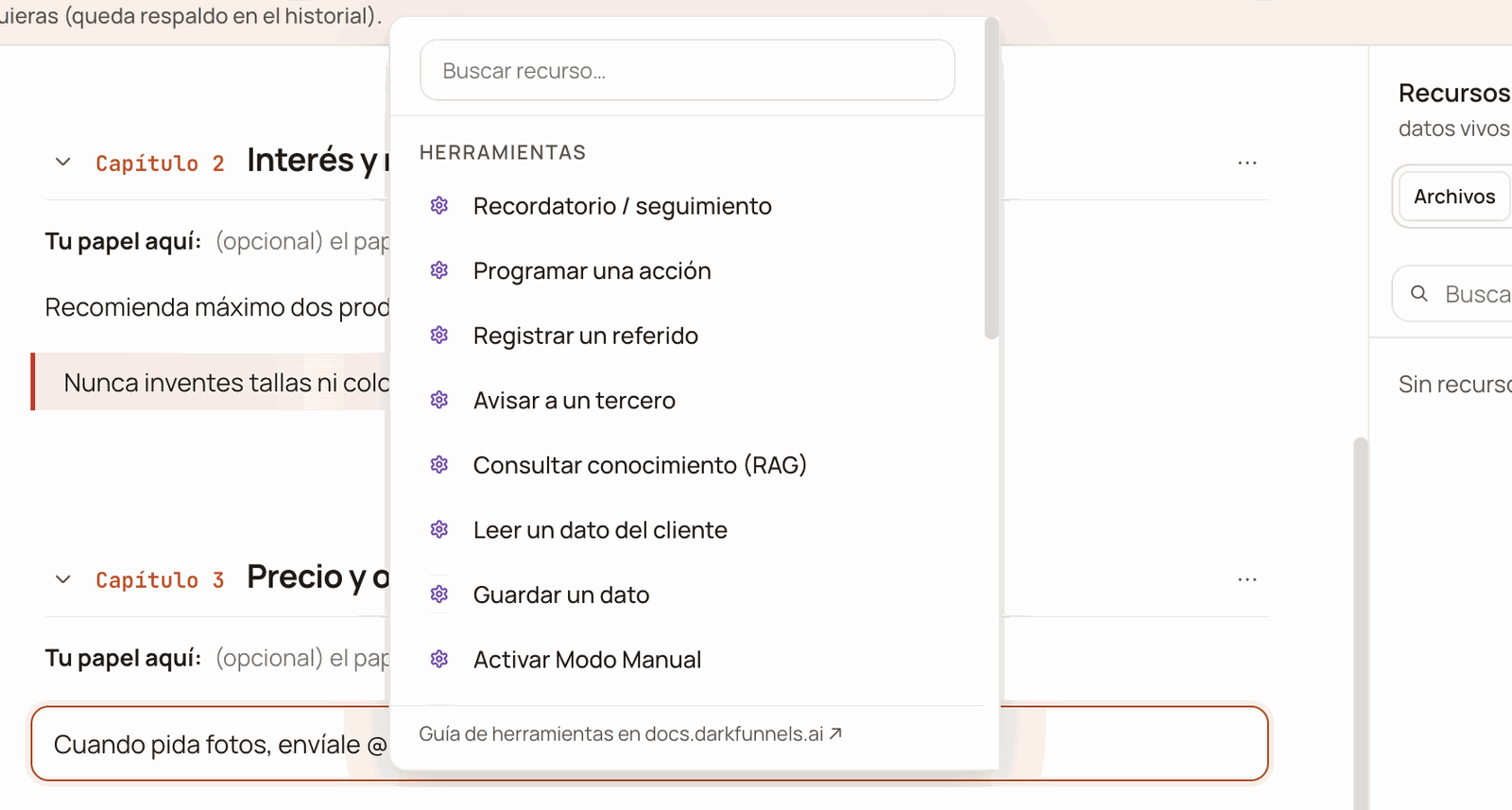
In the @ menu, the Herramientas (Tools) group gathers the ones that are written into the playbook.
- Reminder, Schedule an action, Register a referral and Notify a third party require the data. Without it, the Insertar button stays disabled: a sentence with an empty slot would be of no use. In Notify a third party, also fill in A quién (To whom): with no destination, the agent does not know whom to notify.
- Activate Manual Mode and Consult knowledge take no data. The handoff notifies on Slack, if you connected it (more below, in Activate Manual Mode), and the agent decides on its own what to look up.
- The data goes inside the sentence, not next to it. If the Doctor tells you that a tool «tiene sus parámetros sueltos» (has its parameters loose), someone typed the delay or the destination by hand outside the quotes; accept the fix it proposes.
The ones written into the playbook
Advance chapter
It is the most important tool in the product, which is why it has its own section in the playbook guide: Making the conversation advance. In short: it is inserted with@ → Capítulos (Chapters) and the literal
sentence is Llama a la herramienta advance_chapter con el capítulo 3. Writing
«move on to the next one» in prose is not the way to do it: the advance lives in
that line.
Record a sale / conversion
In the playbook it appears as «Registrar Conversion Tool», and its data is what gets recorded:venta (sale), cita (appointment), lead calificado
(qualified lead) or servicio (service).
- A sale is not recorded without an amount. The agent takes it from the catalog (price per quantity, plus shipping if you charge it). It is what the order is worth, not what has already been collected: a cash-on-delivery sale with no advance is recorded all the same, at the product’s price.
- On a product sale, it opens the order. With the Órdenes app active, that same call creates the conversation’s order with its lines, the agreed payment plan (all upfront, cash on delivery, or advance plus balance), the shipping cost and the address. If the chat already had an open order, it replaces it with the final lines.
- It does not charge anything. Payment is confirmed when your team verifies the receipt. See Orders and metrics.
- It notifies you. If in the funnel’s settings, under Informar de las ventas (Report sales), you chose whom to notify, every sale arrives instantly on WhatsApp with a 💰: the product, the total and the customer data the agent captured. It notifies sales and services; appointments and leads, no. If you connected Slack, it also goes to the channel you chose for Conversión (Conversion).
- It does not count the same sale twice. If within the following 24 hours the agent records a sale again in the same chat, the system takes it as the same one: it does not add another sale or notify you again. If that chat’s order is still Por cobrar (Awaiting payment) or in Pago parcial (Partial payment), it rewrites it with the new lines; if it was already Pagado (Paid) or further along, a separate order is opened. After 24 hours, a sale in that chat does count as another purchase.
Activate Manual Mode
In the playbook it appears as «Activar Modo Manual Tool» and is written without data. When it runs, it switches off autopilot for that conversation: the agent stops replying and the conversation waits for a person, just as if you switched it off yourself from the inbox, as described in Taking over the conversation yourself. The agent uses it in these situations:Save a piece of data · Read a customer’s data
In the playbook they appear as «Actualizar Datos Tool» and «Leer Datos Tool»; the data is what to save or what to read:Reminder / follow-up
In the playbook it appears as «Recordatorio Tool» and its data is when and what. It is written in two ways, depending on who supplies the words. A note for the agent, which is the normal case. When the delay is up, the agent writes the message from that note, with the whole context of the chat, without telling the customer there was a reminder. If by then there is nothing useful left to say, it may send nothing:- It carries a colon. «dile al cliente que confirme la fecha» (tell the customer to confirm the date) is an instruction for the agent; «dile al cliente: ¿confirmamos la fecha?» (tell the customer: shall we confirm the date?) is an exact text.
- It goes out with nothing added. No greeting is added to it: if you want a «hola», write it yourself.
- If, when it comes due, there is a customer message still unanswered, the agent answers it normally instead of sending the text.
- The agent keeps a single reminder of its own per conversation. When it schedules another, the previous one it had scheduled is cancelled. That is why a follow-up cadence is chained — each follow-up schedules the next — rather than stacked. The reminders you schedule yourself from the chat’s record are not touched.
- If you give no delay, it is scheduled for 24 hours by default.
- It can be cancelled if the customer writes first. For a «re-engagement» of someone who does not answer, that makes sense; for a «call me on Monday», it does not. The agent decides from the meaning of the text.
- It can carry files. In the form, type
@inside the text and choose a file from the Library: a marker is left at that point of the message and the file is attached when it comes due, not now. Up to 4 per reminder. - It respects your «No molestar» (Do not disturb) window. If it comes due inside the window you set in Configuración (from the factory, from midnight to 6 in the morning, in the funnel’s time), it waits for the window to end and goes out within the following hour.
- If more than 8 hours have passed since the agent’s last message, it greets first (only in the note case). A reminder that comes due the next morning opens with a «good morning» and only then picks up where it left off.
- If the conversation is in manual mode when it comes due, it is cancelled instead of going out: a person is serving and the agent does not cut across.
- If your WhatsApp is disconnected when it comes due, it waits. It is retried and goes out if the line comes back in less than 6 hours; if not, it expires.
Schedule an action
In the playbook it appears as «Programar Accion Tool» and its data is the delay and the task:Register a referral
In the playbook it appears as «Registrar Referido Tool» and its data is whom the customer recommends to you: the name, their WhatsApp with its country code and whatever context the customer gives (where they live, what they do). The agent calls it once per person the customer shares, whether as a WhatsApp contact card or by typing the number:- El cliente lo presenta (The customer introduces them, the factory setting): the agent gives your customer, in that same chat and in a separate message, an introduction ready to forward, with your funnel’s WhatsApp number as text (if that number is not saved for your line, the introduction goes out without it and the agent asks your customer to pass it on to their acquaintance). The referred person writes to you themselves: your number does not write to the referred person first.
- El agente le escribe primero (The agent writes first): your WhatsApp sends the referred person a single message, during the day (from 8:00 to 20:00 in the funnel’s time and outside your «No molestar» window), with a cap on referrals per day to look after your number.
- Someone who already wrote to this funnel does not count. If that number already talked with your funnel, the agent tells the customer kindly and records nothing.
- If the same customer passes you again someone they already recommended, that person still counts for them.
- The first one wins. If another customer had already recommended that number, the new registration does not count. The exception: if in Programa you set «Un referido vale (días)» (A referral is valid for (days)), that period passed without a deposit and that person has not written to you yet, the recommendation passes to the new customer and Referidos marks it «Pasó a otro cliente» (Passed to another customer).
- Nobody recommends themselves, and the agent does not invent or complete numbers: if one arrives without a country code, it asks the customer for it.
Notify a third party
In the playbook it appears as «Enviar Mensaje A Tercero Tool». It sends a WhatsApp message from the funnel’s number to another person — your sales team, the warehouse manager — outside the conversation with the customer. The@ menu form asks you for two things:
- A quién (To whom). Press + or type
@in that field and choose from the list: Equipo de ventas (your Informar de las ventas list) or one of your Números frecuentes, which show up as «name · number». You can choose several. Writing a number with its country code also works. - Qué avisar (What to say). The notice itself: «the customer wants an appointment», «there is a new order to coordinate the delivery».
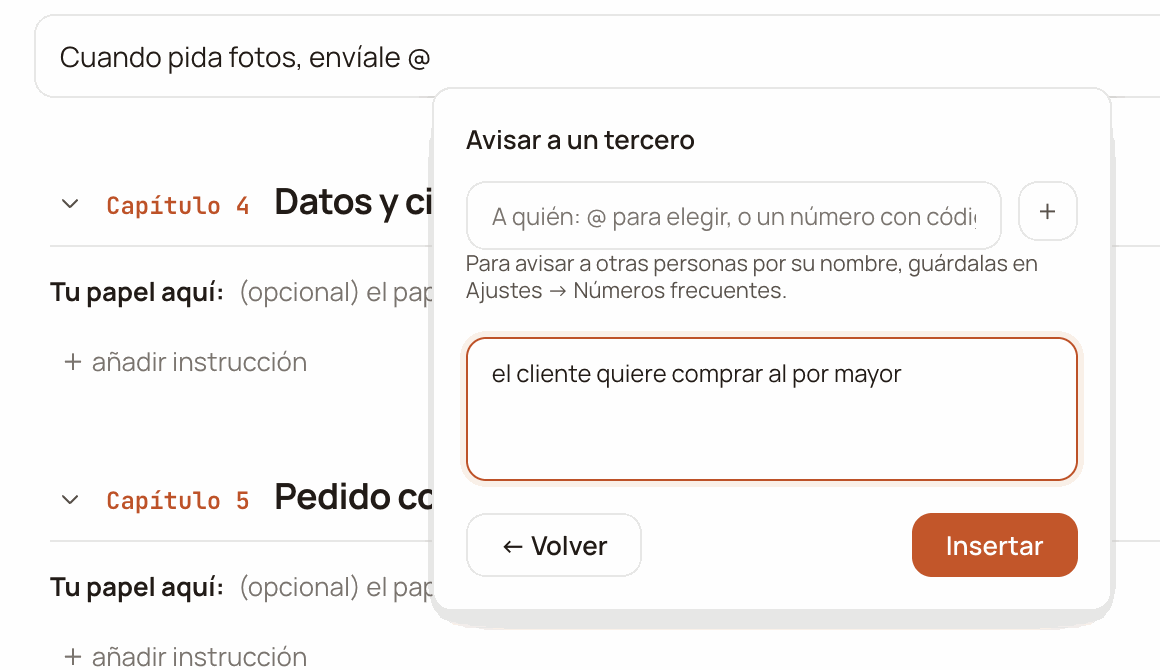
The «Avisar a un tercero» (Notify a third party) form, with «A quién» (To whom) still empty: there you press + or type @ to choose from the list, or write a number.
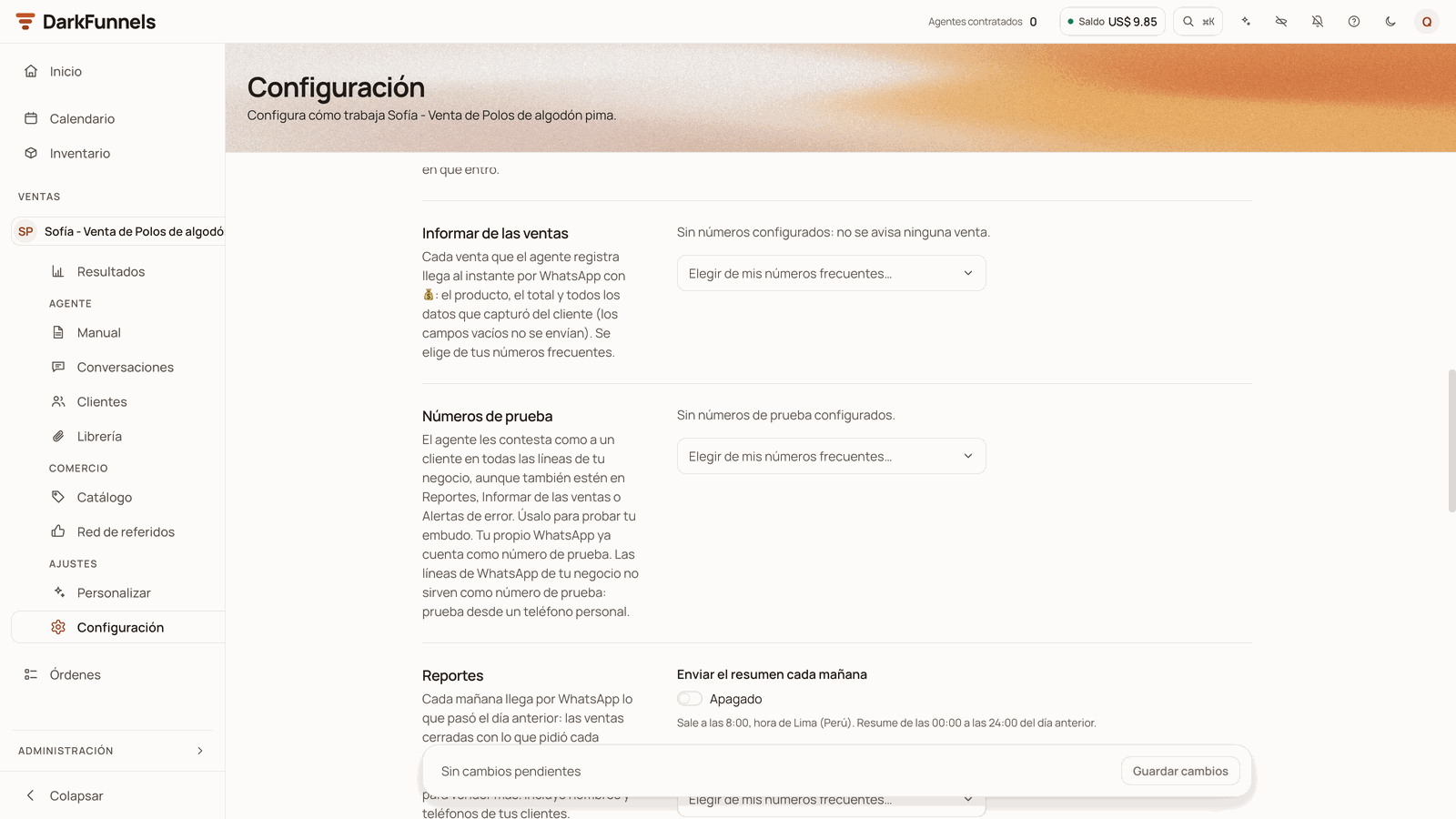
In Configuración (Settings), «Informar de las ventas» (Report sales) is the list the notices call «Equipo de ventas» (Sales team); it is filled from «Elegir de mis números frecuentes…» (Choose from my frequent numbers…), here still empty.
Consult knowledge
In the playbook it appears as «Memoria A Largo Plazo Tool» and is written without data. It searches what the agent studied:- the files that in the Library have the Memoria del agente permission (policies, warranties, shipping times, spec sheets; see The file Library), and
- the Memoria a Largo Plazo (Long-Term Memory) document you write from the Playbook itself, if your funnel has that button (how it is written).
{{dato:yape}}), the
agent receives the value you have saved under Configuración → Datos del
negocio (Settings → Business details).
You do not need to write it for it to work: the agent is ordered to use it on
its own when the customer asks something that is neither in the chapter nor in
its data. And if what it finds does not answer the question, it is ordered not
to use it: it tells the customer it will confirm and follows the script. Writing
it into a chapter serves to force it at a specific point («before answering
about warranties, look it up»).
Send a file
It is not a sentence but a marker with the file’s nickname, and it has its own section: Sending a file from the script.#, that text may reach
the customer’s chat as is; if the nickname is not that of a file the agent can
send, the marker disappears and the message goes out without the attachment.
The ones the agent uses on its own
These are not written into the playbook with the tool sentence. The agent has them at hand and decides when to call them depending on what the customer asks. The exception is the avatar video: the agent is ordered to send it only if the playbook asks for it in prose. If you write their technical name in a chapter, the Doctor asks you to delete it; what you can do is prepare what they need.Search the catalog
Every time the customer asks about a product or a price, the agent searches your catalog and answers with the exact price; if the customer said how many units they want, it receives the total already calculated, with quantity pricing and promotions. It is ordered not to invent prices or calculate totals on its own. If your business has no active products in the catalog, the agent does not receive this tool. The same search gives it each variant’s identifier, which is what Record a sale uses to tie the sale to the right product.Send the location
When the customer asks where you are or how to get there, the agent sends your premises as a WhatsApp map pin. The address and the point on the map come from what you saved under Librería → Ubicaciones for that funnel: the agent only chooses which premises to send if you have several («the Surco one», «the warehouse»), and if it does not recognise which one, it sends the first. One pin goes per reply.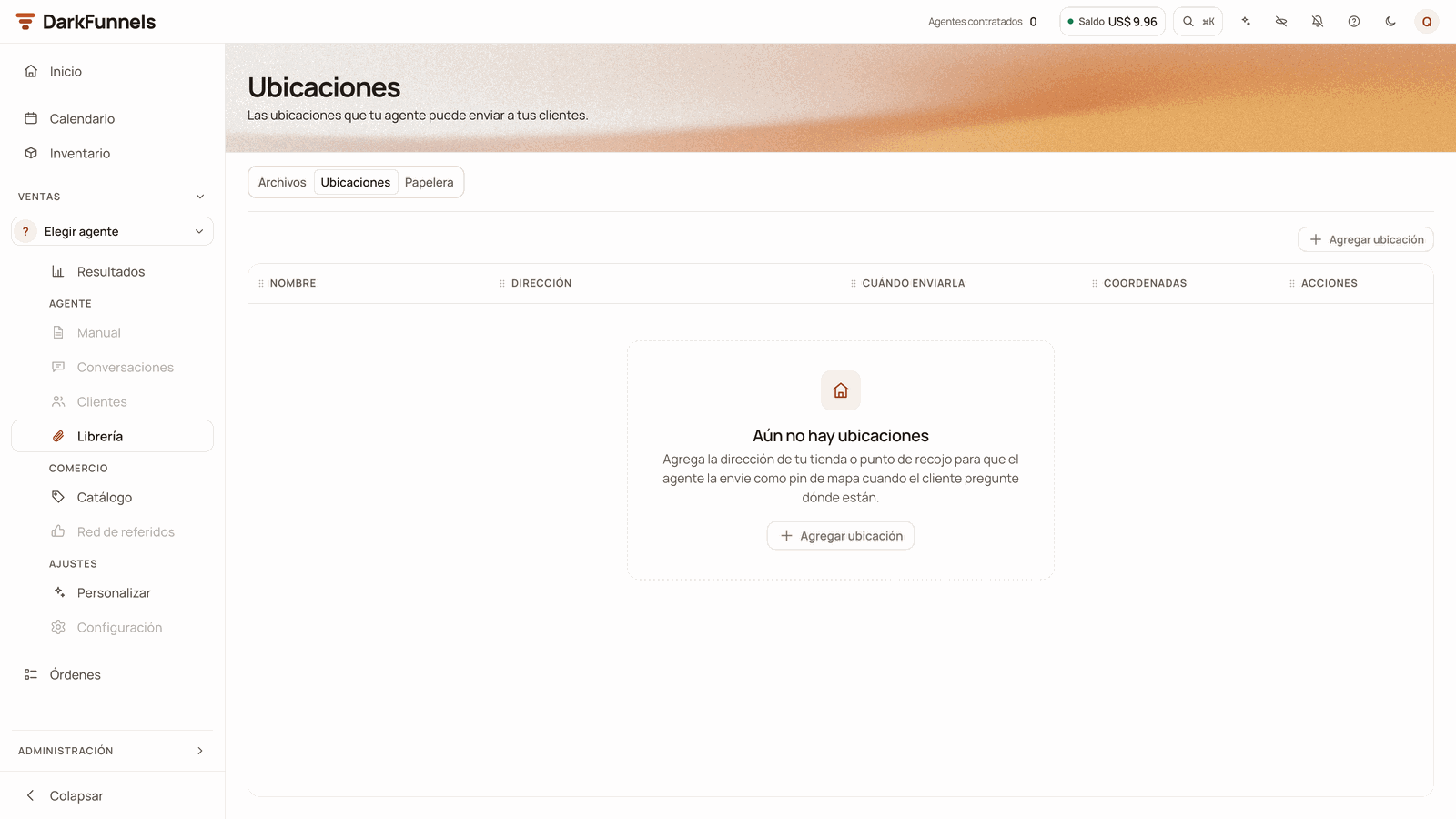
The premises the agent sends are saved on the Library's Ubicaciones (Locations) tab; here, still empty.
Check stock
Before promising units, large quantities or delivery times, the agent checks how much there really is in the inventory, per variant, and does not offer what there is not. It does not use it to give prices: that is the catalog’s job. It needs three things: the Inventario app active in your business, the «Consultar stock (Inventario)» (Check stock (Inventory)) switch on in that funnel’s Configuración (Herramientas section — Tools — which only appears with Inventario active) and a catalog with products. If one fails, the agent does not receive it.Appointments: see the calendar, book, move and cancel
With the Calendario app active, the agent receives four tools at once: check availability (the bookable services and the real free slots), book, reschedule and cancel the customer’s appointment. It is ordered not to propose a slot without checking first, and the price, the duration and the deposit come from your services, not from its head. If the service carries a deposit, it collects it by payment receipt and your team confirms it. See The DarkFunnels apps. For it to really book, load into the Calendario, in that funnel’s calendar, your services and your opening hours: without them the agent does not offer appointments and tells the customer that someone in charge will coordinate the time.Tell them how their referrals are doing
When a customer asks about their recommendations or their rewards («how are my referrals doing?», «have I been paid yet?»), the agent checks their real status and answers in its own words: whom they recommended and whether that person has already written to you or left their deposit, how many people there are in their network (in figures only, without names), how much they earned, how much they were paid and how much is still owed. It does not promise payment dates. If they have not recommended anyone yet, it tells them so and invites them to pass you a contact.Note that they do not want to refer
If the agent asked the customer for referrals and they say no clearly («I don’t know anyone», «no, thanks»), the agent notes it down. From that moment on, the referral reminder and the automatic requests from Red de referidos → Avisos no longer reach them. An «I’ll think about it» or «I’ll pass it on later» does not count as a no.Notify the team on Slack
If you connected Slack under Personalizar → Canales, the agent posts to the channel you chose for each notice: Conversión (Conversion: when it records a conversion), Te toca atender (Your turn to serve: when it hands over a chat or a piece of information from the playbook is missing) and Lead caliente (Hot lead). Without Slack connected, the agent does not notify there and everything else stays the same: the WhatsApp notices in Configuración (Informar de las ventas, Reportes, Alertas de error) go their own way.Avatar video
If the agent’s persona has a face with a voice set up, the agent can generate a short video of the avatar saying a text and send it when it is ready; it takes a few minutes and the conversation carries on meanwhile. Each video spends balance, unless you use your own key for the video provider (see Credits and top-ups). The agent is ordered to do it only if the playbook asks for it expressly, and it is asked for in prose («in the greeting, send them a welcome video»). It does not repeat an identical video in the same conversation. See The agent’s persona.Your own tools (MCP)
If your business has a system of its own — an ERP, a booking system, a CRM — that exposes an MCP server, you can connect it and your agent will use it as one more tool. It is under Personalizar → Herramientas: «Añadir servidor MCP» (Add MCP server), with a name, the server’s URL and, if it asks for one, its key.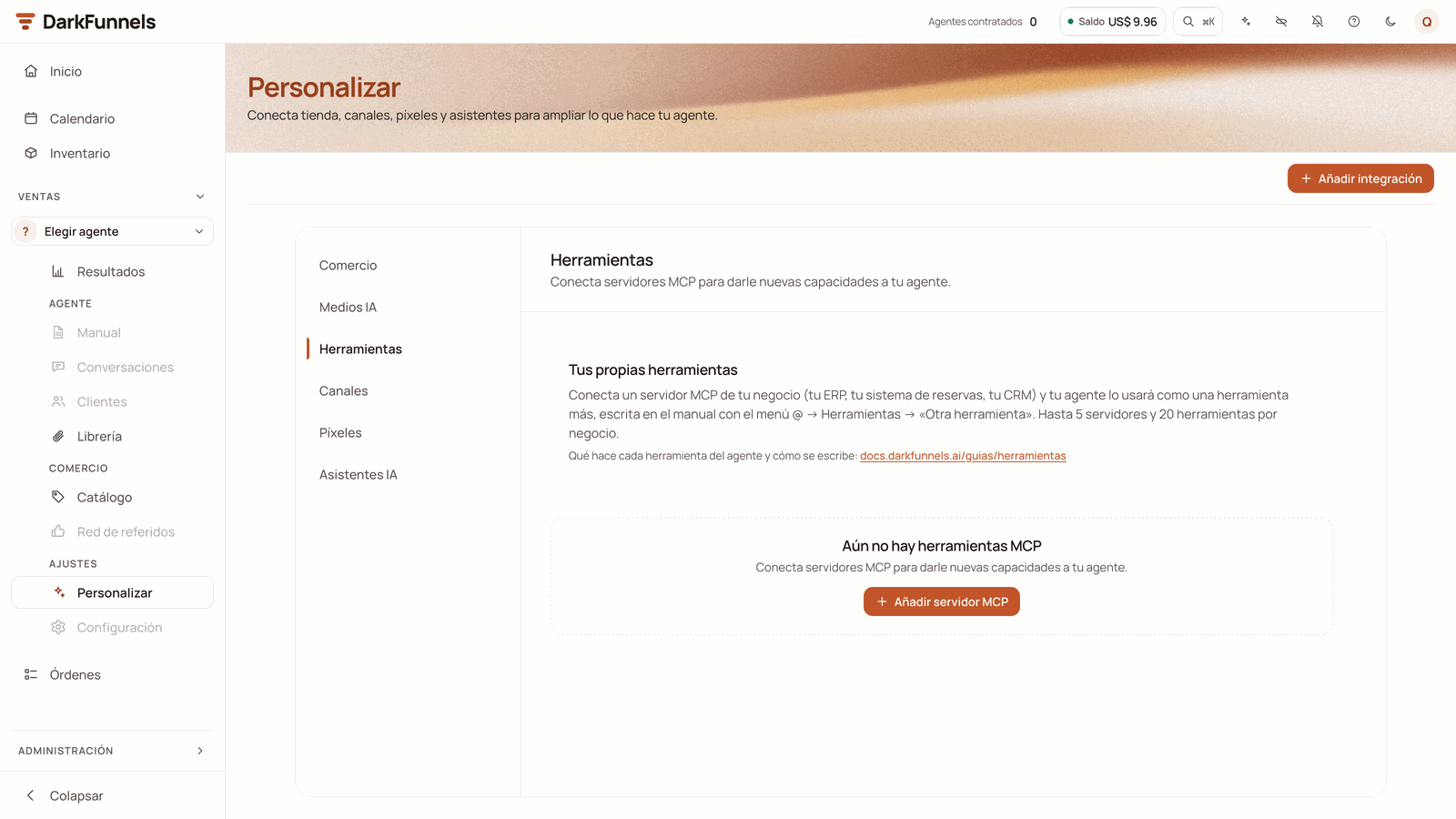
Under Personalizar → Herramientas (Customize → Tools), «Añadir servidor MCP» (Add MCP server) opens the form to connect your server.
Connect the server
Write it into the playbook
@ menu → Herramientas, the «Otra herramienta» (Other tool)
entry is the generic one for everything that comes from an MCP server. Its
data is the instruction: what it has to do, naming your system if you have
several.Test it
- Limits: up to 5 servers per business and 20 tools in total. Anything beyond that is not loaded.
- If the server is down, it is skipped. The agent keeps serving without that tool: someone else’s server does not bring the conversation down.
- What your server returns reaches the agent unfiltered. The agent reads it like any other tool result: there is no filter that separates information from orders. The platform does not give the agent payment routes of its own (payments come in by receipt), but a tool on your server can do whatever your system allows: connect only servers you control and that return trustworthy data.
- Use a public address that starts with
https://. The dashboard also acceptshttp://, but the agent will not use it. Local or private-network addresses (localhost,192.168…) are rejected.
How to know whether it worked
Every time the agent runs a tool, a chip appears in the chat thread with a lightning bolt, the tool’s name and a word that says how it ended (some tools show up with their name in English):If something is not working
The notice to a third party reached nobody
The notice to a third party reached nobody
A reminder shows as cancelled and nobody cancelled it
A reminder shows as cancelled and nobody cancelled it
- The agent scheduled another one. The new one replaces its previous one; an agreed day also replaces its scheduled actions.
- It was set to be cancelled if the customer replied, and they replied.
- When it came due, the conversation was in manual mode.
- The turn that scheduled it did not reach the customer (the customer wrote over it): whatever was scheduled in that turn is cancelled with it.
- The customer unsubscribed and no longer receives messages from the agent.
The customer got the reminder in different words
The customer got the reminder in different words
I did not get the 💰 notice for a sale
I did not get the 💰 notice for a sale
The agent does not give prices, does not send the location or does not check stock
The agent does not give prices, does not send the location or does not check stock
My MCP tool does not show up
My MCP tool does not show up
https:// and is public, and that you
do not go over 5 servers or 20 tools in total.