Connect WhatsApp with a QR, without the WhatsApp Business API: which number to use, who your agent answers and what to do if the code expires or the line drops.
This is the step that switches everything on. Up to here you have a funnel with
a script; from here on it has a phone.You connect the number you already use by scanning a QR from the dashboard,
just like when you link WhatsApp Web. It does not go through the WhatsApp
Business API (Meta’s Cloud API): there is no application to get approved, no
message templates to send and no per-conversation fee from Meta.
The dashboard is in Spanish. On this page every button and label appears in
Spanish, as you will see it on screen, with its English translation in
parentheses the first time.
1. Use the number your customers already write to. Regular WhatsApp or
WhatsApp Business works, on whatever phone. You don’t need a new number or a
separate line. It can be different from the number you signed up with: by
default, that other number is where your sales notices and your funnel’s reports
reach you on WhatsApp.2. Your agent will answer the chats that arrive at that number. It is not a
test list: while it is active and has balance, it replies to whoever writes to
it in a one-to-one chat. It does not answer groups or statuses, or the contacts
you unsubscribed, and it may not answer your own team’s numbers
(And now tells you where to test from). You can take over any
conversation whenever you want: every chat has a «Piloto automático»
(Autopilot) switch that you turn off to reply yourself.3. Connecting starts the 7-day clock and your agent starts answering that
number. You already have your welcome credits: the US$ 10 are advanced in
full when you sign up, so you can build and test the funnel without running out
halfway. Connecting brings no balance: what starts is the 7-day clock. If
you used a referral code, your US$ 25 arrive later, the day you activate your
subscription — Pricing explains it.
Did you spend those US$ 10 building the funnel? Then connecting brings you
no more balance, and your agent won’t reply until you have credits again. Before
you connect, the balance notice on «Inicio» (Home) warns you: «Tus
US$ 10 de arranque se gastaron en armar tu embudo» (Your US$ 10 starter
credit was spent building your funnel). How to top up:
Credits and top-ups.
In the left-hand menu, inside «Ventas» (Sales), click
«Personalizar» (Customize) (it is under «Ajustes» — Settings).
In that screen’s list of sections («Comercio», «Medios IA»,
«Herramientas», «Canales»… — Commerce, AI media, Tools,
Channels…), choose «Canales». Until your company has connected its
first number, «Personalizar» opens right there. (If you prefer to go
straight there, type optimind.darkfunnels.ai/customize?panel=canales in
the browser’s address bar.)You can also get there from other places in the dashboard:
The balance notice on «Inicio»: until you have connected your first
number, it carries the «Conectar WhatsApp» (Connect WhatsApp) link.
The playbook («Manual»): when your funnel already has a script and
is only missing WhatsApp, «Tu agente está listo» (Your agent is
ready) may appear at the top, with the «Conectar WhatsApp →» button.
It leaves you in «Canales» with that funnel’s QR already being prepared.
The copilot: if you build your funnel by talking with it, once the
playbook is finished it takes you to «Canales» by itself, also with the QR
being prepared.
You will see one card per funnel, with its name at the top and one tab
per channel. Today only the WhatsApp tab is active; the others say
«(Pronto)» (Soon).
Canales (Channels): one card per funnel, with the WhatsApp tab, its status badge (here, «Sin conexión», No connection) and the «Conectar / Escanear» (Connect / Scan) button.
2
Press «Conectar / Escanear» (Connect / Scan)
Before the button, the card reminds you of the essentials: use the number
your customers write to, and your agent will answer the chats that arrive
there.When you press it you will see «Preparando el código QR…» (Preparing
the QR code…) for a few seconds, and then the code. The codes renew
themselves. If the first one goes by without you scanning it, «Intento N
de 10» (Attempt N of 10) appears under the code: if ten attempts go by
without anyone scanning, they stop being generated
(Common problems explains it). Below you have
«Actualizar QR» (Refresh QR), «No puedo escanear mi QR» (I can’t
scan my QR) — it opens the problems section of this guide, in its Spanish
version — and «Escribir al equipo» (Write to the team), which opens a
WhatsApp chat with us.
The funnel has to be active. If it is paused, the card does not show the
code: it says «Este embudo está en pausa: no puede conectar su WhatsApp y
su agente no responde a nadie» (This funnel is paused: it can’t connect
its WhatsApp and its agent doesn’t reply to anyone) and offers you
«Activar embudo» (Activate funnel) right there. If your trial has
already ended, the button is «Ver planes» (See plans).
3
On your phone, link the device
On the phone of the line you are connecting, open WhatsApp →
Linked devices → Link a device (on a phone set to Spanish:
Dispositivos vinculados → Vincular un dispositivo) and point the camera
at the code on the screen.It is the same mechanism as WhatsApp Web: your phone remains the owner of
the number and you can keep using it as normal.Did you open the dashboard on that same phone, and you have no way to scan
your own screen? See «I only have my phone with me» in
Common problems.
4
Wait for «Conectado» (Connected)
The badge goes through «Conectando…» (Connecting…) and ends at
«Conectado» (Connected), with the number in view.The first time your company connects a number, «¡Tu agente está en
línea!» (Your agent is online!) opens. It suggests «Pruébalo ahora»
(Try it now) — texting “hola” to that number from another phone — and, if
your browser allows it, offers you «Activar avisos» (Turn on
notifications) so you get a notification as soon as someone writes to your
agent. «Ir al chat» (Go to the chat) takes you to the inbox;
«Seguir configurando» (Keep setting up) closes the window. Later
connections only show the «WhatsApp conectado» (WhatsApp connected)
notice.
Have the line’s phone in your hand before you press «Conectar / Escanear»: each
code lives only a few seconds, and it is nice not to have to ask for another
one.
If your funnel was born from the Ecommerce template or from scratch
If you created your sales funnel with the copilot — with the Ecommerce template
or building your flow from scratch — or you loaded the template into it with
«Cargar plantilla de Ecommerce» (Load Ecommerce template), the QR does
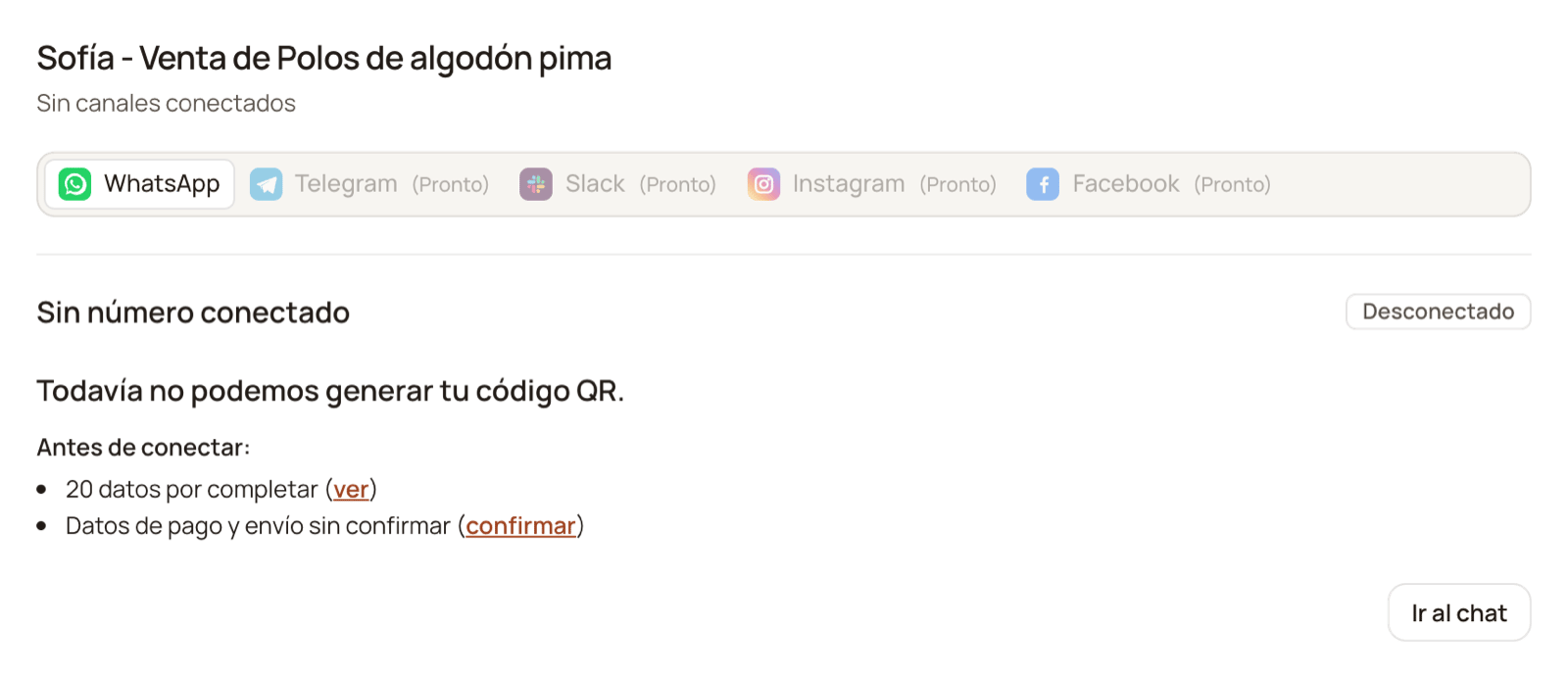
not show up until its playbook is complete. Instead, the card shows «Antes
de conectar:» (Before connecting:) with what is missing, and each item comes
with its link:
«N datos por completar (ver)» (N details to complete (see)): what only
you know about your business (the brand, the prices…). «ver» (see) shows
them to you in the playbook.
«Capítulo N sin pasos (ver)» (Chapter N has no steps (see)): a chapter
that was left empty. If you chose to start from scratch, the three chapters
are born with no steps: write them before connecting. «ver» opens the
playbook.
«Datos de pago y envío sin confirmar (confirmar)» (Payment and shipping
details not confirmed (confirm)): your playbook comes with typical payment,
location and shipping details. «confirmar» (confirm) shows them to you just
as your seller is going to use them — «Así va a responder tu vendedor sobre
pago, ubicación y envío. ¿Son correctos?» (This is how your seller will
answer about payment, location and shipping. Are they correct?) — with two
ways out: «Sí, son correctos» (Yes, they’re correct) or «Cambiarlos en
el manual» (Change them in the playbook).
With the playbook incomplete, the card says what is missing instead of showing the QR: here, 20 placeholders and the payment and shipping details still unconfirmed.
Once you confirm the details, the card tries to connect again by itself. If
what was missing were placeholders or chapters, complete them in the playbook,
go back to «Canales» and press «Conectar / Escanear». The same list appears
at the top of the playbook while it is missing something. How to fill in
placeholders: The sales playbook.
The number is linked and your agent handles the chats that come in.
Nothing.
«Escanea el QR» (Scan the QR)
There is a code on screen waiting for you.
Scan it with the line’s phone, or press «Actualizar QR» (Refresh QR).
«Escribe el código» (Type the code)
You asked for «Vincular con código» (Link with a code) — it only appears if your account has it — and there is a code on screen.
Type it into WhatsApp, on the line’s phone (see below).
«Conectando…» (Connecting…)
The connection is starting up.
Wait a few seconds.
«Desconectado» (Disconnected)
There is no number linked to this line.
«Conectar / Escanear» (Connect / Scan).
«El código caducó» (The code expired)
The line was already connected before, and ten attempts went by without anyone scanning the code: it stopped generating them.
«Conectar» (Connect), to start again.
«Acción requerida» (Action required)
The connection is taking longer than usual, or the session closed (for example, because another device took the number). The card’s message says what happened.
The main button («Reintentar» — Retry — or «Conectar»); if nothing changes in a few minutes, «Escribir al equipo» (Write to the team).
«Sin conexión» (No connection)
The dashboard could not talk to the WhatsApp service.
Wait a few minutes: the card checks again by itself.
«Retirada» (Removed)
This funnel has no WhatsApp line.
«Agregar línea de WhatsApp» (Add WhatsApp line), if you want it to handle WhatsApp again.
Changing number or leaving a funnel without WhatsApp
Each funnel has its own card and a single WhatsApp line. If you have two
funnels, each one connects with its own number. With the line connected, the
card gives you three buttons, and they do not do the same thing:
Button
What it does
When to use it
«Reiniciar» (Restart)
Lifts the safety pause that holds back sending when WhatsApp shows signs of blocking, and restarts the connection only if it had stopped. It does not unlink the number or cut a connection that is working.
If the connection stopped, or if your agent stopped sending messages while the line is connected.
«Desconectar» (Disconnect)
Unlinks the number: the dashboard stops being a linked device of that phone. The card is left on «Desconectado».
When you change number: you disconnect and scan the QR with the new one.
«Retirar esta línea» (Remove this line)
Leaves the funnel without WhatsApp.
When that funnel’s agent is no longer going to handle WhatsApp.
Removing it asks for confirmation in «¿Retirar esta línea?» (Remove this
line?): your agent stops handling that number and you stop receiving notices
and summaries from that line. The conversations are kept. The card is left
on «Retirada», with the text «Este embudo no tiene línea de WhatsApp»
(This funnel has no WhatsApp line). To give it one back, press «Agregar
línea de WhatsApp» → «Agregar línea» (Add line), and follow the QR as
the first time, with the number you want to use.
If you only changed number, do not remove the line: disconnect it and scan
the QR with the new one. It is what the dashboard itself reminds you before you
remove it.
Reconnecting, changing number or adding a line does not give you welcome
credits again or restart the trial clock: that happens only once per company.
Disconnecting does not take away the balance you have either.
Linking, restarting, disconnecting or removing a line is up to whoever
manages your company’s apps (by default, the person who created the account).
If you do not have that permission, the card tells you so instead of showing
the QR. Who can do what:
Invite your team.
That is normal: each WhatsApp code expires in seconds and renews itself; the
screen shows you the new one. Press «Actualizar QR» (Refresh QR) and
scan the one that appears. If ten attempts go by without your phone getting
linked, they stop being generated: that is the case below.
I let the codes go by and none appear any more
After ten attempts without a scan, the line stops asking WhatsApp for codes.
That way it does not spend the night generating codes nobody is looking at.
To pick up again, press the button on the card. What you see depends on the
line:
If it is the first time you connect it, the card goes back to
«Desconectado» (Disconnected). Press «Conectar / Escanear» and
start again.
If the line was already connected before, the badge says «El código
caducó» (The code expired) and the message reads «El código QR caducó
sin escanearse y dejó de renovarse. Pulsa «Conectar» para generar uno
nuevo.» (The QR code expired without being scanned and stopped renewing.
Press «Conectar» to generate a new one.) The button says «Conectar»
(Connect), not «Reintentar» (Retry): press it and the cycle starts
again.
My phone says «Couldn't link device»
You scanned and WhatsApp rejected the link at the last step. The dashboard
detects it and changes the text under the code: «Tu teléfono dijo «No se
pudo vincular». Cierra WhatsApp, vuelve a abrir Dispositivos vinculados y
escanea este código nuevo.» (Your phone said «Couldn’t link». Close
WhatsApp, open Linked devices again and scan this new code.)Do exactly that: close WhatsApp, go back to Linked devices and scan the
code that is on screen now. If it fails again, press «Actualizar QR» and
try once more; and if that does not work either, «Escribir al equipo»
(Write to the team) from that same card.
I only have my phone with me (I can't scan my own screen)
The simplest way out: open the dashboard on a computer, or on another phone,
and scan from the line’s phone.If you see the «Vincular con código» (Link with a code) button on the
card, you can link from that same phone, without scanning anything:
Press «Vincular con código». If the line has not been connected
yet, type in the «Número de WhatsApp de tu negocio» (Your business’s
WhatsApp number) and press «Pedir código» (Request code); the
dashboard asks you to confirm it in «¿Vincular este número?» (Link
this number?) → «Sí, pedir código» (Yes, request code).
An 8-character code appears. «Copiar código» (Copy code) copies
it.
On the line’s phone: WhatsApp → Linked devices → Link a device →
Link with phone number instead (Vincular con el número de
teléfono), and type in the code.
The card switches to «Conectado» by itself as soon as WhatsApp accepts
it. The code expires within a few minutes; «Pedir otro código» (Request
another code) gives you a new one (at most one per minute) and «Usar
QR» (Use QR) takes you back to the QR. It only works with Peruvian
mobile numbers, and on a line that was already connected it only works for
that same number: to link a different one, use the QR. If you do not see the
button, linking with a code is not available for your account or for that
line.
It stays on «Conectando…» (Connecting…) for a long time
If about 20 seconds go by with no change, the badge switches to «Acción
requerida» (Action required) with the message «La conexión está
tardando más de lo normal. Reintenta o reinicia.» (The connection is
taking longer than usual. Retry or restart.) The card gives you two
buttons:
«Reintentar» (Retry): asks for the connection again.
«Reiniciar» (Restart): does the same as «Reintentar» and also lifts
the safety pause on sending, if there was one. It does not unlink your
number.
If it is still the same, it is usually the service and not your account:
wait a few minutes and come back, or «Escribir al equipo».
It was connected and dropped on its own
We let you know. If a line that was connected drops and its funnel is
active, we email the account owner within a few minutes — and you get a
browser notification, if you turned on notifications. If it is still down,
we remind you after an hour, after 12 hours and after 3 days; after a week,
once a week if you have a subscription or your trial is still running.To recover it, look at the card’s badge and message:
«Conectando…», or «Acción requerida» with «La conexión está
tardando más de lo normal. Reintenta o reinicia.»: it is trying to
reconnect by itself, without you having to scan. Wait a few minutes; if
it does not come back, press «Reintentar».
«Escanea el QR» (Scan the QR): the line lost its link with the
phone. Scan the new code with that line’s phone.
«Acción requerida» with «La sesión se cerró (otro dispositivo tomó el
número, o las credenciales dejaron de servir)…» (The session closed
(another device took the number, or the credentials stopped working)…):
press «Conectar» and, if a code appears, scan it with that line’s
phone. If it closes again, «Escribir al equipo».
«Acción requerida» with «La sesión se detuvo desde el panel de
soporte…» (The session was stopped from the support panel…): press
«Conectar» to resume it.
Recovering the line does not delete your conversations, your playbook or
your catalog: what gets rebuilt is the link with the phone.What came in while it was down. The messages your customers wrote
during the outage may show up in their conversations when you reconnect, but
they may be left unanswered. Check «Conversaciones»
(Conversations) with the «Esperando respuesta» (Waiting for a reply)
filter and answer them yourself. If your inbox has the «Seleccionar»
(Select) button, you can pick those chats and press «Responder con IA»
(Reply with AI). Before it starts, the window tells you who it is going to
answer and who it skips — for example, whoever wrote more than 7 days ago or
has autopilot off — and asks you to accept the risk of WhatsApp banning your
number. The AI answers one chat per minute, between 8:00 and 21:00 in your
agent’s time zone, up to 100 per batch. Wait about 10 minutes after
reconnecting; before that, the AI skips them.
Conversations explains it.
It says «Este embudo está en pausa» (This funnel is paused)
A paused funnel cannot connect its WhatsApp and its agent does not reply to
anyone. Press «Activar embudo» (Activate funnel) on the same card.If it answers «Tienes N de M embudos activos. Para relevar un embudo hazlo
desde Inicio.» (You have N of M active funnels. To swap a funnel, do it
from Home.), you are already using all your active funnels: pause another
one from «Inicio» (Home) to make room. If your trial has ended, the
card says «Tu prueba terminó: los embudos quedan en pausa hasta que elijas
un plan» (Your trial has ended: funnels stay paused until you choose a
plan) and the button is «Ver planes» (See plans):
Pricing explains it.
It says «Solo quien administra tu organización puede vincular un número a esta línea»
(Only whoever manages your organization can link a number to this line.)
Your user does not have permission to connect WhatsApp lines. Ask whoever
manages your company in the dashboard to connect it from «Canales»
(Channels), or to give you that permission. The same happens when you
press «Reiniciar» (Restart) or «Desconectar» (Disconnect): the
dashboard tells you that only whoever manages it can do that.
It asks me if it is the right number, or I connected the wrong number
If the number you linked is not the one you signed up with, the card asks
you: «Conectaste …4321, que no es el número con el que te registraste. ¿Es
el número al que te escriben tus clientes?» (You connected …4321, which is
not the number you signed up with. Is it the number your customers write
to?). That is normal: lots of people sign up with their personal phone and
connect the business line.
«Sí, es este» (Yes, it’s this one): nothing changes and the dashboard
stops asking you in that browser.
«Desconectar y usar otro» (Disconnect and use another): unlinks that
number. Then press «Conectar / Escanear» and scan with the right
phone.
If you noticed it on your own, it is the same: «Desconectar» and connect
again with the right number. Neither the credits nor the trial clock change.
I don't want it to reply yet
The simplest thing is to wait before connecting. Your trial already has
a date from sign-up: if you do not connect, it expires 7 days after you
signed up. The day you connect, the clock counts 7 days again from that day.
Connect when you want your agent to start, within those 7 days.If you need the number linked right now, connect and pause your funnel
right after you see «Conectado»: on «Inicio» (Home), your funnel’s
card has a switch that goes from «Activo» (Active) to «Pausado»
(Paused). Until you pause it, your agent already replies to whoever
writes. While it is paused, its agent does not reply to anyone and the messages to
that number do not come into the dashboard, but the number stays linked:
when you activate it again, the line usually comes back without you having
to scan again.Do it in that order: a paused funnel cannot link its number. And the 7-day
clock keeps running even while the funnel is paused.Turning off «Piloto automático» (Autopilot) chat by chat does not work
for this: every new conversation is born with autopilot on, so the agent
would answer each new customer’s first message.
I wrote to it from another phone and it didn't reply
Go through these, in this order:
The card’s badge says «Conectado».
You have balance: if the balance notice on «Inicio» is red, your agent
does not reply to new messages until you sort it out.
The funnel is «Activo» (Active) on «Inicio».
That chat has «Piloto automático» switched on.
You wrote from a personal phone. Your business’s WhatsApp lines do
not work as a test number.
If that phone also receives your «Reportes» (Reports),
«Informar de las ventas» (Sale notices) or «Alertas de error»
(Error alerts), add it under «Números de prueba» (Test numbers)
(«Ventas» → «Configuración» — Sales → Settings): that way the
agent replies to it as it would to a customer.
Funnel settings explains it.
Write “hola” to your number from a personal phone: that is the honest test.
You will see the conversation come into «Conversaciones», with «Piloto
automático» on and your agent replying with the script you wrote for it.
Your own WhatsApp — the one on your dashboard user — already counts as a test
number, so you can test from there even if it receives your notices, as long as
it is not the number of one of your business’s WhatsApp lines.
Credits and top-ups
What consumes balance and how to top up before you run out.
Review conversations
The inbox where you see every chat and take it over yourself when needed.
Funnel settings
Your test numbers, the sales notices and the reports every morning.
The sales playbook
Fine-tune what your agent replies now that it is handling real customers.
Last modified on October 19, 2026
{"docsConfig":{"theme":"mint","$schema":"https://mintlify.com/docs.json","name":"DarkFunnels","description":"Vende por WhatsApp con un agente de ventas IA — y opéralo desde tu asistente.","colors":{"primary":"#C2562A","light":"#D86A3C","dark":"#9A3F1C"},"logo":{"light":"https://mintcdn.com/darkfunnels/Df-1lKh1Aj5k8c-r/logo/light.svg?fit=max\u0026auto=format\u0026n=Df-1lKh1Aj5k8c-r\u0026q=85\u0026s=db60a9a883ed42e13a06aded18a08fb0","dark":"https://mintcdn.com/darkfunnels/Df-1lKh1Aj5k8c-r/logo/dark.svg?fit=max\u0026auto=format\u0026n=Df-1lKh1Aj5k8c-r\u0026q=85\u0026s=ab6a8b17d7e5e0d3b45de82ecd342327"},"favicon":"https://mintcdn.com/darkfunnels/Df-1lKh1Aj5k8c-r/favicon.svg?fit=max\u0026auto=format\u0026n=Df-1lKh1Aj5k8c-r\u0026q=85\u0026s=caa397a60f25d85c3d14d40fc8bb4841","navbar":{"primary":{"type":"button","label":"Entrar al panel","href":"https://optimind.darkfunnels.ai"}},"footer":{"socials":{"website":"https://darkfunnels.ai"}},"seo":{"metatags":{"og:locale":"es_PE"},"organization":{"id":"https://darkfunnels.ai/#organization","name":"DarkFunnels","url":"https://darkfunnels.ai","sameAs":["https://github.com/darkfunnels-ai"]},"indexing":"navigable"},"fonts":{"family":"Manrope"},"errors":{"404":{"redirect":false}},"contextual":{"options":["copy","view","claude","chatgpt","perplexity","cursor","vscode","mcp"],"display":"header"},"metadata":{"timestamp":true},"markdown":{"instructions":["DarkFunnels is a WhatsApp AI sales-agent platform used mainly in Peru and Latin America. The product interface and most of this documentation are in Spanish; the /en tree is the English mirror.","A business connects the WhatsApp number it already uses by scanning a QR code from the dashboard, the same linked-device mechanism as WhatsApp Web. It does not go through the Meta Cloud API (WhatsApp Business Platform), so there is no application to get approved and no message templates to submit. DarkFunnels is not a Meta product and is not affiliated with Meta.","DarkFunnels also publishes a remote MCP server at https://mcp.darkfunnels.ai/mcp?features=all (without parameters it only carries the default, mostly read-only set) so an assistant such as Claude, ChatGPT or Codex can operate the workspace on the owner's behalf, in one company and within the permissions of the person who connects it. The tool reference is at /referencia/tools and the connection parameters at /referencia/url-de-conexion.","The dashboard is https://optimind.darkfunnels.ai, the marketing site is https://darkfunnels.ai and the page written for AI agents is https://darkfunnels.ai/agents."]},"styling":{"latex":false},"navigation":{"languages":[{"language":"es","default":true,"href":""},{"language":"en","href":"en"}]}},"deployment":{"deploymentMetadataValue":{"subdomain":"darkfunnels","hasAudioNarration":false,"actualSubdomain":"darkfunnels","customDomains":["docs.darkfunnels.ai"],"gitSource":{"type":"github","owner":"darkfunnels-ai","repo":"optimind-docs","deployBranch":"main","contentDirectory":"","isPrivate":true,"mountPath":"","label":""},"chroma":{"latestBuiltDeploymentHistoryId":"6ad6a0705c698d64cc0b179c","collectionId":"09c1a31a-e794-4676-b353-1de0e8edd33d","liveDeploymentHistoryId":"6ad6a0705c698d64cc0b179c","schemaVersion":"v3"},"entitlements":{"AI_CHAT":{"status":"DISABLED"}},"buildId":"6ad6a0705c698d64cc0b179c","clientVersion":"0.0.3894","searchFilterCounts":[{"language":"en","tag":"Guides","count":11},{"language":"es","tag":"Guías","count":11},{"language":"en","tag":"Getting started","count":8},{"language":"es","tag":"Primeros pasos","count":8},{"language":"en","tag":"Optional: run it from Claude or ChatGPT","count":6},{"language":"es","tag":"Opcional: opéralo desde Claude o ChatGPT","count":6},{"language":"en","tag":"Reference","count":3},{"language":"es","tag":"Referencia","count":3},{"language":"en","tag":"Start","count":1},{"language":"en","tag":"Security","count":1},{"language":"es","tag":"Empezar","count":1},{"language":"es","tag":"Seguridad","count":1}]},"assistantConfig":{"enableAskAiButton":false,"enableStarterQuestions":false,"enableContextualStarterQuestions":false,"enableAskAiSearchBar":true},"hasChatPermissions":false,"hasWebMcpPermissions":false,"toggles":[{"name":"kill-isr","enabled":true,"variant":{"name":"disabled","enabled":false,"feature_enabled":true},"impressionData":false},{"name":"agent-mintlify-slack","enabled":true,"variant":{"name":"disabled","enabled":false,"feature_enabled":true},"impressionData":false},{"name":"editor-v7-file-tree","enabled":true,"variant":{"name":"disabled","enabled":false,"feature_enabled":true},"impressionData":false},{"name":"agent-integrations-settings","enabled":true,"variant":{"name":"disabled","enabled":false,"feature_enabled":true},"impressionData":false},{"name":"automations-pr-grouping","enabled":true,"variant":{"name":"disabled","enabled":false,"feature_enabled":true},"impressionData":false},{"name":"custom-prefix","enabled":true,"variant":{"name":"disabled","enabled":false,"feature_enabled":true},"impressionData":false},{"name":"analytics-v7","enabled":true,"variant":{"name":"disabled","enabled":false,"feature_enabled":true},"impressionData":false},{"name":"user-flows-analytics","enabled":true,"variant":{"name":"disabled","enabled":false,"feature_enabled":true},"impressionData":false},{"name":"no-publish-flow","enabled":true,"variant":{"name":"disabled","enabled":false,"feature_enabled":true},"impressionData":false},{"name":"workos-onboarding","enabled":true,"variant":{"name":"disabled","enabled":false,"feature_enabled":true},"impressionData":false},{"name":"llms-txt-v2","enabled":true,"variant":{"name":"disabled","enabled":false,"feature_enabled":true},"impressionData":false},{"name":"pause-universal-search-reconcile","enabled":true,"variant":{"name":"disabled","enabled":false,"feature_enabled":true},"impressionData":false},{"name":"snapshot-serving-live","enabled":true,"variant":{"name":"disabled","enabled":false,"feature_enabled":true},"impressionData":false},{"name":"stripTemperatureMiddleware","enabled":true,"variant":{"name":"disabled","enabled":false,"feature_enabled":true},"impressionData":false},{"name":"per-site-search-delta","enabled":true,"variant":{"name":"disabled","enabled":false,"feature_enabled":true},"impressionData":false},{"name":"support-platform-pylon-zendesk","enabled":true,"variant":{"name":"disabled","enabled":false,"feature_enabled":true},"impressionData":false},{"name":"editor-branches-v2-autocommit","enabled":true,"variant":{"name":"disabled","enabled":false,"feature_enabled":true},"impressionData":false},{"name":"editor-branches-v2","enabled":true,"variant":{"name":"disabled","enabled":false,"feature_enabled":true},"impressionData":false},{"name":"snapshot-serving","enabled":true,"variant":{"name":"disabled","enabled":false,"feature_enabled":true},"impressionData":false},{"name":"instant-rollback","enabled":true,"variant":{"name":"disabled","enabled":false,"feature_enabled":true},"impressionData":false},{"name":"granular-notifications-server","enabled":true,"variant":{"name":"disabled","enabled":false,"feature_enabled":true},"impressionData":false},{"name":"granular-notifications","enabled":true,"variant":{"name":"disabled","enabled":false,"feature_enabled":true},"impressionData":false},{"name":"editor-private-page-search","enabled":true,"variant":{"name":"disabled","enabled":false,"feature_enabled":true},"impressionData":false},{"name":"automations-fable","enabled":true,"variant":{"name":"disabled","enabled":false,"feature_enabled":true},"impressionData":false},{"name":"fixed-ai-action-pricing","enabled":true,"variant":{"name":"disabled","enabled":false,"feature_enabled":true},"impressionData":false},{"name":"automation-resolve-merge-conflict","enabled":true,"variant":{"name":"disabled","enabled":false,"feature_enabled":true},"impressionData":false},{"name":"scoped-publishing","enabled":true,"variant":{"name":"disabled","enabled":false,"feature_enabled":true},"impressionData":false},{"name":"mintql","enabled":true,"variant":{"name":"disabled","enabled":false,"feature_enabled":true},"impressionData":false},{"name":"page-level-analytics","enabled":true,"variant":{"name":"disabled","enabled":false,"feature_enabled":true},"impressionData":false},{"name":"teamspace","enabled":true,"variant":{"name":"disabled","enabled":false,"feature_enabled":true},"impressionData":false},{"name":"editor-version-history-v2","enabled":true,"variant":{"name":"disabled","enabled":false,"feature_enabled":true},"impressionData":false},{"name":"vite-origin","enabled":true,"variant":{"name":"disabled","enabled":false,"feature_enabled":true},"impressionData":false},{"name":"editor-nav-generations","enabled":true,"variant":{"name":"disabled","enabled":false,"feature_enabled":true},"impressionData":false},{"name":"workspace-projects","enabled":true,"variant":{"name":"disabled","enabled":false,"feature_enabled":true},"impressionData":false},{"name":"assistant-v5","enabled":true,"variant":{"name":"disabled","enabled":false,"feature_enabled":true},"impressionData":false},{"name":"byok-sep-25","enabled":true,"variant":{"name":"disabled","enabled":false,"feature_enabled":true},"impressionData":false},{"name":"revalidation-jwt","enabled":true,"variant":{"name":"disabled","enabled":false,"feature_enabled":true},"impressionData":false},{"name":"editor-agent-model-picker","enabled":true,"variant":{"name":"disabled","enabled":false,"feature_enabled":true},"impressionData":false},{"name":"client-snapshot-docs-config","enabled":true,"variant":{"name":"disabled","enabled":false,"feature_enabled":true},"impressionData":false},{"name":"hobby-abuse-scan","enabled":true,"variant":{"name":"disabled","enabled":false,"feature_enabled":true},"impressionData":false}],"isAtlas":false,"googleFontsInlined":true},"customCss":[{"filePath":"style.css","content":"@font-face{font-family:'JetBrains Mono';src:url(/fonts/jetbrains-mono-latin.woff2) format('woff2');font-weight:100 800;font-style:normal;font-display:swap}:root{--primary:194 86 42;--primary-light:216 106 60;--primary-dark:154 63 28;--background-light:255 255 255;--background-dark:23 18 14;--gray-50:247 245 241;--gray-100:245 243 239;--gray-200:237 234 228;--gray-300:224 220 212;--gray-400:154 144 137;--gray-500:124 114 106;--gray-600:107 98 91;--gray-700:61 53 47;--gray-800:42 35 29;--gray-900:33 27 23;--gray-950:23 18 14;--font-paper-mono:'JetBrains Mono';--default-mono-font-family:'JetBrains Mono', ui-monospace, SFMono-Regular,\n Menlo, Monaco, Consolas, 'Liberation Mono', 'Courier New', monospace;--rounded-xl:18px}"}],"page":{"pagePath":"en/getting-started/connect-whatsapp","slug":"/en/getting-started/connect-whatsapp","pageMetadata":{"title":"Connect WhatsApp without the Business API","sidebarTitle":"Connect WhatsApp","description":"Connect WhatsApp with a QR, without the WhatsApp Business API: which number to use, who your agent answers and what to do if the code expires or the line drops.","keywords":["connect WhatsApp without the API","WhatsApp AI agent without the official API","WhatsApp QR code linked device","no WhatsApp Business API","WhatsApp QR code expired"],"href":"/en/getting-started/connect-whatsapp"},"description":{"compiledSource":"\"use strict\";\nconst {jsx: _jsx} = arguments[0];\nconst {useMDXComponents: _provideComponents} = arguments[0];\nfunction _createMdxContent(props) {\n const _components = {\n p: \"p\",\n ..._provideComponents(),\n ...props.components\n };\n return _jsx(_components.p, {\n children: \"Connect WhatsApp with a QR, without the WhatsApp Business API: which number to use, who your agent answers and what to do if the code expires or the line drops.\"\n });\n}\nfunction MDXContent(props = {}) {\n const {wrapper: MDXLayout} = {\n ..._provideComponents(),\n ...props.components\n };\n return MDXLayout ? _jsx(MDXLayout, {\n ...props,\n children: _jsx(_createMdxContent, {\n ...props\n })\n }) : _createMdxContent(props);\n}\nreturn {\n default: MDXContent\n};\n","frontmatter":{},"scope":{}},"pageType":"default","mdx":{"mdxSource":{"compiledSource":"\"use strict\";const{Fragment:_Fragment,jsx:_jsx,jsxs:_jsxs}=arguments[0];const{useMDXComponents:_provideComponents}=arguments[0];function _createMdxContent(props){const _components={a:`a`,code:`code`,em:`em`,li:`li`,ol:`ol`,p:`p`,strong:`strong`,tbody:`tbody`,td:`td`,th:`th`,thead:`thead`,tr:`tr`,ul:`ul`,..._provideComponents(),...props.components},{Accordion,AccordionGroup,Card,CardGroup,Frame,Heading,Note,OptimizedImage,Step,Steps,Table,Tip,Warning}=_components;if(!Accordion)_missingMdxReference(`Accordion`,true);if(!AccordionGroup)_missingMdxReference(`AccordionGroup`,true);if(!Card)_missingMdxReference(`Card`,true);if(!CardGroup)_missingMdxReference(`CardGroup`,true);if(!Frame)_missingMdxReference(`Frame`,true);if(!Heading)_missingMdxReference(`Heading`,true);if(!Note)_missingMdxReference(`Note`,true);if(!OptimizedImage)_missingMdxReference(`OptimizedImage`,true);if(!Step)_missingMdxReference(`Step`,true);if(!Steps)_missingMdxReference(`Steps`,true);if(!Table)_missingMdxReference(`Table`,true);if(!Tip)_missingMdxReference(`Tip`,true);if(!Warning)_missingMdxReference(`Warning`,true);return _jsxs(_Fragment,{children:[_jsx(_components.p,{children:`This is the step that switches everything on. Up to here you have a funnel with\na script; from here on it has a phone.`}),`\n`,_jsxs(_components.p,{children:[`You connect the number you already use by scanning a QR from the dashboard,\njust like when you link WhatsApp Web. `,_jsx(_components.strong,{children:`It does not go through the WhatsApp\nBusiness API`}),` (Meta’s Cloud API): there is no application to get approved, no\nmessage templates to send and no per-conversation fee from Meta.`]}),`\n`,_jsx(Note,{children:_jsx(_components.p,{children:`The dashboard is in Spanish. On this page every button and label appears in\nSpanish, as you will see it on screen, with its English translation in\nparentheses the first time.`})}),`\n`,_jsx(Heading,{level:`2`,id:`before-you-scan-the-three-things-to-know`,children:`Before you scan: the three things to know`}),`\n`,_jsxs(Warning,{children:[_jsxs(_components.p,{children:[_jsx(_components.strong,{children:`1. Use the number your customers already write to.`}),` Regular WhatsApp or\nWhatsApp Business works, on whatever phone. You don’t need a new number or a\nseparate line. It can be different from the number you signed up with: by\ndefault, that other number is where your sales notices and your funnel’s reports\nreach you on WhatsApp.`]}),_jsxs(_components.p,{children:[_jsx(_components.strong,{children:`2. Your agent will answer the chats that arrive at that number.`}),` It is not a\ntest list: while it is active and has balance, it replies to whoever writes to\nit in a one-to-one chat. It does not answer groups or statuses, or the contacts\nyou unsubscribed, and it may not answer your own team’s numbers\n(`,_jsx(_components.a,{href:`#and-now`,children:`And now`}),` tells you where to test from). You can take over any\nconversation whenever you want: every chat has a `,_jsx(_components.strong,{children:`«Piloto automático»`}),`\n(`,_jsx(_components.em,{children:`Autopilot`}),`) switch that you turn off to reply yourself.`]}),_jsxs(_components.p,{children:[_jsx(_components.strong,{children:`3. Connecting starts the 7-day clock and your agent starts answering that\nnumber.`}),` You already have your welcome credits: the US$ 10 are advanced in\nfull when you sign up, so you can build and test the funnel without running out\nhalfway. Connecting brings `,_jsx(_components.strong,{children:`no balance`}),`: what starts is the 7-day clock. If\nyou used a referral code, your US$ 25 arrive later, the day you activate your\nsubscription — `,_jsx(_components.a,{href:`/en/getting-started/pricing`,children:`Pricing`}),` explains it.`]})]}),`\n`,_jsx(Note,{children:_jsxs(_components.p,{children:[_jsx(_components.strong,{children:`Did you spend those US$ 10 building the funnel?`}),` Then connecting brings you\nno more balance, and your agent won’t reply until you have credits again. Before\nyou connect, the balance notice on `,_jsx(_components.strong,{children:`«Inicio»`}),` (`,_jsx(_components.em,{children:`Home`}),`) warns you: `,_jsx(_components.em,{children:`«Tus\nUS$ 10 de arranque se gastaron en armar tu embudo»`}),` (`,_jsx(_components.em,{children:`Your US$ 10 starter\ncredit was spent building your funnel`}),`). How to top up:\n`,_jsx(_components.a,{href:`/en/getting-started/credits-and-top-ups`,children:`Credits and top-ups`}),`.`]})}),`\n`,_jsx(Heading,{level:`2`,id:`the-qr-step-by-step`,children:`The QR, step by step`}),`\n`,_jsxs(Steps,{children:[_jsxs(Step,{title:`Open «Canales» (Channels)`,children:[_jsxs(_components.p,{children:[`In the left-hand menu, inside `,_jsx(_components.strong,{children:`«Ventas»`}),` (`,_jsx(_components.em,{children:`Sales`}),`), click\n`,_jsx(_components.strong,{children:`«Personalizar»`}),` (`,_jsx(_components.em,{children:`Customize`}),`) (it is under `,_jsx(_components.strong,{children:`«Ajustes»`}),` — `,_jsx(_components.em,{children:`Settings`}),`).\nIn that screen’s list of sections (`,_jsx(_components.strong,{children:`«Comercio»`}),`, `,_jsx(_components.strong,{children:`«Medios IA»`}),`,\n`,_jsx(_components.strong,{children:`«Herramientas»`}),`, `,_jsx(_components.strong,{children:`«Canales»`}),`… — `,_jsx(_components.em,{children:`Commerce, AI media, Tools,\nChannels…`}),`), choose `,_jsx(_components.strong,{children:`«Canales»`}),`. Until your company has connected its\nfirst number, «Personalizar» opens right there. (If you prefer to go\nstraight there, type `,_jsx(_components.code,{children:`optimind.darkfunnels.ai/customize?panel=canales`}),` in\nthe browser’s address bar.)`]}),_jsx(_components.p,{children:`You can also get there from other places in the dashboard:`}),_jsxs(_components.ul,{children:[`\n`,_jsxs(_components.li,{children:[_jsx(_components.strong,{children:`The balance notice on «Inicio»`}),`: until you have connected your first\nnumber, it carries the `,_jsx(_components.strong,{children:`«Conectar WhatsApp»`}),` (`,_jsx(_components.em,{children:`Connect WhatsApp`}),`) link.`]}),`\n`,_jsxs(_components.li,{children:[_jsx(_components.strong,{children:`The playbook`}),` (`,_jsx(_components.strong,{children:`«Manual»`}),`): when your funnel already has a script and\nis only missing WhatsApp, `,_jsx(_components.em,{children:`«Tu agente está listo»`}),` (`,_jsx(_components.em,{children:`Your agent is\nready`}),`) may appear at the top, with the `,_jsx(_components.strong,{children:`«Conectar WhatsApp →»`}),` button.\nIt leaves you in «Canales» with that funnel’s QR already being prepared.`]}),`\n`,_jsxs(_components.li,{children:[_jsx(_components.strong,{children:`The copilot`}),`: if you build your funnel by talking with it, once the\nplaybook is finished it takes you to «Canales» by itself, also with the QR\nbeing prepared.`]}),`\n`]}),_jsxs(_components.p,{children:[`You will see `,_jsx(_components.strong,{children:`one card per funnel`}),`, with its name at the top and one tab\nper channel. Today only the `,_jsx(_components.strong,{children:`WhatsApp`}),` tab is active; the others say\n`,_jsx(_components.strong,{children:`«(Pronto)»`}),` (`,_jsx(_components.em,{children:`Soon`}),`).`]}),_jsx(Frame,{caption:`Canales (Channels): one card per funnel, with the WhatsApp tab, its status badge (here, «Sin conexión», No connection) and the «Conectar / Escanear» (Connect / Scan) button.`,children:_jsx(OptimizedImage,{src:`https://mintcdn.com/darkfunnels/fypBH9q351iR9qsC/images/whatsapp/01-canales.png?fit=max\u0026auto=format\u0026n=fypBH9q351iR9qsC\u0026q=85\u0026s=bfde6dee2e9232e1e48e43a48906bdfd`,alt:`Personalizar (Customize) screen with the Canales (Channels) section selected and the card of the funnel «Sofía - Venta de Polos de algodón pima»: the WhatsApp tab and the others marked «(Pronto)» (Soon), «Sin número conectado» (No number connected), the «Sin conexión» (No connection) badge, three reminders and the «Conectar / Escanear» (Connect / Scan) button`,\"data-og-width\":`1600`,width:`1600`,\"data-og-height\":`900`,height:`900`,\"data-path\":`images/whatsapp/01-canales.png`,\"data-optimize\":`true`,\"data-opv\":`3`,srcset:`https://mintcdn.com/darkfunnels/fypBH9q351iR9qsC/images/whatsapp/01-canales.png?w=280\u0026fit=max\u0026auto=format\u0026n=fypBH9q351iR9qsC\u0026q=85\u0026s=845c71f3bead427b4147d54a22a15867 280w, https://mintcdn.com/darkfunnels/fypBH9q351iR9qsC/images/whatsapp/01-canales.png?w=560\u0026fit=max\u0026auto=format\u0026n=fypBH9q351iR9qsC\u0026q=85\u0026s=3f062ce8939120b85f6d4eec9fa18db7 560w, https://mintcdn.com/darkfunnels/fypBH9q351iR9qsC/images/whatsapp/01-canales.png?w=840\u0026fit=max\u0026auto=format\u0026n=fypBH9q351iR9qsC\u0026q=85\u0026s=2baac276a195aedda4da1220d7b9655f 840w, https://mintcdn.com/darkfunnels/fypBH9q351iR9qsC/images/whatsapp/01-canales.png?w=1100\u0026fit=max\u0026auto=format\u0026n=fypBH9q351iR9qsC\u0026q=85\u0026s=ff947c1b8f819594cc10879adc76b02d 1100w, https://mintcdn.com/darkfunnels/fypBH9q351iR9qsC/images/whatsapp/01-canales.png?w=1650\u0026fit=max\u0026auto=format\u0026n=fypBH9q351iR9qsC\u0026q=85\u0026s=812b9e04dab5578a1cab22256e9ab8a2 1650w, https://mintcdn.com/darkfunnels/fypBH9q351iR9qsC/images/whatsapp/01-canales.png?w=2500\u0026fit=max\u0026auto=format\u0026n=fypBH9q351iR9qsC\u0026q=85\u0026s=a31a3ed3f4b73a752d25a9fc0e54676b 2500w`})})]}),_jsxs(Step,{title:`Press «Conectar / Escanear» (Connect / Scan)`,children:[_jsx(_components.p,{children:`Before the button, the card reminds you of the essentials: use the number\nyour customers write to, and your agent will answer the chats that arrive\nthere.`}),_jsxs(_components.p,{children:[`When you press it you will see `,_jsx(_components.strong,{children:`«Preparando el código QR…»`}),` (`,_jsx(_components.em,{children:`Preparing\nthe QR code…`}),`) for a few seconds, and then the code. The codes renew\nthemselves. If the first one goes by without you scanning it, `,_jsx(_components.strong,{children:`«Intento N\nde 10»`}),` (`,_jsx(_components.em,{children:`Attempt N of 10`}),`) appears under the code: if ten attempts go by\nwithout anyone scanning, they stop being generated\n(`,_jsx(_components.a,{href:`#common-problems`,children:`Common problems`}),` explains it). Below you have\n`,_jsx(_components.strong,{children:`«Actualizar QR»`}),` (`,_jsx(_components.em,{children:`Refresh QR`}),`), `,_jsx(_components.strong,{children:`«No puedo escanear mi QR»`}),` (`,_jsx(_components.em,{children:`I can’t\nscan my QR`}),`) — it opens the problems section of this guide, in its Spanish\nversion — and `,_jsx(_components.strong,{children:`«Escribir al equipo»`}),` (`,_jsx(_components.em,{children:`Write to the team`}),`), which opens a\nWhatsApp chat with us.`]}),_jsx(Note,{children:_jsxs(_components.p,{children:[_jsx(_components.strong,{children:`The funnel has to be active.`}),` If it is paused, the card does not show the\ncode: it says `,_jsx(_components.em,{children:`«Este embudo está en pausa: no puede conectar su WhatsApp y\nsu agente no responde a nadie»`}),` (`,_jsx(_components.em,{children:`This funnel is paused: it can’t connect\nits WhatsApp and its agent doesn’t reply to anyone`}),`) and offers you\n`,_jsx(_components.strong,{children:`«Activar embudo»`}),` (`,_jsx(_components.em,{children:`Activate funnel`}),`) right there. If your trial has\nalready ended, the button is `,_jsx(_components.strong,{children:`«Ver planes»`}),` (`,_jsx(_components.em,{children:`See plans`}),`).`]})})]}),_jsxs(Step,{title:`On your phone, link the device`,children:[_jsxs(_components.p,{children:[`On the phone `,_jsx(_components.strong,{children:`of the line you are connecting`}),`, open WhatsApp →\n`,_jsx(_components.strong,{children:`Linked devices`}),` → `,_jsx(_components.strong,{children:`Link a device`}),` (on a phone set to Spanish:\n`,_jsx(_components.em,{children:`Dispositivos vinculados`}),` → `,_jsx(_components.em,{children:`Vincular un dispositivo`}),`) and point the camera\nat the code on the screen.`]}),_jsx(_components.p,{children:`It is the same mechanism as WhatsApp Web: your phone remains the owner of\nthe number and you can keep using it as normal.`}),_jsxs(_components.p,{children:[`Did you open the dashboard on that same phone, and you have no way to scan\nyour own screen? See `,_jsx(_components.strong,{children:`«I only have my phone with me»`}),` in\n`,_jsx(_components.a,{href:`#common-problems`,children:`Common problems`}),`.`]})]}),_jsxs(Step,{title:`Wait for «Conectado» (Connected)`,children:[_jsxs(_components.p,{children:[`The badge goes through `,_jsx(_components.strong,{children:`«Conectando…»`}),` (`,_jsx(_components.em,{children:`Connecting…`}),`) and ends at\n`,_jsx(_components.strong,{children:`«Conectado»`}),` (`,_jsx(_components.em,{children:`Connected`}),`), with the number in view.`]}),_jsxs(_components.p,{children:[`The first time your company connects a number, `,_jsx(_components.strong,{children:`«¡Tu agente está en\nlínea!»`}),` (`,_jsx(_components.em,{children:`Your agent is online!`}),`) opens. It suggests `,_jsx(_components.strong,{children:`«Pruébalo ahora»`}),`\n(`,_jsx(_components.em,{children:`Try it now`}),`) — texting “hola” to that number from another phone — and, if\nyour browser allows it, offers you `,_jsx(_components.strong,{children:`«Activar avisos»`}),` (`,_jsx(_components.em,{children:`Turn on\nnotifications`}),`) so you get a notification as soon as someone writes to your\nagent. `,_jsx(_components.strong,{children:`«Ir al chat»`}),` (`,_jsx(_components.em,{children:`Go to the chat`}),`) takes you to the inbox;\n`,_jsx(_components.strong,{children:`«Seguir configurando»`}),` (`,_jsx(_components.em,{children:`Keep setting up`}),`) closes the window. Later\nconnections only show the `,_jsx(_components.strong,{children:`«WhatsApp conectado»`}),` (`,_jsx(_components.em,{children:`WhatsApp connected`}),`)\nnotice.`]})]})]}),`\n`,_jsx(Tip,{children:_jsx(_components.p,{children:`Have the line’s phone in your hand before you press «Conectar / Escanear»: each\ncode lives only a few seconds, and it is nice not to have to ask for another\none.`})}),`\n`,_jsx(Heading,{level:`2`,id:`if-your-funnel-was-born-from-the-ecommerce-template-or-from-scratch`,children:`If your funnel was born from the Ecommerce template or from scratch`}),`\n`,_jsxs(_components.p,{children:[`If you created your sales funnel with the copilot — with the Ecommerce template\nor building your flow from scratch — or you loaded the template into it with\n`,_jsx(_components.strong,{children:`«Cargar plantilla de Ecommerce»`}),` (`,_jsx(_components.em,{children:`Load Ecommerce template`}),`), `,_jsx(_components.strong,{children:`the QR does\nnot show up until its playbook is complete`}),`. Instead, the card shows `,_jsx(_components.strong,{children:`«Antes\nde conectar:»`}),` (`,_jsx(_components.em,{children:`Before connecting:`}),`) with what is missing, and each item comes\nwith its link:`]}),`\n`,_jsxs(_components.ul,{children:[`\n`,_jsxs(_components.li,{children:[_jsx(_components.strong,{children:`«N datos por completar (ver)»`}),` (`,_jsx(_components.em,{children:`N details to complete (see)`}),`): what only\nyou know about your business (the brand, the prices…). «ver» (`,_jsx(_components.em,{children:`see`}),`) shows\nthem to you in the playbook.`]}),`\n`,_jsxs(_components.li,{children:[_jsx(_components.strong,{children:`«Capítulo N sin pasos (ver)»`}),` (`,_jsx(_components.em,{children:`Chapter N has no steps (see)`}),`): a chapter\nthat was left empty. If you chose to start from scratch, the three chapters\nare born with no steps: write them before connecting. «ver» opens the\nplaybook.`]}),`\n`,_jsxs(_components.li,{children:[_jsx(_components.strong,{children:`«Datos de pago y envío sin confirmar (confirmar)»`}),` (`,_jsx(_components.em,{children:`Payment and shipping\ndetails not confirmed (confirm)`}),`): your playbook comes with typical payment,\nlocation and shipping details. «confirmar» (`,_jsx(_components.em,{children:`confirm`}),`) shows them to you just\nas your seller is going to use them — `,_jsx(_components.em,{children:`«Así va a responder tu vendedor sobre\npago, ubicación y envío. ¿Son correctos?»`}),` (`,_jsx(_components.em,{children:`This is how your seller will\nanswer about payment, location and shipping. Are they correct?`}),`) — with two\nways out: `,_jsx(_components.strong,{children:`«Sí, son correctos»`}),` (`,_jsx(_components.em,{children:`Yes, they’re correct`}),`) or `,_jsx(_components.strong,{children:`«Cambiarlos en\nel manual»`}),` (`,_jsx(_components.em,{children:`Change them in the playbook`}),`).`]}),`\n`]}),`\n`,_jsx(Frame,{caption:`With the playbook incomplete, the card says what is missing instead of showing the QR: here, 20 placeholders and the payment and shipping details still unconfirmed.`,children:_jsx(OptimizedImage,{src:`https://mintcdn.com/darkfunnels/gnmgaq1z5cVO0HcJ/images/agente/03-antes-de-conectar.png?fit=max\u0026auto=format\u0026n=gnmgaq1z5cVO0HcJ\u0026q=85\u0026s=f66ab94a1de1e100aaf66c55c60a0376`,alt:`The card of the funnel «Sofía - Venta de Polos de algodón pima» in Canales (Channels), «Sin número conectado» (No number connected) and «Todavía no podemos generar tu código QR.» (We can't generate your QR code yet.), with the «Antes de conectar:» (Before connecting:) block: «20 datos por completar (ver)» (20 details to complete, see) and «Datos de pago y envío sin confirmar (confirmar)» (Payment and shipping details unconfirmed, confirm)`,\"data-og-width\":`1600`,width:`1600`,\"data-og-height\":`692`,height:`692`,\"data-path\":`images/agente/03-antes-de-conectar.png`,\"data-optimize\":`true`,\"data-opv\":`3`,srcset:`https://mintcdn.com/darkfunnels/gnmgaq1z5cVO0HcJ/images/agente/03-antes-de-conectar.png?w=280\u0026fit=max\u0026auto=format\u0026n=gnmgaq1z5cVO0HcJ\u0026q=85\u0026s=1189fcdd8eced418f4f6d4c2313d3b7c 280w, https://mintcdn.com/darkfunnels/gnmgaq1z5cVO0HcJ/images/agente/03-antes-de-conectar.png?w=560\u0026fit=max\u0026auto=format\u0026n=gnmgaq1z5cVO0HcJ\u0026q=85\u0026s=947de0410c27a15889326187acfe98af 560w, https://mintcdn.com/darkfunnels/gnmgaq1z5cVO0HcJ/images/agente/03-antes-de-conectar.png?w=840\u0026fit=max\u0026auto=format\u0026n=gnmgaq1z5cVO0HcJ\u0026q=85\u0026s=48dacccd961785ff790a1bd775bdeafe 840w, https://mintcdn.com/darkfunnels/gnmgaq1z5cVO0HcJ/images/agente/03-antes-de-conectar.png?w=1100\u0026fit=max\u0026auto=format\u0026n=gnmgaq1z5cVO0HcJ\u0026q=85\u0026s=06fa5dee5daaf66dd1086d86cee28be2 1100w, https://mintcdn.com/darkfunnels/gnmgaq1z5cVO0HcJ/images/agente/03-antes-de-conectar.png?w=1650\u0026fit=max\u0026auto=format\u0026n=gnmgaq1z5cVO0HcJ\u0026q=85\u0026s=0e6b1cd24a78f2c20bd2e7b58b4e4b78 1650w, https://mintcdn.com/darkfunnels/gnmgaq1z5cVO0HcJ/images/agente/03-antes-de-conectar.png?w=2500\u0026fit=max\u0026auto=format\u0026n=gnmgaq1z5cVO0HcJ\u0026q=85\u0026s=186079e40859f167979e549b5a73bd4f 2500w`})}),`\n`,_jsxs(_components.p,{children:[`Once you confirm the details, the card tries to connect again by itself. If\nwhat was missing were placeholders or chapters, complete them in the playbook,\ngo back to «Canales» and press `,_jsx(_components.strong,{children:`«Conectar / Escanear»`}),`. The same list appears\nat the top of the playbook while it is missing something. How to fill in\nplaceholders: `,_jsx(_components.a,{href:`/en/guides/sales-playbook`,children:`The sales playbook`}),`.`]}),`\n`,_jsx(Heading,{level:`2`,id:`what-each-status-tells-you`,children:`What each status tells you`}),`\n`,_jsxs(Table,{children:[_jsx(_components.thead,{children:_jsxs(_components.tr,{children:[_jsx(_components.th,{children:`Badge`}),_jsx(_components.th,{children:`What it means`}),_jsx(_components.th,{children:`What to do`})]})}),_jsxs(_components.tbody,{children:[_jsxs(_components.tr,{children:[_jsxs(_components.td,{children:[_jsx(_components.strong,{children:`«Conectado»`}),` (`,_jsx(_components.em,{children:`Connected`}),`)`]}),_jsx(_components.td,{children:`The number is linked and your agent handles the chats that come in.`}),_jsx(_components.td,{children:`Nothing.`})]}),_jsxs(_components.tr,{children:[_jsxs(_components.td,{children:[_jsx(_components.strong,{children:`«Escanea el QR»`}),` (`,_jsx(_components.em,{children:`Scan the QR`}),`)`]}),_jsx(_components.td,{children:`There is a code on screen waiting for you.`}),_jsxs(_components.td,{children:[`Scan it with the line’s phone, or press `,_jsx(_components.strong,{children:`«Actualizar QR»`}),` (`,_jsx(_components.em,{children:`Refresh QR`}),`).`]})]}),_jsxs(_components.tr,{children:[_jsxs(_components.td,{children:[_jsx(_components.strong,{children:`«Escribe el código»`}),` (`,_jsx(_components.em,{children:`Type the code`}),`)`]}),_jsxs(_components.td,{children:[`You asked for `,_jsx(_components.strong,{children:`«Vincular con código»`}),` (`,_jsx(_components.em,{children:`Link with a code`}),`) — it only appears if your account has it — and there is a code on screen.`]}),_jsx(_components.td,{children:`Type it into WhatsApp, on the line’s phone (see below).`})]}),_jsxs(_components.tr,{children:[_jsxs(_components.td,{children:[_jsx(_components.strong,{children:`«Conectando…»`}),` (`,_jsx(_components.em,{children:`Connecting…`}),`)`]}),_jsx(_components.td,{children:`The connection is starting up.`}),_jsx(_components.td,{children:`Wait a few seconds.`})]}),_jsxs(_components.tr,{children:[_jsxs(_components.td,{children:[_jsx(_components.strong,{children:`«Desconectado»`}),` (`,_jsx(_components.em,{children:`Disconnected`}),`)`]}),_jsx(_components.td,{children:`There is no number linked to this line.`}),_jsxs(_components.td,{children:[_jsx(_components.strong,{children:`«Conectar / Escanear»`}),` (`,_jsx(_components.em,{children:`Connect / Scan`}),`).`]})]}),_jsxs(_components.tr,{children:[_jsxs(_components.td,{children:[_jsx(_components.strong,{children:`«El código caducó»`}),` (`,_jsx(_components.em,{children:`The code expired`}),`)`]}),_jsx(_components.td,{children:`The line was already connected before, and ten attempts went by without anyone scanning the code: it stopped generating them.`}),_jsxs(_components.td,{children:[_jsx(_components.strong,{children:`«Conectar»`}),` (`,_jsx(_components.em,{children:`Connect`}),`), to start again.`]})]}),_jsxs(_components.tr,{children:[_jsxs(_components.td,{children:[_jsx(_components.strong,{children:`«Acción requerida»`}),` (`,_jsx(_components.em,{children:`Action required`}),`)`]}),_jsx(_components.td,{children:`The connection is taking longer than usual, or the session closed (for example, because another device took the number). The card’s message says what happened.`}),_jsxs(_components.td,{children:[`The main button (`,_jsx(_components.strong,{children:`«Reintentar»`}),` — `,_jsx(_components.em,{children:`Retry`}),` — or `,_jsx(_components.strong,{children:`«Conectar»`}),`); if nothing changes in a few minutes, `,_jsx(_components.strong,{children:`«Escribir al equipo»`}),` (`,_jsx(_components.em,{children:`Write to the team`}),`).`]})]}),_jsxs(_components.tr,{children:[_jsxs(_components.td,{children:[_jsx(_components.strong,{children:`«Sin conexión»`}),` (`,_jsx(_components.em,{children:`No connection`}),`)`]}),_jsx(_components.td,{children:`The dashboard could not talk to the WhatsApp service.`}),_jsx(_components.td,{children:`Wait a few minutes: the card checks again by itself.`})]}),_jsxs(_components.tr,{children:[_jsxs(_components.td,{children:[_jsx(_components.strong,{children:`«Retirada»`}),` (`,_jsx(_components.em,{children:`Removed`}),`)`]}),_jsx(_components.td,{children:`This funnel has no WhatsApp line.`}),_jsxs(_components.td,{children:[_jsx(_components.strong,{children:`«Agregar línea de WhatsApp»`}),` (`,_jsx(_components.em,{children:`Add WhatsApp line`}),`), if you want it to handle WhatsApp again.`]})]})]})]}),`\n`,_jsx(Heading,{level:`2`,id:`changing-number-or-leaving-a-funnel-without-whatsapp`,children:`Changing number or leaving a funnel without WhatsApp`}),`\n`,_jsxs(_components.p,{children:[_jsx(_components.strong,{children:`Each funnel has its own card and a single WhatsApp line.`}),` If you have two\nfunnels, each one connects with its own number. With the line connected, the\ncard gives you three buttons, and they do not do the same thing:`]}),`\n`,_jsxs(Table,{children:[_jsx(_components.thead,{children:_jsxs(_components.tr,{children:[_jsx(_components.th,{children:`Button`}),_jsx(_components.th,{children:`What it does`}),_jsx(_components.th,{children:`When to use it`})]})}),_jsxs(_components.tbody,{children:[_jsxs(_components.tr,{children:[_jsxs(_components.td,{children:[_jsx(_components.strong,{children:`«Reiniciar»`}),` (`,_jsx(_components.em,{children:`Restart`}),`)`]}),_jsx(_components.td,{children:`Lifts the safety pause that holds back sending when WhatsApp shows signs of blocking, and restarts the connection only if it had stopped. It does not unlink the number or cut a connection that is working.`}),_jsx(_components.td,{children:`If the connection stopped, or if your agent stopped sending messages while the line is connected.`})]}),_jsxs(_components.tr,{children:[_jsxs(_components.td,{children:[_jsx(_components.strong,{children:`«Desconectar»`}),` (`,_jsx(_components.em,{children:`Disconnect`}),`)`]}),_jsxs(_components.td,{children:[`Unlinks the number: the dashboard stops being a linked device of that phone. The card is left on `,_jsx(_components.strong,{children:`«Desconectado»`}),`.`]}),_jsxs(_components.td,{children:[_jsx(_components.strong,{children:`When you change number`}),`: you disconnect and scan the QR with the new one.`]})]}),_jsxs(_components.tr,{children:[_jsxs(_components.td,{children:[_jsx(_components.strong,{children:`«Retirar esta línea»`}),` (`,_jsx(_components.em,{children:`Remove this line`}),`)`]}),_jsx(_components.td,{children:`Leaves the funnel without WhatsApp.`}),_jsx(_components.td,{children:`When that funnel’s agent is no longer going to handle WhatsApp.`})]})]})]}),`\n`,_jsxs(_components.p,{children:[`Removing it asks for confirmation in `,_jsx(_components.strong,{children:`«¿Retirar esta línea?»`}),` (`,_jsx(_components.em,{children:`Remove this\nline?`}),`): your agent stops handling that number and you stop receiving notices\nand summaries from that line. `,_jsx(_components.strong,{children:`The conversations are kept.`}),` The card is left\non `,_jsx(_components.strong,{children:`«Retirada»`}),`, with the text `,_jsx(_components.em,{children:`«Este embudo no tiene línea de WhatsApp»`}),`\n(`,_jsx(_components.em,{children:`This funnel has no WhatsApp line`}),`). To give it one back, press `,_jsx(_components.strong,{children:`«Agregar\nlínea de WhatsApp»`}),` → `,_jsx(_components.strong,{children:`«Agregar línea»`}),` (`,_jsx(_components.em,{children:`Add line`}),`), and follow the QR as\nthe first time, with the number you want to use.`]}),`\n`,_jsx(Warning,{children:_jsxs(_components.p,{children:[_jsx(_components.strong,{children:`If you only changed number, do not remove the line:`}),` disconnect it and scan\nthe QR with the new one. It is what the dashboard itself reminds you before you\nremove it.`]})}),`\n`,_jsxs(_components.p,{children:[`Reconnecting, changing number or adding a line `,_jsx(_components.strong,{children:`does not give you welcome\ncredits again or restart the trial clock`}),`: that happens only once per company.\nDisconnecting does not take away the balance you have either.`]}),`\n`,_jsx(Note,{children:_jsxs(_components.p,{children:[`Linking, restarting, disconnecting or removing a line is up to `,_jsx(_components.strong,{children:`whoever\nmanages your company’s apps`}),` (by default, the person who created the account).\nIf you do not have that permission, the card tells you so instead of showing\nthe QR. Who can do what:\n`,_jsx(_components.a,{href:`/en/getting-started/invite-your-team`,children:`Invite your team`}),`.`]})}),`\n`,_jsx(Heading,{level:`2`,id:`common-problems`,children:`Common problems`}),`\n`,_jsxs(AccordionGroup,{children:[_jsx(Accordion,{title:`The QR code expired before I scanned it`,id:`the-qr-code-expired-before-i-scanned-it`,children:_jsxs(_components.p,{children:[`That is normal: each WhatsApp code expires in seconds and renews itself; the\nscreen shows you the new one. Press `,_jsx(_components.strong,{children:`«Actualizar QR»`}),` (`,_jsx(_components.em,{children:`Refresh QR`}),`) and\nscan the one that appears. If ten attempts go by without your phone getting\nlinked, they stop being generated: that is the case below.`]})}),_jsxs(Accordion,{title:`I let the codes go by and none appear any more`,id:`i-let-the-codes-go-by-and-none-appear-any-more`,children:[_jsx(_components.p,{children:`After ten attempts without a scan, the line stops asking WhatsApp for codes.\nThat way it does not spend the night generating codes nobody is looking at.\nTo pick up again, press the button on the card. What you see depends on the\nline:`}),_jsxs(_components.ul,{children:[`\n`,_jsxs(_components.li,{children:[_jsx(_components.strong,{children:`If it is the first time you connect it`}),`, the card goes back to\n`,_jsx(_components.strong,{children:`«Desconectado»`}),` (`,_jsx(_components.em,{children:`Disconnected`}),`). Press `,_jsx(_components.strong,{children:`«Conectar / Escanear»`}),` and\nstart again.`]}),`\n`,_jsxs(_components.li,{children:[_jsx(_components.strong,{children:`If the line was already connected before`}),`, the badge says `,_jsx(_components.strong,{children:`«El código\ncaducó»`}),` (`,_jsx(_components.em,{children:`The code expired`}),`) and the message reads `,_jsx(_components.em,{children:`«El código QR caducó\nsin escanearse y dejó de renovarse. Pulsa «Conectar» para generar uno\nnuevo.»`}),` (`,_jsx(_components.em,{children:`The QR code expired without being scanned and stopped renewing.\nPress «Conectar» to generate a new one.`}),`) The button says `,_jsx(_components.strong,{children:`«Conectar»`}),`\n(`,_jsx(_components.em,{children:`Connect`}),`), not «Reintentar» (`,_jsx(_components.em,{children:`Retry`}),`): press it and the cycle starts\nagain.`]}),`\n`]})]}),_jsxs(Accordion,{title:`My phone says «Couldn't link device»`,id:`my-phone-says-couldnt-link-device`,children:[_jsxs(_components.p,{children:[`You scanned and WhatsApp rejected the link at the last step. The dashboard\ndetects it and changes the text under the code: `,_jsx(_components.em,{children:`«Tu teléfono dijo «No se\npudo vincular». Cierra WhatsApp, vuelve a abrir Dispositivos vinculados y\nescanea este código nuevo.»`}),` (`,_jsx(_components.em,{children:`Your phone said «Couldn’t link». Close\nWhatsApp, open Linked devices again and scan this new code.`}),`)`]}),_jsxs(_components.p,{children:[`Do exactly that: close WhatsApp, go back to `,_jsx(_components.strong,{children:`Linked devices`}),` and scan the\ncode that is on screen now. If it fails again, press `,_jsx(_components.strong,{children:`«Actualizar QR»`}),` and\ntry once more; and if that does not work either, `,_jsx(_components.strong,{children:`«Escribir al equipo»`}),`\n(`,_jsx(_components.em,{children:`Write to the team`}),`) from that same card.`]})]}),_jsxs(Accordion,{title:`I only have my phone with me (I can't scan my own screen)`,id:`i-only-have-my-phone-with-me-i-cant-scan-my-own-screen`,children:[_jsx(_components.p,{children:`The simplest way out: open the dashboard on a computer, or on another phone,\nand scan from the line’s phone.`}),_jsxs(_components.p,{children:[`If you see the `,_jsx(_components.strong,{children:`«Vincular con código»`}),` (`,_jsx(_components.em,{children:`Link with a code`}),`) button on the\ncard, you can link from that same phone, without scanning anything:`]}),_jsxs(_components.ol,{children:[`\n`,_jsxs(_components.li,{children:[`Press `,_jsx(_components.strong,{children:`«Vincular con código»`}),`. If the line has not been connected\nyet, type in the `,_jsx(_components.strong,{children:`«Número de WhatsApp de tu negocio»`}),` (`,_jsx(_components.em,{children:`Your business’s\nWhatsApp number`}),`) and press `,_jsx(_components.strong,{children:`«Pedir código»`}),` (`,_jsx(_components.em,{children:`Request code`}),`); the\ndashboard asks you to confirm it in `,_jsx(_components.strong,{children:`«¿Vincular este número?»`}),` (`,_jsx(_components.em,{children:`Link\nthis number?`}),`) → `,_jsx(_components.strong,{children:`«Sí, pedir código»`}),` (`,_jsx(_components.em,{children:`Yes, request code`}),`).`]}),`\n`,_jsxs(_components.li,{children:[`An 8-character code appears. `,_jsx(_components.strong,{children:`«Copiar código»`}),` (`,_jsx(_components.em,{children:`Copy code`}),`) copies\nit.`]}),`\n`,_jsxs(_components.li,{children:[`On the line’s phone: WhatsApp → `,_jsx(_components.strong,{children:`Linked devices`}),` → `,_jsx(_components.strong,{children:`Link a device`}),` →\n`,_jsx(_components.strong,{children:`Link with phone number instead`}),` (`,_jsx(_components.em,{children:`Vincular con el número de\nteléfono`}),`), and type in the code.`]}),`\n`]}),_jsxs(_components.p,{children:[`The card switches to `,_jsx(_components.strong,{children:`«Conectado»`}),` by itself as soon as WhatsApp accepts\nit. The code expires within a few minutes; `,_jsx(_components.strong,{children:`«Pedir otro código»`}),` (`,_jsx(_components.em,{children:`Request\nanother code`}),`) gives you a new one (at most one per minute) and `,_jsx(_components.strong,{children:`«Usar\nQR»`}),` (`,_jsx(_components.em,{children:`Use QR`}),`) takes you back to the QR. It only works with `,_jsx(_components.strong,{children:`Peruvian\nmobile numbers`}),`, and on a line that was already connected it only works for\nthat same number: to link a different one, use the QR. If you do not see the\nbutton, linking with a code is not available for your account or for that\nline.`]})]}),_jsxs(Accordion,{title:`It stays on «Conectando…» (Connecting…) for a long time`,id:`it-stays-on-conectando-connecting-for-a-long-time`,children:[_jsxs(_components.p,{children:[`If about 20 seconds go by with no change, the badge switches to `,_jsx(_components.strong,{children:`«Acción\nrequerida»`}),` (`,_jsx(_components.em,{children:`Action required`}),`) with the message `,_jsx(_components.em,{children:`«La conexión está\ntardando más de lo normal. Reintenta o reinicia.»`}),` (`,_jsx(_components.em,{children:`The connection is\ntaking longer than usual. Retry or restart.`}),`) The card gives you two\nbuttons:`]}),_jsxs(_components.ol,{children:[`\n`,_jsxs(_components.li,{children:[_jsx(_components.strong,{children:`«Reintentar»`}),` (`,_jsx(_components.em,{children:`Retry`}),`): asks for the connection again.`]}),`\n`,_jsxs(_components.li,{children:[_jsx(_components.strong,{children:`«Reiniciar»`}),` (`,_jsx(_components.em,{children:`Restart`}),`): does the same as «Reintentar» and also lifts\nthe safety pause on sending, if there was one. It does not unlink your\nnumber.`]}),`\n`]}),_jsxs(_components.p,{children:[`If it is still the same, it is usually the service and not your account:\nwait a few minutes and come back, or `,_jsx(_components.strong,{children:`«Escribir al equipo»`}),`.`]})]}),_jsxs(Accordion,{title:`It was connected and dropped on its own`,id:`it-was-connected-and-dropped-on-its-own`,children:[_jsxs(_components.p,{children:[_jsx(_components.strong,{children:`We let you know.`}),` If a line that was connected drops and its funnel is\nactive, we email the account owner within a few minutes — and you get a\nbrowser notification, if you turned on notifications. If it is still down,\nwe remind you after an hour, after 12 hours and after 3 days; after a week,\nonce a week if you have a subscription or your trial is still running.`]}),_jsxs(_components.p,{children:[_jsx(_components.strong,{children:`To recover it`}),`, look at the card’s badge and message:`]}),_jsxs(_components.ul,{children:[`\n`,_jsxs(_components.li,{children:[_jsx(_components.strong,{children:`«Conectando…»`}),`, or `,_jsx(_components.strong,{children:`«Acción requerida»`}),` with `,_jsx(_components.em,{children:`«La conexión está\ntardando más de lo normal. Reintenta o reinicia.»`}),`: it is trying to\nreconnect by itself, without you having to scan. Wait a few minutes; if\nit does not come back, press `,_jsx(_components.strong,{children:`«Reintentar»`}),`.`]}),`\n`,_jsxs(_components.li,{children:[_jsx(_components.strong,{children:`«Escanea el QR»`}),` (`,_jsx(_components.em,{children:`Scan the QR`}),`): the line lost its link with the\nphone. Scan the new code with that line’s phone.`]}),`\n`,_jsxs(_components.li,{children:[_jsx(_components.strong,{children:`«Acción requerida»`}),` with `,_jsx(_components.em,{children:`«La sesión se cerró (otro dispositivo tomó el\nnúmero, o las credenciales dejaron de servir)…»`}),` (`,_jsx(_components.em,{children:`The session closed\n(another device took the number, or the credentials stopped working)…`}),`):\npress `,_jsx(_components.strong,{children:`«Conectar»`}),` and, if a code appears, scan it with that line’s\nphone. If it closes again, `,_jsx(_components.strong,{children:`«Escribir al equipo»`}),`.`]}),`\n`,_jsxs(_components.li,{children:[_jsx(_components.strong,{children:`«Acción requerida»`}),` with `,_jsx(_components.em,{children:`«La sesión se detuvo desde el panel de\nsoporte…»`}),` (`,_jsx(_components.em,{children:`The session was stopped from the support panel…`}),`): press\n`,_jsx(_components.strong,{children:`«Conectar»`}),` to resume it.`]}),`\n`]}),_jsx(_components.p,{children:`Recovering the line does not delete your conversations, your playbook or\nyour catalog: what gets rebuilt is the link with the phone.`}),_jsxs(_components.p,{children:[_jsx(_components.strong,{children:`What came in while it was down.`}),` The messages your customers wrote\nduring the outage may show up in their conversations when you reconnect, but\n`,_jsx(_components.strong,{children:`they may be left unanswered`}),`. Check `,_jsx(_components.strong,{children:`«Conversaciones»`}),`\n(`,_jsx(_components.em,{children:`Conversations`}),`) with the `,_jsx(_components.strong,{children:`«Esperando respuesta»`}),` (`,_jsx(_components.em,{children:`Waiting for a reply`}),`)\nfilter and answer them yourself. If your inbox has the `,_jsx(_components.strong,{children:`«Seleccionar»`}),`\n(`,_jsx(_components.em,{children:`Select`}),`) button, you can pick those chats and press `,_jsx(_components.strong,{children:`«Responder con IA»`}),`\n(`,_jsx(_components.em,{children:`Reply with AI`}),`). Before it starts, the window tells you who it is going to\nanswer and who it skips — for example, whoever wrote more than 7 days ago or\nhas autopilot off — and asks you to accept the risk of WhatsApp banning your\nnumber. The AI answers one chat per minute, between 8:00 and 21:00 in your\nagent’s time zone, up to 100 per batch. Wait about 10 minutes after\nreconnecting; before that, the AI skips them.\n`,_jsx(_components.a,{href:`/en/guides/conversations`,children:`Conversations`}),` explains it.`]})]}),_jsxs(Accordion,{title:`It says «Este embudo está en pausa» (This funnel is paused)`,id:`it-says-este-embudo-esta-en-pausa-this-funnel-is-paused`,children:[_jsxs(_components.p,{children:[`A paused funnel cannot connect its WhatsApp and its agent does not reply to\nanyone. Press `,_jsx(_components.strong,{children:`«Activar embudo»`}),` (`,_jsx(_components.em,{children:`Activate funnel`}),`) on the same card.`]}),_jsxs(_components.p,{children:[`If it answers `,_jsx(_components.em,{children:`«Tienes N de M embudos activos. Para relevar un embudo hazlo\ndesde Inicio.»`}),` (`,_jsx(_components.em,{children:`You have N of M active funnels. To swap a funnel, do it\nfrom Home.`}),`), you are already using all your active funnels: pause another\none from `,_jsx(_components.strong,{children:`«Inicio»`}),` (`,_jsx(_components.em,{children:`Home`}),`) to make room. If your trial has ended, the\ncard says `,_jsx(_components.em,{children:`«Tu prueba terminó: los embudos quedan en pausa hasta que elijas\nun plan»`}),` (`,_jsx(_components.em,{children:`Your trial has ended: funnels stay paused until you choose a\nplan`}),`) and the button is `,_jsx(_components.strong,{children:`«Ver planes»`}),` (`,_jsx(_components.em,{children:`See plans`}),`):\n`,_jsx(_components.a,{href:`/en/getting-started/pricing`,children:`Pricing`}),` explains it.`]})]}),_jsx(Accordion,{title:`It says «Solo quien administra tu organización puede vincular un número a esta línea»`,id:`it-says-solo-quien-administra-tu-organizacion-puede-vincular-un-numero-a-esta-linea`,children:_jsxs(_components.p,{children:[_jsx(_components.em,{children:`(Only whoever manages your organization can link a number to this line.)`}),`\nYour user does not have permission to connect WhatsApp lines. Ask whoever\nmanages your company in the dashboard to connect it from `,_jsx(_components.strong,{children:`«Canales»`}),`\n(`,_jsx(_components.em,{children:`Channels`}),`), or to give you that permission. The same happens when you\npress `,_jsx(_components.strong,{children:`«Reiniciar»`}),` (`,_jsx(_components.em,{children:`Restart`}),`) or `,_jsx(_components.strong,{children:`«Desconectar»`}),` (`,_jsx(_components.em,{children:`Disconnect`}),`): the\ndashboard tells you that only whoever manages it can do that.`]})}),_jsxs(Accordion,{title:`It asks me if it is the right number, or I connected the wrong number`,id:`it-asks-me-if-it-is-the-right-number-or-i-connected-the-wrong-number`,children:[_jsxs(_components.p,{children:[`If the number you linked is not the one you signed up with, the card asks\nyou: `,_jsx(_components.em,{children:`«Conectaste …4321, que no es el número con el que te registraste. ¿Es\nel número al que te escriben tus clientes?»`}),` (`,_jsx(_components.em,{children:`You connected …4321, which is\nnot the number you signed up with. Is it the number your customers write\nto?`}),`). That is normal: lots of people sign up with their personal phone and\nconnect the business line.`]}),_jsxs(_components.ul,{children:[`\n`,_jsxs(_components.li,{children:[_jsx(_components.strong,{children:`«Sí, es este»`}),` (`,_jsx(_components.em,{children:`Yes, it’s this one`}),`): nothing changes and the dashboard\nstops asking you in that browser.`]}),`\n`,_jsxs(_components.li,{children:[_jsx(_components.strong,{children:`«Desconectar y usar otro»`}),` (`,_jsx(_components.em,{children:`Disconnect and use another`}),`): unlinks that\nnumber. Then press `,_jsx(_components.strong,{children:`«Conectar / Escanear»`}),` and scan with the right\nphone.`]}),`\n`]}),_jsxs(_components.p,{children:[`If you noticed it on your own, it is the same: `,_jsx(_components.strong,{children:`«Desconectar»`}),` and connect\nagain with the right number. Neither the credits nor the trial clock change.`]})]}),_jsxs(Accordion,{title:`I don't want it to reply yet`,id:`i-dont-want-it-to-reply-yet`,children:[_jsxs(_components.p,{children:[_jsx(_components.strong,{children:`The simplest thing is to wait before connecting.`}),` Your trial already has\na date from sign-up: if you do not connect, it expires 7 days after you\nsigned up. The day you connect, the clock counts 7 days again from that day.\nConnect when you want your agent to start, within those 7 days.`]}),_jsxs(_components.p,{children:[`If you need the number linked right now, connect and `,_jsx(_components.strong,{children:`pause your funnel`}),`\nright after you see `,_jsx(_components.strong,{children:`«Conectado»`}),`: on `,_jsx(_components.strong,{children:`«Inicio»`}),` (`,_jsx(_components.em,{children:`Home`}),`), your funnel’s\ncard has a switch that goes from `,_jsx(_components.strong,{children:`«Activo»`}),` (`,_jsx(_components.em,{children:`Active`}),`) to `,_jsx(_components.strong,{children:`«Pausado»`}),`\n(`,_jsx(_components.em,{children:`Paused`}),`). Until you pause it, your agent already replies to whoever\nwrites. While it is paused, its agent does not reply to anyone and the messages to\nthat number do not come into the dashboard, but the number stays linked:\nwhen you activate it again, the line usually comes back without you having\nto scan again.`]}),_jsx(_components.p,{children:`Do it in that order: a paused funnel cannot link its number. And the 7-day\nclock keeps running even while the funnel is paused.`}),_jsxs(_components.p,{children:[`Turning off `,_jsx(_components.strong,{children:`«Piloto automático»`}),` (`,_jsx(_components.em,{children:`Autopilot`}),`) chat by chat does not work\nfor this: every new conversation is born with autopilot on, so the agent\nwould answer each new customer’s first message.`]})]}),_jsxs(Accordion,{title:`I wrote to it from another phone and it didn't reply`,id:`i-wrote-to-it-from-another-phone-and-it-didnt-reply`,children:[_jsx(_components.p,{children:`Go through these, in this order:`}),_jsxs(_components.ol,{children:[`\n`,_jsxs(_components.li,{children:[`The card’s badge says `,_jsx(_components.strong,{children:`«Conectado»`}),`.`]}),`\n`,_jsx(_components.li,{children:`You have balance: if the balance notice on «Inicio» is red, your agent\ndoes not reply to new messages until you sort it out.`}),`\n`,_jsxs(_components.li,{children:[`The funnel is `,_jsx(_components.strong,{children:`«Activo»`}),` (`,_jsx(_components.em,{children:`Active`}),`) on `,_jsx(_components.strong,{children:`«Inicio»`}),`.`]}),`\n`,_jsxs(_components.li,{children:[`That chat has `,_jsx(_components.strong,{children:`«Piloto automático»`}),` switched on.`]}),`\n`,_jsxs(_components.li,{children:[_jsx(_components.strong,{children:`You wrote from a personal phone.`}),` Your business’s WhatsApp lines do\nnot work as a test number.`]}),`\n`,_jsxs(_components.li,{children:[`If that phone also receives your `,_jsx(_components.strong,{children:`«Reportes»`}),` (`,_jsx(_components.em,{children:`Reports`}),`),\n`,_jsx(_components.strong,{children:`«Informar de las ventas»`}),` (`,_jsx(_components.em,{children:`Sale notices`}),`) or `,_jsx(_components.strong,{children:`«Alertas de error»`}),`\n(`,_jsx(_components.em,{children:`Error alerts`}),`), add it under `,_jsx(_components.strong,{children:`«Números de prueba»`}),` (`,_jsx(_components.em,{children:`Test numbers`}),`)\n(`,_jsx(_components.strong,{children:`«Ventas»`}),` → `,_jsx(_components.strong,{children:`«Configuración»`}),` — `,_jsx(_components.em,{children:`Sales → Settings`}),`): that way the\nagent replies to it as it would to a customer.\n`,_jsx(_components.a,{href:`/en/guides/funnel-settings`,children:`Funnel settings`}),` explains it.`]}),`\n`]})]})]}),`\n`,_jsx(Heading,{level:`2`,id:`and-now`,children:`And now`}),`\n`,_jsxs(_components.p,{children:[`Write “hola” to your number from a personal phone: that is the honest test.\nYou will see the conversation come into `,_jsx(_components.strong,{children:`«Conversaciones»`}),`, with `,_jsx(_components.strong,{children:`«Piloto\nautomático»`}),` on and your agent replying with the script you wrote for it.`]}),`\n`,_jsx(Tip,{children:_jsx(_components.p,{children:`Your own WhatsApp — the one on your dashboard user — already counts as a test\nnumber, so you can test from there even if it receives your notices, as long as\nit is not the number of one of your business’s WhatsApp lines.`})}),`\n`,_jsxs(CardGroup,{cols:2,children:[_jsx(Card,{title:`Credits and top-ups`,icon:`wallet`,href:`/en/getting-started/credits-and-top-ups`,children:_jsx(_components.p,{children:`What consumes balance and how to top up before you run out.`})}),_jsx(Card,{title:`Review conversations`,icon:`message`,href:`/en/guides/conversations`,children:_jsx(_components.p,{children:`The inbox where you see every chat and take it over yourself when needed.`})}),_jsx(Card,{title:`Funnel settings`,icon:`gear`,href:`/en/guides/funnel-settings`,children:_jsx(_components.p,{children:`Your test numbers, the sales notices and the reports every morning.`})}),_jsx(Card,{title:`The sales playbook`,icon:`book`,href:`/en/guides/sales-playbook`,children:_jsx(_components.p,{children:`Fine-tune what your agent replies now that it is handling real customers.`})})]})]})}function MDXContent(props={}){const{wrapper:MDXLayout}={..._provideComponents(),...props.components};return MDXLayout?_jsx(MDXLayout,{...props,children:_jsx(_createMdxContent,{...props})}):_createMdxContent(props)}return{default:MDXContent};function _missingMdxReference(id,component){throw new Error(`Expected `+(component?`component`:`object`)+\" `\"+id+\"` to be defined: you likely forgot to import, pass, or provide it.\")}","frontmatter":{},"scope":{"config":{},"pageMetadata":{"title":"Connect WhatsApp without the Business API","sidebarTitle":"Connect WhatsApp","description":"Connect WhatsApp with a QR, without the WhatsApp Business API: which number to use, who your agent answers and what to do if the code expires or the line drops.","keywords":["connect WhatsApp without the API","WhatsApp AI agent without the official API","WhatsApp QR code linked device","no WhatsApp Business API","WhatsApp QR code expired"],"href":"/en/getting-started/connect-whatsapp"}}},"mdxSourceWithNoJs":null},"mdxExtracts":{"tableOfContents":[{"title":"Before you scan: the three things to know","slug":"before-you-scan-the-three-things-to-know","depth":2,"children":[]},{"title":"The QR, step by step","slug":"the-qr-step-by-step","depth":2,"children":[]},{"title":"If your funnel was born from the Ecommerce template or from scratch","slug":"if-your-funnel-was-born-from-the-ecommerce-template-or-from-scratch","depth":2,"children":[]},{"title":"What each status tells you","slug":"what-each-status-tells-you","depth":2,"children":[]},{"title":"Changing number or leaving a funnel without WhatsApp","slug":"changing-number-or-leaving-a-funnel-without-whatsapp","depth":2,"children":[]},{"title":"Common problems","slug":"common-problems","depth":2,"children":[]},{"title":"And now","slug":"and-now","depth":2,"children":[]}],"codeExamples":{}},"jsLinks":[],"subdomain":"darkfunnels","siteName":"DarkFunnels","title":"Connect WhatsApp without the Business API - DarkFunnels","navMaps":{"firstHrefInVersion":{},"firstHrefInLanguage":{"es":{"href":"/","matchLevel":3},"en":{"href":"/en/getting-started/connect-whatsapp","matchLevel":0}}},"lastModified":"2026-10-19T21:13:26.295Z","gitLastModified":"2026-10-19T21:13:00.000Z","originalFileLocation":"en/getting-started/connect-whatsapp.mdx","locale":"en"},"headHtml":"\u003cmeta data-mint-head name=\"description\" content=\"Connect WhatsApp with a QR, without the WhatsApp Business API: which number to use, who your agent answers and what to do if the code expires or the line drops.\">\u003cmeta data-mint-head name=\"application-name\" content=\"DarkFunnels\">\u003cmeta data-mint-head name=\"generator\" content=\"Mintlify\">\u003clink data-mint-head rel=\"icon\" type=\"image/png\" sizes=\"192x192\" href=\"/mintlify-assets/_mintlify/favicons/darkfunnels/HUHwZ7TPMDmPGRFh/_generated/favicon/android-chrome-192x192.png\" media=\"(prefers-color-scheme: light)\">\u003clink data-mint-head rel=\"apple-touch-icon\" type=\"image/png\" sizes=\"180x180\" href=\"/mintlify-assets/_mintlify/favicons/darkfunnels/HUHwZ7TPMDmPGRFh/_generated/favicon/apple-touch-icon.png\">\u003clink data-mint-head rel=\"icon\" type=\"image/png\" sizes=\"16x16\" href=\"/mintlify-assets/_mintlify/favicons/darkfunnels/HUHwZ7TPMDmPGRFh/_generated/favicon/favicon-16x16.png\" media=\"(prefers-color-scheme: light)\">\u003clink data-mint-head rel=\"icon\" type=\"image/png\" sizes=\"32x32\" href=\"/mintlify-assets/_mintlify/favicons/darkfunnels/HUHwZ7TPMDmPGRFh/_generated/favicon/favicon-32x32.png\" media=\"(prefers-color-scheme: light)\">\u003clink data-mint-head rel=\"shortcut icon\" type=\"image/x-icon\" href=\"/mintlify-assets/_mintlify/favicons/darkfunnels/HUHwZ7TPMDmPGRFh/_generated/favicon/favicon.ico\" media=\"(prefers-color-scheme: light)\">\u003clink data-mint-head rel=\"icon\" type=\"image/png\" sizes=\"192x192\" href=\"/mintlify-assets/_mintlify/favicons/darkfunnels/HUHwZ7TPMDmPGRFh/_generated/favicon-dark/android-chrome-192x192.png\" media=\"(prefers-color-scheme: dark)\">\u003clink data-mint-head rel=\"icon\" type=\"image/png\" sizes=\"16x16\" href=\"/mintlify-assets/_mintlify/favicons/darkfunnels/HUHwZ7TPMDmPGRFh/_generated/favicon-dark/favicon-16x16.png\" media=\"(prefers-color-scheme: dark)\">\u003clink data-mint-head rel=\"icon\" type=\"image/png\" sizes=\"32x32\" href=\"/mintlify-assets/_mintlify/favicons/darkfunnels/HUHwZ7TPMDmPGRFh/_generated/favicon-dark/favicon-32x32.png\" media=\"(prefers-color-scheme: dark)\">\u003clink data-mint-head rel=\"shortcut icon\" type=\"image/x-icon\" href=\"/mintlify-assets/_mintlify/favicons/darkfunnels/HUHwZ7TPMDmPGRFh/_generated/favicon-dark/favicon.ico\" media=\"(prefers-color-scheme: dark)\">\u003cmeta data-mint-head property=\"og:title\" content=\"Connect WhatsApp without the Business API - DarkFunnels\">\u003cmeta data-mint-head property=\"og:description\" content=\"Connect WhatsApp with a QR, without the WhatsApp Business API: which number to use, who your agent answers and what to do if the code expires or the line drops.\">\u003cmeta data-mint-head property=\"og:site_name\" content=\"DarkFunnels\">\u003cmeta data-mint-head property=\"og:url\" content=\"https://docs.darkfunnels.ai/en/getting-started/connect-whatsapp\">\u003cmeta data-mint-head property=\"og:type\" content=\"website\">\u003cmeta data-mint-head name=\"twitter:card\" content=\"summary_large_image\">\u003cmeta data-mint-head name=\"twitter:title\" content=\"Connect WhatsApp without the Business API - DarkFunnels\">\u003cmeta data-mint-head name=\"twitter:description\" content=\"Connect WhatsApp with a QR, without the WhatsApp Business API: which number to use, who your agent answers and what to do if the code expires or the line drops.\">\u003cmeta data-mint-head name=\"msapplication-config\" content=\"/mintlify-assets/_mintlify/favicons/darkfunnels/HUHwZ7TPMDmPGRFh/_generated/favicon/browserconfig.xml\">\u003cmeta data-mint-head name=\"apple-mobile-web-app-title\" content=\"DarkFunnels\">\u003cmeta data-mint-head name=\"msapplication-TileColor\" content=\"#C2562A\">\u003cmeta data-mint-head name=\"og:locale\" content=\"es_PE\">\u003clink data-mint-head rel=\"canonical\" href=\"https://docs.darkfunnels.ai/en/getting-started/connect-whatsapp\">\u003clink data-mint-head rel=\"alternate\" type=\"application/xml\" href=\"/sitemap.xml\">\u003clink data-mint-head rel=\"alternate\" type=\"text/markdown\" href=\"/en/getting-started/connect-whatsapp.md\">\u003cscript data-mint-head type=\"application/ld+json\">{\"@context\":\"https://schema.org\",\"@graph\":[{\"@type\":\"Organization\",\"@id\":\"https://darkfunnels.ai/#organization\",\"name\":\"DarkFunnels\",\"url\":\"https://darkfunnels.ai\",\"logo\":{\"@type\":\"ImageObject\",\"url\":\"https://mintcdn.com/darkfunnels/Df-1lKh1Aj5k8c-r/logo/light.svg?fit=max\u0026auto=format\u0026n=Df-1lKh1Aj5k8c-r\u0026q=85\u0026s=db60a9a883ed42e13a06aded18a08fb0\"},\"sameAs\":[\"https://github.com/darkfunnels-ai\"]},{\"@type\":\"WebSite\",\"@id\":\"https://docs.darkfunnels.ai#website\",\"name\":\"DarkFunnels\",\"url\":\"https://docs.darkfunnels.ai\",\"publisher\":{\"@id\":\"https://darkfunnels.ai/#organization\"}},{\"@type\":\"WebPage\",\"@id\":\"https://docs.darkfunnels.ai/en/getting-started/connect-whatsapp#webpage\",\"url\":\"https://docs.darkfunnels.ai/en/getting-started/connect-whatsapp\",\"name\":\"Connect WhatsApp without the Business API\",\"description\":\"Connect WhatsApp with a QR, without the WhatsApp Business API: which number to use, who your agent answers and what to do if the code expires or the line drops.\",\"dateModified\":\"2026-10-19T21:13:00.000Z\",\"isPartOf\":{\"@id\":\"https://docs.darkfunnels.ai#website\"},\"breadcrumb\":{\"@id\":\"https://docs.darkfunnels.ai/en/getting-started/connect-whatsapp#breadcrumb\"}},{\"@type\":\"BreadcrumbList\",\"@id\":\"https://docs.darkfunnels.ai/en/getting-started/connect-whatsapp#breadcrumb\",\"itemListElement\":[{\"@type\":\"ListItem\",\"position\":1,\"name\":\"Getting started\",\"item\":\"https://docs.darkfunnels.ai/en/getting-started/create-your-account\"},{\"@type\":\"ListItem\",\"position\":2,\"name\":\"Connect WhatsApp without the Business API\",\"item\":\"https://docs.darkfunnels.ai/en/getting-started/connect-whatsapp\"}]},{\"@type\":[\"Article\",\"TechArticle\"],\"@id\":\"https://docs.darkfunnels.ai/en/getting-started/connect-whatsapp#article\",\"headline\":\"Connect WhatsApp without the Business API\",\"name\":\"Connect WhatsApp without the Business API\",\"description\":\"Connect WhatsApp with a QR, without the WhatsApp Business API: which number to use, who your agent answers and what to do if the code expires or the line drops.\",\"url\":\"https://docs.darkfunnels.ai/en/getting-started/connect-whatsapp\",\"mainEntityOfPage\":{\"@id\":\"https://docs.darkfunnels.ai/en/getting-started/connect-whatsapp#webpage\"},\"dateModified\":\"2026-10-19T21:13:00.000Z\",\"keywords\":\"connect WhatsApp without the API, WhatsApp AI agent without the official API, WhatsApp QR code linked device, no WhatsApp Business API, WhatsApp QR code expired\",\"publisher\":{\"@id\":\"https://darkfunnels.ai/#organization\"},\"isPartOf\":{\"@id\":\"https://docs.darkfunnels.ai#website\"}}]}\u003c/script>\u003cscript data-mint-head type=\"application/ld+json\">{\"@context\":\"https://schema.org\",\"@type\":\"WebSite\",\"name\":\"DarkFunnels\",\"creator\":{\"@type\":\"Organization\",\"name\":\"Mintlify\",\"url\":\"https://mintlify.com\"}}\u003c/script>","siteName":"DarkFunnels","nav":{"global":null,"languages":[{"language":"es","default":true,"pages":[{"title":"es","href":"/"}]},{"language":"en","groups":[{"group":"Start","pages":[{"title":"DarkFunnels documentation","sidebarTitle":"Overview","href":"/en"}]},{"group":"Getting started","pages":[{"title":"Start your WhatsApp AI sales agent free trial","sidebarTitle":"Create your account","href":"/en/getting-started/create-your-account"},{"title":"Your WhatsApp AI agent dashboard, day one","sidebarTitle":"Your first look","href":"/en/getting-started/first-look"},{"title":"WhatsApp sales platform modules: the apps","sidebarTitle":"The apps","href":"/en/getting-started/the-apps"},{"title":"Your first funnel and its WhatsApp AI sales agent","sidebarTitle":"Your first funnel","description":"Create your funnel and its WhatsApp AI sales agent by talking to the copilot: the Ecommerce template, the playbook's placeholders and how to resume if you stop halfway.","href":"/en/getting-started/your-first-funnel"},{"title":"Connect WhatsApp without the Business API","sidebarTitle":"Connect WhatsApp","href":"/en/getting-started/connect-whatsapp"},{"title":"WhatsApp AI agent credits and top-ups","sidebarTitle":"Credits and top-ups","description":"What spends balance in DarkFunnels, how long it lasts, what happens when it runs out, how to top up or turn on auto top-up, and where to see daily usage.","href":"/en/getting-started/credits-and-top-ups"},{"title":"WhatsApp AI agent pricing and plans","sidebarTitle":"Pricing","href":"/en/getting-started/pricing"},{"title":"Invite your team","href":"/en/getting-started/invite-your-team"}]},{"group":"Guides","pages":[{"title":"WhatsApp AI agent sales script: the playbook","sidebarTitle":"The sales playbook","href":"/en/guides/sales-playbook"},{"title":"WhatsApp AI sales agent tools: what the agent can do","sidebarTitle":"The agent's tools","href":"/en/guides/tools"},{"title":"Funnel settings","href":"/en/guides/funnel-settings"},{"title":"Product catalog for a WhatsApp AI agent","sidebarTitle":"The catalog","href":"/en/guides/catalog"},{"title":"Send files from a WhatsApp AI agent: the Library","sidebarTitle":"The file Library","href":"/en/guides/library"},{"title":"WhatsApp shared inbox for AI agents","sidebarTitle":"The conversation inbox","href":"/en/guides/conversations"},{"title":"WhatsApp sales orders and conversion metrics","sidebarTitle":"Orders and metrics","href":"/en/guides/orders-and-metrics"},{"title":"The referral network","href":"/en/guides/referral-network"},{"title":"Your funnels","href":"/en/guides/your-funnels"},{"title":"Meta pixel for WhatsApp conversions","sidebarTitle":"Meta pixel","href":"/en/guides/meta-pixel"},{"title":"Connect your Meta ads","sidebarTitle":"Meta ads","href":"/en/guides/meta-ads"}]},{"group":"Reference","pages":[{"title":"WhatsApp AI sales agent glossary","sidebarTitle":"Glossary","href":"/en/reference/glossary"},{"title":"WhatsApp AI agent troubleshooting FAQ","sidebarTitle":"FAQ","href":"/en/reference/faq"},{"title":"Tool reference","href":"/en/reference/tools"}]},{"group":"Security","pages":[{"title":"WhatsApp AI agent data retention and privacy","sidebarTitle":"Security and privacy","href":"/en/security"}]},{"group":"Optional: run it from Claude or ChatGPT","pages":[{"title":"Connect Claude to your WhatsApp AI agent","sidebarTitle":"claude.ai","href":"/en/quickstarts/claude-ai"},{"title":"Claude Code MCP connector setup","sidebarTitle":"Claude Code","href":"/en/quickstarts/claude-code"},{"title":"Connect Codex to your WhatsApp AI agent","sidebarTitle":"Codex","href":"/en/quickstarts/codex"},{"title":"Connect ChatGPT to your WhatsApp agent","sidebarTitle":"ChatGPT","href":"/en/quickstarts/chatgpt"},{"title":"MCP setup for Cursor, VS Code and others","sidebarTitle":"Cursor, VS Code and others","href":"/en/quickstarts/other-mcp-clients"},{"title":"MCP connection URL parameters","sidebarTitle":"Connection URL","href":"/en/reference/connection-url"}]}]}]},"title":"Connect WhatsApp without the Business API - DarkFunnels","buildId":"dpl_8LJVMfxYNq6LJkohTrn2iyWT8umj","deploymentId":"dpl_8LJVMfxYNq6LJkohTrn2iyWT8umj","dynamics":["07c022d89b","a74be98ba7"],"chunks":["Frame-DgIorxK1.js","DynamicMarkdown-43fmNsOD.js","zoom-image-lightbox-D9lJgLSo.js","PlusIcon-C1lem43w.js","lightbox-handle-r17bVUz3.js"]}