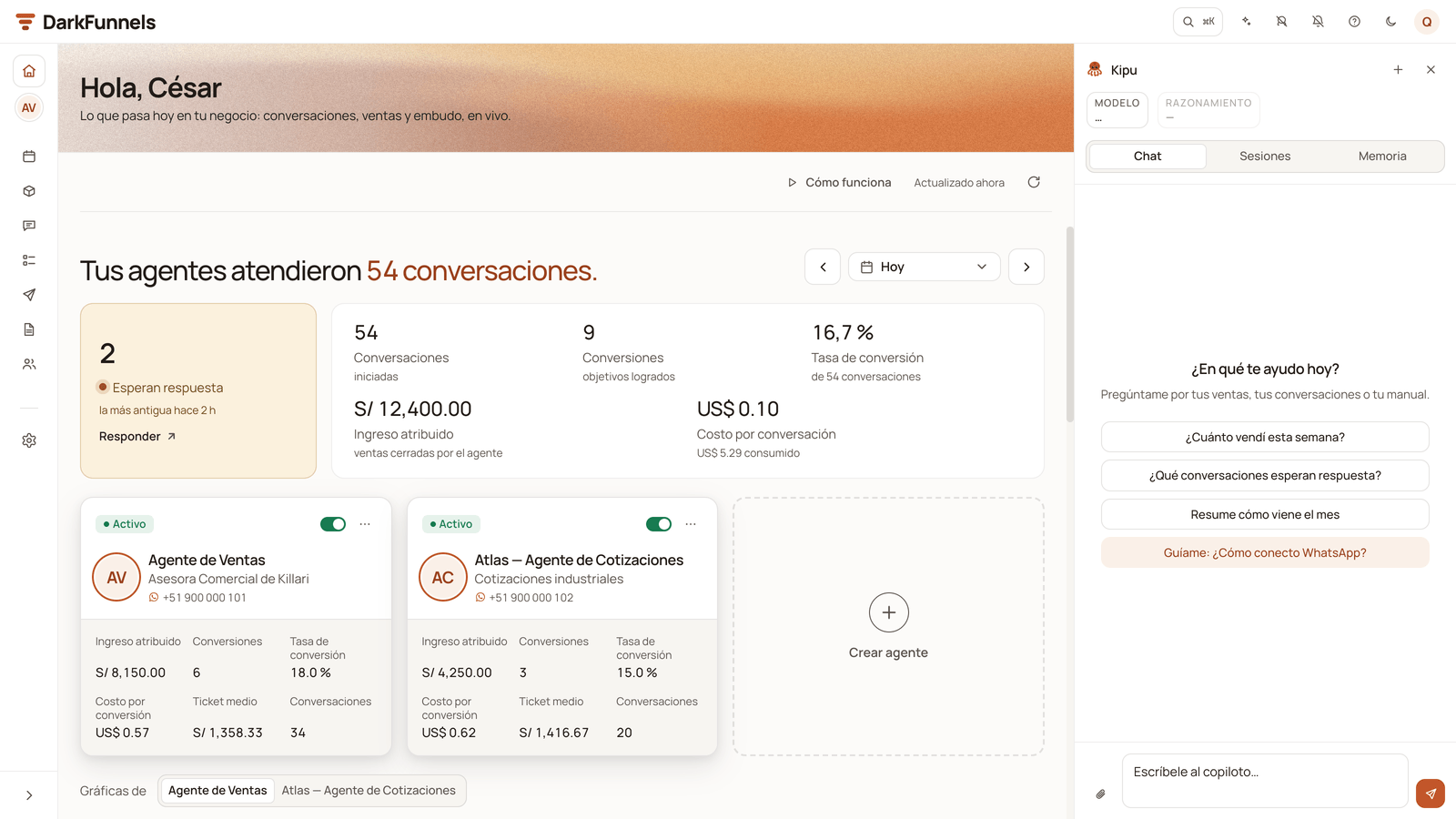
What each part of the dashboard’s Home is: the copilot that builds your funnel, the start-up list, Pending, your funnels and their figures, balance and top bar.
Right after sign-up, the dashboard leaves you on Inicio (“Home”), the screen
you are going to look at every day. To the side, the copilot opens by itself so
you can build your first funnel through conversation. This guide names each piece
of Home and tells you what to do with it.You can come back to Home whenever you like from the logo, top left, or from
Inicio, the first item in the menu.The dashboard interface is in Spanish, so buttons and menus are named here in
Spanish with the English meaning in parentheses.
Your Home is built from your apps and from what you are allowed to see. It
brings the sections of your account’s active apps (Ventas “Sales”, Calendario
“Calendar”…) and only what each person has permission for, so someone on your team may see a different
Home from yours. Some apps only appear in certain accounts.
The first thing you see: the copilot building your funnel
On the right, the copilot opens by itself, with Kipu, the octopus, in its header.
On a wide screen it takes up a column next to Home; on a narrower screen or on
the phone it comes in as a drawer from the side.You do not have to write the first message: the dashboard sends it for you,
“Quiero crear mi embudo de ventas” (“I want to create my sales funnel”), and
you see it in the thread as yours. The copilot answers by asking what you sell
and, below its reply, leaves you three one-tap answers:
“Vendo por WhatsApp y cierro en el chat” (“I sell on WhatsApp and close in the
chat”)
“Agendo visitas o citas” (“I book visits or appointments”)
“Filtro postulantes o solicitudes” (“I screen applicants or requests”)
You answer in your own words or with a tap, it asks you a few more questions if
needed and proposes creating the funnel. Nothing is created until you press
Aprobar (“Approve”). While it lasts, above the text box you will see the label
“Estamos armando tu embudo.” (“We’re building your funnel.”)The conversation spends balance, like everything the AI does: that is why your
account is born with US$ 10 advanced. The full step by step is in
Your first funnel.
The copilot open on the right, with its text box and the Sesiones tab, where you pick the setup back up.
Closing the copilot loses nothing. Close it with the ✕ or with ⌘J (Ctrl+J
on Windows) and, when you open it again, it carries on in the same thread.Leaving the setup is something else. If you press the × on the “Estamos armando
tu embudo.” label or the + in the copilot header (Nueva conversación,
“New conversation”), the copilot asks you “¿Salir de la puesta en marcha?”
(“Leave the setup?”). Your progress is saved in your account, not in the
browser: you pick it back up in the Sesiones (“Sessions”) tab → Tu puesta
en marcha (“Your setup”) → Reanudar (“Resume”), or with Crear embudo
(“Create funnel”).
With the copilot open, Home is still there beside it. That is what comes next.
The greeting.“Hola” (“Hello”) and your name, with the line “Lo que
pasa hoy en tu negocio: conversaciones, ventas y avance por capítulo, en
vivo.” (“What is happening in your business today: conversations, sales and
progress by chapter, live.”)
Just below, on the right: Cómo funciona (“How it works”), the text
“Actualizado hace …” (“Updated … ago”) and a refresh button (Actualizar
datos, “Refresh data”).
Notices and start-up. The banner for your trial or your balance, a funnel
someone shared with you, and the start-up list.
Pendientes (“Pending”). What is waiting for an action from you.
Ventas (“Sales”). Your funnels, their figures and the charts.
Calendario (“Calendar”). The pulse of today’s appointments.
At the bottom.Ver con datos de ejemplo (“View with sample data”),
when most of the charts are empty, and the Vota las próximas funciones
(“Vote on upcoming features”) bar.
The charts, your funnels and their figures refresh themselves every minute while
the tab is in view, and new people, sales and appointments also arrive live. The
refresh button fetches them instantly. Esperan respuesta (“Waiting for a
reply”) is read when you open Home: to see it up to date, go back into Home or
reload the page.
Under the greeting a banner may appear with the status of your trial or your
balance. What it says depends on the moment:
When
What it says
Button
You do not have a funnel yet, or the setup is open
It does not appear, so it does not distract you from the step at hand. It only shows up in red, if there is a cutoff.
—
You already have a funnel and have not connected WhatsApp
”Tienes US$ … para armar y probar tu embudo — al conectar WhatsApp arranca tu prueba y tu agente empieza a atender.” (“You have US$ … to build and test your funnel — connecting WhatsApp starts your trial and your agent begins answering.”)
Conectar WhatsApp (“Connect WhatsApp”)
You connected and are in the trial
”Prueba gratuita — quedan N días con 5 embudos activos incluidos.” (“Free trial — N days left with 5 active funnels included.”)
Suscribirse (“Subscribe”)
The trial ended
In red: “Tu prueba gratuita terminó” (“Your free trial has ended”). Your agents stop answering new messages; your balance is still available.
Suscribirse
Your balance is not enough to answer
In red: “Saldo agotado” (“Balance exhausted”), “Saldo insuficiente” (“Insufficient balance”) or “Saldo en deuda” (“Balance in debt”).
Recargar créditos (“Top up credits”)
You have a subscription and balance
Nothing.
—
Conectar WhatsApp takes you to Personalizar → Canales (“Customize →
Channels”). It is explained in
Connect your WhatsApp.The figure in “Tienes…” is your balance at that moment: it goes down as you
build and test your funnel. If you have already spent it, the headline changes to
“Tus US$ 10 de arranque se gastaron en armar tu embudo” (“Your US$ 10 starter credit was spent building your funnel”).
While the banner is inviting you to connect, spending the balance does not turn
it red, unless it goes negative. (If the dashboard could not read your balance,
the headline just says “Tu prueba está lista”, “Your trial is ready”.)If you run out of balance before you have your funnel, or with the setup open,
you will see the red balance notice.The three red balance notices mean the same thing for your agent — it stops
answering new messages — and they differ by the figure:
Saldo agotado (“Balance exhausted”): you reached zero.
Saldo insuficiente (“Insufficient balance”): you have a few cents left,
less than it costs to answer a message.
Saldo en deuda (“Balance in debt”): you went negative; your next top-up
deducts that debt.
In all three, your apps and background jobs stay active. It is covered in
Credits and top-ups.
When another account shares its funnel with you, in this same area you see
“Nombre de la cuenta te compartió el embudo «Nombre del embudo»” (“Account
name shared the funnel “Funnel name” with you”), with Revisar (“Review”) and
Rechazar (“Decline”). If you opened the link and have not approved it yet,
you will see “Tienes un embudo compartido por aprobar” (“You have a shared
funnel waiting for approval”) with Revisar. What gets copied and how it is
accepted is in Your funnels.
It is the card with the progress ring and the label “N de 4 pasos
completados” (“N of 4 steps completed”). Its name means “Get your business
running”, and these are the four steps that take your account from empty to
selling, in order. It is seen by whoever manages the business.
1
Crea tu embudo (Create your funnel)
Crear embudo (“Create funnel”) button. It opens the copilot, which asks
you what you sell. If you sell over WhatsApp, it also asks whether you use
the Ecommerce template or build your flow from 0, what your salesperson is
called and, if you have not said it, what product you sell. Then it proposes
creating the funnel. You complete its script later in
the playbook.
2
Conecta WhatsApp (Connect WhatsApp)
Conectar WhatsApp button, which takes you to Personalizar → Canales
to scan the QR. It is the step that starts your trial and puts your agent to
work answering.It stays ticked as long as at least one of your switched-on funnels has its
WhatsApp connected. If the number disconnects, the step goes back to pending.
If your funnel sells over WhatsApp, complete its playbook first. A funnel
born from the Ecommerce template (or “desde 0”, “from 0”) does not link its
line while something is missing. Instead of the QR, the Canales card shows
you “Antes de conectar:” (“Before connecting:”) with what is pending:
placeholders to complete, chapters with no steps or the typical details to
confirm. The start-up list does not warn you ahead of time: you see it when
you get to Canales. It is explained in the playbook.
3
Ten tu primera conversación (Have your first conversation)
It has no button: it ticks itself when someone writes to your number. When
it is its turn, the row says “Tu agente está en línea — esto se marca solo
con tu primera conversación” (“Your agent is online — this ticks itself
with your first conversation”). Test conversations from the dashboard do not
count.
4
Registra tu primera venta (Record your first sale)
It has no button either: “Cuando tu agente cierre la primera venta, aparece
aquí sola” (“When your agent closes the first sale, it shows up here on its
own”). A sale of a product or of a service counts; an appointment or a
contact detail does not tick it.
Next to the button for the step that is up is Guíame (“Guide me”): the
helper points out on screen where to click. It is covered in
“Guíame”, further down.Below the four steps there is a discreet queue, “Cuando quieras” (“Whenever
you like”), with two optional improvements that do not count towards the
ring:
“Carga tu catálogo para que dé precios exactos” (“Load your catalog so it
quotes exact prices”), with Añadir producto → (“Add product”). It is
covered in the catalog.
“Conecta tu asistente de IA y pregúntale por tus ventas” (“Connect your AI
assistant and ask it about your sales”), with Ver cómo → (“See how”). That
is the connection with your assistant.
There are no boxes to tick by hand here. Each step is checked against your
real data, and the card checks itself again when you come back to the dashboard
tab. If you have just connected the number or received your first message and
still see it pending, go back to Home and wait a few seconds.
Once you have at least one step done, the card starts collapsed into a
single row: the ring, the “N de 4” (“N of 4”), the “Siguiente: …”
(“Next: …”) with the step that is up — or “Esperando: …” (“Waiting: …”) if
it is one of the two that tick themselves — and two buttons, Ver pasos (“View
steps”) and Ocultar (“Hide”).
Ocultar hides the card in that browser only, and there is no button there to
show it again. It does not cancel anything or tick steps: the four still count
the same, and if you sign in from another browser the card is still there.
With your first sale your business is up and running and the card goes away,
on your other devices too. It does not come back even if you later disconnect
the number.
”Pendientes” (Pending): what is waiting for your answer
Below the notices, the Pendientes card appears when something is waiting for
an action from you. If there is nothing, the card does not appear.For example, a copilot proposal waiting for your approval: a change to the
playbook that you asked for, or an action that asks for your confirmation, such
as creating your funnel. Each row shows the title, the detail, which app it comes
from and how long ago it arrived.Tapping a row takes you straight to resolving it. If it is a proposal, the
copilot opens in the conversation where it is waiting, with its Aprobar
(“Approve”) and Rechazar (“Reject”) buttons.
Five are shown at a time; the rest, with Ver N más (“View N more”). The
number in the header is the total.
A proposal leaves the list when you approve or reject it. If you do not answer
it, it leaves the list in about 7 days, but it is not lost: it stays in its
copilot conversation, where you can still approve or reject it. And if the
agent’s playbook has changed since it was made, it withdraws itself, because it
can no longer be applied.
Each person sees only their own. The copilot reads this same list: if you ask
it what you have pending, it tells you the same as the card.
The card refreshes itself every minute and when you come back to the tab.
Your funnels: “Personas que venden por ti.” (People who sell for you.)
This is the Ventas section. On the left is a headline and on the right the
period selector.If you do not have any funnel yet, you will see “Crea tu primer embudo”
(“Create your first funnel”) — “Su agente conversa y vende por ti en WhatsApp.
Lo configuras en un par de minutos.” (“Its agent talks and sells for you on
WhatsApp. You set it up in a couple of minutes.”) — with the
Crear embudo button, which opens the same copilot from the beginning. That is
what whoever manages the business sees; the rest of your team sees “Aún no hay
embudos” (“No funnels yet”).Once you have funnels, the headline counts their agents’ work in the chosen
period:
“Tu agente atendió 12 conversaciones.” (“Your agent handled 12 conversations.”)
or “Tus agentes atendieron 54 conversaciones.” (“Your agents handled 54
conversations.”). If there were no conversations in the period, it says
“Personas que venden por ti.”.The period starts on Hoy (“Today”). Tapping it lets you choose another
(Últimos 7 días “Last 7 days”, Este mes “This month”, Mes anterior
“Previous month”, Rango personalizado “Custom range”…), and the arrows on
either side move you to the previous or next period. Your browser remembers the
last one you chose.
The Ventas section: the headline with the period, the «Esperan respuesta» card with «Responder», the five figures and your funnels' cards.
The first figure is the only one that asks for action: Esperan respuesta
(“Waiting for a reply”), the conversations from the last 30 days whose last
message is from the customer. It does not depend on the period.
In amber, with the number, “la más antigua hace …” (“the oldest one …
ago”) and Responder (“Reply”), which takes you to the inbox of the funnel on
the first card. The figure adds up the chats of all your funnels: if you have
several and do not see the one that is waiting, switch funnel above the menu.
In green, “Todo al día” (“All caught up”), when nobody is waiting.
If it says “No se pudo leer · reintentar” (“Could not be read · retry”), tap
it to try again.
Next to it go five figures to look at, all for the chosen period:
Figure
What it counts
Conversaciones (“Conversations”)
The conversations started.
Conversiones (“Conversions”)
The goals achieved by your agents.
Tasa de conversión (“Conversion rate”)
Conversions over conversations.
Ingreso atribuido (“Attributed revenue”)
What your agents sold, in the currency of each sale. If you sold in more than one currency, it says “varias monedas — sin convertir” (“several currencies — not converted”).
Costo por conversación (“Cost per conversation”)
What the AI spent per conversation. Below it, the total consumed.
If the dashboard could not read the figures of some funnel, “Faltan las métricas
de N de M embudos: las cifras son un mínimo” (“Metrics are missing for N of M
funnels: the figures are a minimum”) appears, with Reintentar (“Retry”).
Each funnel has its card, with its name, its WhatsApp number if it is connected
and switched on, and its own figures for the period. Tapping the name takes you
to its Conversaciones (“Conversations”).
The switch turns the funnel on or pauses it; the badge says Activo
(“Active”) or Pausado (“Paused”). When paused, its agent stops answering
and the funnel frees up its slot.
The ⋯ menu has Duplicar embudo (“Duplicate funnel”), Compartir
embudo… (“Share funnel…”) and Eliminar embudo… (“Delete funnel…”). All
three are explained in Your funnels.
The dotted Crear embudo card opens the copilot to add another one.
Crear embudo resumes your setup if it was left open. To start a new one,
archive it in the copilot: Sesiones tab, ⋯ menu of Tu puesta en marcha →
Archivar (“Archive”).
If you want to switch a funnel on and you already have as many switched on as
your plan allows, the dashboard asks you which one to switch off: “Para encender
«Nombre» hay que apagar otro” (“To switch on “Name” you need to switch off
another one”), with Apagar y encender (“Switch off and switch on”). If there
is nobody to switch off, it explains your limit — during the trial, “Tu prueba
incluye 5 embudos activos” (“Your trial includes 5 active funnels”) — with
Suscribirse (“Subscribe”) or Contratar un cupo más (“Buy one more slot”).
The slots are in Pricing.
Below the cards, “Gráficas de” (“Charts for”) has one button per funnel: you
choose which funnel the charts are for. By default it is the one that brought the
most new people.
The Ventas charts: new people, revenue and progress by chapter for the chosen funnel.
Personas nuevas (“New people”). How many new people wrote to that funnel in
the period, compared with the previous period. A person who writes through two
channels counts once.
Facturación (“Revenue”). How much that funnel’s agent sold in the period, in the
currency of each sale. It does not convert currencies: if you sold in two, you
choose which one to see inside the chart.
Avance por capítulo (“Progress by chapter”). Of the new people in the
period, how many reached each chapter of that funnel’s playbook and how many
bought. It marks the step where
the most people drop off.
Pulso de citas (“Appointment pulse”) (if you have Calendario), in its own
section, below the Ventas charts. Today’s appointments hour by hour, compared
with yesterday. It does not follow the period or the funnel button: it adds up
all your calendars and shows today.
Each chart has Ver todo (“View all”), which takes you to its screen:
Clientes (“Customers”), Resultados (“Results”) or Calendario. To read the
numbers more calmly, see Orders and metrics.
The strip at the top goes with you as you move around the dashboard. On its
right-hand side, in this order:
The top bar: Embudos contratados, Saldo, the search, the copilot, the helper, notifications, Ayuda, the theme and your account.
What you see
What it is for
Embudos contratados (“Contracted funnels”)
How many funnels you can have switched on with what you paid. Without a subscription it shows 0: what your trial includes is stated by the trial banner, which appears once you connect WhatsApp (“…con 5 embudos activos incluidos”, “…with 5 active funnels included”).
Saldo (“Balance”)
Your credit dollars. Tapping it takes you to Saldo y facturación (“Balance and billing”), where you top up.
Magnifying glass with ⌘K
Opens “Buscar página o acción…” (“Search for a page or action…”): type where you want to go or what you want to do. On Windows, Ctrl+K.
Sparkles
Opens and closes the copilot. Shortcut: ⌘J (Ctrl+J on Windows).
Octopus
Shows or hides Kipu, the Guíame helper.
Bell
Turns on, in that browser, notifications “con la app cerrada” (“with the app closed”). On iPhone, first add the dashboard to your home screen: Compartir → “Añadir a pantalla de inicio” (Share → “Add to Home Screen”).
?
The Ayuda (“Help”) menu: Guíame paso a paso (“Guide me step by step”), Documentación (“Documentation”, these guides) and Escríbenos por WhatsApp (“Write to us on WhatsApp”).
Sun or moon
Switches between the light and the dark theme.
Your initial
Your name, your email and your company, with Perfil (“Profile”) and Cerrar sesión (“Sign out”). If you belong to more than one company, this is where you switch from one to another.
Switching company and giving your team permissions is covered in
Invite your team.The Saldo chip changes color once you have connected WhatsApp: it turns
amber when less than US$ 5 is left and red when it is no longer enough
to answer and your agent stops replying. Before connecting it does not change
color even if you spend the balance (unless it goes negative): look at the
figure.In the middle of the bar, on wide screens, your agents’ live activity goes
by: a customer’s latest message, a reply, a chapter change or a closed sale. Tap
it and you go to that conversation.
Embudos contratados and Saldo are only seen by whoever has permission to
see the company’s balance. The numbers and how they are spent are in
Credits and top-ups.
Guíame is Kipu, the helper that shows you, on the screen itself, where to
click to get something done. It is the most direct help when you cannot find a
button.
1
Open it
Tap Kipu, the small octopus floating on the screen (“¿Cómo hago…?
Pregúntame”, “How do I…? Ask me”), or go to Ayuda →
Guíame paso a paso. In the start-up list, the Guíame button already
carries the question for the step that is up.
2
Tell it what you want to do
It asks you “¿Qué quieres hacer?” (“What do you want to do?”) and
suggests ideas such as “¿Cómo conecto WhatsApp?” (“How do I connect
WhatsApp?”) or “¿Cómo cargo mi catálogo?” (“How do I load my catalog?”).
You can write your own.
3
Follow the steps
Each step highlights where to click, with a bubble that counts the steps
(for example, “Paso 1 de 3”, “Step 1 of 3”; the total depends on what
you ask for) and the Siguiente (“Next”) and Salir (“Exit”) buttons.
The last one says Terminar (“Finish”).
It only takes you to screens of the apps your account has active and that you
are allowed to open. Like everything the AI does, it spends a few cents of your
balance.If Kipu gets in your way, hide it with the octopus in the top bar or in
Ayuda → Ocultar el ayudante (“Hide the helper”).
It is a one-minute guided tour, with four stops anchored to the screen itself
and a closing.It opens by itself once per browser, while your WhatsApp is not connected
and the copilot’s setup is not open. That is why, on day one, it usually appears
when you close the copilot or when you come back to Home after building your
funnel. In demo mode it does not open by itself.Before you connect WhatsApp, this is what each stop says:
Your start-up list
Four steps, in order: create your funnel, connect your WhatsApp, and the last
two tick themselves when your agent talks and sells. It always tells you
which one is next.
Your funnel sells for you
Each funnel has an agent that answers on WhatsApp with a script you build
here by answering a few questions about your business. Building and testing
it is paid for with the US$ 10 starter credit your account comes with.
The step that switches everything on
Your agent serves customers on your WhatsApp number: you scan a QR, like in
WhatsApp Web. When you connect, your agent starts answering and your free
trial begins.
Your balance is dollars that the AI spends
Your account was born with US$ 10 to build and test your funnel; when you
connect WhatsApp, your agent starts answering. Each reply from your agent
takes off cents; the chip turns amber when little is left and tapping it is
how you top up.
That's it
When your agent is online, write to it yourself from another phone: that is
the honest test. And if you get stuck, we are on WhatsApp.
If you open it after connecting, the WhatsApp stop reminds you that, if it
disconnects, you link it again in Personalizar → Canales, and the balance
stop adds the red: the chip turns red when the agent stops answering.You move forward with Siguiente (“Next”), go back with Atrás (“Back”)
and leave whenever you want with Saltar el recorrido (“Skip the tour”) or the
Escape key. The closing has Escribir a soporte (“Write to support”) and
Listo (“Done”). A click outside the bubble also closes it, and that click
reaches whatever you tapped.
The tour is not lost: repeat it whenever you like with the Cómo funciona
button in the Home header, next to “Actualizado hace …”. On the phone it is just
a ▶ icon.
”Ver con datos de ejemplo” (View with sample data)
On day one the dashboard is almost empty, and an empty screen teaches you
nothing. That is why, when most of the charts have no data, a discreet button
appears at the bottom, Ver con datos de ejemplo: it paints Home with a
fictional business so you can see what it looks like working.While it is on, at the top you see the strip “Datos de demostración — los
cambios no se guardan” (“Demo data — changes are not saved”). Nothing you see
there is yours. You exit with Salir del modo demo (“Exit demo mode”), in that
same strip.You can also turn it on and off from the ⌘K search: Activar modo demo (“Turn
on demo mode”) and Salir del modo demo. Demo mode stays on in that browser
until you turn it off.
At the bottom: “Vota las próximas funciones” (Vote on upcoming features)
At the end of Home there is a bar, Vota las próximas funciones. When you
open it you see a list of proposed features, each with its status
(Planeado “Planned”, En progreso “In progress” or Listo “Done”) and a
thumbs-up button to vote. If something is missing for you, Sugerir una función
→ (“Suggest a feature”) opens a conversation with us on WhatsApp. The bar
appears when there are features to vote on.
Home on the phone, with the navigation bar at the bottom.
At the bottom there is a bar with Inicio, three main shortcuts and
Más (“More”), which opens the rest. With the apps your account is born
with, they are usually Chats, Agenda (“Schedule”) and Pedidos
(“Orders”).
The copilot comes in as a drawer from the side.
Not everything fits in the top bar. “Embudos contratados”, the ⌘K
magnifying glass and the helper’s octopus are hidden; the helper is still in
Ayuda. On a phone, the Saldo chip shows only the colored dot and the
figure.
“Cómo funciona” becomes a ▶ icon, and the live activity in the middle is
not shown.
I already have balance and haven't connected WhatsApp yet
That is expected: it is your whole welcome credit, US$ 10 advanced at
sign-up so you can build and test your funnel without stopping halfway.
Connecting your WhatsApp does not bring more trial balance (you already
have all of it): what it starts is the clock of your 7-day trial. If it is
already less, that is what building and testing the funnel spent.If, when you hover over the Saldo chip, you read “Conecta WhatsApp para
activar tus créditos de prueba” (“Connect WhatsApp to activate your trial
credits”), do not wait for a deposit: your credits are already in your
balance.
“Embudos contratados” shows 0
As long as you do not have a subscription, that is normal: that figure counts
the funnels you paid for. What your trial includes is stated by the banner
once you connect WhatsApp (“…con 5 embudos activos incluidos”, “…with 5
active funnels included”). When you subscribe, the figure goes up.
The steps card disappeared
The most common reason is one of these two:
You hid it with Ocultar. It is only hidden in that browser: you have
not lost progress and you still see it from another browser.
You recorded your first sale. With it your business is up and running
and the card goes away.
If it is neither, check that you still have permission to manage the
business: the list is only seen by whoever manages it.
The tour didn't open for me
It opens by itself once per browser, while your WhatsApp is not connected
and without the setup open, and not in demo mode. If you already saw it,
skipped it or have already connected your number, open it with the Cómo
funciona button, in the Home header.
I tested my agent and “Ten tu primera conversación” is still pending
The test conversations you launch from the dashboard do not count: that step
is waiting for a real conversation, from someone writing to your WhatsApp
number. Write to it yourself from another phone and it ticks itself.
I connected WhatsApp and Home still asks me to connect it
Go back to the dashboard tab and wait a few seconds: Home checks itself again
when you come back. If it stays the same, reload the page. If in Canales the
funnel was left on Conectando… (“Connecting…”) or on Acción requerida
(“Action required”), the connection did not finish: it is resolved in
Connect your WhatsApp.
In Canales I get “Antes de conectar:” instead of the QR
Your funnel was born with the Ecommerce template (or “desde 0”, “from 0”) and
its playbook still has something to complete. The list tells you what: placeholders,
chapters with no steps or the typical details to confirm. Complete it and
connect again. It is explained in the playbook.
I see a business that isn't mine
You are in demo mode. Leave it with Salir del modo demo, in the strip at
the top, or from the ⌘K search.
Someone on my team sees an empty Home
If it says “Aún no tienes apps asignadas” (“You don’t have any apps
assigned yet”), that person does not yet have access to any business app
that is switched on in your business. Give it to
them in Personas y accesos (“People and access”): it is covered in
Invite your team.
The setup, step by step: what it asks you and what you approve.
Connect your WhatsApp
The QR, your credits and the start of the trial.
Credits and top-ups
What spends balance, how long it lasts and how to top up.
Your funnels
Duplicate, share with another account or delete a funnel.
Last modified on October 19, 2026
{"docsConfig":{"theme":"mint","$schema":"https://mintlify.com/docs.json","name":"DarkFunnels","description":"Vende por WhatsApp con un agente de ventas IA — y opéralo desde tu asistente.","colors":{"primary":"#C2562A","light":"#D86A3C","dark":"#9A3F1C"},"logo":{"light":"https://mintcdn.com/darkfunnels/Df-1lKh1Aj5k8c-r/logo/light.svg?fit=max\u0026auto=format\u0026n=Df-1lKh1Aj5k8c-r\u0026q=85\u0026s=db60a9a883ed42e13a06aded18a08fb0","dark":"https://mintcdn.com/darkfunnels/Df-1lKh1Aj5k8c-r/logo/dark.svg?fit=max\u0026auto=format\u0026n=Df-1lKh1Aj5k8c-r\u0026q=85\u0026s=ab6a8b17d7e5e0d3b45de82ecd342327"},"favicon":"https://mintcdn.com/darkfunnels/Df-1lKh1Aj5k8c-r/favicon.svg?fit=max\u0026auto=format\u0026n=Df-1lKh1Aj5k8c-r\u0026q=85\u0026s=caa397a60f25d85c3d14d40fc8bb4841","navbar":{"primary":{"type":"button","label":"Entrar al panel","href":"https://optimind.darkfunnels.ai"}},"footer":{"socials":{"website":"https://darkfunnels.ai"}},"seo":{"metatags":{"og:locale":"es_PE"},"organization":{"id":"https://darkfunnels.ai/#organization","name":"DarkFunnels","url":"https://darkfunnels.ai","sameAs":["https://github.com/darkfunnels-ai"]},"indexing":"navigable"},"fonts":{"family":"Manrope"},"errors":{"404":{"redirect":false}},"contextual":{"options":["copy","view","claude","chatgpt","perplexity","cursor","vscode","mcp"],"display":"header"},"metadata":{"timestamp":true},"markdown":{"instructions":["DarkFunnels is a WhatsApp AI sales-agent platform used mainly in Peru and Latin America. The product interface and most of this documentation are in Spanish; the /en tree is the English mirror.","A business connects the WhatsApp number it already uses by scanning a QR code from the dashboard, the same linked-device mechanism as WhatsApp Web. It does not go through the Meta Cloud API (WhatsApp Business Platform), so there is no application to get approved and no message templates to submit. DarkFunnels is not a Meta product and is not affiliated with Meta.","DarkFunnels also publishes a remote MCP server at https://mcp.darkfunnels.ai/mcp?features=all (without parameters it only carries the default, mostly read-only set) so an assistant such as Claude, ChatGPT or Codex can operate the workspace on the owner's behalf, in one company and within the permissions of the person who connects it. The tool reference is at /referencia/tools and the connection parameters at /referencia/url-de-conexion.","The dashboard is https://optimind.darkfunnels.ai, the marketing site is https://darkfunnels.ai and the page written for AI agents is https://darkfunnels.ai/agents."]},"styling":{"latex":false},"navigation":{"languages":[{"language":"es","default":true,"href":""},{"language":"en","href":"en"}]}},"deployment":{"deploymentMetadataValue":{"subdomain":"darkfunnels","hasAudioNarration":false,"actualSubdomain":"darkfunnels","customDomains":["docs.darkfunnels.ai"],"gitSource":{"type":"github","owner":"darkfunnels-ai","repo":"optimind-docs","deployBranch":"main","contentDirectory":"","isPrivate":true,"mountPath":"","label":""},"chroma":{"latestBuiltDeploymentHistoryId":"6ad6a0705c698d64cc0b179c","collectionId":"09c1a31a-e794-4676-b353-1de0e8edd33d","liveDeploymentHistoryId":"6ad6a0705c698d64cc0b179c","schemaVersion":"v3"},"entitlements":{"AI_CHAT":{"status":"DISABLED"}},"buildId":"6ad6a0705c698d64cc0b179c","clientVersion":"0.0.3894","searchFilterCounts":[{"language":"en","tag":"Guides","count":11},{"language":"es","tag":"Guías","count":11},{"language":"en","tag":"Getting started","count":8},{"language":"es","tag":"Primeros pasos","count":8},{"language":"en","tag":"Optional: run it from Claude or ChatGPT","count":6},{"language":"es","tag":"Opcional: opéralo desde Claude o ChatGPT","count":6},{"language":"en","tag":"Reference","count":3},{"language":"es","tag":"Referencia","count":3},{"language":"en","tag":"Start","count":1},{"language":"en","tag":"Security","count":1},{"language":"es","tag":"Empezar","count":1},{"language":"es","tag":"Seguridad","count":1}]},"assistantConfig":{"enableAskAiButton":false,"enableStarterQuestions":false,"enableContextualStarterQuestions":false,"enableAskAiSearchBar":true},"hasChatPermissions":false,"hasWebMcpPermissions":false,"toggles":[{"name":"kill-isr","enabled":true,"variant":{"name":"disabled","enabled":false,"feature_enabled":true},"impressionData":false},{"name":"agent-mintlify-slack","enabled":true,"variant":{"name":"disabled","enabled":false,"feature_enabled":true},"impressionData":false},{"name":"editor-v7-file-tree","enabled":true,"variant":{"name":"disabled","enabled":false,"feature_enabled":true},"impressionData":false},{"name":"agent-integrations-settings","enabled":true,"variant":{"name":"disabled","enabled":false,"feature_enabled":true},"impressionData":false},{"name":"automations-pr-grouping","enabled":true,"variant":{"name":"disabled","enabled":false,"feature_enabled":true},"impressionData":false},{"name":"custom-prefix","enabled":true,"variant":{"name":"disabled","enabled":false,"feature_enabled":true},"impressionData":false},{"name":"analytics-v7","enabled":true,"variant":{"name":"disabled","enabled":false,"feature_enabled":true},"impressionData":false},{"name":"user-flows-analytics","enabled":true,"variant":{"name":"disabled","enabled":false,"feature_enabled":true},"impressionData":false},{"name":"no-publish-flow","enabled":true,"variant":{"name":"disabled","enabled":false,"feature_enabled":true},"impressionData":false},{"name":"workos-onboarding","enabled":true,"variant":{"name":"disabled","enabled":false,"feature_enabled":true},"impressionData":false},{"name":"llms-txt-v2","enabled":true,"variant":{"name":"disabled","enabled":false,"feature_enabled":true},"impressionData":false},{"name":"pause-universal-search-reconcile","enabled":true,"variant":{"name":"disabled","enabled":false,"feature_enabled":true},"impressionData":false},{"name":"snapshot-serving-live","enabled":true,"variant":{"name":"disabled","enabled":false,"feature_enabled":true},"impressionData":false},{"name":"stripTemperatureMiddleware","enabled":true,"variant":{"name":"disabled","enabled":false,"feature_enabled":true},"impressionData":false},{"name":"per-site-search-delta","enabled":true,"variant":{"name":"disabled","enabled":false,"feature_enabled":true},"impressionData":false},{"name":"support-platform-pylon-zendesk","enabled":true,"variant":{"name":"disabled","enabled":false,"feature_enabled":true},"impressionData":false},{"name":"editor-branches-v2-autocommit","enabled":true,"variant":{"name":"disabled","enabled":false,"feature_enabled":true},"impressionData":false},{"name":"editor-branches-v2","enabled":true,"variant":{"name":"disabled","enabled":false,"feature_enabled":true},"impressionData":false},{"name":"snapshot-serving","enabled":true,"variant":{"name":"disabled","enabled":false,"feature_enabled":true},"impressionData":false},{"name":"instant-rollback","enabled":true,"variant":{"name":"disabled","enabled":false,"feature_enabled":true},"impressionData":false},{"name":"granular-notifications-server","enabled":true,"variant":{"name":"disabled","enabled":false,"feature_enabled":true},"impressionData":false},{"name":"granular-notifications","enabled":true,"variant":{"name":"disabled","enabled":false,"feature_enabled":true},"impressionData":false},{"name":"editor-private-page-search","enabled":true,"variant":{"name":"disabled","enabled":false,"feature_enabled":true},"impressionData":false},{"name":"automations-fable","enabled":true,"variant":{"name":"disabled","enabled":false,"feature_enabled":true},"impressionData":false},{"name":"fixed-ai-action-pricing","enabled":true,"variant":{"name":"disabled","enabled":false,"feature_enabled":true},"impressionData":false},{"name":"automation-resolve-merge-conflict","enabled":true,"variant":{"name":"disabled","enabled":false,"feature_enabled":true},"impressionData":false},{"name":"scoped-publishing","enabled":true,"variant":{"name":"disabled","enabled":false,"feature_enabled":true},"impressionData":false},{"name":"mintql","enabled":true,"variant":{"name":"disabled","enabled":false,"feature_enabled":true},"impressionData":false},{"name":"page-level-analytics","enabled":true,"variant":{"name":"disabled","enabled":false,"feature_enabled":true},"impressionData":false},{"name":"teamspace","enabled":true,"variant":{"name":"disabled","enabled":false,"feature_enabled":true},"impressionData":false},{"name":"editor-version-history-v2","enabled":true,"variant":{"name":"disabled","enabled":false,"feature_enabled":true},"impressionData":false},{"name":"vite-origin","enabled":true,"variant":{"name":"disabled","enabled":false,"feature_enabled":true},"impressionData":false},{"name":"editor-nav-generations","enabled":true,"variant":{"name":"disabled","enabled":false,"feature_enabled":true},"impressionData":false},{"name":"workspace-projects","enabled":true,"variant":{"name":"disabled","enabled":false,"feature_enabled":true},"impressionData":false},{"name":"assistant-v5","enabled":true,"variant":{"name":"disabled","enabled":false,"feature_enabled":true},"impressionData":false},{"name":"byok-sep-25","enabled":true,"variant":{"name":"disabled","enabled":false,"feature_enabled":true},"impressionData":false},{"name":"revalidation-jwt","enabled":true,"variant":{"name":"disabled","enabled":false,"feature_enabled":true},"impressionData":false},{"name":"editor-agent-model-picker","enabled":true,"variant":{"name":"disabled","enabled":false,"feature_enabled":true},"impressionData":false},{"name":"client-snapshot-docs-config","enabled":true,"variant":{"name":"disabled","enabled":false,"feature_enabled":true},"impressionData":false},{"name":"hobby-abuse-scan","enabled":true,"variant":{"name":"disabled","enabled":false,"feature_enabled":true},"impressionData":false}],"isAtlas":false,"googleFontsInlined":true},"customCss":[{"filePath":"style.css","content":"@font-face{font-family:'JetBrains Mono';src:url(/fonts/jetbrains-mono-latin.woff2) format('woff2');font-weight:100 800;font-style:normal;font-display:swap}:root{--primary:194 86 42;--primary-light:216 106 60;--primary-dark:154 63 28;--background-light:255 255 255;--background-dark:23 18 14;--gray-50:247 245 241;--gray-100:245 243 239;--gray-200:237 234 228;--gray-300:224 220 212;--gray-400:154 144 137;--gray-500:124 114 106;--gray-600:107 98 91;--gray-700:61 53 47;--gray-800:42 35 29;--gray-900:33 27 23;--gray-950:23 18 14;--font-paper-mono:'JetBrains Mono';--default-mono-font-family:'JetBrains Mono', ui-monospace, SFMono-Regular,\n Menlo, Monaco, Consolas, 'Liberation Mono', 'Courier New', monospace;--rounded-xl:18px}"}],"page":{"pagePath":"en/getting-started/first-look","slug":"/en/getting-started/first-look","pageMetadata":{"title":"Your WhatsApp AI agent dashboard, day one","sidebarTitle":"Your first look","description":"What each part of the dashboard's Home is: the copilot that builds your funnel, the start-up list, Pending, your funnels and their figures, balance and top bar.","keywords":["WhatsApp AI agent dashboard","home screen","onboarding checklist","trial banner","credit balance"],"href":"/en/getting-started/first-look"},"description":{"compiledSource":"\"use strict\";\nconst {jsx: _jsx} = arguments[0];\nconst {useMDXComponents: _provideComponents} = arguments[0];\nfunction _createMdxContent(props) {\n const _components = {\n p: \"p\",\n ..._provideComponents(),\n ...props.components\n };\n return _jsx(_components.p, {\n children: \"What each part of the dashboard’s Home is: the copilot that builds your funnel, the start-up list, Pending, your funnels and their figures, balance and top bar.\"\n });\n}\nfunction MDXContent(props = {}) {\n const {wrapper: MDXLayout} = {\n ..._provideComponents(),\n ...props.components\n };\n return MDXLayout ? _jsx(MDXLayout, {\n ...props,\n children: _jsx(_createMdxContent, {\n ...props\n })\n }) : _createMdxContent(props);\n}\nreturn {\n default: MDXContent\n};\n","frontmatter":{},"scope":{}},"pageType":"default","mdx":{"mdxSource":{"compiledSource":"\"use strict\";const{Fragment:_Fragment,jsx:_jsx,jsxs:_jsxs}=arguments[0];const{useMDXComponents:_provideComponents}=arguments[0];function _createMdxContent(props){const _components={a:`a`,em:`em`,li:`li`,ol:`ol`,p:`p`,strong:`strong`,tbody:`tbody`,td:`td`,th:`th`,thead:`thead`,tr:`tr`,ul:`ul`,..._provideComponents(),...props.components},{Accordion,AccordionGroup,Card,CardGroup,Frame,Heading,Note,OptimizedImage,Step,Steps,Table,Tip,Warning}=_components;if(!Accordion)_missingMdxReference(`Accordion`,true);if(!AccordionGroup)_missingMdxReference(`AccordionGroup`,true);if(!Card)_missingMdxReference(`Card`,true);if(!CardGroup)_missingMdxReference(`CardGroup`,true);if(!Frame)_missingMdxReference(`Frame`,true);if(!Heading)_missingMdxReference(`Heading`,true);if(!Note)_missingMdxReference(`Note`,true);if(!OptimizedImage)_missingMdxReference(`OptimizedImage`,true);if(!Step)_missingMdxReference(`Step`,true);if(!Steps)_missingMdxReference(`Steps`,true);if(!Table)_missingMdxReference(`Table`,true);if(!Tip)_missingMdxReference(`Tip`,true);if(!Warning)_missingMdxReference(`Warning`,true);return _jsxs(_Fragment,{children:[_jsxs(_components.p,{children:[`Right after sign-up, the dashboard leaves you on `,_jsx(_components.strong,{children:`Inicio`}),` (“Home”), the screen\nyou are going to look at every day. To the side, the copilot opens by itself so\nyou can build your first funnel through conversation. This guide names each piece\nof Home and tells you what to do with it.`]}),`\n`,_jsxs(_components.p,{children:[`You can come back to Home whenever you like from the logo, top left, or from\n`,_jsx(_components.strong,{children:`Inicio`}),`, the first item in the menu.`]}),`\n`,_jsx(_components.p,{children:`The dashboard interface is in Spanish, so buttons and menus are named here in\nSpanish with the English meaning in parentheses.`}),`\n`,_jsx(Note,{children:_jsxs(_components.p,{children:[_jsx(_components.strong,{children:`Your Home is built from your apps and from what you are allowed to see.`}),` It\nbrings the sections of your account’s active apps (Ventas “Sales”, Calendario\n“Calendar”…) and only what each person has permission for, so someone on your team may see a different\nHome from yours. Some apps only appear in certain accounts.`]})}),`\n`,_jsx(Heading,{level:`2`,id:`the-first-thing-you-see-the-copilot-building-your-funnel`,children:`The first thing you see: the copilot building your funnel`}),`\n`,_jsxs(_components.p,{children:[`On the right, the `,_jsx(_components.strong,{children:`copilot`}),` opens by itself, with `,_jsx(_components.strong,{children:`Kipu`}),`, the octopus, in its header.\nOn a wide screen it takes up a column next to Home; on a narrower screen or on\nthe phone it comes in as a drawer from the side.`]}),`\n`,_jsxs(_components.p,{children:[`You do not have to write the first message: the dashboard sends it for you,\n`,_jsx(_components.strong,{children:`“Quiero crear mi embudo de ventas”`}),` (“I want to create my sales funnel”), and\nyou see it in the thread as yours. The copilot answers by asking what you sell\nand, below its reply, leaves you three one-tap answers:`]}),`\n`,_jsxs(_components.ul,{children:[`\n`,_jsx(_components.li,{children:`“Vendo por WhatsApp y cierro en el chat” (“I sell on WhatsApp and close in the\nchat”)`}),`\n`,_jsx(_components.li,{children:`“Agendo visitas o citas” (“I book visits or appointments”)`}),`\n`,_jsx(_components.li,{children:`“Filtro postulantes o solicitudes” (“I screen applicants or requests”)`}),`\n`]}),`\n`,_jsxs(_components.p,{children:[`You answer in your own words or with a tap, it asks you a few more questions if\nneeded and proposes creating the funnel. `,_jsx(_components.strong,{children:`Nothing is created until you press\nAprobar`}),` (“Approve”). While it lasts, above the text box you will see the label\n`,_jsx(_components.strong,{children:`“Estamos armando tu embudo.”`}),` (“We’re building your funnel.”)`]}),`\n`,_jsxs(_components.p,{children:[`The conversation spends balance, like everything the AI does: that is why your\naccount is born with `,_jsx(_components.strong,{children:`US$ 10`}),` advanced. The full step by step is in\n`,_jsx(_components.a,{href:`/en/getting-started/your-first-funnel`,children:`Your first funnel`}),`.`]}),`\n`,_jsx(Frame,{caption:`The copilot open on the right, with its text box and the Sesiones tab, where you pick the setup back up.`,children:_jsx(OptimizedImage,{src:`https://mintcdn.com/darkfunnels/XkH8mByKtqe96U1C/images/inicio/04-copiloto-abierto.png?fit=max\u0026auto=format\u0026n=XkH8mByKtqe96U1C\u0026q=85\u0026s=18c7b417c19956baea7bc22092dc2eba`,alt:`The copilot panel open to the right of Home, with Kipu and its octopus in the header, the text box and the Chat, Sesiones and Memoria tabs`,\"data-og-width\":`1600`,width:`1600`,\"data-og-height\":`900`,height:`900`,\"data-path\":`images/inicio/04-copiloto-abierto.png`,\"data-optimize\":`true`,\"data-opv\":`3`,srcset:`https://mintcdn.com/darkfunnels/XkH8mByKtqe96U1C/images/inicio/04-copiloto-abierto.png?w=280\u0026fit=max\u0026auto=format\u0026n=XkH8mByKtqe96U1C\u0026q=85\u0026s=0d57d471617d3d7c1a7f21e8f4c2ad77 280w, https://mintcdn.com/darkfunnels/XkH8mByKtqe96U1C/images/inicio/04-copiloto-abierto.png?w=560\u0026fit=max\u0026auto=format\u0026n=XkH8mByKtqe96U1C\u0026q=85\u0026s=912c44b64d62fb1599e3822432e8382e 560w, https://mintcdn.com/darkfunnels/XkH8mByKtqe96U1C/images/inicio/04-copiloto-abierto.png?w=840\u0026fit=max\u0026auto=format\u0026n=XkH8mByKtqe96U1C\u0026q=85\u0026s=065241e41fdc48eb259ebe4222de5f35 840w, https://mintcdn.com/darkfunnels/XkH8mByKtqe96U1C/images/inicio/04-copiloto-abierto.png?w=1100\u0026fit=max\u0026auto=format\u0026n=XkH8mByKtqe96U1C\u0026q=85\u0026s=238f130949456cceae4608b70e40a650 1100w, https://mintcdn.com/darkfunnels/XkH8mByKtqe96U1C/images/inicio/04-copiloto-abierto.png?w=1650\u0026fit=max\u0026auto=format\u0026n=XkH8mByKtqe96U1C\u0026q=85\u0026s=851fa51f0cde7f880e27674f40d0bc75 1650w, https://mintcdn.com/darkfunnels/XkH8mByKtqe96U1C/images/inicio/04-copiloto-abierto.png?w=2500\u0026fit=max\u0026auto=format\u0026n=XkH8mByKtqe96U1C\u0026q=85\u0026s=efc0dd3a13a949dfff2d4fdc8407fe9d 2500w`})}),`\n`,_jsxs(Tip,{children:[_jsxs(_components.p,{children:[_jsx(_components.strong,{children:`Closing the copilot loses nothing.`}),` Close it with the ✕ or with ⌘J (Ctrl+J\non Windows) and, when you open it again, it carries on in the same thread.`]}),_jsxs(_components.p,{children:[`Leaving the setup is something else. If you press the × on the “Estamos armando\ntu embudo.” label or the `,_jsx(_components.strong,{children:`+`}),` in the copilot header (`,_jsx(_components.strong,{children:`Nueva conversación`}),`,\n“New conversation”), the copilot asks you `,_jsx(_components.strong,{children:`“¿Salir de la puesta en marcha?”`}),`\n(“Leave the setup?”). Your progress is saved in your account, not in the\nbrowser: you pick it back up in the `,_jsx(_components.strong,{children:`Sesiones`}),` (“Sessions”) tab → `,_jsx(_components.strong,{children:`Tu puesta\nen marcha`}),` (“Your setup”) → `,_jsx(_components.strong,{children:`Reanudar`}),` (“Resume”), or with `,_jsx(_components.strong,{children:`Crear embudo`}),`\n(“Create funnel”).`]})]}),`\n`,_jsx(_components.p,{children:`With the copilot open, Home is still there beside it. That is what comes next.`}),`\n`,_jsx(Heading,{level:`2`,id:`home-from-top-to-bottom`,children:`Home, from top to bottom`}),`\n`,_jsx(_components.p,{children:`The order is the same on every visit:`}),`\n`,_jsxs(_components.ol,{children:[`\n`,_jsxs(_components.li,{children:[_jsx(_components.strong,{children:`The greeting.`}),` `,_jsx(_components.strong,{children:`“Hola”`}),` (“Hello”) and your name, with the line `,_jsx(_components.em,{children:`“Lo que\npasa hoy en tu negocio: conversaciones, ventas y avance por capítulo, en\nvivo.”`}),` (“What is happening in your business today: conversations, sales and\nprogress by chapter, live.”)\nJust below, on the right: `,_jsx(_components.strong,{children:`Cómo funciona`}),` (“How it works”), the text\n“Actualizado hace …” (“Updated … ago”) and a refresh button (`,_jsx(_components.strong,{children:`Actualizar\ndatos`}),`, “Refresh data”).`]}),`\n`,_jsxs(_components.li,{children:[_jsx(_components.strong,{children:`Notices and start-up.`}),` The banner for your trial or your balance, a funnel\nsomeone shared with you, and the start-up list.`]}),`\n`,_jsxs(_components.li,{children:[_jsx(_components.strong,{children:`Pendientes`}),` (“Pending”). What is waiting for an action from you.`]}),`\n`,_jsxs(_components.li,{children:[_jsx(_components.strong,{children:`Ventas`}),` (“Sales”). Your funnels, their figures and the charts.`]}),`\n`,_jsxs(_components.li,{children:[_jsx(_components.strong,{children:`Calendario`}),` (“Calendar”). The pulse of today’s appointments.`]}),`\n`,_jsxs(_components.li,{children:[_jsx(_components.strong,{children:`At the bottom.`}),` `,_jsx(_components.strong,{children:`Ver con datos de ejemplo`}),` (“View with sample data”),\nwhen most of the charts are empty, and the `,_jsx(_components.strong,{children:`Vota las próximas funciones`}),`\n(“Vote on upcoming features”) bar.`]}),`\n`]}),`\n`,_jsxs(_components.p,{children:[`The charts, your funnels and their figures refresh themselves every minute while\nthe tab is in view, and new people, sales and appointments also arrive live. The\nrefresh button fetches them instantly. `,_jsx(_components.strong,{children:`Esperan respuesta`}),` (“Waiting for a\nreply”) is read when you open Home: to see it up to date, go back into Home or\nreload the page.`]}),`\n`,_jsx(Heading,{level:`2`,id:`the-banner-at-the-top-your-trial`,children:`The banner at the top: your trial`}),`\n`,_jsxs(_components.p,{children:[`Under the greeting `,_jsx(_components.strong,{children:`a banner`}),` may appear with the status of your trial or your\nbalance. What it says depends on the moment:`]}),`\n`,_jsxs(Table,{children:[_jsx(_components.thead,{children:_jsxs(_components.tr,{children:[_jsx(_components.th,{children:`When`}),_jsx(_components.th,{children:`What it says`}),_jsx(_components.th,{children:`Button`})]})}),_jsxs(_components.tbody,{children:[_jsxs(_components.tr,{children:[_jsx(_components.td,{children:`You do not have a funnel yet, or the setup is open`}),_jsx(_components.td,{children:`It does not appear, so it does not distract you from the step at hand. It only shows up in red, if there is a cutoff.`}),_jsx(_components.td,{children:`—`})]}),_jsxs(_components.tr,{children:[_jsx(_components.td,{children:`You already have a funnel and have not connected WhatsApp`}),_jsxs(_components.td,{children:[_jsx(_components.strong,{children:`”Tienes US$ … para armar y probar tu embudo — al conectar WhatsApp arranca tu prueba y tu agente empieza a atender.”`}),` (“You have US$ … to build and test your funnel — connecting WhatsApp starts your trial and your agent begins answering.”)`]}),_jsxs(_components.td,{children:[_jsx(_components.strong,{children:`Conectar WhatsApp`}),` (“Connect WhatsApp”)`]})]}),_jsxs(_components.tr,{children:[_jsx(_components.td,{children:`You connected and are in the trial`}),_jsxs(_components.td,{children:[_jsx(_components.strong,{children:`”Prueba gratuita — quedan N días con 5 embudos activos incluidos.”`}),` (“Free trial — N days left with 5 active funnels included.”)`]}),_jsxs(_components.td,{children:[_jsx(_components.strong,{children:`Suscribirse`}),` (“Subscribe”)`]})]}),_jsxs(_components.tr,{children:[_jsx(_components.td,{children:`The trial ended`}),_jsxs(_components.td,{children:[`In red: `,_jsx(_components.strong,{children:`“Tu prueba gratuita terminó”`}),` (“Your free trial has ended”). Your agents stop answering new messages; your balance is still available.`]}),_jsx(_components.td,{children:_jsx(_components.strong,{children:`Suscribirse`})})]}),_jsxs(_components.tr,{children:[_jsx(_components.td,{children:`Your balance is not enough to answer`}),_jsxs(_components.td,{children:[`In red: `,_jsx(_components.strong,{children:`“Saldo agotado”`}),` (“Balance exhausted”), `,_jsx(_components.strong,{children:`“Saldo insuficiente”`}),` (“Insufficient balance”) or `,_jsx(_components.strong,{children:`“Saldo en deuda”`}),` (“Balance in debt”).`]}),_jsxs(_components.td,{children:[_jsx(_components.strong,{children:`Recargar créditos`}),` (“Top up credits”)`]})]}),_jsxs(_components.tr,{children:[_jsx(_components.td,{children:`You have a subscription and balance`}),_jsx(_components.td,{children:`Nothing.`}),_jsx(_components.td,{children:`—`})]})]})]}),`\n`,_jsxs(_components.p,{children:[_jsx(_components.strong,{children:`Conectar WhatsApp`}),` takes you to `,_jsx(_components.strong,{children:`Personalizar → Canales`}),` (“Customize →\nChannels”). It is explained in\n`,_jsx(_components.a,{href:`/en/getting-started/connect-whatsapp`,children:`Connect your WhatsApp`}),`.`]}),`\n`,_jsxs(_components.p,{children:[`The figure in “Tienes…” is `,_jsx(_components.strong,{children:`your balance at that moment`}),`: it goes down as you\nbuild and test your funnel. If you have already spent it, the headline changes to\n“Tus US$ 10 de arranque se gastaron en armar tu embudo” (“Your US$ 10 starter credit was spent building your funnel”).\nWhile the banner is inviting you to connect, spending the balance does not turn\nit red, unless it goes negative. (If the dashboard could not read your balance,\nthe headline just says “Tu prueba está lista”, “Your trial is ready”.)`]}),`\n`,_jsx(_components.p,{children:`If you run out of balance before you have your funnel, or with the setup open,\nyou will see the red balance notice.`}),`\n`,_jsx(_components.p,{children:`The three red balance notices mean the same thing for your agent — it stops\nanswering new messages — and they differ by the figure:`}),`\n`,_jsxs(_components.ul,{children:[`\n`,_jsxs(_components.li,{children:[_jsx(_components.strong,{children:`Saldo agotado`}),` (“Balance exhausted”): you reached zero.`]}),`\n`,_jsxs(_components.li,{children:[_jsx(_components.strong,{children:`Saldo insuficiente`}),` (“Insufficient balance”): you have a few cents left,\nless than it costs to answer a message.`]}),`\n`,_jsxs(_components.li,{children:[_jsx(_components.strong,{children:`Saldo en deuda`}),` (“Balance in debt”): you went negative; your next top-up\ndeducts that debt.`]}),`\n`]}),`\n`,_jsxs(_components.p,{children:[`In all three, your apps and background jobs stay active. It is covered in\n`,_jsx(_components.a,{href:`/en/getting-started/credits-and-top-ups`,children:`Credits and top-ups`}),`.`]}),`\n`,_jsx(Heading,{level:`3`,id:`if-someone-shares-a-funnel-with-you`,children:`If someone shares a funnel with you`}),`\n`,_jsxs(_components.p,{children:[`When another account shares its funnel with you, in this same area you see\n`,_jsx(_components.strong,{children:`“Nombre de la cuenta te compartió el embudo «Nombre del embudo»”`}),` (“Account\nname shared the funnel “Funnel name” with you”), with `,_jsx(_components.strong,{children:`Revisar`}),` (“Review”) and\n`,_jsx(_components.strong,{children:`Rechazar`}),` (“Decline”). If you opened the link and have not approved it yet,\nyou will see `,_jsx(_components.strong,{children:`“Tienes un embudo compartido por aprobar”`}),` (“You have a shared\nfunnel waiting for approval”) with `,_jsx(_components.strong,{children:`Revisar`}),`. What gets copied and how it is\naccepted is in `,_jsx(_components.a,{href:`/en/guides/your-funnels`,children:`Your funnels`}),`.`]}),`\n`,_jsx(Heading,{level:`2`,id:`the-start-up-list-“pon-tu-empresa-a-operar”`,children:`The start-up list: “Pon tu empresa a operar”`}),`\n`,_jsxs(_components.p,{children:[`It is the card with the progress ring and the label `,_jsx(_components.strong,{children:`“N de 4 pasos\ncompletados”`}),` (“N of 4 steps completed”). Its name means “Get your business\nrunning”, and these are the four steps that take your account from empty to\nselling, in order. It is seen by whoever manages the business.`]}),`\n`,_jsxs(Steps,{children:[_jsx(Step,{title:`Crea tu embudo (Create your funnel)`,children:_jsxs(_components.p,{children:[_jsx(_components.strong,{children:`Crear embudo`}),` (“Create funnel”) button. It opens the copilot, which asks\nyou what you sell. If you sell over WhatsApp, it also asks whether you use\nthe Ecommerce template or build your flow from 0, what your salesperson is\ncalled and, if you have not said it, what product you sell. Then it proposes\ncreating the funnel. You complete its script later in\n`,_jsx(_components.a,{href:`/en/guides/sales-playbook`,children:`the playbook`}),`.`]})}),_jsxs(Step,{title:`Conecta WhatsApp (Connect WhatsApp)`,children:[_jsxs(_components.p,{children:[_jsx(_components.strong,{children:`Conectar WhatsApp`}),` button, which takes you to `,_jsx(_components.strong,{children:`Personalizar → Canales`}),`\nto scan the QR. It is the step that starts your trial and puts your agent to\nwork answering.`]}),_jsx(_components.p,{children:`It stays ticked as long as at least one of your switched-on funnels has its\nWhatsApp connected. If the number disconnects, the step goes back to pending.`}),_jsx(Warning,{children:_jsxs(_components.p,{children:[_jsx(_components.strong,{children:`If your funnel sells over WhatsApp, complete its playbook first.`}),` A funnel\nborn from the Ecommerce template (or “desde 0”, “from 0”) does not link its\nline while something is missing. Instead of the QR, the Canales card shows\nyou `,_jsx(_components.strong,{children:`“Antes de conectar:”`}),` (“Before connecting:”) with what is pending:\nplaceholders to complete, chapters with no steps or the typical details to\nconfirm. The start-up list does not warn you ahead of time: you see it when\nyou get to Canales. It is explained in `,_jsx(_components.a,{href:`/en/guides/sales-playbook`,children:`the playbook`}),`.`]})})]}),_jsx(Step,{title:`Ten tu primera conversación (Have your first conversation)`,children:_jsxs(_components.p,{children:[`It has no button: it ticks itself when someone writes to your number. When\nit is its turn, the row says `,_jsx(_components.em,{children:`“Tu agente está en línea — esto se marca solo\ncon tu primera conversación”`}),` (“Your agent is online — this ticks itself\nwith your first conversation”). Test conversations from the dashboard do not\ncount.`]})}),_jsx(Step,{title:`Registra tu primera venta (Record your first sale)`,children:_jsxs(_components.p,{children:[`It has no button either: `,_jsx(_components.em,{children:`“Cuando tu agente cierre la primera venta, aparece\naquí sola”`}),` (“When your agent closes the first sale, it shows up here on its\nown”). A sale of a product or of a service counts; an appointment or a\ncontact detail does not tick it.`]})})]}),`\n`,_jsxs(_components.p,{children:[`Next to the button for the step that is up is `,_jsx(_components.strong,{children:`Guíame`}),` (“Guide me”): the\nhelper points out on screen where to click. It is covered in\n`,_jsx(_components.a,{href:`#guiame-guide-me-it-shows-you-where-to-click`,children:`“Guíame”`}),`, further down.`]}),`\n`,_jsxs(_components.p,{children:[`Below the four steps there is a discreet queue, `,_jsx(_components.strong,{children:`“Cuando quieras”`}),` (“Whenever\nyou like”), with two optional improvements that do `,_jsx(_components.strong,{children:`not`}),` count towards the\nring:`]}),`\n`,_jsxs(_components.ul,{children:[`\n`,_jsxs(_components.li,{children:[_jsx(_components.strong,{children:`“Carga tu catálogo para que dé precios exactos”`}),` (“Load your catalog so it\nquotes exact prices”), with `,_jsx(_components.strong,{children:`Añadir producto →`}),` (“Add product”). It is\ncovered in `,_jsx(_components.a,{href:`/en/guides/catalog`,children:`the catalog`}),`.`]}),`\n`,_jsxs(_components.li,{children:[_jsx(_components.strong,{children:`“Conecta tu asistente de IA y pregúntale por tus ventas”`}),` (“Connect your AI\nassistant and ask it about your sales”), with `,_jsx(_components.strong,{children:`Ver cómo →`}),` (“See how”). That\nis `,_jsx(_components.a,{href:`/en/reference/connection-url`,children:`the connection with your assistant`}),`.`]}),`\n`]}),`\n`,_jsx(Note,{children:_jsxs(_components.p,{children:[_jsx(_components.strong,{children:`There are no boxes to tick by hand here.`}),` Each step is checked against your\nreal data, and the card checks itself again when you come back to the dashboard\ntab. If you have just connected the number or received your first message and\nstill see it pending, go back to Home and wait a few seconds.`]})}),`\n`,_jsxs(_components.p,{children:[`Once you have at least one step done, the card starts `,_jsx(_components.strong,{children:`collapsed`}),` into a\nsingle row: the ring, the `,_jsx(_components.strong,{children:`“N de 4”`}),` (“N of 4”), the `,_jsx(_components.strong,{children:`“Siguiente: …”`}),`\n(“Next: …”) with the step that is up — or `,_jsx(_components.strong,{children:`“Esperando: …”`}),` (“Waiting: …”) if\nit is one of the two that tick themselves — and two buttons, `,_jsx(_components.strong,{children:`Ver pasos`}),` (“View\nsteps”) and `,_jsx(_components.strong,{children:`Ocultar`}),` (“Hide”).`]}),`\n`,_jsx(Warning,{children:_jsxs(_components.p,{children:[_jsx(_components.strong,{children:`Ocultar`}),` hides the card in that browser only, and there is no button there to\nshow it again. It does not cancel anything or tick steps: the four still count\nthe same, and if you sign in from another browser the card is still there.`]})}),`\n`,_jsx(_components.p,{children:`With your first sale your business is up and running and the card goes away,\non your other devices too. It does not come back even if you later disconnect\nthe number.`}),`\n`,_jsx(Heading,{level:`2`,id:`”pendientes”-pending--what-is-waiting-for-your-answer`,children:`”Pendientes” (Pending): what is waiting for your answer`}),`\n`,_jsxs(_components.p,{children:[`Below the notices, the `,_jsx(_components.strong,{children:`Pendientes`}),` card appears when something is waiting for\n`,_jsx(_components.strong,{children:`an action from you`}),`. If there is nothing, the card does not appear.`]}),`\n`,_jsxs(_components.p,{children:[`For example, a `,_jsx(_components.strong,{children:`copilot proposal`}),` waiting for your approval: a change to the\nplaybook that you asked for, or an action that asks for your confirmation, such\nas creating your funnel. Each row shows the title, the detail, which app it comes\nfrom and how long ago it arrived.`]}),`\n`,_jsxs(_components.p,{children:[`Tapping a row takes you straight to resolving it. If it is a proposal, the\ncopilot opens in the conversation where it is waiting, with its `,_jsx(_components.strong,{children:`Aprobar`}),`\n(“Approve”) and `,_jsx(_components.strong,{children:`Rechazar`}),` (“Reject”) buttons.`]}),`\n`,_jsxs(_components.ul,{children:[`\n`,_jsxs(_components.li,{children:[`Five are shown at a time; the rest, with `,_jsx(_components.strong,{children:`Ver N más`}),` (“View N more”). The\nnumber in the header is the total.`]}),`\n`,_jsxs(_components.li,{children:[`A proposal leaves the list when you approve or reject it. If you do not answer\nit, it leaves the list in about `,_jsx(_components.strong,{children:`7 days`}),`, but it is not lost: it stays in its\ncopilot conversation, where you can still approve or reject it. And if the\nagent’s playbook has changed since it was made, it withdraws itself, because it\ncan no longer be applied.`]}),`\n`,_jsx(_components.li,{children:`Each person sees only their own. The copilot reads this same list: if you ask\nit what you have pending, it tells you the same as the card.`}),`\n`]}),`\n`,_jsx(_components.p,{children:`The card refreshes itself every minute and when you come back to the tab.`}),`\n`,_jsx(Heading,{level:`2`,id:`your-funnels-“personas-que-venden-por-ti-”-people-who-sell-for-you`,children:`Your funnels: “Personas que venden por ti.” (People who sell for you.)`}),`\n`,_jsxs(_components.p,{children:[`This is the `,_jsx(_components.strong,{children:`Ventas`}),` section. On the left is a headline and on the right the\n`,_jsx(_components.strong,{children:`period selector`}),`.`]}),`\n`,_jsxs(_components.p,{children:[_jsx(_components.strong,{children:`If you do not have any funnel yet`}),`, you will see `,_jsx(_components.strong,{children:`“Crea tu primer embudo”`}),`\n(“Create your first funnel”) — `,_jsx(_components.em,{children:`“Su agente conversa y vende por ti en WhatsApp.\nLo configuras en un par de minutos.”`}),` (“Its agent talks and sells for you on\nWhatsApp. You set it up in a couple of minutes.”) — with the\n`,_jsx(_components.strong,{children:`Crear embudo`}),` button, which opens the same copilot from the beginning. That is\nwhat whoever manages the business sees; the rest of your team sees `,_jsx(_components.em,{children:`“Aún no hay\nembudos”`}),` (“No funnels yet”).`]}),`\n`,_jsxs(_components.p,{children:[_jsx(_components.strong,{children:`Once you have funnels`}),`, the headline counts their agents’ work in the chosen\nperiod:\n`,_jsx(_components.em,{children:`“Tu agente atendió 12 conversaciones.”`}),` (“Your agent handled 12 conversations.”)\nor `,_jsx(_components.em,{children:`“Tus agentes atendieron 54 conversaciones.”`}),` (“Your agents handled 54\nconversations.”). If there were no conversations in the period, it says\n`,_jsx(_components.em,{children:`“Personas que venden por ti.”`}),`.`]}),`\n`,_jsxs(_components.p,{children:[`The period starts on `,_jsx(_components.strong,{children:`Hoy`}),` (“Today”). Tapping it lets you choose another\n(`,_jsx(_components.strong,{children:`Últimos 7 días`}),` “Last 7 days”, `,_jsx(_components.strong,{children:`Este mes`}),` “This month”, `,_jsx(_components.strong,{children:`Mes anterior`}),`\n“Previous month”, `,_jsx(_components.strong,{children:`Rango personalizado`}),` “Custom range”…), and the arrows on\neither side move you to the previous or next period. Your browser remembers the\nlast one you chose.`]}),`\n`,_jsx(Frame,{caption:`The Ventas section: the headline with the period, the «Esperan respuesta» card with «Responder», the five figures and your funnels' cards.`,children:_jsx(OptimizedImage,{src:`https://mintcdn.com/darkfunnels/7oYKILhdQ9lrQUHk/images/inicio/01-panel-inicio.png?fit=max\u0026auto=format\u0026n=7oYKILhdQ9lrQUHk\u0026q=85\u0026s=91f1428d180659ca5b9c0ea556bafcb6`,alt:`Dashboard Home with the side menu, the headline «Tus agentes atendieron 54 conversaciones.» with the period Hoy, the «Esperan respuesta» card showing 2 with Responder, the strip of five figures and the cards of two funnels next to «Crear embudo»`,\"data-og-width\":`1600`,width:`1600`,\"data-og-height\":`900`,height:`900`,\"data-path\":`images/inicio/01-panel-inicio.png`,\"data-optimize\":`true`,\"data-opv\":`3`,srcset:`https://mintcdn.com/darkfunnels/7oYKILhdQ9lrQUHk/images/inicio/01-panel-inicio.png?w=280\u0026fit=max\u0026auto=format\u0026n=7oYKILhdQ9lrQUHk\u0026q=85\u0026s=586c28aafb0c1f69e4d91616bc44ed04 280w, https://mintcdn.com/darkfunnels/7oYKILhdQ9lrQUHk/images/inicio/01-panel-inicio.png?w=560\u0026fit=max\u0026auto=format\u0026n=7oYKILhdQ9lrQUHk\u0026q=85\u0026s=bf1667302520815f5542de38aa218afd 560w, https://mintcdn.com/darkfunnels/7oYKILhdQ9lrQUHk/images/inicio/01-panel-inicio.png?w=840\u0026fit=max\u0026auto=format\u0026n=7oYKILhdQ9lrQUHk\u0026q=85\u0026s=ec827c032bb53f2820a35e343b2c37eb 840w, https://mintcdn.com/darkfunnels/7oYKILhdQ9lrQUHk/images/inicio/01-panel-inicio.png?w=1100\u0026fit=max\u0026auto=format\u0026n=7oYKILhdQ9lrQUHk\u0026q=85\u0026s=61edf67d96b8b59d4962675227d4a69c 1100w, https://mintcdn.com/darkfunnels/7oYKILhdQ9lrQUHk/images/inicio/01-panel-inicio.png?w=1650\u0026fit=max\u0026auto=format\u0026n=7oYKILhdQ9lrQUHk\u0026q=85\u0026s=1bc99ad7f4a758f67d249cc180794985 1650w, https://mintcdn.com/darkfunnels/7oYKILhdQ9lrQUHk/images/inicio/01-panel-inicio.png?w=2500\u0026fit=max\u0026auto=format\u0026n=7oYKILhdQ9lrQUHk\u0026q=85\u0026s=56b4a1e6bde3a99135dd007b22bd60bb 2500w`})}),`\n`,_jsx(Heading,{level:`3`,id:`the-strip-of-figures`,children:`The strip of figures`}),`\n`,_jsxs(_components.p,{children:[`The first figure is `,_jsx(_components.strong,{children:`the only one that asks for action`}),`: `,_jsx(_components.strong,{children:`Esperan respuesta`}),`\n(“Waiting for a reply”), the conversations from the last 30 days whose last\nmessage is from the customer. It does not depend on the period.`]}),`\n`,_jsxs(_components.ul,{children:[`\n`,_jsxs(_components.li,{children:[_jsx(_components.strong,{children:`In amber`}),`, with the number, `,_jsx(_components.em,{children:`“la más antigua hace …”`}),` (“the oldest one …\nago”) and `,_jsx(_components.strong,{children:`Responder`}),` (“Reply”), which takes you to the inbox of the funnel on\nthe first card. The figure adds up the chats of all your funnels: if you have\nseveral and do not see the one that is waiting, switch funnel above the menu.`]}),`\n`,_jsxs(_components.li,{children:[_jsx(_components.strong,{children:`In green`}),`, `,_jsx(_components.em,{children:`“Todo al día”`}),` (“All caught up”), when nobody is waiting.`]}),`\n`,_jsxs(_components.li,{children:[`If it says `,_jsx(_components.em,{children:`“No se pudo leer · reintentar”`}),` (“Could not be read · retry”), tap\nit to try again.`]}),`\n`]}),`\n`,_jsx(_components.p,{children:`Next to it go five figures to look at, all for the chosen period:`}),`\n`,_jsxs(Table,{children:[_jsx(_components.thead,{children:_jsxs(_components.tr,{children:[_jsx(_components.th,{children:`Figure`}),_jsx(_components.th,{children:`What it counts`})]})}),_jsxs(_components.tbody,{children:[_jsxs(_components.tr,{children:[_jsxs(_components.td,{children:[_jsx(_components.strong,{children:`Conversaciones`}),` (“Conversations”)`]}),_jsx(_components.td,{children:`The conversations started.`})]}),_jsxs(_components.tr,{children:[_jsxs(_components.td,{children:[_jsx(_components.strong,{children:`Conversiones`}),` (“Conversions”)`]}),_jsx(_components.td,{children:`The goals achieved by your agents.`})]}),_jsxs(_components.tr,{children:[_jsxs(_components.td,{children:[_jsx(_components.strong,{children:`Tasa de conversión`}),` (“Conversion rate”)`]}),_jsx(_components.td,{children:`Conversions over conversations.`})]}),_jsxs(_components.tr,{children:[_jsxs(_components.td,{children:[_jsx(_components.strong,{children:`Ingreso atribuido`}),` (“Attributed revenue”)`]}),_jsxs(_components.td,{children:[`What your agents sold, in the currency of each sale. If you sold in more than one currency, it says `,_jsx(_components.em,{children:`“varias monedas — sin convertir”`}),` (“several currencies — not converted”).`]})]}),_jsxs(_components.tr,{children:[_jsxs(_components.td,{children:[_jsx(_components.strong,{children:`Costo por conversación`}),` (“Cost per conversation”)`]}),_jsx(_components.td,{children:`What the AI spent per conversation. Below it, the total consumed.`})]})]})]}),`\n`,_jsxs(_components.p,{children:[`If the dashboard could not read the figures of some funnel, `,_jsx(_components.em,{children:`“Faltan las métricas\nde N de M embudos: las cifras son un mínimo”`}),` (“Metrics are missing for N of M\nfunnels: the figures are a minimum”) appears, with `,_jsx(_components.strong,{children:`Reintentar`}),` (“Retry”).`]}),`\n`,_jsx(Heading,{level:`3`,id:`your-funnels’-cards`,children:`Your funnels’ cards`}),`\n`,_jsxs(_components.p,{children:[`Each funnel has its card, with its name, its WhatsApp number if it is connected\nand switched on, and its own figures for the period. Tapping the name takes you\nto its `,_jsx(_components.strong,{children:`Conversaciones`}),` (“Conversations”).`]}),`\n`,_jsxs(_components.ul,{children:[`\n`,_jsxs(_components.li,{children:[_jsx(_components.strong,{children:`The switch`}),` turns the funnel on or pauses it; the badge says `,_jsx(_components.strong,{children:`Activo`}),`\n(“Active”) or `,_jsx(_components.strong,{children:`Pausado`}),` (“Paused”). When paused, its agent stops answering\nand the funnel frees up its slot.`]}),`\n`,_jsxs(_components.li,{children:[_jsx(_components.strong,{children:`The ⋯ menu`}),` has `,_jsx(_components.strong,{children:`Duplicar embudo`}),` (“Duplicate funnel”), `,_jsx(_components.strong,{children:`Compartir\nembudo…`}),` (“Share funnel…”) and `,_jsx(_components.strong,{children:`Eliminar embudo…`}),` (“Delete funnel…”). All\nthree are explained in `,_jsx(_components.a,{href:`/en/guides/your-funnels`,children:`Your funnels`}),`.`]}),`\n`,_jsxs(_components.li,{children:[_jsx(_components.strong,{children:`The dotted Crear embudo card`}),` opens the copilot to add another one.`]}),`\n`]}),`\n`,_jsx(Tip,{children:_jsxs(_components.p,{children:[_jsx(_components.strong,{children:`Crear embudo`}),` resumes your setup if it was left open. To start a new one,\narchive it in the copilot: `,_jsx(_components.strong,{children:`Sesiones`}),` tab, ⋯ menu of `,_jsx(_components.strong,{children:`Tu puesta en marcha`}),` →\n`,_jsx(_components.strong,{children:`Archivar`}),` (“Archive”).`]})}),`\n`,_jsxs(_components.p,{children:[`If you want to switch a funnel on and you already have as many switched on as\nyour plan allows, the dashboard asks you which one to switch off: `,_jsx(_components.strong,{children:`“Para encender\n«Nombre» hay que apagar otro”`}),` (“To switch on “Name” you need to switch off\nanother one”), with `,_jsx(_components.strong,{children:`Apagar y encender`}),` (“Switch off and switch on”). If there\nis nobody to switch off, it explains your limit — during the trial, `,_jsx(_components.em,{children:`“Tu prueba\nincluye 5 embudos activos”`}),` (“Your trial includes 5 active funnels”) — with\n`,_jsx(_components.strong,{children:`Suscribirse`}),` (“Subscribe”) or `,_jsx(_components.strong,{children:`Contratar un cupo más`}),` (“Buy one more slot”).\nThe slots are in `,_jsx(_components.a,{href:`/en/getting-started/pricing`,children:`Pricing`}),`.`]}),`\n`,_jsx(Heading,{level:`2`,id:`the-home-charts`,children:`The Home charts`}),`\n`,_jsxs(_components.p,{children:[`Below the cards, `,_jsx(_components.strong,{children:`“Gráficas de”`}),` (“Charts for”) has one button per funnel: you\nchoose which funnel the charts are for. By default it is the one that brought the\nmost new people.`]}),`\n`,_jsx(Frame,{caption:`The Ventas charts: new people, revenue and progress by chapter for the chosen funnel.`,children:_jsx(OptimizedImage,{src:`https://mintcdn.com/darkfunnels/7oYKILhdQ9lrQUHk/images/inicio/03-graficas.png?fit=max\u0026auto=format\u0026n=7oYKILhdQ9lrQUHk\u0026q=85\u0026s=830f96ed59d6568a3ff8c3433288536b`,alt:`Home charts with «Gráficas de» set to Agente de Ventas: Personas nuevas and Facturación with one bar per hour, Avance por capítulo with the chapters Saludo, Cotización and Cierre plus Compraron, and the start of Pulso de citas`,\"data-og-width\":`1600`,width:`1600`,\"data-og-height\":`1500`,height:`1500`,\"data-path\":`images/inicio/03-graficas.png`,\"data-optimize\":`true`,\"data-opv\":`3`,srcset:`https://mintcdn.com/darkfunnels/7oYKILhdQ9lrQUHk/images/inicio/03-graficas.png?w=280\u0026fit=max\u0026auto=format\u0026n=7oYKILhdQ9lrQUHk\u0026q=85\u0026s=4e29cd63f3deec772580f04f364d348b 280w, https://mintcdn.com/darkfunnels/7oYKILhdQ9lrQUHk/images/inicio/03-graficas.png?w=560\u0026fit=max\u0026auto=format\u0026n=7oYKILhdQ9lrQUHk\u0026q=85\u0026s=93d10ea5c18a7322908bde167d24f705 560w, https://mintcdn.com/darkfunnels/7oYKILhdQ9lrQUHk/images/inicio/03-graficas.png?w=840\u0026fit=max\u0026auto=format\u0026n=7oYKILhdQ9lrQUHk\u0026q=85\u0026s=13652b3034dcb529c8bc76a4fdf762c4 840w, https://mintcdn.com/darkfunnels/7oYKILhdQ9lrQUHk/images/inicio/03-graficas.png?w=1100\u0026fit=max\u0026auto=format\u0026n=7oYKILhdQ9lrQUHk\u0026q=85\u0026s=ca23ccd31217be6a5cd38d49d3ce7d8f 1100w, https://mintcdn.com/darkfunnels/7oYKILhdQ9lrQUHk/images/inicio/03-graficas.png?w=1650\u0026fit=max\u0026auto=format\u0026n=7oYKILhdQ9lrQUHk\u0026q=85\u0026s=3402fd406345f87c439f479856611c5f 1650w, https://mintcdn.com/darkfunnels/7oYKILhdQ9lrQUHk/images/inicio/03-graficas.png?w=2500\u0026fit=max\u0026auto=format\u0026n=7oYKILhdQ9lrQUHk\u0026q=85\u0026s=a3253269552275ae698b5942e56ef16b 2500w`})}),`\n`,_jsxs(_components.ul,{children:[`\n`,_jsxs(_components.li,{children:[_jsx(_components.strong,{children:`Personas nuevas`}),` (“New people”). How many new people wrote to that funnel in\nthe period, compared with the previous period. A person who writes through two\nchannels counts once.`]}),`\n`,_jsxs(_components.li,{children:[_jsx(_components.strong,{children:`Facturación`}),` (“Revenue”). How much that funnel’s agent sold in the period, in the\ncurrency of each sale. It does not convert currencies: if you sold in two, you\nchoose which one to see inside the chart.`]}),`\n`,_jsxs(_components.li,{children:[_jsx(_components.strong,{children:`Avance por capítulo`}),` (“Progress by chapter”). Of the new people in the\nperiod, how many reached each chapter of that funnel’s playbook and how many\nbought. It marks the step where\nthe most people drop off.`]}),`\n`,_jsxs(_components.li,{children:[_jsx(_components.strong,{children:`Pulso de citas`}),` (“Appointment pulse”) (if you have Calendario), in its own\nsection, below the Ventas charts. Today’s appointments hour by hour, compared\nwith yesterday. It does not follow the period or the funnel button: it adds up\nall your calendars and shows today.`]}),`\n`]}),`\n`,_jsxs(_components.p,{children:[`Each chart has `,_jsx(_components.strong,{children:`Ver todo`}),` (“View all”), which takes you to its screen:\nClientes (“Customers”), Resultados (“Results”) or Calendario. To read the\nnumbers more calmly, see `,_jsx(_components.a,{href:`/en/guides/orders-and-metrics`,children:`Orders and metrics`}),`.`]}),`\n`,_jsx(Heading,{level:`2`,id:`the-top-bar-funnels-and-balance`,children:`The top bar: funnels and balance`}),`\n`,_jsx(_components.p,{children:`The strip at the top goes with you as you move around the dashboard. On its\nright-hand side, in this order:`}),`\n`,_jsx(Frame,{caption:`The top bar: Embudos contratados, Saldo, the search, the copilot, the helper, notifications, Ayuda, the theme and your account.`,children:_jsx(OptimizedImage,{src:`https://mintcdn.com/darkfunnels/7oYKILhdQ9lrQUHk/images/inicio/02-barra-superior.png?fit=max\u0026auto=format\u0026n=7oYKILhdQ9lrQUHk\u0026q=85\u0026s=c515735d334a8ae2167c2ad52995d739`,alt:`Dashboard top bar with Embudos contratados at 0, the Saldo chip, the magnifying glass with ⌘K, the copilot sparkles, the helper's octopus and the bell (both crossed out: helper hidden and notifications not turned on), the question mark for Ayuda, the theme moon and the avatar`,\"data-og-width\":`1200`,width:`1200`,\"data-og-height\":`96`,height:`96`,\"data-path\":`images/inicio/02-barra-superior.png`,\"data-optimize\":`true`,\"data-opv\":`3`,srcset:`https://mintcdn.com/darkfunnels/7oYKILhdQ9lrQUHk/images/inicio/02-barra-superior.png?w=280\u0026fit=max\u0026auto=format\u0026n=7oYKILhdQ9lrQUHk\u0026q=85\u0026s=f9ebc6ea5ee596411c91884158a2e7a0 280w, https://mintcdn.com/darkfunnels/7oYKILhdQ9lrQUHk/images/inicio/02-barra-superior.png?w=560\u0026fit=max\u0026auto=format\u0026n=7oYKILhdQ9lrQUHk\u0026q=85\u0026s=17321a07e159c0b24d0a9c2e91663c27 560w, https://mintcdn.com/darkfunnels/7oYKILhdQ9lrQUHk/images/inicio/02-barra-superior.png?w=840\u0026fit=max\u0026auto=format\u0026n=7oYKILhdQ9lrQUHk\u0026q=85\u0026s=795852a087f534c0614b9f60bcd0fbe1 840w, https://mintcdn.com/darkfunnels/7oYKILhdQ9lrQUHk/images/inicio/02-barra-superior.png?w=1100\u0026fit=max\u0026auto=format\u0026n=7oYKILhdQ9lrQUHk\u0026q=85\u0026s=58d18d9bd926c05b224d11649e93446b 1100w, https://mintcdn.com/darkfunnels/7oYKILhdQ9lrQUHk/images/inicio/02-barra-superior.png?w=1650\u0026fit=max\u0026auto=format\u0026n=7oYKILhdQ9lrQUHk\u0026q=85\u0026s=6fef6636edc06a9a80a89f2a4fb6d7b2 1650w, https://mintcdn.com/darkfunnels/7oYKILhdQ9lrQUHk/images/inicio/02-barra-superior.png?w=2500\u0026fit=max\u0026auto=format\u0026n=7oYKILhdQ9lrQUHk\u0026q=85\u0026s=73168abcb98276fee89061a6d6170732 2500w`})}),`\n`,_jsxs(Table,{children:[_jsx(_components.thead,{children:_jsxs(_components.tr,{children:[_jsx(_components.th,{children:`What you see`}),_jsx(_components.th,{children:`What it is for`})]})}),_jsxs(_components.tbody,{children:[_jsxs(_components.tr,{children:[_jsxs(_components.td,{children:[_jsx(_components.strong,{children:`Embudos contratados`}),` (“Contracted funnels”)`]}),_jsxs(_components.td,{children:[`How many funnels you can have switched on with what you paid. Without a subscription it shows `,_jsx(_components.strong,{children:`0`}),`: what your trial includes is stated by the trial banner, which appears once you connect WhatsApp (`,_jsx(_components.em,{children:`“…con 5 embudos activos incluidos”`}),`, “…with 5 active funnels included”).`]})]}),_jsxs(_components.tr,{children:[_jsxs(_components.td,{children:[_jsx(_components.strong,{children:`Saldo`}),` (“Balance”)`]}),_jsxs(_components.td,{children:[`Your credit dollars. Tapping it takes you to `,_jsx(_components.strong,{children:`Saldo y facturación`}),` (“Balance and billing”), where you top up.`]})]}),_jsxs(_components.tr,{children:[_jsxs(_components.td,{children:[`Magnifying glass with `,_jsx(_components.strong,{children:`⌘K`})]}),_jsxs(_components.td,{children:[`Opens `,_jsx(_components.strong,{children:`“Buscar página o acción…”`}),` (“Search for a page or action…”): type where you want to go or what you want to do. On Windows, Ctrl+K.`]})]}),_jsxs(_components.tr,{children:[_jsx(_components.td,{children:`Sparkles`}),_jsx(_components.td,{children:`Opens and closes the copilot. Shortcut: ⌘J (Ctrl+J on Windows).`})]}),_jsxs(_components.tr,{children:[_jsx(_components.td,{children:`Octopus`}),_jsxs(_components.td,{children:[`Shows or hides Kipu, the `,_jsx(_components.strong,{children:`Guíame`}),` helper.`]})]}),_jsxs(_components.tr,{children:[_jsx(_components.td,{children:`Bell`}),_jsxs(_components.td,{children:[`Turns on, in that browser, notifications `,_jsx(_components.em,{children:`“con la app cerrada”`}),` (“with the app closed”). On iPhone, first add the dashboard to your home screen: Compartir → “Añadir a pantalla de inicio” (Share → “Add to Home Screen”).`]})]}),_jsxs(_components.tr,{children:[_jsx(_components.td,{children:_jsx(_components.strong,{children:`?`})}),_jsxs(_components.td,{children:[`The `,_jsx(_components.strong,{children:`Ayuda`}),` (“Help”) menu: `,_jsx(_components.strong,{children:`Guíame paso a paso`}),` (“Guide me step by step”), `,_jsx(_components.strong,{children:`Documentación`}),` (“Documentation”, these guides) and `,_jsx(_components.strong,{children:`Escríbenos por WhatsApp`}),` (“Write to us on WhatsApp”).`]})]}),_jsxs(_components.tr,{children:[_jsx(_components.td,{children:`Sun or moon`}),_jsx(_components.td,{children:`Switches between the light and the dark theme.`})]}),_jsxs(_components.tr,{children:[_jsx(_components.td,{children:`Your initial`}),_jsxs(_components.td,{children:[`Your name, your email and your company, with `,_jsx(_components.strong,{children:`Perfil`}),` (“Profile”) and `,_jsx(_components.strong,{children:`Cerrar sesión`}),` (“Sign out”). If you belong to more than one company, this is where you switch from one to another.`]})]})]})]}),`\n`,_jsxs(_components.p,{children:[`Switching company and giving your team permissions is covered in\n`,_jsx(_components.a,{href:`/en/getting-started/invite-your-team`,children:`Invite your team`}),`.`]}),`\n`,_jsxs(_components.p,{children:[_jsx(_components.strong,{children:`The Saldo chip changes color`}),` once you have connected WhatsApp: it turns\n`,_jsx(_components.strong,{children:`amber`}),` when less than US$ 5 is left and `,_jsx(_components.strong,{children:`red`}),` when it is no longer enough\nto answer and your agent stops replying. Before connecting it does not change\ncolor even if you spend the balance (unless it goes negative): look at the\nfigure.`]}),`\n`,_jsxs(_components.p,{children:[`In the middle of the bar, on wide screens, `,_jsx(_components.strong,{children:`your agents’ live activity`}),` goes\nby: a customer’s latest message, a reply, a chapter change or a closed sale. Tap\nit and you go to that conversation.`]}),`\n`,_jsx(Note,{children:_jsxs(_components.p,{children:[_jsx(_components.strong,{children:`Embudos contratados`}),` and `,_jsx(_components.strong,{children:`Saldo`}),` are only seen by whoever has permission to\nsee the company’s balance. The numbers and how they are spent are in\n`,_jsx(_components.a,{href:`/en/getting-started/credits-and-top-ups`,children:`Credits and top-ups`}),`.`]})}),`\n`,_jsx(Heading,{level:`2`,id:`”guíame”-guide-me--it-shows-you-where-to-click`,children:`”Guíame” (Guide me): it shows you where to click`}),`\n`,_jsxs(_components.p,{children:[_jsx(_components.strong,{children:`Guíame`}),` is Kipu, the helper that shows you, on the screen itself, where to\nclick to get something done. It is the most direct help when you cannot find a\nbutton.`]}),`\n`,_jsxs(Steps,{children:[_jsx(Step,{title:`Open it`,children:_jsxs(_components.p,{children:[`Tap Kipu, the small octopus floating on the screen (`,_jsx(_components.em,{children:`“¿Cómo hago…?\nPregúntame”`}),`, “How do I…? Ask me”), or go to `,_jsx(_components.strong,{children:`Ayuda`}),` →\n`,_jsx(_components.strong,{children:`Guíame paso a paso`}),`. In the start-up list, the `,_jsx(_components.strong,{children:`Guíame`}),` button already\ncarries the question for the step that is up.`]})}),_jsx(Step,{title:`Tell it what you want to do`,children:_jsxs(_components.p,{children:[`It asks you `,_jsx(_components.strong,{children:`“¿Qué quieres hacer?”`}),` (“What do you want to do?”) and\nsuggests ideas such as `,_jsx(_components.em,{children:`“¿Cómo conecto WhatsApp?”`}),` (“How do I connect\nWhatsApp?”) or `,_jsx(_components.em,{children:`“¿Cómo cargo mi catálogo?”`}),` (“How do I load my catalog?”).\nYou can write your own.`]})}),_jsx(Step,{title:`Follow the steps`,children:_jsxs(_components.p,{children:[`Each step highlights where to click, with a bubble that counts the steps\n(for example, `,_jsx(_components.strong,{children:`“Paso 1 de 3”`}),`, “Step 1 of 3”; the total depends on what\nyou ask for) and the `,_jsx(_components.strong,{children:`Siguiente`}),` (“Next”) and `,_jsx(_components.strong,{children:`Salir`}),` (“Exit”) buttons.\nThe last one says `,_jsx(_components.strong,{children:`Terminar`}),` (“Finish”).`]})})]}),`\n`,_jsx(_components.p,{children:`It only takes you to screens of the apps your account has active and that you\nare allowed to open. Like everything the AI does, it spends a few cents of your\nbalance.`}),`\n`,_jsxs(_components.p,{children:[`If Kipu gets in your way, hide it with the octopus in the top bar or in\n`,_jsx(_components.strong,{children:`Ayuda`}),` → `,_jsx(_components.strong,{children:`Ocultar el ayudante`}),` (“Hide the helper”).`]}),`\n`,_jsx(Heading,{level:`2`,id:`the-“cómo-funciona”-how-it-works-tour`,children:`The “Cómo funciona” (How it works) tour`}),`\n`,_jsx(_components.p,{children:`It is a one-minute guided tour, with four stops anchored to the screen itself\nand a closing.`}),`\n`,_jsxs(_components.p,{children:[`It opens by itself `,_jsx(_components.strong,{children:`once per browser`}),`, while your WhatsApp is not connected\nand the copilot’s setup is not open. That is why, on day one, it usually appears\nwhen you close the copilot or when you come back to Home after building your\nfunnel. In demo mode it does not open by itself.`]}),`\n`,_jsx(_components.p,{children:`Before you connect WhatsApp, this is what each stop says:`}),`\n`,_jsxs(AccordionGroup,{children:[_jsx(Accordion,{title:`Your start-up list`,id:`your-start-up-list`,children:_jsx(_components.p,{children:`Four steps, in order: create your funnel, connect your WhatsApp, and the last\ntwo tick themselves when your agent talks and sells. It always tells you\nwhich one is next.`})}),_jsx(Accordion,{title:`Your funnel sells for you`,id:`your-funnel-sells-for-you`,children:_jsx(_components.p,{children:`Each funnel has an agent that answers on WhatsApp with a script you build\nhere by answering a few questions about your business. Building and testing\nit is paid for with the US$ 10 starter credit your account comes with.`})}),_jsx(Accordion,{title:`The step that switches everything on`,id:`the-step-that-switches-everything-on`,children:_jsx(_components.p,{children:`Your agent serves customers on your WhatsApp number: you scan a QR, like in\nWhatsApp Web. When you connect, your agent starts answering and your free\ntrial begins.`})}),_jsx(Accordion,{title:`Your balance is dollars that the AI spends`,id:`your-balance-is-dollars-that-the-ai-spends`,children:_jsx(_components.p,{children:`Your account was born with US$ 10 to build and test your funnel; when you\nconnect WhatsApp, your agent starts answering. Each reply from your agent\ntakes off cents; the chip turns amber when little is left and tapping it is\nhow you top up.`})}),_jsx(Accordion,{title:`That's it`,id:`thats-it`,children:_jsx(_components.p,{children:`When your agent is online, write to it yourself from another phone: that is\nthe honest test. And if you get stuck, we are on WhatsApp.`})})]}),`\n`,_jsxs(_components.p,{children:[`If you open it after connecting, the WhatsApp stop reminds you that, if it\ndisconnects, you link it again in `,_jsx(_components.strong,{children:`Personalizar → Canales`}),`, and the balance\nstop adds the red: the chip turns red when the agent stops answering.`]}),`\n`,_jsxs(_components.p,{children:[`You move forward with `,_jsx(_components.strong,{children:`Siguiente`}),` (“Next”), go back with `,_jsx(_components.strong,{children:`Atrás`}),` (“Back”)\nand leave whenever you want with `,_jsx(_components.strong,{children:`Saltar el recorrido`}),` (“Skip the tour”) or the\n`,_jsx(_components.strong,{children:`Escape`}),` key. The closing has `,_jsx(_components.strong,{children:`Escribir a soporte`}),` (“Write to support”) and\n`,_jsx(_components.strong,{children:`Listo`}),` (“Done”). A click outside the bubble also closes it, and that click\nreaches whatever you tapped.`]}),`\n`,_jsx(Tip,{children:_jsxs(_components.p,{children:[`The tour is not lost: repeat it whenever you like with the `,_jsx(_components.strong,{children:`Cómo funciona`}),`\nbutton in the Home header, next to “Actualizado hace …”. On the phone it is just\na ▶ icon.`]})}),`\n`,_jsx(Heading,{level:`2`,id:`”ver-con-datos-de-ejemplo”-view-with-sample-data`,children:`”Ver con datos de ejemplo” (View with sample data)`}),`\n`,_jsxs(_components.p,{children:[`On day one the dashboard is almost empty, and an empty screen teaches you\nnothing. That is why, when most of the charts have no data, a discreet button\nappears at the bottom, `,_jsx(_components.strong,{children:`Ver con datos de ejemplo`}),`: it paints Home with a\nfictional business so you can see what it looks like working.`]}),`\n`,_jsxs(_components.p,{children:[`While it is on, at the top you see the strip `,_jsx(_components.strong,{children:`“Datos de demostración — los\ncambios no se guardan”`}),` (“Demo data — changes are not saved”). Nothing you see\nthere is yours. You exit with `,_jsx(_components.strong,{children:`Salir del modo demo`}),` (“Exit demo mode”), in that\nsame strip.`]}),`\n`,_jsxs(_components.p,{children:[`You can also turn it on and off from the ⌘K search: `,_jsx(_components.strong,{children:`Activar modo demo`}),` (“Turn\non demo mode”) and `,_jsx(_components.strong,{children:`Salir del modo demo`}),`. Demo mode stays on in that browser\nuntil you turn it off.`]}),`\n`,_jsx(Heading,{level:`2`,id:`at-the-bottom-“vota-las-próximas-funciones”-vote-on-upcoming-features`,children:`At the bottom: “Vota las próximas funciones” (Vote on upcoming features)`}),`\n`,_jsxs(_components.p,{children:[`At the end of Home there is a bar, `,_jsx(_components.strong,{children:`Vota las próximas funciones`}),`. When you\nopen it you see a list of proposed features, each with its status\n(`,_jsx(_components.strong,{children:`Planeado`}),` “Planned”, `,_jsx(_components.strong,{children:`En progreso`}),` “In progress” or `,_jsx(_components.strong,{children:`Listo`}),` “Done”) and a\nthumbs-up button to vote. If something is missing for you, `,_jsx(_components.strong,{children:`Sugerir una función\n→`}),` (“Suggest a feature”) opens a conversation with us on WhatsApp. The bar\nappears when there are features to vote on.`]}),`\n`,_jsx(Heading,{level:`2`,id:`on-the-phone`,children:`On the phone`}),`\n`,_jsx(_components.p,{children:`Home is the same, but a few things change:`}),`\n`,_jsx(Frame,{caption:`Home on the phone, with the navigation bar at the bottom.`,children:_jsx(OptimizedImage,{src:`https://mintcdn.com/darkfunnels/fypBH9q351iR9qsC/images/inicio/05-movil.png?fit=max\u0026auto=format\u0026n=fypBH9q351iR9qsC\u0026q=85\u0026s=f947f4a427d7bf71b6f59e4c201740ee`,alt:`Dashboard Home on a phone with the bottom bar Inicio, Chats, Agenda, Pedidos and Más`,\"data-og-width\":`780`,width:`780`,\"data-og-height\":`1688`,height:`1688`,\"data-path\":`images/inicio/05-movil.png`,\"data-optimize\":`true`,\"data-opv\":`3`,srcset:`https://mintcdn.com/darkfunnels/fypBH9q351iR9qsC/images/inicio/05-movil.png?w=280\u0026fit=max\u0026auto=format\u0026n=fypBH9q351iR9qsC\u0026q=85\u0026s=add3786723910433ccdc8ed063cfb642 280w, https://mintcdn.com/darkfunnels/fypBH9q351iR9qsC/images/inicio/05-movil.png?w=560\u0026fit=max\u0026auto=format\u0026n=fypBH9q351iR9qsC\u0026q=85\u0026s=bfc623b64739d6ddc4c431e7dd111024 560w, https://mintcdn.com/darkfunnels/fypBH9q351iR9qsC/images/inicio/05-movil.png?w=840\u0026fit=max\u0026auto=format\u0026n=fypBH9q351iR9qsC\u0026q=85\u0026s=30b9a8b524fac21592d46f02f14201b8 840w, https://mintcdn.com/darkfunnels/fypBH9q351iR9qsC/images/inicio/05-movil.png?w=1100\u0026fit=max\u0026auto=format\u0026n=fypBH9q351iR9qsC\u0026q=85\u0026s=8c5d14d6809e33fc3df5be8207078ae7 1100w, https://mintcdn.com/darkfunnels/fypBH9q351iR9qsC/images/inicio/05-movil.png?w=1650\u0026fit=max\u0026auto=format\u0026n=fypBH9q351iR9qsC\u0026q=85\u0026s=4eb48abd653994f058517aff964d93d4 1650w, https://mintcdn.com/darkfunnels/fypBH9q351iR9qsC/images/inicio/05-movil.png?w=2500\u0026fit=max\u0026auto=format\u0026n=fypBH9q351iR9qsC\u0026q=85\u0026s=aac9b7917537f534ab568f5038c8de24 2500w`})}),`\n`,_jsxs(_components.ul,{children:[`\n`,_jsxs(_components.li,{children:[_jsx(_components.strong,{children:`At the bottom there is a bar`}),` with `,_jsx(_components.strong,{children:`Inicio`}),`, three main shortcuts and\n`,_jsx(_components.strong,{children:`Más`}),` (“More”), which opens the rest. With the apps your account is born\nwith, they are usually `,_jsx(_components.strong,{children:`Chats`}),`, `,_jsx(_components.strong,{children:`Agenda`}),` (“Schedule”) and `,_jsx(_components.strong,{children:`Pedidos`}),`\n(“Orders”).`]}),`\n`,_jsxs(_components.li,{children:[_jsx(_components.strong,{children:`The copilot comes in as a drawer`}),` from the side.`]}),`\n`,_jsxs(_components.li,{children:[_jsx(_components.strong,{children:`Not everything fits in the top bar.`}),` “Embudos contratados”, the ⌘K\nmagnifying glass and the helper’s octopus are hidden; the helper is still in\n`,_jsx(_components.strong,{children:`Ayuda`}),`. On a phone, the `,_jsx(_components.strong,{children:`Saldo`}),` chip shows only the colored dot and the\nfigure.`]}),`\n`,_jsxs(_components.li,{children:[_jsx(_components.strong,{children:`“Cómo funciona”`}),` becomes a ▶ icon, and the live activity in the middle is\nnot shown.`]}),`\n`]}),`\n`,_jsx(Heading,{level:`2`,id:`common-problems`,children:`Common problems`}),`\n`,_jsxs(AccordionGroup,{children:[_jsxs(Accordion,{title:`I already have balance and haven't connected WhatsApp yet`,id:`i-already-have-balance-and-havent-connected-whatsapp-yet`,children:[_jsxs(_components.p,{children:[`That is expected: it is your whole welcome credit, US$ 10 advanced at\nsign-up so you can build and test your funnel without stopping halfway.\n`,_jsx(_components.strong,{children:`Connecting your WhatsApp`}),` does not bring more trial balance (you already\nhave all of it): what it starts is the clock of your 7-day trial. If it is\nalready less, that is what building and testing the funnel spent.`]}),_jsxs(_components.p,{children:[`If, when you hover over the `,_jsx(_components.strong,{children:`Saldo`}),` chip, you read `,_jsx(_components.em,{children:`“Conecta WhatsApp para\nactivar tus créditos de prueba”`}),` (“Connect WhatsApp to activate your trial\ncredits”), do not wait for a deposit: your credits are already in your\nbalance.`]})]}),_jsx(Accordion,{title:`“Embudos contratados” shows 0`,id:`embudos-contratados-shows-0`,children:_jsxs(_components.p,{children:[`As long as you do not have a subscription, that is normal: that figure counts\nthe funnels you paid for. What your trial includes is stated by the banner\nonce you connect WhatsApp (`,_jsx(_components.em,{children:`“…con 5 embudos activos incluidos”`}),`, “…with 5\nactive funnels included”). When you subscribe, the figure goes up.`]})}),_jsxs(Accordion,{title:`The steps card disappeared`,id:`the-steps-card-disappeared`,children:[_jsx(_components.p,{children:`The most common reason is one of these two:`}),_jsxs(_components.ul,{children:[`\n`,_jsxs(_components.li,{children:[_jsx(_components.strong,{children:`You hid it with Ocultar.`}),` It is only hidden in that browser: you have\nnot lost progress and you still see it from another browser.`]}),`\n`,_jsxs(_components.li,{children:[_jsx(_components.strong,{children:`You recorded your first sale.`}),` With it your business is up and running\nand the card goes away.`]}),`\n`]}),_jsx(_components.p,{children:`If it is neither, check that you still have permission to manage the\nbusiness: the list is only seen by whoever manages it.`})]}),_jsx(Accordion,{title:`The tour didn't open for me`,id:`the-tour-didnt-open-for-me`,children:_jsxs(_components.p,{children:[`It opens by itself once per browser, while your WhatsApp is not connected\nand without the setup open, and not in demo mode. If you already saw it,\nskipped it or have already connected your number, open it with the `,_jsx(_components.strong,{children:`Cómo\nfunciona`}),` button, in the Home header.`]})}),_jsx(Accordion,{title:`I tested my agent and “Ten tu primera conversación” is still pending`,id:`i-tested-my-agent-and-ten-tu-primera-conversacion-is-still-pending`,children:_jsxs(_components.p,{children:[`The test conversations you launch from the dashboard do not count: that step\nis waiting for a `,_jsx(_components.strong,{children:`real`}),` conversation, from someone writing to your WhatsApp\nnumber. Write to it yourself from another phone and it ticks itself.`]})}),_jsx(Accordion,{title:`I connected WhatsApp and Home still asks me to connect it`,id:`i-connected-whatsapp-and-home-still-asks-me-to-connect-it`,children:_jsxs(_components.p,{children:[`Go back to the dashboard tab and wait a few seconds: Home checks itself again\nwhen you come back. If it stays the same, reload the page. If in Canales the\nfunnel was left on `,_jsx(_components.strong,{children:`Conectando…`}),` (“Connecting…”) or on `,_jsx(_components.strong,{children:`Acción requerida`}),`\n(“Action required”), the connection did not finish: it is resolved in\n`,_jsx(_components.a,{href:`/en/getting-started/connect-whatsapp#common-problems`,children:`Connect your WhatsApp`}),`.`]})}),_jsx(Accordion,{title:`In Canales I get “Antes de conectar:” instead of the QR`,id:`in-canales-i-get-antes-de-conectar-instead-of-the-qr`,children:_jsxs(_components.p,{children:[`Your funnel was born with the Ecommerce template (or “desde 0”, “from 0”) and\nits playbook still has something to complete. The list tells you what: placeholders,\nchapters with no steps or the typical details to confirm. Complete it and\nconnect again. It is explained in `,_jsx(_components.a,{href:`/en/guides/sales-playbook`,children:`the playbook`}),`.`]})}),_jsx(Accordion,{title:`I see a business that isn't mine`,id:`i-see-a-business-that-isnt-mine`,children:_jsxs(_components.p,{children:[`You are in demo mode. Leave it with `,_jsx(_components.strong,{children:`Salir del modo demo`}),`, in the strip at\nthe top, or from the ⌘K search.`]})}),_jsx(Accordion,{title:`Someone on my team sees an empty Home`,id:`someone-on-my-team-sees-an-empty-home`,children:_jsxs(_components.p,{children:[`If it says `,_jsx(_components.em,{children:`“Aún no tienes apps asignadas”`}),` (“You don’t have any apps\nassigned yet”), that person does not yet have access to any business app\nthat is switched on in your business. Give it to\nthem in `,_jsx(_components.strong,{children:`Personas y accesos`}),` (“People and access”): it is covered in\n`,_jsx(_components.a,{href:`/en/getting-started/invite-your-team`,children:`Invite your team`}),`.`]})})]}),`\n`,_jsx(Heading,{level:`2`,id:`and-now`,children:`And now`}),`\n`,_jsxs(CardGroup,{cols:2,children:[_jsx(Card,{title:`Your first funnel`,icon:`user`,href:`/en/getting-started/your-first-funnel`,children:_jsx(_components.p,{children:`The setup, step by step: what it asks you and what you approve.`})}),_jsx(Card,{title:`Connect your WhatsApp`,icon:`whatsapp`,href:`/en/getting-started/connect-whatsapp`,children:_jsx(_components.p,{children:`The QR, your credits and the start of the trial.`})}),_jsx(Card,{title:`Credits and top-ups`,icon:`wallet`,href:`/en/getting-started/credits-and-top-ups`,children:_jsx(_components.p,{children:`What spends balance, how long it lasts and how to top up.`})}),_jsx(Card,{title:`Your funnels`,icon:`copy`,href:`/en/guides/your-funnels`,children:_jsx(_components.p,{children:`Duplicate, share with another account or delete a funnel.`})})]})]})}function MDXContent(props={}){const{wrapper:MDXLayout}={..._provideComponents(),...props.components};return MDXLayout?_jsx(MDXLayout,{...props,children:_jsx(_createMdxContent,{...props})}):_createMdxContent(props)}return{default:MDXContent};function _missingMdxReference(id,component){throw new Error(`Expected `+(component?`component`:`object`)+\" `\"+id+\"` to be defined: you likely forgot to import, pass, or provide it.\")}","frontmatter":{},"scope":{"config":{},"pageMetadata":{"title":"Your WhatsApp AI agent dashboard, day one","sidebarTitle":"Your first look","description":"What each part of the dashboard's Home is: the copilot that builds your funnel, the start-up list, Pending, your funnels and their figures, balance and top bar.","keywords":["WhatsApp AI agent dashboard","home screen","onboarding checklist","trial banner","credit balance"],"href":"/en/getting-started/first-look"}}},"mdxSourceWithNoJs":null},"mdxExtracts":{"tableOfContents":[{"title":"The first thing you see: the copilot building your funnel","slug":"the-first-thing-you-see-the-copilot-building-your-funnel","depth":2,"children":[]},{"title":"Home, from top to bottom","slug":"home-from-top-to-bottom","depth":2,"children":[]},{"title":"The banner at the top: your trial","slug":"the-banner-at-the-top-your-trial","depth":2,"children":[{"title":"If someone shares a funnel with you","slug":"if-someone-shares-a-funnel-with-you","depth":3,"children":[]}]},{"title":"The start-up list: “Pon tu empresa a operar”","slug":"the-start-up-list-“pon-tu-empresa-a-operar”","depth":2,"children":[]},{"title":"”Pendientes” (Pending): what is waiting for your answer","slug":"”pendientes”-pending--what-is-waiting-for-your-answer","depth":2,"children":[]},{"title":"Your funnels: “Personas que venden por ti.” (People who sell for you.)","slug":"your-funnels-“personas-que-venden-por-ti-”-people-who-sell-for-you","depth":2,"children":[{"title":"The strip of figures","slug":"the-strip-of-figures","depth":3,"children":[]},{"title":"Your funnels’ cards","slug":"your-funnels’-cards","depth":3,"children":[]}]},{"title":"The Home charts","slug":"the-home-charts","depth":2,"children":[]},{"title":"The top bar: funnels and balance","slug":"the-top-bar-funnels-and-balance","depth":2,"children":[]},{"title":"”Guíame” (Guide me): it shows you where to click","slug":"”guíame”-guide-me--it-shows-you-where-to-click","depth":2,"children":[]},{"title":"The “Cómo funciona” (How it works) tour","slug":"the-“cómo-funciona”-how-it-works-tour","depth":2,"children":[]},{"title":"”Ver con datos de ejemplo” (View with sample data)","slug":"”ver-con-datos-de-ejemplo”-view-with-sample-data","depth":2,"children":[]},{"title":"At the bottom: “Vota las próximas funciones” (Vote on upcoming features)","slug":"at-the-bottom-“vota-las-próximas-funciones”-vote-on-upcoming-features","depth":2,"children":[]},{"title":"On the phone","slug":"on-the-phone","depth":2,"children":[]},{"title":"Common problems","slug":"common-problems","depth":2,"children":[]},{"title":"And now","slug":"and-now","depth":2,"children":[]}],"codeExamples":{}},"jsLinks":[],"subdomain":"darkfunnels","siteName":"DarkFunnels","title":"Your WhatsApp AI agent dashboard, day one - DarkFunnels","navMaps":{"firstHrefInVersion":{},"firstHrefInLanguage":{"es":{"href":"/","matchLevel":3},"en":{"href":"/en/getting-started/first-look","matchLevel":0}}},"lastModified":"2026-10-19T21:13:26.297Z","gitLastModified":"2026-10-19T21:13:00.000Z","originalFileLocation":"en/getting-started/first-look.mdx","locale":"en"},"headHtml":"\u003cmeta data-mint-head name=\"description\" content=\"What each part of the dashboard\u0026#x27;s Home is: the copilot that builds your funnel, the start-up list, Pending, your funnels and their figures, balance and top bar.\">\u003cmeta data-mint-head name=\"application-name\" content=\"DarkFunnels\">\u003cmeta data-mint-head name=\"generator\" content=\"Mintlify\">\u003clink data-mint-head rel=\"icon\" type=\"image/png\" sizes=\"192x192\" href=\"/mintlify-assets/_mintlify/favicons/darkfunnels/HUHwZ7TPMDmPGRFh/_generated/favicon/android-chrome-192x192.png\" media=\"(prefers-color-scheme: light)\">\u003clink data-mint-head rel=\"apple-touch-icon\" type=\"image/png\" sizes=\"180x180\" href=\"/mintlify-assets/_mintlify/favicons/darkfunnels/HUHwZ7TPMDmPGRFh/_generated/favicon/apple-touch-icon.png\">\u003clink data-mint-head rel=\"icon\" type=\"image/png\" sizes=\"16x16\" href=\"/mintlify-assets/_mintlify/favicons/darkfunnels/HUHwZ7TPMDmPGRFh/_generated/favicon/favicon-16x16.png\" media=\"(prefers-color-scheme: light)\">\u003clink data-mint-head rel=\"icon\" type=\"image/png\" sizes=\"32x32\" href=\"/mintlify-assets/_mintlify/favicons/darkfunnels/HUHwZ7TPMDmPGRFh/_generated/favicon/favicon-32x32.png\" media=\"(prefers-color-scheme: light)\">\u003clink data-mint-head rel=\"shortcut icon\" type=\"image/x-icon\" href=\"/mintlify-assets/_mintlify/favicons/darkfunnels/HUHwZ7TPMDmPGRFh/_generated/favicon/favicon.ico\" media=\"(prefers-color-scheme: light)\">\u003clink data-mint-head rel=\"icon\" type=\"image/png\" sizes=\"192x192\" href=\"/mintlify-assets/_mintlify/favicons/darkfunnels/HUHwZ7TPMDmPGRFh/_generated/favicon-dark/android-chrome-192x192.png\" media=\"(prefers-color-scheme: dark)\">\u003clink data-mint-head rel=\"icon\" type=\"image/png\" sizes=\"16x16\" href=\"/mintlify-assets/_mintlify/favicons/darkfunnels/HUHwZ7TPMDmPGRFh/_generated/favicon-dark/favicon-16x16.png\" media=\"(prefers-color-scheme: dark)\">\u003clink data-mint-head rel=\"icon\" type=\"image/png\" sizes=\"32x32\" href=\"/mintlify-assets/_mintlify/favicons/darkfunnels/HUHwZ7TPMDmPGRFh/_generated/favicon-dark/favicon-32x32.png\" media=\"(prefers-color-scheme: dark)\">\u003clink data-mint-head rel=\"shortcut icon\" type=\"image/x-icon\" href=\"/mintlify-assets/_mintlify/favicons/darkfunnels/HUHwZ7TPMDmPGRFh/_generated/favicon-dark/favicon.ico\" media=\"(prefers-color-scheme: dark)\">\u003cmeta data-mint-head property=\"og:title\" content=\"Your WhatsApp AI agent dashboard, day one - DarkFunnels\">\u003cmeta data-mint-head property=\"og:description\" content=\"What each part of the dashboard\u0026#x27;s Home is: the copilot that builds your funnel, the start-up list, Pending, your funnels and their figures, balance and top bar.\">\u003cmeta data-mint-head property=\"og:site_name\" content=\"DarkFunnels\">\u003cmeta data-mint-head property=\"og:url\" content=\"https://docs.darkfunnels.ai/en/getting-started/first-look\">\u003cmeta data-mint-head property=\"og:type\" content=\"website\">\u003cmeta data-mint-head name=\"twitter:card\" content=\"summary_large_image\">\u003cmeta data-mint-head name=\"twitter:title\" content=\"Your WhatsApp AI agent dashboard, day one - DarkFunnels\">\u003cmeta data-mint-head name=\"twitter:description\" content=\"What each part of the dashboard\u0026#x27;s Home is: the copilot that builds your funnel, the start-up list, Pending, your funnels and their figures, balance and top bar.\">\u003cmeta data-mint-head name=\"msapplication-config\" content=\"/mintlify-assets/_mintlify/favicons/darkfunnels/HUHwZ7TPMDmPGRFh/_generated/favicon/browserconfig.xml\">\u003cmeta data-mint-head name=\"apple-mobile-web-app-title\" content=\"DarkFunnels\">\u003cmeta data-mint-head name=\"msapplication-TileColor\" content=\"#C2562A\">\u003cmeta data-mint-head name=\"og:locale\" content=\"es_PE\">\u003clink data-mint-head rel=\"canonical\" href=\"https://docs.darkfunnels.ai/en/getting-started/first-look\">\u003clink data-mint-head rel=\"alternate\" type=\"application/xml\" href=\"/sitemap.xml\">\u003clink data-mint-head rel=\"alternate\" type=\"text/markdown\" href=\"/en/getting-started/first-look.md\">\u003cscript data-mint-head type=\"application/ld+json\">{\"@context\":\"https://schema.org\",\"@graph\":[{\"@type\":\"Organization\",\"@id\":\"https://darkfunnels.ai/#organization\",\"name\":\"DarkFunnels\",\"url\":\"https://darkfunnels.ai\",\"logo\":{\"@type\":\"ImageObject\",\"url\":\"https://mintcdn.com/darkfunnels/Df-1lKh1Aj5k8c-r/logo/light.svg?fit=max\u0026auto=format\u0026n=Df-1lKh1Aj5k8c-r\u0026q=85\u0026s=db60a9a883ed42e13a06aded18a08fb0\"},\"sameAs\":[\"https://github.com/darkfunnels-ai\"]},{\"@type\":\"WebSite\",\"@id\":\"https://docs.darkfunnels.ai#website\",\"name\":\"DarkFunnels\",\"url\":\"https://docs.darkfunnels.ai\",\"publisher\":{\"@id\":\"https://darkfunnels.ai/#organization\"}},{\"@type\":\"WebPage\",\"@id\":\"https://docs.darkfunnels.ai/en/getting-started/first-look#webpage\",\"url\":\"https://docs.darkfunnels.ai/en/getting-started/first-look\",\"name\":\"Your WhatsApp AI agent dashboard, day one\",\"description\":\"What each part of the dashboard's Home is: the copilot that builds your funnel, the start-up list, Pending, your funnels and their figures, balance and top bar.\",\"dateModified\":\"2026-10-19T21:13:00.000Z\",\"isPartOf\":{\"@id\":\"https://docs.darkfunnels.ai#website\"},\"breadcrumb\":{\"@id\":\"https://docs.darkfunnels.ai/en/getting-started/first-look#breadcrumb\"}},{\"@type\":\"BreadcrumbList\",\"@id\":\"https://docs.darkfunnels.ai/en/getting-started/first-look#breadcrumb\",\"itemListElement\":[{\"@type\":\"ListItem\",\"position\":1,\"name\":\"Getting started\",\"item\":\"https://docs.darkfunnels.ai/en/getting-started/create-your-account\"},{\"@type\":\"ListItem\",\"position\":2,\"name\":\"Your WhatsApp AI agent dashboard, day one\",\"item\":\"https://docs.darkfunnels.ai/en/getting-started/first-look\"}]},{\"@type\":[\"Article\",\"TechArticle\"],\"@id\":\"https://docs.darkfunnels.ai/en/getting-started/first-look#article\",\"headline\":\"Your WhatsApp AI agent dashboard, day one\",\"name\":\"Your WhatsApp AI agent dashboard, day one\",\"description\":\"What each part of the dashboard's Home is: the copilot that builds your funnel, the start-up list, Pending, your funnels and their figures, balance and top bar.\",\"url\":\"https://docs.darkfunnels.ai/en/getting-started/first-look\",\"mainEntityOfPage\":{\"@id\":\"https://docs.darkfunnels.ai/en/getting-started/first-look#webpage\"},\"dateModified\":\"2026-10-19T21:13:00.000Z\",\"keywords\":\"WhatsApp AI agent dashboard, home screen, onboarding checklist, trial banner, credit balance\",\"publisher\":{\"@id\":\"https://darkfunnels.ai/#organization\"},\"isPartOf\":{\"@id\":\"https://docs.darkfunnels.ai#website\"}}]}\u003c/script>\u003cscript data-mint-head type=\"application/ld+json\">{\"@context\":\"https://schema.org\",\"@type\":\"WebSite\",\"name\":\"DarkFunnels\",\"creator\":{\"@type\":\"Organization\",\"name\":\"Mintlify\",\"url\":\"https://mintlify.com\"}}\u003c/script>","siteName":"DarkFunnels","nav":{"global":null,"languages":[{"language":"es","default":true,"pages":[{"title":"es","href":"/"}]},{"language":"en","groups":[{"group":"Start","pages":[{"title":"DarkFunnels documentation","sidebarTitle":"Overview","href":"/en"}]},{"group":"Getting started","pages":[{"title":"Start your WhatsApp AI sales agent free trial","sidebarTitle":"Create your account","description":"Sign up for DarkFunnels with no card: what each screen asks for, what your WhatsApp number is for and what happens when sign-up is done.","href":"/en/getting-started/create-your-account"},{"title":"Your WhatsApp AI agent dashboard, day one","sidebarTitle":"Your first look","href":"/en/getting-started/first-look"},{"title":"WhatsApp sales platform modules: the apps","sidebarTitle":"The apps","description":"What an app is in DarkFunnels, why your menu differs from another business's or your team's, what each entry does and where to switch apps on and off.","href":"/en/getting-started/the-apps"},{"title":"Your first funnel and its WhatsApp AI sales agent","sidebarTitle":"Your first funnel","href":"/en/getting-started/your-first-funnel"},{"title":"Connect WhatsApp without the Business API","sidebarTitle":"Connect WhatsApp","href":"/en/getting-started/connect-whatsapp"},{"title":"WhatsApp AI agent credits and top-ups","sidebarTitle":"Credits and top-ups","href":"/en/getting-started/credits-and-top-ups"},{"title":"WhatsApp AI agent pricing and plans","sidebarTitle":"Pricing","href":"/en/getting-started/pricing"},{"title":"Invite your team","href":"/en/getting-started/invite-your-team"}]},{"group":"Guides","pages":[{"title":"WhatsApp AI agent sales script: the playbook","sidebarTitle":"The sales playbook","href":"/en/guides/sales-playbook"},{"title":"WhatsApp AI sales agent tools: what the agent can do","sidebarTitle":"The agent's tools","href":"/en/guides/tools"},{"title":"Funnel settings","href":"/en/guides/funnel-settings"},{"title":"Product catalog for a WhatsApp AI agent","sidebarTitle":"The catalog","href":"/en/guides/catalog"},{"title":"Send files from a WhatsApp AI agent: the Library","sidebarTitle":"The file Library","href":"/en/guides/library"},{"title":"WhatsApp shared inbox for AI agents","sidebarTitle":"The conversation inbox","href":"/en/guides/conversations"},{"title":"WhatsApp sales orders and conversion metrics","sidebarTitle":"Orders and metrics","href":"/en/guides/orders-and-metrics"},{"title":"The referral network","href":"/en/guides/referral-network"},{"title":"Your funnels","href":"/en/guides/your-funnels"},{"title":"Meta pixel for WhatsApp conversions","sidebarTitle":"Meta pixel","href":"/en/guides/meta-pixel"},{"title":"Connect your Meta ads","sidebarTitle":"Meta ads","href":"/en/guides/meta-ads"}]},{"group":"Reference","pages":[{"title":"WhatsApp AI sales agent glossary","sidebarTitle":"Glossary","href":"/en/reference/glossary"},{"title":"WhatsApp AI agent troubleshooting FAQ","sidebarTitle":"FAQ","href":"/en/reference/faq"},{"title":"Tool reference","href":"/en/reference/tools"}]},{"group":"Security","pages":[{"title":"WhatsApp AI agent data retention and privacy","sidebarTitle":"Security and privacy","href":"/en/security"}]},{"group":"Optional: run it from Claude or ChatGPT","pages":[{"title":"Connect Claude to your WhatsApp AI agent","sidebarTitle":"claude.ai","href":"/en/quickstarts/claude-ai"},{"title":"Claude Code MCP connector setup","sidebarTitle":"Claude Code","href":"/en/quickstarts/claude-code"},{"title":"Connect Codex to your WhatsApp AI agent","sidebarTitle":"Codex","href":"/en/quickstarts/codex"},{"title":"Connect ChatGPT to your WhatsApp agent","sidebarTitle":"ChatGPT","href":"/en/quickstarts/chatgpt"},{"title":"MCP setup for Cursor, VS Code and others","sidebarTitle":"Cursor, VS Code and others","href":"/en/quickstarts/other-mcp-clients"},{"title":"MCP connection URL parameters","sidebarTitle":"Connection URL","href":"/en/reference/connection-url"}]}]}]},"title":"Your WhatsApp AI agent dashboard, day one - DarkFunnels","buildId":"dpl_8LJVMfxYNq6LJkohTrn2iyWT8umj","deploymentId":"dpl_8LJVMfxYNq6LJkohTrn2iyWT8umj","dynamics":["07c022d89b","a74be98ba7"],"chunks":["Frame-DgIorxK1.js","DynamicMarkdown-43fmNsOD.js","zoom-image-lightbox-D9lJgLSo.js","PlusIcon-C1lem43w.js","lightbox-handle-r17bVUz3.js"]}