The Ads page brings together two things that until now lived in different places: what you spent on Meta for each click-to-WhatsApp ad, and what happened next in your chats: who wrote, who qualified and who bought. DarkFunnels already knows the second half: the first message from someone who writes from an ad usually carries the ad they came from, hidden, and we store it with the chat. The first half lives in your Meta ad account, and to read it you have to connect it. This guide is that step, screen by screen. Without connecting, the page already shows, per ad, the chats, the qualified leads and the sales. Connecting adds the spend, the clicks, what each chat, each qualified lead and each sale cost you, the ROAS, the engagement (reactions, comments, shares), each ad’s thumbnail and video (when Meta shares it), and yield: which ad is your best one by what each sol (or dollar) you put into it brings back.

Before you start: what you need to know

1. Connect with the Facebook account that runs your ads. It must have access to the ad account that pays for your click-to-WhatsApp ads (in Ads Manager, it’s the account you pick at the top left). If you connect with a Facebook account that can’t see that ad account, DarkFunnels can’t find your ads and tells you so.2. DarkFunnels recognizes your ad account by the ads that bring you chats. If nobody has written to you from a click-to-WhatsApp ad yet, you can still connect: if your Facebook account sees a single ad account, that one gets connected; if it sees several, we add yours on our own when the first chat from an ad reaches you.3. To see Facebook’s “organic” engagement, that same Facebook account must manage the Page that publishes your ads. Without that, everything else works the same and that part doesn’t show up.4. The Ads page is in a pilot and lives in the Sales app. You need access to Sales. If you still don’t see it in the menu, or it says “Not available for your account yet” when you open it, write to us to join. While the pilot lasts there is one extra step: accepting an invitation from Meta (explained right below).

While the pilot lasts: accept Meta’s invitation

The app DarkFunnels uses to connect to Meta doesn’t have Meta’s approval for everyone yet, and in the meantime Meta only lets people the app invited connect. So, the first time:
1

Send us your Facebook profile

The profile of the person who will connect (the one who runs your ads): their name as it appears on Facebook, or the link to their profile. We invite you as a tester of the DarkFunnels app.
2

Accept the invitation

Go to developers.facebook.com/requests with that Facebook account and accept the DarkFunnels invitation. If Meta asks you to register as a developer, do it: it’s free and doesn’t publish anything in your name.
From then on you can connect. This step goes away once Meta approves the app for everyone; this guide will be updated then.

Connect your ad account

1

Open Ads

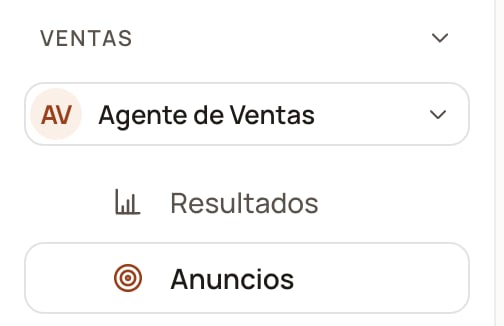
In the left menu: Sales → Ads.
Side menu with the Sales section and the Ads entry selected

The page lives under Sales, right below Results.

2

Click «Connect Meta»

Top right, next to Qualified chapter.
Ads page toolbar with the search box, the funnel, the period and the Connect Meta button

Without a connection, the button says «Connect Meta». Once connected, it says «Meta connected».
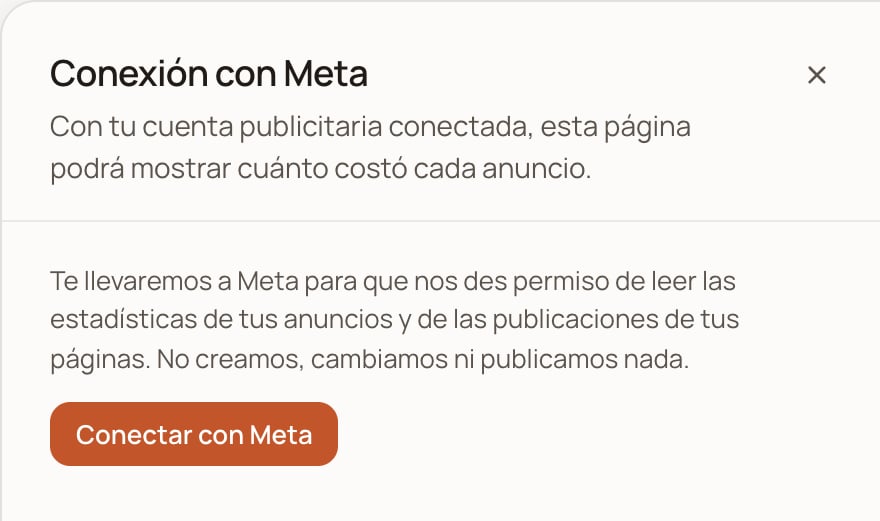
The Connection with Meta sheet opens. Click Connect with Meta: it takes you to Meta’s window.
Connection with Meta sheet with the Connect with Meta button

The sheet before connecting. We only ask for permission to read: we don't create, change or publish anything.

3

Confirm it's your Facebook account

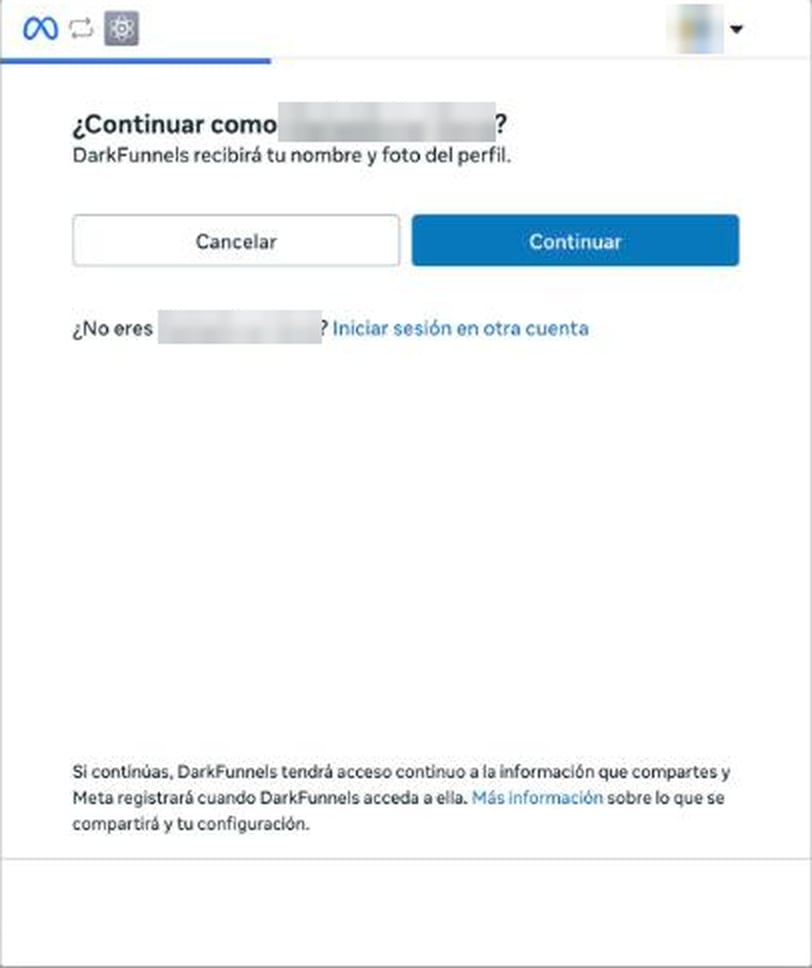
Meta asks Continue as …? with the name of the Facebook account open in that browser. If it’s the one that runs your ads, click Continue. If not, Log in to another account and sign in with the right one.
Meta window asking Continue as …? with the Cancel and Continue buttons

Meta's window. Your name and photo appear here; in the screenshot they are covered.

4

Choose your Pages

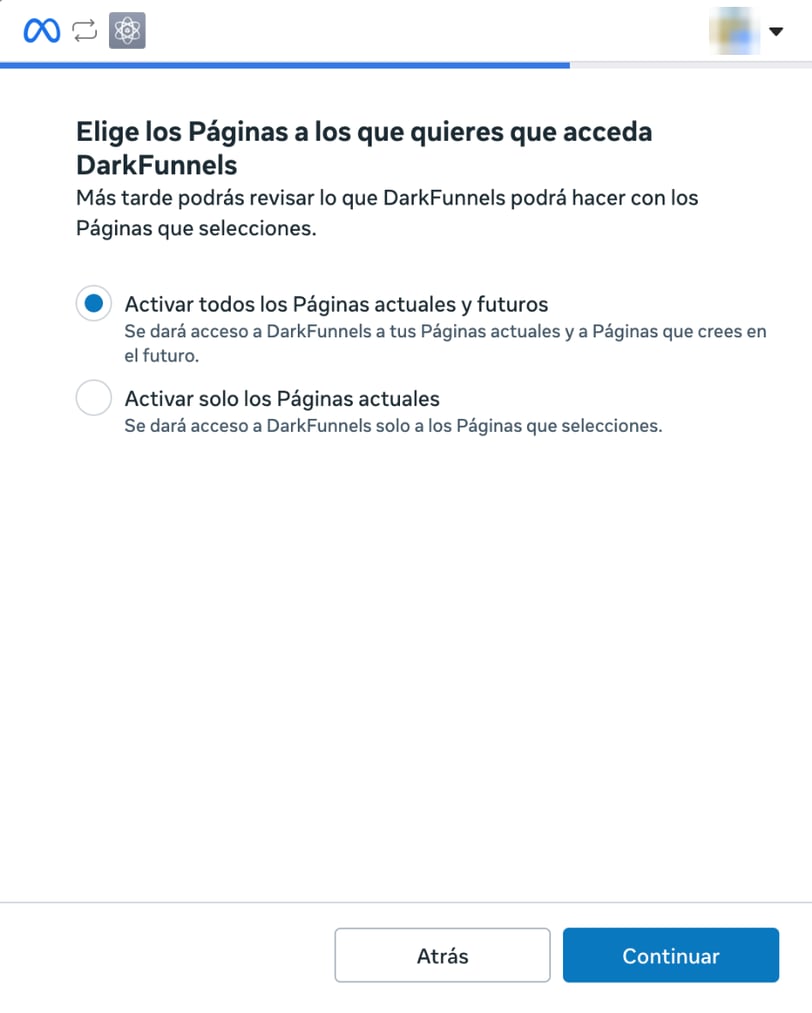
Meta asks you to choose which Pages DarkFunnels can access. Leave the first option selected (all your Pages, current ones and those you create later), or pick the second one (current ones only) and check, at least, the Page that publishes your ads. Click Continue.
Meta window to choose which Pages DarkFunnels can access, with the all-Pages and current-Pages-only options

The Pages: from them DarkFunnels reads the organic engagement of the posts your ads use.

5

Review the permissions and save

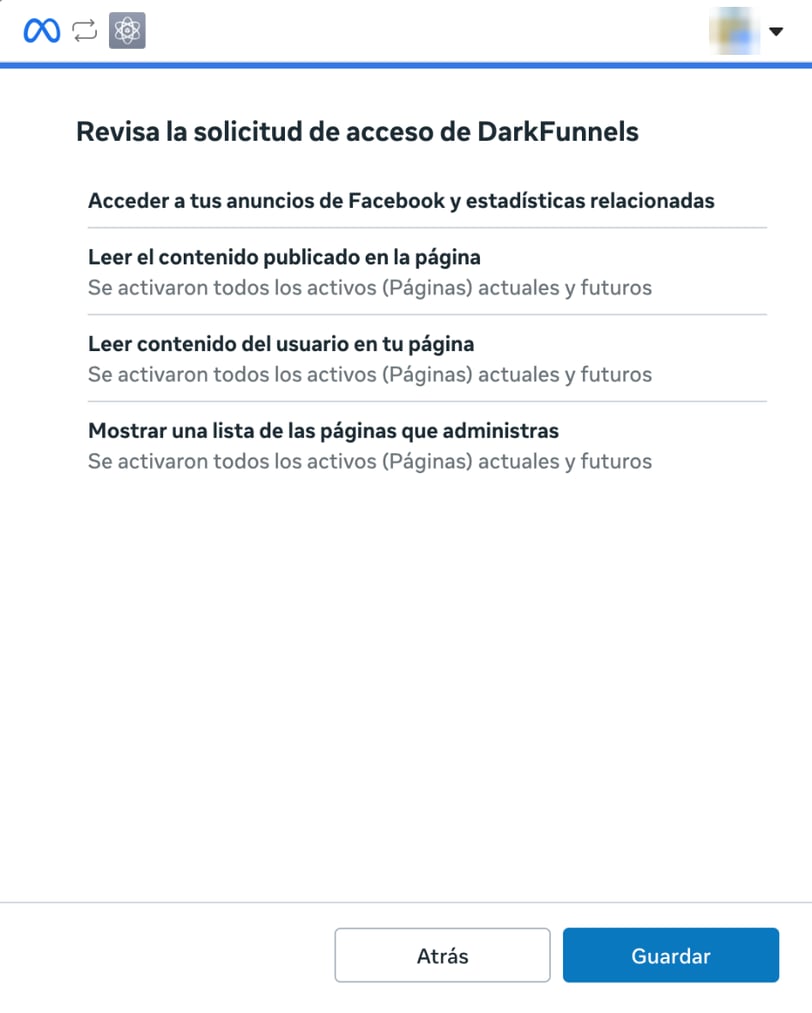
Meta sums up what DarkFunnels asks for under Review DarkFunnels’ access request: access your Facebook ads and related statistics, read content posted on the Page, read user content on your Page and show a list of the Pages you manage. Click Save.
Meta window Review DarkFunnels' access request with four permissions and the Back and Save buttons

The four permissions. «Read user content» is what lets us count the post's reactions and comments: we count how many there are, we don't read what they say.

The Page permissions are what make Facebook’s organic engagement visible. If you don’t grant them, the connection still works, but that part doesn’t show up and the ad’s detail sheet will ask you to reconnect.
6

Click «OK»

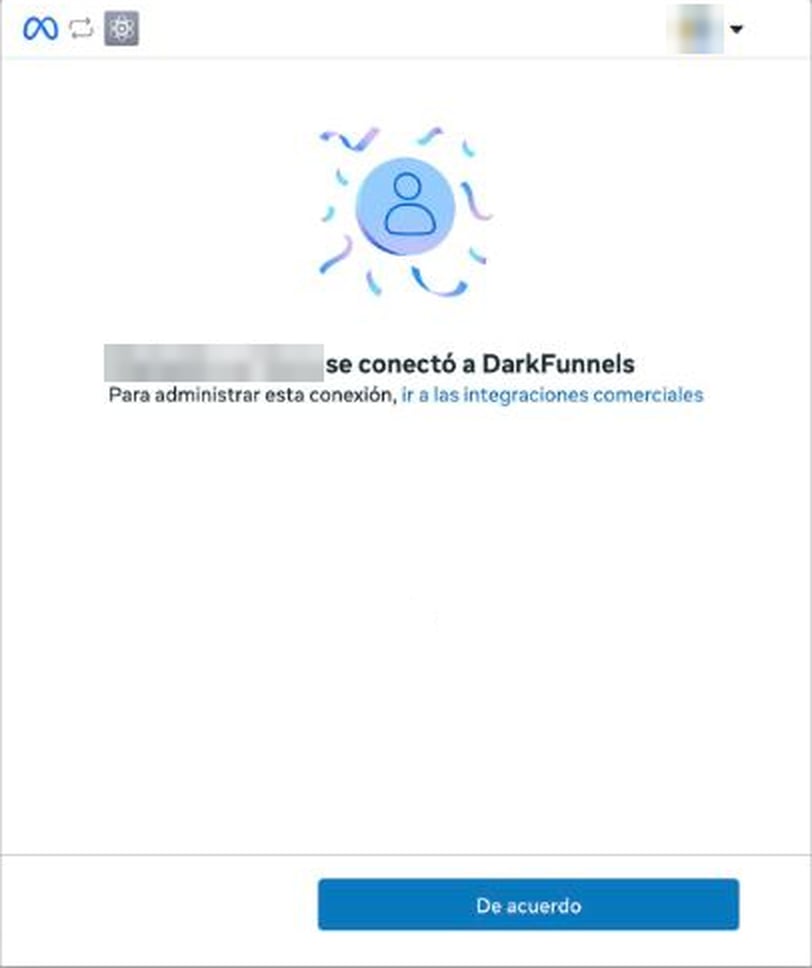
Meta confirms your Facebook account connected to DarkFunnels. OK takes you back to DarkFunnels.
Meta window confirming the connection with DarkFunnels and the OK button

Meta's confirmation. The «go to business integrations» link is where, from Facebook, you can remove DarkFunnels' access whenever you want.

7

Check that it worked

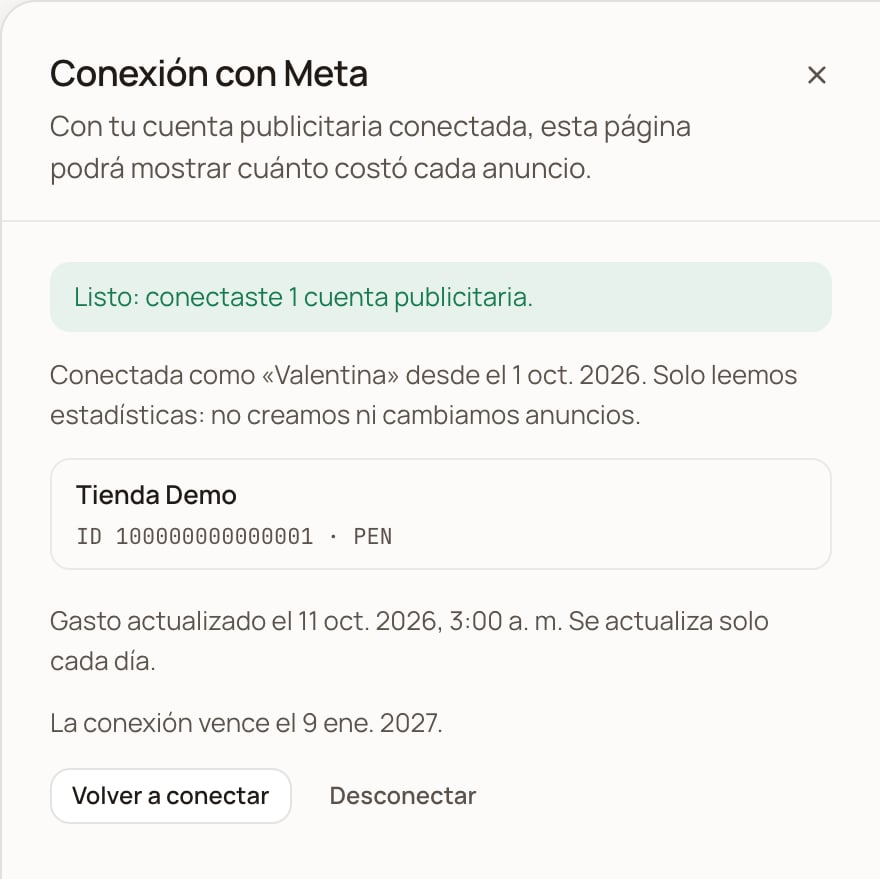
Back in Ads, the sheet says Done: you connected 1 ad account (or however many) and shows each account with its name, ID and currency. At first you’ll see “We’re bringing in the spend for the last 93 days. Come back in a few minutes.”; when it’s done, it tells you when the spend was updated and until when the connection is valid.
Connection with Meta sheet with the Done: you connected 1 ad account notice, the account, the update date and the expiry date

Connected. From this same sheet you reconnect or disconnect.

Which accounts get connected. If your Facebook account has access to several ad accounts (for example, those of other businesses you manage), DarkFunnels keeps the ones that pay for ads that brought chats to your business. The rest are not read. If you connect before your first chat from an ad and your Facebook account sees several ad accounts, the sheet says “We don’t know yet which of your Facebook’s ad accounts belongs to this business” and yours is added on its own when that chat arrives. And if you later start paying for ads from another account, it’s added on its own too. In both cases it comes in with the daily update that follows that account’s first chat, if the Facebook account you connected can see it.

What you see once it’s connected

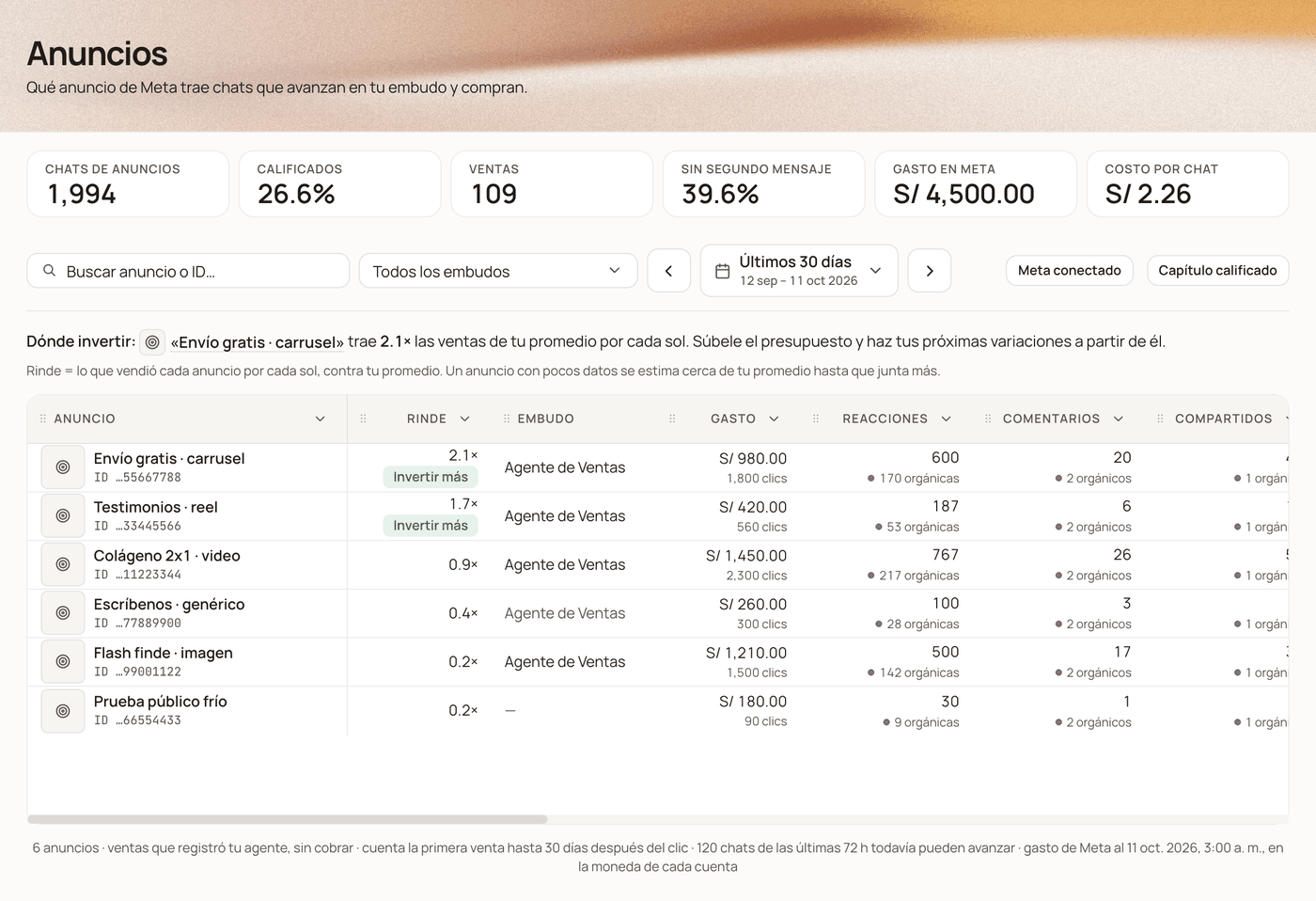
Ads page with the figures strip, the Where to invest sentence and the table with the yield, spend, reactions, comments, shares and chats columns

The page with Meta connected (demo data). At the top, the spend and the cost per chat; below, «Where to invest» and the table sorted by yield.

  • The top strip adds two figures: Meta spend and Cost per chat (all the spend divided by all the chats from those ads).
  • Each ad shows its name in Meta and its thumbnail, what it spent in the period (with its clicks underneath), the reactions, comments and shares it brought in the period (underneath, with a purple dot, its post’s organic ones: those that came on their own, unpaid, since it was published), and what each chat, each qualified lead and each sale cost you, plus the ROAS (what it sold divided by what it spent).
  • Ads from those accounts that spent without bringing a single chat also show up, with 0 chats (for example, campaigns that aren’t click-to-WhatsApp), when you look at all funnels. Their spend counts toward your average.
  • Yield and the Where to invest sentence, explained below.
  • Country: if your contacts come from more than one country, a selector shows up in the toolbar. When you pick one, the page counts the chats from contacts in that country and the spend Meta delivered there.

Yield: which ad is your best one

Yield answers a single question: for each sol (or dollar) you put into this ad, how much does it bring you compared with an average one across all your ads? “2.0×” is double; “0.4×”, less than half. The table comes sorted by this column: the best one on top. What counts as “what it brings you” depends on what your business already measures: The line below Where to invest tells you which of the three it’s using. For qualified leads to count, each funnel needs its qualified chapter (the Qualified chapter button, top right): the chapter from which a chat is already a serious customer. An ad with little data doesn’t shoot up by luck: its yield is estimated close to your average and moves away from it as it gathers chats. One that spent 21 cents and brought 2 chats comes out near 1×, not above all the others. The column’s two marks:
  • Invest more: it yields more than your average with good confidence (80% or more) and is still running (it spent in the three days before the last update). It’s the candidate for a bigger budget.
  • Iterate: it yields more than your average with the same confidence, but is no longer running. It’s the base for your next variations: the same hook, another format or copy.
Where to invest, the sentence above the table, puts it all together: which ad to invest more in and which one to start from for the next version. If no ad clearly yields more than your average yet, it tells you which one looks most promising and that it needs more data. The ad’s name is a link that opens its detail sheet.
Yield compares each ad with your own average, so it works even if you spend in dollars and sell in soles: it doesn’t need an exchange rate. If you pay from accounts in two currencies, it only compares the ads in the currency you spend the most in. And it recommends, it doesn’t execute: you change the budget yourself in Ads Manager.

An ad’s detail sheet

Click an ad’s name to open its detail sheet. On the left, What they saw: the video (or the image), how many times it was shown and the people who reacted. On the right, What happened: wrote → qualified → bought, what each step cost, and on one line what it spent, what it brought in, the ROAS and its yield.
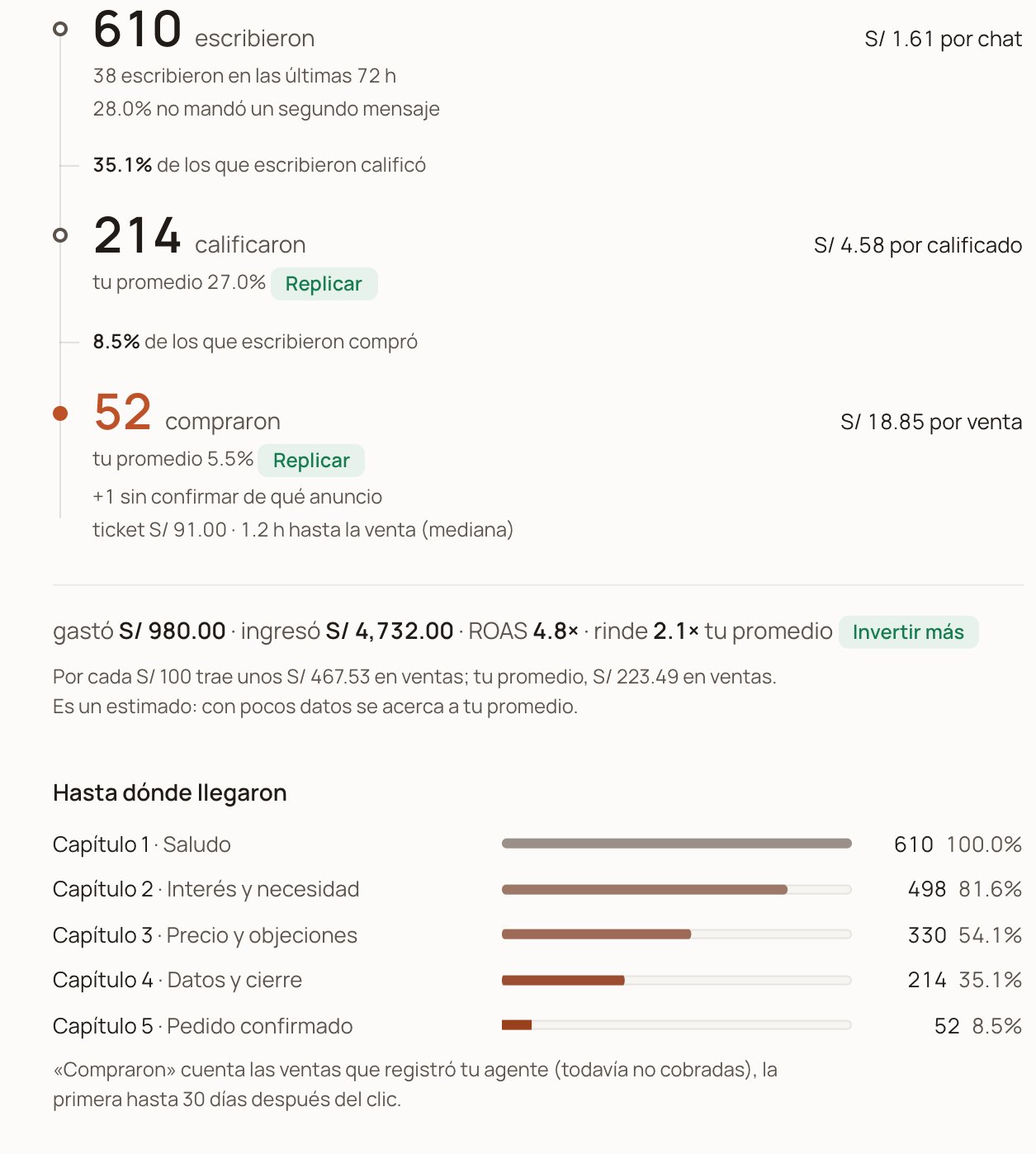
Ad detail sheet: wrote, qualified and bought with their cost, the spent, brought in, ROAS and yield line, and how far they got

«What happened»: each step with its cost, the money on one line and, below, how much it brings per S/ 100 against your average.
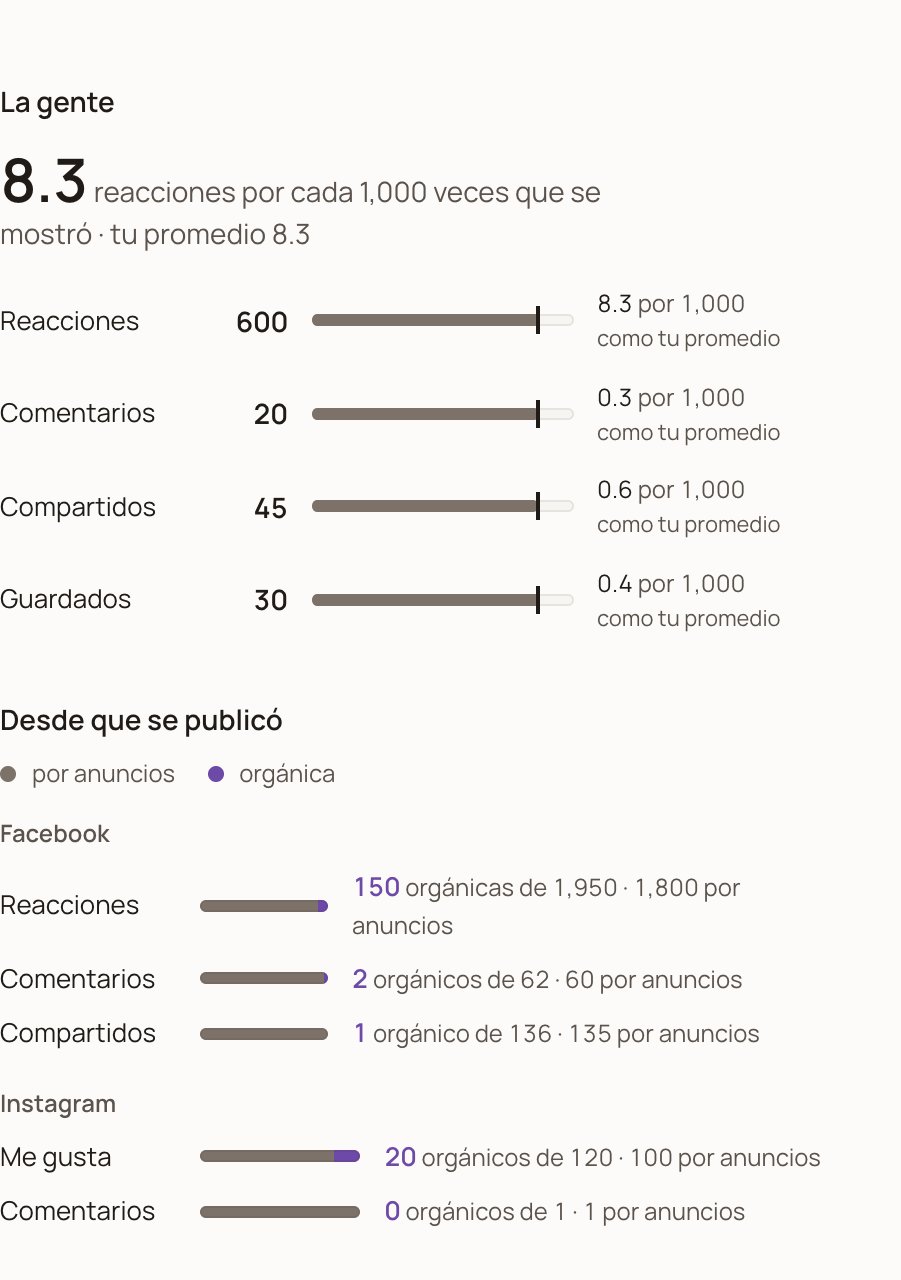
Under The people, each interaction is read per 1,000 times the ad was shown, with a mark for your average: that’s how you compare a big ad with a small one. Below, Since it was published splits the post’s engagement into what the ads brought (gray) and what came on its own (purple), on Facebook and on Instagram.
Ad detail sheet: reactions, comments, shares and saves per 1,000, and Facebook and Instagram engagement split into paid and organic

«The people» per 1,000 times shown and, below, the post's paid and organic engagement.

How often it updates

  • When you connect, DarkFunnels brings in the last 93 days. It takes a few minutes.
  • After that, once a day, on its own. Each day it also re-reads the last 7 days, so if Meta corrects a recent day’s spend, the correction arrives on its own. The Connection with Meta sheet says when the last update was.
  • Days follow your ad account’s time zone. Today’s spend is completed by the next update: don’t expect it to match Ads Manager minute by minute.
  • The post’s engagement (the organic part) is the total since it was published, read in the daily update.

When to reconnect

Reconnecting is the same steps as above, starting with the button at the top (Meta connected or Reconnect Meta) → Reconnect. Since you connected before, Meta asks whether you want to continue with your previous settings: Continue reuses what you already accepted and finishes there; Edit settings takes you to choose the Pages and review the permissions again. If the detail sheet asked you for your Pages permission, use Edit settings.
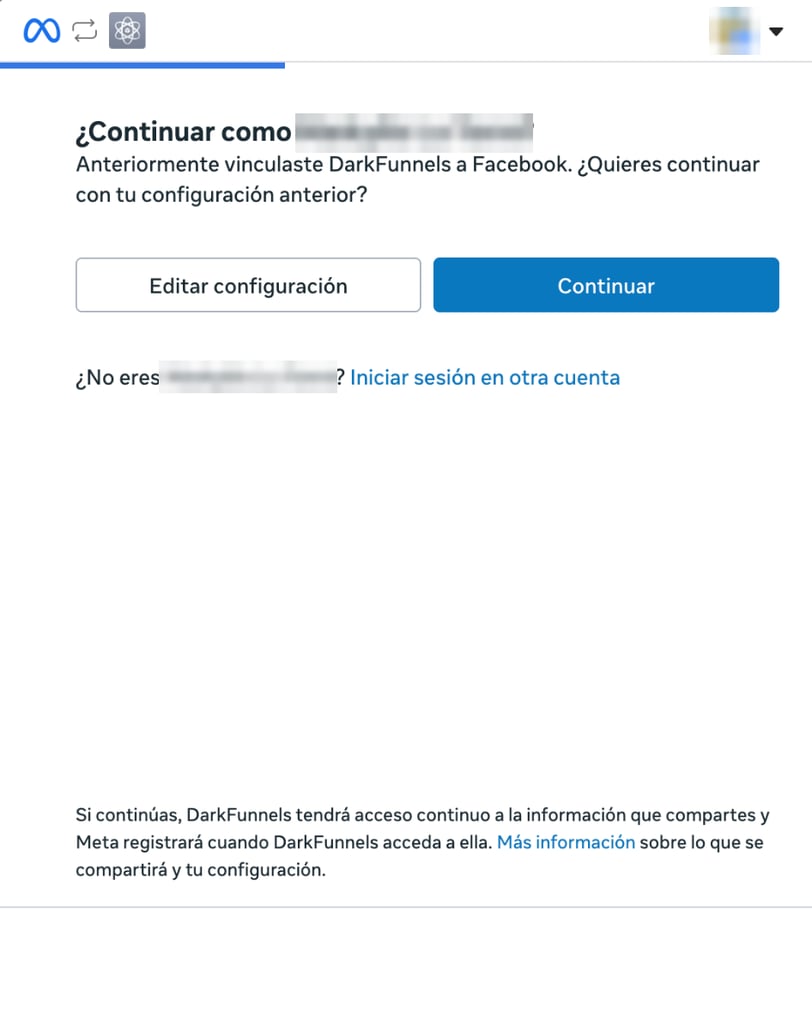
Meta window asking whether you want to continue with your previous settings, with the Edit settings and Continue buttons

When reconnecting: «Continue» repeats what you already accepted; «Edit settings» lets you review Pages and permissions.

The spend we already brought in stays. You need to reconnect in three cases:
  1. Every 90 days. Meta grants access to the data for 90 days from when you accept. The sheet says “The connection expires on …” and, in the last 14 days, it warns you so you renew it before it’s cut off. That warning shows up inside Meta connected: open it every now and then.
  2. If Meta stops accepting the connection, for example because you removed the permission from Facebook. The button at the top changes to Reconnect Meta and the sheet explains that Meta no longer accepts the connection.
  3. If the detail sheet asks you to. If you didn’t grant the Page permissions (or connected before we asked for them), the Facebook part of Since it was published says “Reading it needs your Pages permission.” with a Reconnect button. When you come back, go through Edit settings and accept the Page permissions.
If you start paying for ads from another ad account, you don’t need to: it’s added on its own (see “Which accounts get connected”, above).
When you reconnect, the spend for the days the connection was cut comes in on its own, up to 93 days back.

Disconnect

Meta connected → Disconnect, and confirm. DarkFunnels stops reading your accounts, and the page stops showing the spend, the costs, yield and the thumbnails. What we already brought in stays stored: if you reconnect, it shows up again. That cuts the connection on DarkFunnels’ side. To also remove its access on Meta’s side, go to Business integrations on Facebook (the link Meta shows you when connecting) and remove DarkFunnels.

What we read from Meta and what we don’t

We read, once a day: each ad’s spend, impressions, clicks and engagement, by day and by country; the names of the ad, the ad set and the campaign; and the totals of the post each ad uses (reactions, comments and shares on Facebook; likes and comments on Instagram). We store a copy of each ad’s thumbnail and, the first time you open its detail sheet, of its video (if Meta shares it), to show them to you without depending on Meta’s links, which expire. We don’t: we don’t create, change, pause or publish anything. For comments we only count how many there are; we don’t read what they say. The permission Meta gives you is stored encrypted. We also store the name and Facebook ID of whoever connected, and the connected ad accounts (name, ID and currency). The figures are only visible to the people in your business with access to Sales. To have us delete what we’ve already stored, write to us.

Common problems

The page is in a pilot and your business isn’t in it yet. Write to us and we’ll add you.
While the pilot lasts, Meta only lets people who accepted the DarkFunnels app invitation connect. Check that you accepted it at developers.facebook.com/requests and that you’re using that same Facebook account in Meta’s window. If another name shows up in Continue as …?, use Log in to another account.
You clicked Cancel in Meta or didn’t accept the permissions. Click Connect Meta again and go all the way to OK.
Something failed on Meta’s side while closing the connection. Wait a few minutes and start again from Connect Meta. If it happens again, write to us.
Chats from ads have already reached you, but the Facebook account you connected with doesn’t have access to the ad account that pays for them. Connect with the Facebook account that manages those ads (or ask to be given access to the ad account in Meta).
You connected before your first chat from an ad and your Facebook account sees several ad accounts: DarkFunnels doesn’t know yet which one is yours. You don’t have to do anything. When a chat arrives from an ad paid by one of those accounts, it’s added on its own with the daily update and brings in its last 93 days of spend. If chats from ads are already reaching you and the sheet still looks the same the next day, those ads are paid by an account your Facebook can’t see: connect with the Facebook account that manages them.
Your Facebook account doesn’t have access to any ad account, or you didn’t accept the permission to read your ads. Connect with the Facebook account that runs your ads and accept all the permissions.
Either it spent nothing in the period you have selected, or it’s paid by another ad account that isn’t connected yet (it’s added on its own with the daily update if the Facebook account you connected can see it). Try a longer period; if it still shows ”—” the next day, connect with a Facebook account that can see that other account.
Check that the period is the same, that days follow your ad account’s time zone and that today’s spend is only completed by the next day’s update (the corrections Meta makes to the last few days arrive on their own). Also: with a funnel selected, the strip only adds the ads that brought chats to that funnel; with accounts in two currencies, it shows the one with the most spend (“Spend (main currency)”); and clicks are Meta’s “clicks (all)”, not only link clicks.
In the table, the purple figure doesn’t show up; in the detail sheet, the Facebook part of Since it was published tells you why. If it says “Reading it needs your Pages permission.”, click Reconnect and accept the Page permissions. If it says “We haven’t read it yet…”, it shows up with the next update; if it’s still the same the day after, your Facebook account doesn’t manage the Page that publishes the ad: reconnect with one that does.
Meta stopped accepting the connection: it expired or the permission was removed. Click the button and repeat the steps. The spend we already brought in isn’t lost, and the spend for the days it was cut comes in on its own when you reconnect (up to 93 days back).
What follows the colon is Meta’s answer. If it talks about the session, the permission or the token, reconnect. If not, wait for the next day’s update; if it happens again, write to us with that text.
The chats table looks the same, but this time the spend didn’t arrive. Reload the page; if it happens again, write to us.
Meta shares videos uploaded to the ad account; the ones an ad takes from a post on your Page sometimes can’t be copied. You can still see the ad on Facebook with See the ad on Facebook.
Your ad account spends in one currency and your sales are in another. DarkFunnels doesn’t convert currencies, so it doesn’t divide one by the other. Yield does work in that case, because it compares each ad with your own average.

What this page doesn’t do

  • It doesn’t touch your ads, your campaigns or your budget: it only reads.
  • It doesn’t count as a sale anything that wasn’t registered as a sale in DarkFunnels. It counts registered sales (by your agent or your team), collected or not, the first one up to 30 days after the click.
  • It doesn’t convert currencies.
  • It doesn’t read ad accounts that aren’t connected.

Connect your Meta pixel

The way back: letting Meta know who bought over WhatsApp.

Orders and metrics

What each sale your agent registers really measures.
Last modified on October 11, 2026