> ## Documentation Index
> Fetch the complete documentation index at: https://docs.darkfunnels.ai/llms.txt
> Use this file to discover all available pages before exploring further.
> ## Agent Instructions
> DarkFunnels is a WhatsApp AI sales-agent platform used mainly in Peru and Latin America. The product interface and most of this documentation are in Spanish; the /en tree is the English mirror.
> A business connects the WhatsApp number it already uses by scanning a QR code from the dashboard, the same linked-device mechanism as WhatsApp Web. It does not go through the Meta Cloud API (WhatsApp Business Platform), so there is no application to get approved and no message templates to submit. DarkFunnels is not a Meta product and is not affiliated with Meta.
> DarkFunnels also publishes a remote MCP server at https://mcp.darkfunnels.ai/mcp so an assistant such as Claude, ChatGPT or Codex can operate the workspace on the owner's behalf. The tool reference is at /referencia/tools and the connection parameters at /referencia/url-de-conexion.
> The dashboard is https://optimind.darkfunnels.ai, the marketing site is https://darkfunnels.ai and the page written for AI agents is https://darkfunnels.ai/agents.
# WhatsApp AI agent sales script: the playbook
> The WhatsApp AI agent sales script, screen by screen: where you edit it, what everything in the editor is, how it saves, how to roll back and what the Doctor checks.
The sales playbook is your agent's script. It is not internal documentation: it
is what your agent obeys, word for word, every time a customer writes. The
screen itself says so under the title: *«Un documento. Lo que lees es lo que el
agente obedece.»* — *"One document. What you read is what the agent obeys."*
It is split into **chapters** — greet, qualify, offer, close — and each
customer's conversation lives in one of them at a time.
**Where it is.** Go to the dashboard at
[optimind.darkfunnels.ai](https://optimind.darkfunnels.ai) and, in the
left-hand menu, inside **Sales** (*Ventas*) → **AGENT** (*AGENTE*) block, click
**Playbook** (*Manual*). (If you prefer to go straight there:
`optimind.darkfunnels.ai/manual`.)
If instead of the playbook you get a screen saying **«App no activa»** (*App
not active*), the **Sales** (*Ventas*) app is not switched on in your account:
write to support and they will activate it for you.
**The script is written on a computer.** On narrow screens (under 900 px wide,
that is, the phone) the playbook opens **read-only**: you can read it and
**«Retocar datos»** (*Touch up data*), but not rewrite it. At the end of this
page is what you can do from the phone.
**Two words that are not the same thing.** **The copilot** is the AI that lives
inside the dashboard and proposes changes to you. **Your assistant** is Claude,
ChatGPT or Codex connected from outside: optional, and it only shows up in the
last two sections.
And a third: if in an old video you hear **«etapa»** (*stage*), it is the same
thing as **chapter**. It was renamed. (The old address `/stages-editor` still
takes you to the Playbook.)
## What reaches your agent in every message
Of the chapters, **only one reaches it**: the one that conversation is in. What
you wrote in chapter 4 does not exist for it while the conversation is in
chapter 1. If a rule has to hold always, write it in every chapter where it
matters — or put it in a **shared section §**, which you will see further down.
The chapter does not travel alone. Along with it, on every turn, go:
* **the active persona** (if none is chosen, nothing from the persona travels),
* **the customer's data**, their notes and their appointments,
* the business's **style rules**,
* the **tools** and the **files** of that chapter.
## The first thing you see when you go in
### If you have not chosen an agent yet: the sample view
The Playbook **does not start empty**. If no agent is selected, it loads a
complete sample playbook so you can see what a well-written one looks like. The
top bar warns you: **«Vista de ejemplo · selecciona un agente para editar su
manual»** (*Sample view · select an agent to edit its playbook*), and the
**History** (*Historial*), **Data** (*Datos*), **Doctor** and save buttons are
greyed out.
You are not editing anything of yours. Pick your agent in the selector at the
top of the menu (the circle with its initial) and the document is swapped for
yours.
### If your agent does not have a playbook yet
An empty playbook is not a dead end. On a computer it offers you four ways out,
each with its own name:
| Button | What it is for |
| ------------------------------------------------------------------------------- | --------------------------------------------------------------------------------------------------------------- |
| **«Armarlo conversando»** (*Build it by talking*) | You tell the copilot how you sell and it writes the first script. |
| **«Cargar un manual de ejemplo»** (*Load a sample playbook*) | A ready-made playbook you can edit on top of. It is what the screen itself recommends if it is your first time. |
| **«+ Crear el primer capítulo en blanco»** (*+ Create the first blank chapter*) | Start from scratch, by hand. |
| **«✦ Redactar un capítulo con IA»** (*✦ Draft a chapter with AI*) | A single chapter written by AI. |
The two AI ones —talking it through and drafting one chapter— only appear once an
agent has been chosen. From the phone two remain: **«Armarlo conversando»** and
**«💻 Enviármelo a la computadora»** (*💻 Send it to my computer*).
### The banner that teaches you to use the editor
When there is no other notice pending, above the document appears the most
useful piece of instruction the product has, and it is worth reading in full
once:
> ✏️ The whole document is the editor: click any line and type · type @ to
> mention files, tools, variables and chapters · clicking a mention changes it,
> ⌫ deletes it · «Si…» and «Nunca…» colour themselves · create chapters and §
> sections from the index · save whenever you want (a backup stays in the
> history)
Only **one banner shows at a time**, and there is a queue: if you have unsaved
changes from your last visit, the recovery notice comes first; if there are
near-duplicate chapters, that one comes; and only when nothing is pending does
the tip appear. That is why your screen may not match a colleague's.
## The screen, top to bottom
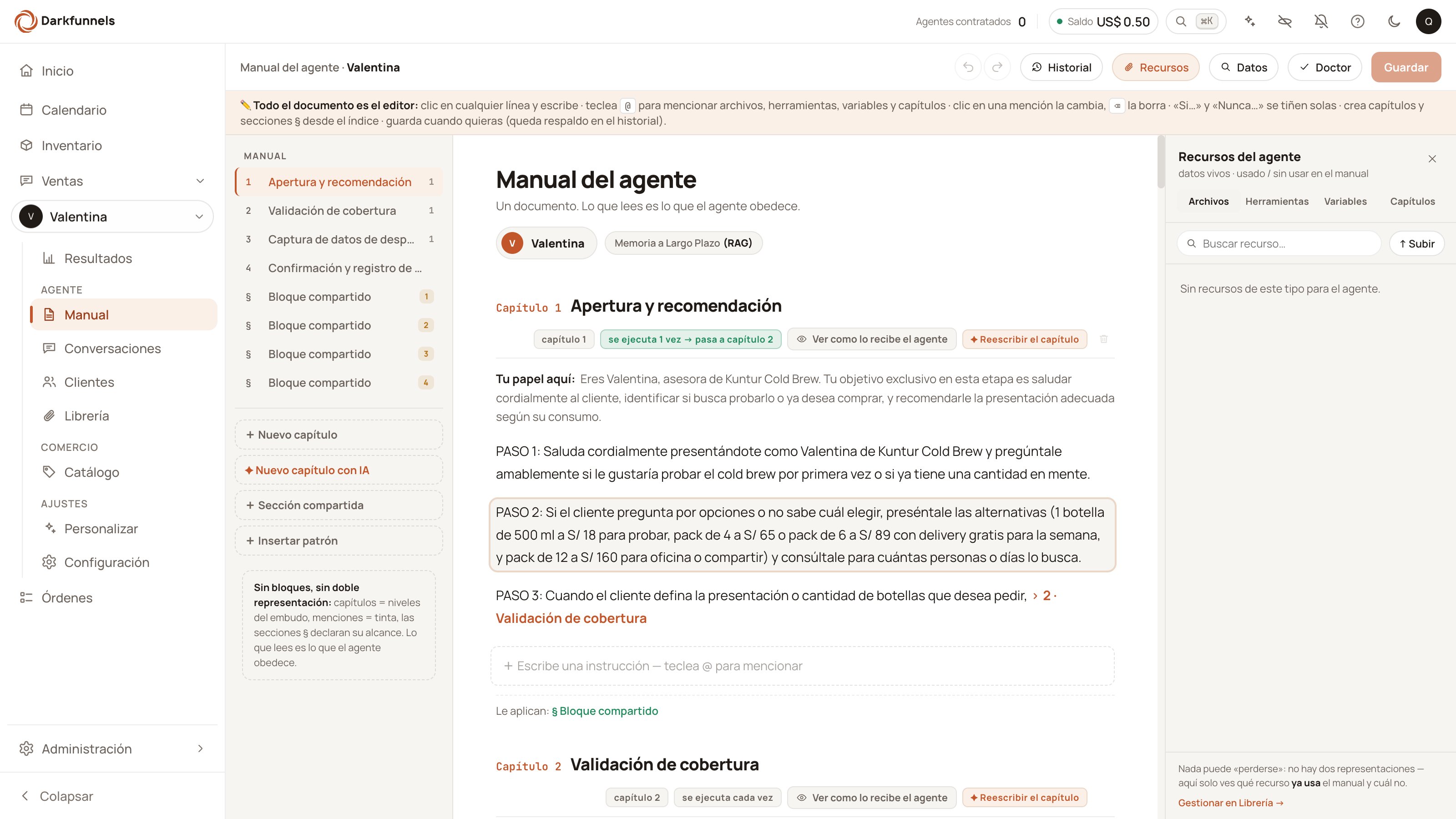 The dashboard interface is in Spanish, so buttons and labels are named here in
English with the Spanish wording you will see on screen in parentheses.
### The button bar
On a computer, left to right:
| Button | What it does |
| ----------------------------------------- | --------------------------------------------------------------------------------- |
| **Undo / Redo** (*Deshacer / Rehacer*) | Up to **100 steps** back. Shortcuts: `⌘Z` / `Ctrl+Z` and `⌘⇧Z` or `⌘Y`. |
| **History** (*Historial*) | The saved versions of the playbook, to compare and roll back. |
| **Resources** (*Recursos*) | The drawer with the agent's files, tools, variables and chapters. |
| **Data** (*Datos*) | The links, prices, phone numbers and exact phrases of the playbook, all together. |
| **Doctor** | The playbook's problems, with their fix. It carries the number of problems found. |
| *(save indicator)* | Tells you whether there are pending changes. |
| **Discard changes** (*Descartar cambios*) | Only appears if you have touched something. |
| **Save changes** (*Guardar cambios*) | The button that writes the playbook to the server. |
With no agent selected, **History**, **Data**, **Doctor** and the save button
are greyed out on purpose.
**The keyboard shortcuts have three gates.** `⌘Z` and company work only on a
computer, and **not** while you have the History window open nor with the
cursor inside a form field. The undo and redo **buttons** do keep working in
those cases. (On the phone those buttons only appear when you have unsaved
changes.)
### The index on the left
It lists your chapters with their number and their name, and at the bottom it
brings the four buttons for creating new things:
* **+ Nuevo capítulo** (*+ New chapter*)
* **✦ Nuevo capítulo con IA** (*✦ New chapter with AI*) — needs an agent chosen
* **+ Sección compartida** (*+ Shared section*)
* **+ Insertar patrón** (*+ Insert pattern*) — which also opens by **typing `/`
on an empty line**.
At the foot, the editor sums up its own philosophy: *«**Sin bloques, sin doble
representación:** capítulos = niveles del embudo, menciones = tinta, las
secciones § declaran su alcance. Lo que lees es lo que el agente obedece.»* —
*"**No blocks, no double representation:** chapters = sales funnel levels,
mentions = ink, § sections declare their scope. What you read is what the agent
obeys."*
**«+ Insertar patrón» saves you writing the script from scratch.** It brings
six ready-made blocks: greeting by time of day, verbatim presentation script,
reminder after N days, ask for a piece of data and store it, price objection
handling, and closing and handover to a human. Each one asks you for its
details first (the days to wait, where to store the data, the exact phrase…).
The index as a whole **does not appear on the phone**.
### The document
Right at the top, the title **«Manual del agente»** (*Agent playbook*) and the
sentence summarising why it exists. Below it, the **persona** pill (with photo
and name) and, in agents created with the new system, the **«Memoria a Largo
Plazo (RAG)»** (*Long-Term Memory (RAG)*) button. Then the chapters begin.
## Inside a chapter
The whole document is the editor: you click a line and type. Inside the
document there are no forms and no labelled fields. This is what you see in
each chapter:
**The number and the name.** On the left, the label **«Capítulo 3»** (*Chapter
3*); next to it, the name, which you write. If you leave the name blank and
save, the system christens it **«Capítulo N»** after its number. The same
number appears again in the **«capítulo 3»** pill in the tag row and in the
index on the left: all three are the same number.
**Do not put the number in the name.** Write «Calificación» (*Qualification*),
not «2. Calificación». Inside the Playbook the name is shown **exactly as you
write it**, so you would see «Capítulo 2» and «2. Calificación» stuck together,
repeated. Outside the Playbook — in the Customers (*Clientes*) and
Conversations (*Conversaciones*) chips, and in the destination lists — that
leading number is trimmed automatically.
**The chapter's lines.** This is the script: what your agent executes. **It
carries no label inside the editor**; they are simply the lines you write under
the name. It is the part you will touch the most.
**«Quién eres» (*Who you are*) or «Tu papel aquí:» (*Your role here:*).** This
is who your agent is. It appears in one of three ways, and it changes by
itself:
* If **all** the chapters say the same thing about who the agent is, it appears
**once at the top**, under the heading **«Quién eres»**.
* If one chapter says something different, it splits: each chapter shows its own
**«Tu papel aquí:»**.
* If nobody has anything written there, it does not appear anywhere.
**The execution chip**, next to the name: it says **«se ejecuta cada vez»**
(*runs every time*) or **«se ejecuta 1 vez → pasa a capítulo N»** (*runs once →
goes to chapter N*). It is explained further down.
**The header buttons:**
* **«Ver como lo recibe el agente»** (*See it as the agent receives it*) —
opens a window with that chapter's text as it will be saved.
* **«✦ Reescribir el capítulo»** (*✦ Rewrite the chapter*) — selects the whole
chapter and opens the ✦ AI actions.
* **the wastebasket** — delete the chapter (see the section further down before
using it).
**«Ver como lo recibe el agente» shows your text, not the complete message.**
It is what will be saved, word for word — very useful for checking what you
have just written. But when it is actually sent, the system adds on top of it
the persona, the customer's data, the labels for each part, the tools and the
files. The **«Quién eres»** block does not have that button; the § sections do.
### Lines colour themselves
Don't be alarmed if you see colours you did not put there: the editor detects
each line's intent. Those beginning with **«Si…»** (*If…*) are painted as a
condition and those beginning with **«Nunca…»** (*Never…*) as a prohibition. It
is a visual aid in the editor: the text that gets saved is exactly the one you
wrote.
## The shared sections §
A **shared section** is a block marked with the **§** symbol that applies to
several chapters at once. You write it once and it serves all the ones you
choose. It carries a chip saying which ones it applies to: **«aplica a
capítulos 1–2, 4»** (*applies to chapters 1–2, 4* — consecutive numbers are
joined with a dash) or **«sin capítulos»** (*no chapters*) if it applies to
none.
**For you it is one block; for your agent they are copies.** On saving, the
section's text is **copied in full inside each chapter in its scope**. If it
applies to four chapters, it is written four times — that is why playbooks
weigh what they weigh. And a section that applies to no chapter **is not copied
into any of them**: your agent does not see it.
**«PUNTOS CLAVE:» (*KEY POINTS:*) is not decoration: it is structure.** Inside
a section, that literal line separates knowledge from prohibitions, and **it
has to go at the start of the text or right after a blank line**, with what
follows on the line below. If you delete it or put it in the middle of a
paragraph, the system stops telling the two things apart and treats it all as
context.
**Emptying a § section that does apply to chapters blocks your save, and just
as well.** If you delete its content and press save, the system **does not
save** and explains why: saving it empty would erase that context in every
chapter where it applies. The notice names the first empty section it finds,
even if there are several.
That safety net **does not cover** sections without scope (the ones saying
«sin capítulos»): the Doctor is what warns you about those. The net exists
because a real business lost 13,716 characters of context that way in August
2026\.
If you have two § sections saying almost the same thing, the editor points it
out — **«Copias casi idénticas (no colapsan)»** (*Near-identical copies (they
do not collapse)*) — and brings a wizard to unify them. It is a frequent
problem in playbooks that have been around a while.
## Writing the script: the PASOS (steps)
**«PASO 1:», «PASO 2:»… are not a button or a field: they are a way of
writing** inside the chapter's lines. Your agent understands it, and so does
the system: when a scheduled reminder has to start at PASO 4, it trims the text
so it starts right there.
```
PASO 1: Saluda por su nombre y pregunta qué producto le interesa.
PASO 2: Si pide precio, dile esto exactamente: «...»
PASO 3: Cuando tengas el distrito, pasa al PASO 4.
```
The examples on this page are shown in Spanish, as they appear in the product.
* Each step carries its action and its exit («Si …», «Cuando tengas X, salta al
PASO N» — *If …*, *When you have X, jump to PASO N*).
* If the chapter has to **route** according to the customer's situation (typical
of the first one), its **«REGLA DE EJECUCIÓN:»** (*EXECUTION RULE:*) goes
before PASO 1 and says which step to execute in each case.
* Scripts that must come out verbatim go with **«dile esto:»** or **«dile esto
exactamente:»** (*tell them this:* / *tell them this exactly:*).
**The trimming only works if «PASO 4» starts the line and the number is in
digits.** Written «Paso cuatro» (*Step four*), or halfway through a sentence,
the system does not find it — and then it sends your agent **the whole chapter**
from the beginning. It does not fail loudly: it fails by doing more than it
should.
**You do not have to structure it by hand.** Select the messy text, press the
**«✦ IA»** pill that appears and choose **«Estructurar en pasos»** (*Structure
into steps*): it proposes the version with PASO 1 / PASO 2 / … Nothing changes
until you accept the proposal (and nothing reaches the server until you save).
## Making the sales funnel advance
Whether the conversation moves from chapter 1 to chapter 2 is decided by **a
mark inside the chapter's text**. The natural thing is to write it in the
script's lines.
**The convenient way:** type **`@`**, choose the **Chapters** (*Capítulos*)
group and choose the destination chapter. A **mention** is left on the line
(that coloured "ink" of the editor). One click on it changes it; `⌫` deletes
it.
**The literal way,** which is what you will see written in old playbooks and
what you can type by hand:
```
Llama a la herramienta advance_chapter con el capítulo 3
```
*(Call the advance\_chapter tool with chapter 3.)*
A conditional version also works:
```
Si el cliente acepta la recomendación, Llama a la herramienta advance_chapter con el capítulo 4
```
*(If the customer accepts the recommendation, call the advance\_chapter tool with
chapter 4.)*
**Writing it in prose executes nothing.** «Avanza al capítulo 5» (*Advance to
chapter 5*), «pasa al siguiente» (*go to the next one*) or «continúa»
(*continue*) move nothing: the sales funnel stays stuck in that chapter and
nobody warns you. It is the most expensive and the most silent failure in the
whole product.
Details worth knowing:
* **The destination has to exist.** If there is no chapter with that number, the
advance is rejected and the conversation stays where it was. The Doctor
detects mentions of chapters that no longer exist.
* **The advance is applied when the reply is delivered.** A turn that gets
interrupted (the customer writes over it) does not advance.
* **The last chapter does not advance.** Your agent receives an explicit notice
that it is the end of the playbook, even if the customer closes the sale right
there.
### Jumping within the same message
Normally the jump happens and your agent waits for the customer's next reply.
If you want it to execute the destination chapter **in that same message**,
there is a mark for that:
**Click on a chapter mention that is already written** and the checkbox
**«Ejecutar ese capítulo de inmediato»** (*Execute that chapter immediately*)
appears, with its explanation: *«sin esperar a que el cliente escriba»*
(*without waiting for the customer to write*).
**That checkbox is not there when you insert the mention for the first time**,
only when you click an existing one to change it. Every new mention is born
without the mark. Written by hand, the equivalent is adding **«y ejecútalo en
este mismo mensaje»** (*and execute it in this same message*) at the end of the
advance line. The ceiling is **3 chained jumps** in a single message.
### Chapters that run only once
The greeting is the typical case: it is said once and it moves on to the next
one. That is handled from the **chip next to the chapter's name**, which says
**«se ejecuta cada vez»** or **«se ejecuta 1 vez → pasa a capítulo N»**.
Pressing it opens a small window — **«Ejecución de "Saludo"»** (*Execution of
"Greeting"*), with your chapter's name — with two controls:
1. The checkbox **«Se ejecuta una sola vez»** (*Runs only once*).
2. The list **«al terminar pasa a»** (*on finishing, go to*), whose default
option is **«siguiente (capítulo N+1)»** (*next (chapter N+1)*).
The list is **disabled while you have not ticked the checkbox**, and if you
untick the checkbox the destination is erased.
**That chip can only be pressed in the full editor** (`/manual`, on a
computer). From the phone, or from the playbook embedded in Conversations, the
chip does not respond to the click and, on top of that, it is only visible when
the chapter is set to "runs only once": if it says «se ejecuta cada vez»,
nothing is shown there.
### The advance condition is not edited here
There is one more piece that decides when to advance — the **advance
condition**, written as observable customer behaviour («the customer gave their
district», never «seems interested»). **The Playbook editor neither shows it
nor writes it.** If your playbook carries it, because the AI generator or your
assistant put it there, it is preserved intact and your agent still reads it;
just do not look for it on screen.
## The «@» menu: mentioning things
Type **`@`** on any line and the mentions menu opens, with up to six groups:
| Group | What it is for |
| -------------------------- | ---------------------------------------------------------------------------------------------------------------- |
| **Archivos** (*Files*) | The sendable files in the Library. |
| **Herramientas** (*Tools*) | The actions your agent can execute. Which ones exist and what each needs: [The agent's tools](/en/guides/tools). |
| **Variables** | The customer's data (their name, their district…). |
| **Capítulos** (*Chapters*) | The jump to another chapter. |
| **Envío** (*Send*) | Mark a passage so it goes out together. |
| **Números** (*Numbers*) | Your frequent numbers, if you have any saved. |
**An empty group is not shown.** If you have not uploaded files yet, «Archivos»
does not appear — it is not broken, it is empty. And «Números» only appears
when inserting a new mention, not when changing one that already exists.
One click on a mention that is already written changes it; `⌫` deletes it.
## Sending a file from the script
For your agent to send a file from your Library you write a **marker** at the
exact point in the script where it should go out. Inside it goes the file's
**nickname** (its send trigger), exactly as it appears in the Library:
```
PASO 2: Si pide ver el catálogo, envíalo aquí: ###SEND_FILES: catalogo###
```
**You do not have to write it by hand** — and it is better not to. You have
three ways of inserting it correctly placed: the **Recursos** (*Resources*)
drawer in the bar, the **`@` → Archivos** menu, or the **«✦ ¿Dónde?»** (*✦
Where?*) button, which asks the AI for the sentence with the marker already
inside.
* **The default nickname is the file's name without the extension**, and it is
the one worth keeping: that way the marker, your agent's search and the `@`
menu all name the same thing. Files linked a long time ago may keep a
different, older nickname.
* **If the marker is written correctly, the customer does not see it**: it is
replaced by the file. If it is missing a `#` sign, on the other hand, **that
text goes out as-is in the chat**; and if the nickname does not resolve, the
marker disappears and the message goes out with no attachment, with no visible
error.
* **The editor's red underline compares against the nicknames**, not against
the file names: a marker written with the name may come out underlined and
still be saved and work. If you leave nickname = name, the two match and the
doubt is over.
* **If you take away the file's send permission**, the markers that named it are
left with nothing to resolve. The playbook's text is not touched by itself:
the Doctor points it out to you.
Everything else — how a file is uploaded, how the permission is granted, what
happens if two files share a nickname and why the same file is not re-sent for
6 hours — lives in [The file Library](/en/guides/library).
### A passage that goes out as-is
Your agent splits its reply into several short bubbles. If you have a text that
must go out whole and untouched — some payment details, some terms — wrap it:
```
###BLOCK###
Datos para el depósito:
Banco — cuenta 000-0000000
A nombre de: Tu Negocio S.A.C.
###/BLOCK###
```
That passage goes out in **a single bubble, verbatim**. The ceiling is 4,000
characters per block and 3 blocks per reply; anything over that, or a block
that does not close, goes out as normal text. The Doctor detects unclosed
blocks.
Your products' prices are not written here: they live in the catalog, and your
agent reads them from there. See [The product
catalog](/en/guides/catalog).
## The «Datos» (Data) panel
The **Datos** button in the bar opens a panel titled **«Datos duros»** (*Hard
data*) which gathers, in a single list, the playbook's **links · prices · phone
numbers · exact phrases**. It is the answer to "my price changed, where do I
touch it?" without having to reread the whole playbook.
* The **links, prices and phone numbers** come with an **«Actualizar»**
(*Update*) button that changes that value in all of its appearances at once.
* The **exact phrases** are only listed: you can jump to them and edit them by
hand, but **they do not have an «Actualizar» button**.
**"All the appearances" has one exception and the system tells you about it.**
If changing a value would break a mention in the playbook, that appearance is
skipped and a notice comes up along the lines of *«N apariciones se omitieron:
el nuevo valor alteraría una mención del manual»* (*N appearances were skipped:
the new value would alter a playbook mention*). When you see it, go to those
lines by hand.
It is the only panel that is also available from the phone.
## The «Recursos» (Resources) panel
The **Recursos** button opens a drawer on the right (computer only) with what
your agent has available, in four tabs: **Archivos** (*Files*), **Herramientas**
(*Tools*), **Variables** and **Capítulos** (*Chapters*). Under the title it
tells you whether each thing is **used / unused in the playbook**. From there
you can:
* **upload a file** without leaving the playbook,
* **jump to where each resource is used** inside the script,
* **insert it** at the point where you have the cursor, or **place it** in a
chapter.
It is the piece that connects the [Library](/en/guides/library) with the
script.
## The agent's persona
**"Persona" here is not a human being.** It is the identity your agent adopts:
name, job title, face and voice. It is what makes it introduce itself as
"Valentina, from Moda Sol" and not as a robot.
At the top of the playbook there is a pill with the active persona's photo and
name. If the agent does not have one, the pill says so: **«No hay persona
seleccionada»** (*No persona selected*).
Pressing it opens the **«Persona activa»** (*Active persona*) panel. Each
persona appears with:
* its **name** and its **job title** (or **«Sin cargo»** — *No job title*),
* two marks, **«Cara»** (*Face*) and **«Voz»** (*Voice*), indicating whether it
has a photo and a voice configured,
* the label **«Activa»** (*Active*) on the chosen one, and an **«Activar»**
(*Activate*) button on the others.
What travels to your agent's message is the **name, the job title, the
personality and the context** of that persona. The **face** and the **voice**
are used by the avatar and the voice notes.
### Long-Term Memory (RAG)
Next to the persona there may be a second button, **«Memoria a Largo Plazo
(RAG)»** (*Long-Term Memory (RAG)*). It opens a knowledge document separate
from the playbook, with a ceiling of **200,000 characters**.
The difference from the playbook, in one line: **the playbook is orders; the
memory is knowledge.** What your agent must *do* goes in the playbook; what it
must *know* in order to answer questions, in the memory.
That button **only appears in agents created with the new system**. If your
agent is an old one, you will not see it.
**If your account is in read-only** (for example, suspended over balance), the
playbook **can** still be saved, but **the persona and the memory cannot**: the
personas' **«Activar»** button comes up greyed out. It is an odd asymmetry, but
that is how it is.
## How it saves
**The playbook does not save itself to the server.** You have to press the
button. The only automatic thing is a copy in your own browser.
The button on the right tells you where you stand:
| What it says | What it means |
| ------------------------------------ | ------------------------------------------------------------- |
| **Guardar** (*Save*, greyed out) | There is nothing to save. It is not broken: it is up to date. |
| **Guardar cambios** (*Save changes*) | You have pending changes. |
| **Guardando…** (*Saving…*) | It is writing. |
| **Guardado** ✓ (*Saved*) | It went in. The tick lasts a second and a half. |
And if you have second thoughts before saving, **«Descartar cambios»** (*Discard
changes*), which only appears when there is something to discard, returns the
document to the last saved version.
### The local copy: a net from one day to the next
While you write, the editor saves a copy **in your browser**: half a second
after you stop typing, and instantly when you create or delete a chapter. It is
there so that, if you reload the page or go to another screen, you do not lose
the work: on coming back the notice **«Todavía tienes cambios en el manual sin
guardar»** (*You still have unsaved changes in the playbook*) appears, with the
buttons to **carry on editing** or to **save**.
**That copy is not a backup.** It expires after **7 days** and is discarded by
itself if the playbook changed on the server in the meantime — because someone
else saved it, or because you saved it from the chat panel. In that case the
local draft is lost: the system would rather lose it than write over someone
else's work.
### One save, one version
**Every time you press save, ONE version is created in the History**, even if
you changed ten chapters at once. If you did not really change anything, no
version is created.
**The History keeps only the 10 most recent versions**: number 11 deletes the
oldest one.
Hence the only rule of hygiene that matters: **batch your changes and save in
rounds**. Five chapters saved one by one burn five of your ten slots in an
afternoon; the same five in one save burn one.
## The History: rolling back
The **Historial** button opens a window titled **«Historial del embudo»**
(*Sales funnel history*) — *embudo* (sales funnel) = your agent; it is the same
thing. There you can compare the current playbook against any saved version.
**Restoring is not all or nothing:** you can accept only the pieces you are
interested in, chapter by chapter.
**Restoring from the History does not write anything by itself.** It leaves the
changes in the editor, as if you had written them, and you have to press
**«Guardar cambios»** for them to go in. You can look and try things without
fear of breaking anything.
In the History — and in the copilot's proposal cards — the chapter's parts
appear under other names, in Spanish: **Rol** (*Role*), **Cadena de
pensamiento** (*Chain of thought*) and **Contexto** (*Context*). They are the
same pieces you see in the editor without a label.
## The Doctor
The **Doctor** button reviews the whole playbook and lists what is broken, with
the number of problems in view. It is not AI and not opinion: they are
*«problemas verificados del manual, con su arreglo»* — *"verified playbook
problems, with their fix"*, as the button itself says.
Today it does **eleven checks**. Among them:
* **broken mentions** (a file nothing points to any more, a variable that does
not exist),
* **mentions of a chapter that no longer exists**,
* **chapters with the same name**,
* **gaps in the numbering**,
* **chapters that cannot be reached** (nobody advances towards them),
* **unfilled template placeholders**,
* **tools written without formatting, or with their data wrongly placed**,
* **unclosed send blocks**,
* **§ sections without scope**,
* **chapter markers in the old format**.
**Nothing the Doctor fixes saves itself.** Its fixes remain as pending changes
in the editor until you press **«Guardar cambios»**.
### The template placeholders: check them yourself
If your playbook drags along unfilled placeholders of the `«PRECIO_1»` kind —
in capitals, with an underscore and inside angle quotes — the Doctor lists them
for you. **Do not count on the system stopping you from saving them**: the
guard that could block that save comes **out of the box** configured to warn
and let it through, and on top of that it only looks at the chapters you are
saving at that moment, not the ones that were already there. And it only
recognises that exact format: a `PRECIO_1` without the angle quotes is detected
by nobody.
Put plainly: **count on the Doctor showing them to you, not on the system
stopping you.** Look at them before calling the playbook done.
## Deleting a chapter
Pressing the wastebasket opens a confirmation with the **«Eliminar capítulo»**
(*Delete chapter*) button (or **«Eliminar sección»** — *Delete section*).
Before you decide, it warns you of four things, and they are worth reading:
1. **«El borrado se aplica al guardar los cambios.»** (*The deletion is applied
when you save the changes.*) Nothing has happened yet.
2. **How many mentions of that chapter will be left broken** — or, if there are
none, *«Ninguna mención de capítulo quedará rota»* (*No chapter mention will
be left broken*).
3. **How many § sections will be left ownerless** and will go with it, if there
are any.
4. **How many customers are sitting in that chapter today.** Sometimes it is
counting them (*«Comprobando cuántos clientes están hoy en este capítulo…»* —
*Checking how many customers are in this chapter today…*) and sometimes it
cannot know, and then it asks you to check yourself: *«Si hay chats hoy en
este capítulo, reasígnalos desde Clientes →»* (*If there are chats in this
chapter today, reassign them from Customers →*).
**That fourth warning is the real damage.** Customers left inside the deleted
chapter end up being served with **the first chapter**: your agent greets them
again as if they had just arrived, even if they had already bought. The notice
brings a link to **Clientes** (*Customers*) — it opens in another tab, so as
not to lose what you are editing — to reassign them beforehand.
**Chapters are not renumbered, and that is on purpose.** After deleting number
2 you are left with 1, 3, 4. The number **is the chapter's identity**: it is
used by the mentions, the jumps and the chapter each customer is sitting in.
Renumbering would leave those customers pointing at the wrong chapter. The
Doctor warns you about the gap, but it does not "fix" it by itself.
What is worth reviewing when you delete: who was naming that chapter. A mention
of a chapter that no longer exists is rejected, and that is where the sales
funnel stops.
## Editing the playbook from Conversations
The full Playbook is not the only place. From the **Conversations**
(*Conversaciones*) inbox the **same** playbook opens in a side panel, and it
also **follows you**: it scrolls to the chapter that customer is in. It is the
convenient way to correct a sentence right when you see it sounds wrong.
There you can edit **lines and mentions**, and it saves by the same route. What
you **cannot** do from that panel is **create, rename or delete chapters**:
that lives only in the full Playbook screen («Abrir el manual completo» — *Open
the full playbook*).
**The colour of the chapter chip** — the one you see in Customers and in the
conversation list — is not changed from the Playbook: it is changed from
**Conversations**, and that change is saved without spending one of your ten
History versions.
## From the phone
With the playbook open on the phone the document is **read-only**, and the bar
is left almost empty: **Datos**, plus undo and redo when you have unsaved
changes. The index on the left does not appear.
What you can do is **«Retocar datos»** (*Touch up data*): prices, phone numbers
and links. Tap the piece of data, choose which appearances to apply it to and
press **«Guardar cambios»** — and that spends **only one** of your ten History
versions.
To **rewrite the script** — create chapters, change the steps, move sections —
you need a computer. The **«Enviármelo»** (*Send it to me*) button (in the
empty playbook, **«💻 Enviármelo a la computadora»**) is there for exactly
that: to carry on on the big screen.
## What each thing is called outside the editor
This table is **the only place in this guide** where the technical names
appear. It is useful if you handle the playbook from your assistant over the
bridge, or if you run into them in the dashboard: they show up in the **«Ver
como lo recibe el agente»** window and in the chapter's execution window.
| What you see in the editor | What it is called in the assistant connection | What it is |
| ------------------------------------------------------------------------------ | --------------------------------------------- | ------------------------------------------------------------------------------------- |
| The chapter's **name**, above each block | `chapter_label` | The title. It goes without a number. |
| The number: **«Capítulo 3»**, the **«capítulo 3»** pill and the index number | `display_order` | The chapter's number in the sales funnel. It is the one written in the advance lines. |
| The **chapter's lines** (the editor puts no label on them) | `thought_chain` | The script: what your agent executes step by step. |
| **«Quién eres»** at the top, or **«Tu papel aquí:»** inside each chapter | `role` | Who your agent is in that chapter. |
| The **shared section §** and its scope | `context` | The knowledge and the rules that apply to several chapters. |
| The **«se ejecuta 1 vez»** chip and the **«Se ejecuta una sola vez»** checkbox | `execute_once` | That the chapter is said once and moves on. |
| The **«al terminar pasa a»** list | `advance_to` | Which chapter it jumps to on finishing. |
| *(not in the editor)* | `advance_condition` | When it is time to advance. It is written by the generator or by your assistant. |
| *(not in the editor)* | `chapter_index` | The key with which your assistant edits that chapter. You do not assign it. |
| *(no longer exists)* | `examples` | Conversation examples. See the warning below. |
**Conversation examples no longer exist, and saving deletes them.** If your
playbook came with examples from an earlier era, the editor **does not show
them** and, the first time you save a chapter, it leaves them empty. In the
last census (28 August 2026) none of the 623 saved chapters had anything
written there, so in practice nobody loses anything — but it is worth knowing
before you go looking for them.
**The same three names change depending on where you look.** In the editor they
carry no label. In **«Ver como lo recibe el agente»** they come out already
translated: *role — quién es* (who it is), *thought\_chain — qué hace* (what it
does), *context — conocimiento y límites* (knowledge and limits). And in the
**History** and in the copilot's proposals they are **Rol**, **Cadena de
pensamiento** and **Contexto**. It is the same piece three times.
And if your assistant returns some English name you do not recognise, it is not
broken: two inherited vocabularies coexist underneath and the system
understands both.
### In what order the chapter reaches your agent
First the **persona**, the **customer's data**, their **notes** and their
**appointments**. Then the chapter: its **name**, who it is (**ROL:**), the
script (**CADENA DE PENSAMIENTO:**, with an added instruction after it), the
**context** — which brings inside it its own labels **CONTEXTO:** and **PUNTOS
CLAVE:** —, the advance condition, the chapter's **tools** and **files**.
Between the name and the role two system notices may slip in: which PASO it
enters from, and whether the playbook is empty.
Each part **only appears if it has content**.
## From your assistant (optional)
If you have connected Claude, ChatGPT or Codex over [the
bridge](/en/reference/connection-url), you can read and change the playbook by
talking. **Reading** the playbook and its history comes switched on out of the
box; **saving** does not — it is a destructive write — and it has to be asked
for in the URL you connect with:
```
https://mcp.darkfunnels.ai/mcp?features=all
```
Four pieces of advice that avoid the most expensive messes:
**Don't let anyone "normalise" your playbook.** An assistant that rewrites
whole chapters "to make them consistent" tramples text that was working. Ask
for surgical changes: the chapter we discussed, the part we discussed. And ask
it to show you the proposal **before** saving.
* **One single save for all the changes.** Each save burns one of your ten
versions, whether it comes from the dashboard or from your assistant.
* **After creating a chapter, have it reread the playbook** and use the real
number that came out. With gaps in the numbering — normal after deleting one —
the number it assumes may clash with that of a live chapter, and the advance
lines point by number.
* **Deleting a chapter moves the internal keys of the ones behind it.** Creating
does not. If you see your assistant editing "from memory" twice in a row
without rereading, stop it.
You can also review in the dashboard whatever **the copilot** proposes: its
proposals are approved or rejected from this same Playbook screen.
The files your agent sends, and the nickname you ask for them by from the script.
Prices are not written in the playbook: they live here.
See what it actually replied, and which chapter it was in.
Agent, sales funnel, chapter, marker, persona: all of them in one line.
The dashboard interface is in Spanish, so buttons and labels are named here in
English with the Spanish wording you will see on screen in parentheses.
### The button bar
On a computer, left to right:
| Button | What it does |
| ----------------------------------------- | --------------------------------------------------------------------------------- |
| **Undo / Redo** (*Deshacer / Rehacer*) | Up to **100 steps** back. Shortcuts: `⌘Z` / `Ctrl+Z` and `⌘⇧Z` or `⌘Y`. |
| **History** (*Historial*) | The saved versions of the playbook, to compare and roll back. |
| **Resources** (*Recursos*) | The drawer with the agent's files, tools, variables and chapters. |
| **Data** (*Datos*) | The links, prices, phone numbers and exact phrases of the playbook, all together. |
| **Doctor** | The playbook's problems, with their fix. It carries the number of problems found. |
| *(save indicator)* | Tells you whether there are pending changes. |
| **Discard changes** (*Descartar cambios*) | Only appears if you have touched something. |
| **Save changes** (*Guardar cambios*) | The button that writes the playbook to the server. |
With no agent selected, **History**, **Data**, **Doctor** and the save button
are greyed out on purpose.
**The keyboard shortcuts have three gates.** `⌘Z` and company work only on a
computer, and **not** while you have the History window open nor with the
cursor inside a form field. The undo and redo **buttons** do keep working in
those cases. (On the phone those buttons only appear when you have unsaved
changes.)
### The index on the left
It lists your chapters with their number and their name, and at the bottom it
brings the four buttons for creating new things:
* **+ Nuevo capítulo** (*+ New chapter*)
* **✦ Nuevo capítulo con IA** (*✦ New chapter with AI*) — needs an agent chosen
* **+ Sección compartida** (*+ Shared section*)
* **+ Insertar patrón** (*+ Insert pattern*) — which also opens by **typing `/`
on an empty line**.
At the foot, the editor sums up its own philosophy: *«**Sin bloques, sin doble
representación:** capítulos = niveles del embudo, menciones = tinta, las
secciones § declaran su alcance. Lo que lees es lo que el agente obedece.»* —
*"**No blocks, no double representation:** chapters = sales funnel levels,
mentions = ink, § sections declare their scope. What you read is what the agent
obeys."*
**«+ Insertar patrón» saves you writing the script from scratch.** It brings
six ready-made blocks: greeting by time of day, verbatim presentation script,
reminder after N days, ask for a piece of data and store it, price objection
handling, and closing and handover to a human. Each one asks you for its
details first (the days to wait, where to store the data, the exact phrase…).
The index as a whole **does not appear on the phone**.
### The document
Right at the top, the title **«Manual del agente»** (*Agent playbook*) and the
sentence summarising why it exists. Below it, the **persona** pill (with photo
and name) and, in agents created with the new system, the **«Memoria a Largo
Plazo (RAG)»** (*Long-Term Memory (RAG)*) button. Then the chapters begin.
## Inside a chapter
The whole document is the editor: you click a line and type. Inside the
document there are no forms and no labelled fields. This is what you see in
each chapter:
**The number and the name.** On the left, the label **«Capítulo 3»** (*Chapter
3*); next to it, the name, which you write. If you leave the name blank and
save, the system christens it **«Capítulo N»** after its number. The same
number appears again in the **«capítulo 3»** pill in the tag row and in the
index on the left: all three are the same number.
**Do not put the number in the name.** Write «Calificación» (*Qualification*),
not «2. Calificación». Inside the Playbook the name is shown **exactly as you
write it**, so you would see «Capítulo 2» and «2. Calificación» stuck together,
repeated. Outside the Playbook — in the Customers (*Clientes*) and
Conversations (*Conversaciones*) chips, and in the destination lists — that
leading number is trimmed automatically.
**The chapter's lines.** This is the script: what your agent executes. **It
carries no label inside the editor**; they are simply the lines you write under
the name. It is the part you will touch the most.
**«Quién eres» (*Who you are*) or «Tu papel aquí:» (*Your role here:*).** This
is who your agent is. It appears in one of three ways, and it changes by
itself:
* If **all** the chapters say the same thing about who the agent is, it appears
**once at the top**, under the heading **«Quién eres»**.
* If one chapter says something different, it splits: each chapter shows its own
**«Tu papel aquí:»**.
* If nobody has anything written there, it does not appear anywhere.
**The execution chip**, next to the name: it says **«se ejecuta cada vez»**
(*runs every time*) or **«se ejecuta 1 vez → pasa a capítulo N»** (*runs once →
goes to chapter N*). It is explained further down.
**The header buttons:**
* **«Ver como lo recibe el agente»** (*See it as the agent receives it*) —
opens a window with that chapter's text as it will be saved.
* **«✦ Reescribir el capítulo»** (*✦ Rewrite the chapter*) — selects the whole
chapter and opens the ✦ AI actions.
* **the wastebasket** — delete the chapter (see the section further down before
using it).
**«Ver como lo recibe el agente» shows your text, not the complete message.**
It is what will be saved, word for word — very useful for checking what you
have just written. But when it is actually sent, the system adds on top of it
the persona, the customer's data, the labels for each part, the tools and the
files. The **«Quién eres»** block does not have that button; the § sections do.
### Lines colour themselves
Don't be alarmed if you see colours you did not put there: the editor detects
each line's intent. Those beginning with **«Si…»** (*If…*) are painted as a
condition and those beginning with **«Nunca…»** (*Never…*) as a prohibition. It
is a visual aid in the editor: the text that gets saved is exactly the one you
wrote.
## The shared sections §
A **shared section** is a block marked with the **§** symbol that applies to
several chapters at once. You write it once and it serves all the ones you
choose. It carries a chip saying which ones it applies to: **«aplica a
capítulos 1–2, 4»** (*applies to chapters 1–2, 4* — consecutive numbers are
joined with a dash) or **«sin capítulos»** (*no chapters*) if it applies to
none.
**For you it is one block; for your agent they are copies.** On saving, the
section's text is **copied in full inside each chapter in its scope**. If it
applies to four chapters, it is written four times — that is why playbooks
weigh what they weigh. And a section that applies to no chapter **is not copied
into any of them**: your agent does not see it.
**«PUNTOS CLAVE:» (*KEY POINTS:*) is not decoration: it is structure.** Inside
a section, that literal line separates knowledge from prohibitions, and **it
has to go at the start of the text or right after a blank line**, with what
follows on the line below. If you delete it or put it in the middle of a
paragraph, the system stops telling the two things apart and treats it all as
context.
**Emptying a § section that does apply to chapters blocks your save, and just
as well.** If you delete its content and press save, the system **does not
save** and explains why: saving it empty would erase that context in every
chapter where it applies. The notice names the first empty section it finds,
even if there are several.
That safety net **does not cover** sections without scope (the ones saying
«sin capítulos»): the Doctor is what warns you about those. The net exists
because a real business lost 13,716 characters of context that way in August
2026\.
If you have two § sections saying almost the same thing, the editor points it
out — **«Copias casi idénticas (no colapsan)»** (*Near-identical copies (they
do not collapse)*) — and brings a wizard to unify them. It is a frequent
problem in playbooks that have been around a while.
## Writing the script: the PASOS (steps)
**«PASO 1:», «PASO 2:»… are not a button or a field: they are a way of
writing** inside the chapter's lines. Your agent understands it, and so does
the system: when a scheduled reminder has to start at PASO 4, it trims the text
so it starts right there.
```
PASO 1: Saluda por su nombre y pregunta qué producto le interesa.
PASO 2: Si pide precio, dile esto exactamente: «...»
PASO 3: Cuando tengas el distrito, pasa al PASO 4.
```
The examples on this page are shown in Spanish, as they appear in the product.
* Each step carries its action and its exit («Si …», «Cuando tengas X, salta al
PASO N» — *If …*, *When you have X, jump to PASO N*).
* If the chapter has to **route** according to the customer's situation (typical
of the first one), its **«REGLA DE EJECUCIÓN:»** (*EXECUTION RULE:*) goes
before PASO 1 and says which step to execute in each case.
* Scripts that must come out verbatim go with **«dile esto:»** or **«dile esto
exactamente:»** (*tell them this:* / *tell them this exactly:*).
**The trimming only works if «PASO 4» starts the line and the number is in
digits.** Written «Paso cuatro» (*Step four*), or halfway through a sentence,
the system does not find it — and then it sends your agent **the whole chapter**
from the beginning. It does not fail loudly: it fails by doing more than it
should.
**You do not have to structure it by hand.** Select the messy text, press the
**«✦ IA»** pill that appears and choose **«Estructurar en pasos»** (*Structure
into steps*): it proposes the version with PASO 1 / PASO 2 / … Nothing changes
until you accept the proposal (and nothing reaches the server until you save).
## Making the sales funnel advance
Whether the conversation moves from chapter 1 to chapter 2 is decided by **a
mark inside the chapter's text**. The natural thing is to write it in the
script's lines.
**The convenient way:** type **`@`**, choose the **Chapters** (*Capítulos*)
group and choose the destination chapter. A **mention** is left on the line
(that coloured "ink" of the editor). One click on it changes it; `⌫` deletes
it.
**The literal way,** which is what you will see written in old playbooks and
what you can type by hand:
```
Llama a la herramienta advance_chapter con el capítulo 3
```
*(Call the advance\_chapter tool with chapter 3.)*
A conditional version also works:
```
Si el cliente acepta la recomendación, Llama a la herramienta advance_chapter con el capítulo 4
```
*(If the customer accepts the recommendation, call the advance\_chapter tool with
chapter 4.)*
**Writing it in prose executes nothing.** «Avanza al capítulo 5» (*Advance to
chapter 5*), «pasa al siguiente» (*go to the next one*) or «continúa»
(*continue*) move nothing: the sales funnel stays stuck in that chapter and
nobody warns you. It is the most expensive and the most silent failure in the
whole product.
Details worth knowing:
* **The destination has to exist.** If there is no chapter with that number, the
advance is rejected and the conversation stays where it was. The Doctor
detects mentions of chapters that no longer exist.
* **The advance is applied when the reply is delivered.** A turn that gets
interrupted (the customer writes over it) does not advance.
* **The last chapter does not advance.** Your agent receives an explicit notice
that it is the end of the playbook, even if the customer closes the sale right
there.
### Jumping within the same message
Normally the jump happens and your agent waits for the customer's next reply.
If you want it to execute the destination chapter **in that same message**,
there is a mark for that:
**Click on a chapter mention that is already written** and the checkbox
**«Ejecutar ese capítulo de inmediato»** (*Execute that chapter immediately*)
appears, with its explanation: *«sin esperar a que el cliente escriba»*
(*without waiting for the customer to write*).
**That checkbox is not there when you insert the mention for the first time**,
only when you click an existing one to change it. Every new mention is born
without the mark. Written by hand, the equivalent is adding **«y ejecútalo en
este mismo mensaje»** (*and execute it in this same message*) at the end of the
advance line. The ceiling is **3 chained jumps** in a single message.
### Chapters that run only once
The greeting is the typical case: it is said once and it moves on to the next
one. That is handled from the **chip next to the chapter's name**, which says
**«se ejecuta cada vez»** or **«se ejecuta 1 vez → pasa a capítulo N»**.
Pressing it opens a small window — **«Ejecución de "Saludo"»** (*Execution of
"Greeting"*), with your chapter's name — with two controls:
1. The checkbox **«Se ejecuta una sola vez»** (*Runs only once*).
2. The list **«al terminar pasa a»** (*on finishing, go to*), whose default
option is **«siguiente (capítulo N+1)»** (*next (chapter N+1)*).
The list is **disabled while you have not ticked the checkbox**, and if you
untick the checkbox the destination is erased.
**That chip can only be pressed in the full editor** (`/manual`, on a
computer). From the phone, or from the playbook embedded in Conversations, the
chip does not respond to the click and, on top of that, it is only visible when
the chapter is set to "runs only once": if it says «se ejecuta cada vez»,
nothing is shown there.
### The advance condition is not edited here
There is one more piece that decides when to advance — the **advance
condition**, written as observable customer behaviour («the customer gave their
district», never «seems interested»). **The Playbook editor neither shows it
nor writes it.** If your playbook carries it, because the AI generator or your
assistant put it there, it is preserved intact and your agent still reads it;
just do not look for it on screen.
## The «@» menu: mentioning things
Type **`@`** on any line and the mentions menu opens, with up to six groups:
| Group | What it is for |
| -------------------------- | ---------------------------------------------------------------------------------------------------------------- |
| **Archivos** (*Files*) | The sendable files in the Library. |
| **Herramientas** (*Tools*) | The actions your agent can execute. Which ones exist and what each needs: [The agent's tools](/en/guides/tools). |
| **Variables** | The customer's data (their name, their district…). |
| **Capítulos** (*Chapters*) | The jump to another chapter. |
| **Envío** (*Send*) | Mark a passage so it goes out together. |
| **Números** (*Numbers*) | Your frequent numbers, if you have any saved. |
**An empty group is not shown.** If you have not uploaded files yet, «Archivos»
does not appear — it is not broken, it is empty. And «Números» only appears
when inserting a new mention, not when changing one that already exists.
One click on a mention that is already written changes it; `⌫` deletes it.
## Sending a file from the script
For your agent to send a file from your Library you write a **marker** at the
exact point in the script where it should go out. Inside it goes the file's
**nickname** (its send trigger), exactly as it appears in the Library:
```
PASO 2: Si pide ver el catálogo, envíalo aquí: ###SEND_FILES: catalogo###
```
**You do not have to write it by hand** — and it is better not to. You have
three ways of inserting it correctly placed: the **Recursos** (*Resources*)
drawer in the bar, the **`@` → Archivos** menu, or the **«✦ ¿Dónde?»** (*✦
Where?*) button, which asks the AI for the sentence with the marker already
inside.
* **The default nickname is the file's name without the extension**, and it is
the one worth keeping: that way the marker, your agent's search and the `@`
menu all name the same thing. Files linked a long time ago may keep a
different, older nickname.
* **If the marker is written correctly, the customer does not see it**: it is
replaced by the file. If it is missing a `#` sign, on the other hand, **that
text goes out as-is in the chat**; and if the nickname does not resolve, the
marker disappears and the message goes out with no attachment, with no visible
error.
* **The editor's red underline compares against the nicknames**, not against
the file names: a marker written with the name may come out underlined and
still be saved and work. If you leave nickname = name, the two match and the
doubt is over.
* **If you take away the file's send permission**, the markers that named it are
left with nothing to resolve. The playbook's text is not touched by itself:
the Doctor points it out to you.
Everything else — how a file is uploaded, how the permission is granted, what
happens if two files share a nickname and why the same file is not re-sent for
6 hours — lives in [The file Library](/en/guides/library).
### A passage that goes out as-is
Your agent splits its reply into several short bubbles. If you have a text that
must go out whole and untouched — some payment details, some terms — wrap it:
```
###BLOCK###
Datos para el depósito:
Banco — cuenta 000-0000000
A nombre de: Tu Negocio S.A.C.
###/BLOCK###
```
That passage goes out in **a single bubble, verbatim**. The ceiling is 4,000
characters per block and 3 blocks per reply; anything over that, or a block
that does not close, goes out as normal text. The Doctor detects unclosed
blocks.
Your products' prices are not written here: they live in the catalog, and your
agent reads them from there. See [The product
catalog](/en/guides/catalog).
## The «Datos» (Data) panel
The **Datos** button in the bar opens a panel titled **«Datos duros»** (*Hard
data*) which gathers, in a single list, the playbook's **links · prices · phone
numbers · exact phrases**. It is the answer to "my price changed, where do I
touch it?" without having to reread the whole playbook.
* The **links, prices and phone numbers** come with an **«Actualizar»**
(*Update*) button that changes that value in all of its appearances at once.
* The **exact phrases** are only listed: you can jump to them and edit them by
hand, but **they do not have an «Actualizar» button**.
**"All the appearances" has one exception and the system tells you about it.**
If changing a value would break a mention in the playbook, that appearance is
skipped and a notice comes up along the lines of *«N apariciones se omitieron:
el nuevo valor alteraría una mención del manual»* (*N appearances were skipped:
the new value would alter a playbook mention*). When you see it, go to those
lines by hand.
It is the only panel that is also available from the phone.
## The «Recursos» (Resources) panel
The **Recursos** button opens a drawer on the right (computer only) with what
your agent has available, in four tabs: **Archivos** (*Files*), **Herramientas**
(*Tools*), **Variables** and **Capítulos** (*Chapters*). Under the title it
tells you whether each thing is **used / unused in the playbook**. From there
you can:
* **upload a file** without leaving the playbook,
* **jump to where each resource is used** inside the script,
* **insert it** at the point where you have the cursor, or **place it** in a
chapter.
It is the piece that connects the [Library](/en/guides/library) with the
script.
## The agent's persona
**"Persona" here is not a human being.** It is the identity your agent adopts:
name, job title, face and voice. It is what makes it introduce itself as
"Valentina, from Moda Sol" and not as a robot.
At the top of the playbook there is a pill with the active persona's photo and
name. If the agent does not have one, the pill says so: **«No hay persona
seleccionada»** (*No persona selected*).
Pressing it opens the **«Persona activa»** (*Active persona*) panel. Each
persona appears with:
* its **name** and its **job title** (or **«Sin cargo»** — *No job title*),
* two marks, **«Cara»** (*Face*) and **«Voz»** (*Voice*), indicating whether it
has a photo and a voice configured,
* the label **«Activa»** (*Active*) on the chosen one, and an **«Activar»**
(*Activate*) button on the others.
What travels to your agent's message is the **name, the job title, the
personality and the context** of that persona. The **face** and the **voice**
are used by the avatar and the voice notes.
### Long-Term Memory (RAG)
Next to the persona there may be a second button, **«Memoria a Largo Plazo
(RAG)»** (*Long-Term Memory (RAG)*). It opens a knowledge document separate
from the playbook, with a ceiling of **200,000 characters**.
The difference from the playbook, in one line: **the playbook is orders; the
memory is knowledge.** What your agent must *do* goes in the playbook; what it
must *know* in order to answer questions, in the memory.
That button **only appears in agents created with the new system**. If your
agent is an old one, you will not see it.
**If your account is in read-only** (for example, suspended over balance), the
playbook **can** still be saved, but **the persona and the memory cannot**: the
personas' **«Activar»** button comes up greyed out. It is an odd asymmetry, but
that is how it is.
## How it saves
**The playbook does not save itself to the server.** You have to press the
button. The only automatic thing is a copy in your own browser.
The button on the right tells you where you stand:
| What it says | What it means |
| ------------------------------------ | ------------------------------------------------------------- |
| **Guardar** (*Save*, greyed out) | There is nothing to save. It is not broken: it is up to date. |
| **Guardar cambios** (*Save changes*) | You have pending changes. |
| **Guardando…** (*Saving…*) | It is writing. |
| **Guardado** ✓ (*Saved*) | It went in. The tick lasts a second and a half. |
And if you have second thoughts before saving, **«Descartar cambios»** (*Discard
changes*), which only appears when there is something to discard, returns the
document to the last saved version.
### The local copy: a net from one day to the next
While you write, the editor saves a copy **in your browser**: half a second
after you stop typing, and instantly when you create or delete a chapter. It is
there so that, if you reload the page or go to another screen, you do not lose
the work: on coming back the notice **«Todavía tienes cambios en el manual sin
guardar»** (*You still have unsaved changes in the playbook*) appears, with the
buttons to **carry on editing** or to **save**.
**That copy is not a backup.** It expires after **7 days** and is discarded by
itself if the playbook changed on the server in the meantime — because someone
else saved it, or because you saved it from the chat panel. In that case the
local draft is lost: the system would rather lose it than write over someone
else's work.
### One save, one version
**Every time you press save, ONE version is created in the History**, even if
you changed ten chapters at once. If you did not really change anything, no
version is created.
**The History keeps only the 10 most recent versions**: number 11 deletes the
oldest one.
Hence the only rule of hygiene that matters: **batch your changes and save in
rounds**. Five chapters saved one by one burn five of your ten slots in an
afternoon; the same five in one save burn one.
## The History: rolling back
The **Historial** button opens a window titled **«Historial del embudo»**
(*Sales funnel history*) — *embudo* (sales funnel) = your agent; it is the same
thing. There you can compare the current playbook against any saved version.
**Restoring is not all or nothing:** you can accept only the pieces you are
interested in, chapter by chapter.
**Restoring from the History does not write anything by itself.** It leaves the
changes in the editor, as if you had written them, and you have to press
**«Guardar cambios»** for them to go in. You can look and try things without
fear of breaking anything.
In the History — and in the copilot's proposal cards — the chapter's parts
appear under other names, in Spanish: **Rol** (*Role*), **Cadena de
pensamiento** (*Chain of thought*) and **Contexto** (*Context*). They are the
same pieces you see in the editor without a label.
## The Doctor
The **Doctor** button reviews the whole playbook and lists what is broken, with
the number of problems in view. It is not AI and not opinion: they are
*«problemas verificados del manual, con su arreglo»* — *"verified playbook
problems, with their fix"*, as the button itself says.
Today it does **eleven checks**. Among them:
* **broken mentions** (a file nothing points to any more, a variable that does
not exist),
* **mentions of a chapter that no longer exists**,
* **chapters with the same name**,
* **gaps in the numbering**,
* **chapters that cannot be reached** (nobody advances towards them),
* **unfilled template placeholders**,
* **tools written without formatting, or with their data wrongly placed**,
* **unclosed send blocks**,
* **§ sections without scope**,
* **chapter markers in the old format**.
**Nothing the Doctor fixes saves itself.** Its fixes remain as pending changes
in the editor until you press **«Guardar cambios»**.
### The template placeholders: check them yourself
If your playbook drags along unfilled placeholders of the `«PRECIO_1»` kind —
in capitals, with an underscore and inside angle quotes — the Doctor lists them
for you. **Do not count on the system stopping you from saving them**: the
guard that could block that save comes **out of the box** configured to warn
and let it through, and on top of that it only looks at the chapters you are
saving at that moment, not the ones that were already there. And it only
recognises that exact format: a `PRECIO_1` without the angle quotes is detected
by nobody.
Put plainly: **count on the Doctor showing them to you, not on the system
stopping you.** Look at them before calling the playbook done.
## Deleting a chapter
Pressing the wastebasket opens a confirmation with the **«Eliminar capítulo»**
(*Delete chapter*) button (or **«Eliminar sección»** — *Delete section*).
Before you decide, it warns you of four things, and they are worth reading:
1. **«El borrado se aplica al guardar los cambios.»** (*The deletion is applied
when you save the changes.*) Nothing has happened yet.
2. **How many mentions of that chapter will be left broken** — or, if there are
none, *«Ninguna mención de capítulo quedará rota»* (*No chapter mention will
be left broken*).
3. **How many § sections will be left ownerless** and will go with it, if there
are any.
4. **How many customers are sitting in that chapter today.** Sometimes it is
counting them (*«Comprobando cuántos clientes están hoy en este capítulo…»* —
*Checking how many customers are in this chapter today…*) and sometimes it
cannot know, and then it asks you to check yourself: *«Si hay chats hoy en
este capítulo, reasígnalos desde Clientes →»* (*If there are chats in this
chapter today, reassign them from Customers →*).
**That fourth warning is the real damage.** Customers left inside the deleted
chapter end up being served with **the first chapter**: your agent greets them
again as if they had just arrived, even if they had already bought. The notice
brings a link to **Clientes** (*Customers*) — it opens in another tab, so as
not to lose what you are editing — to reassign them beforehand.
**Chapters are not renumbered, and that is on purpose.** After deleting number
2 you are left with 1, 3, 4. The number **is the chapter's identity**: it is
used by the mentions, the jumps and the chapter each customer is sitting in.
Renumbering would leave those customers pointing at the wrong chapter. The
Doctor warns you about the gap, but it does not "fix" it by itself.
What is worth reviewing when you delete: who was naming that chapter. A mention
of a chapter that no longer exists is rejected, and that is where the sales
funnel stops.
## Editing the playbook from Conversations
The full Playbook is not the only place. From the **Conversations**
(*Conversaciones*) inbox the **same** playbook opens in a side panel, and it
also **follows you**: it scrolls to the chapter that customer is in. It is the
convenient way to correct a sentence right when you see it sounds wrong.
There you can edit **lines and mentions**, and it saves by the same route. What
you **cannot** do from that panel is **create, rename or delete chapters**:
that lives only in the full Playbook screen («Abrir el manual completo» — *Open
the full playbook*).
**The colour of the chapter chip** — the one you see in Customers and in the
conversation list — is not changed from the Playbook: it is changed from
**Conversations**, and that change is saved without spending one of your ten
History versions.
## From the phone
With the playbook open on the phone the document is **read-only**, and the bar
is left almost empty: **Datos**, plus undo and redo when you have unsaved
changes. The index on the left does not appear.
What you can do is **«Retocar datos»** (*Touch up data*): prices, phone numbers
and links. Tap the piece of data, choose which appearances to apply it to and
press **«Guardar cambios»** — and that spends **only one** of your ten History
versions.
To **rewrite the script** — create chapters, change the steps, move sections —
you need a computer. The **«Enviármelo»** (*Send it to me*) button (in the
empty playbook, **«💻 Enviármelo a la computadora»**) is there for exactly
that: to carry on on the big screen.
## What each thing is called outside the editor
This table is **the only place in this guide** where the technical names
appear. It is useful if you handle the playbook from your assistant over the
bridge, or if you run into them in the dashboard: they show up in the **«Ver
como lo recibe el agente»** window and in the chapter's execution window.
| What you see in the editor | What it is called in the assistant connection | What it is |
| ------------------------------------------------------------------------------ | --------------------------------------------- | ------------------------------------------------------------------------------------- |
| The chapter's **name**, above each block | `chapter_label` | The title. It goes without a number. |
| The number: **«Capítulo 3»**, the **«capítulo 3»** pill and the index number | `display_order` | The chapter's number in the sales funnel. It is the one written in the advance lines. |
| The **chapter's lines** (the editor puts no label on them) | `thought_chain` | The script: what your agent executes step by step. |
| **«Quién eres»** at the top, or **«Tu papel aquí:»** inside each chapter | `role` | Who your agent is in that chapter. |
| The **shared section §** and its scope | `context` | The knowledge and the rules that apply to several chapters. |
| The **«se ejecuta 1 vez»** chip and the **«Se ejecuta una sola vez»** checkbox | `execute_once` | That the chapter is said once and moves on. |
| The **«al terminar pasa a»** list | `advance_to` | Which chapter it jumps to on finishing. |
| *(not in the editor)* | `advance_condition` | When it is time to advance. It is written by the generator or by your assistant. |
| *(not in the editor)* | `chapter_index` | The key with which your assistant edits that chapter. You do not assign it. |
| *(no longer exists)* | `examples` | Conversation examples. See the warning below. |
**Conversation examples no longer exist, and saving deletes them.** If your
playbook came with examples from an earlier era, the editor **does not show
them** and, the first time you save a chapter, it leaves them empty. In the
last census (28 August 2026) none of the 623 saved chapters had anything
written there, so in practice nobody loses anything — but it is worth knowing
before you go looking for them.
**The same three names change depending on where you look.** In the editor they
carry no label. In **«Ver como lo recibe el agente»** they come out already
translated: *role — quién es* (who it is), *thought\_chain — qué hace* (what it
does), *context — conocimiento y límites* (knowledge and limits). And in the
**History** and in the copilot's proposals they are **Rol**, **Cadena de
pensamiento** and **Contexto**. It is the same piece three times.
And if your assistant returns some English name you do not recognise, it is not
broken: two inherited vocabularies coexist underneath and the system
understands both.
### In what order the chapter reaches your agent
First the **persona**, the **customer's data**, their **notes** and their
**appointments**. Then the chapter: its **name**, who it is (**ROL:**), the
script (**CADENA DE PENSAMIENTO:**, with an added instruction after it), the
**context** — which brings inside it its own labels **CONTEXTO:** and **PUNTOS
CLAVE:** —, the advance condition, the chapter's **tools** and **files**.
Between the name and the role two system notices may slip in: which PASO it
enters from, and whether the playbook is empty.
Each part **only appears if it has content**.
## From your assistant (optional)
If you have connected Claude, ChatGPT or Codex over [the
bridge](/en/reference/connection-url), you can read and change the playbook by
talking. **Reading** the playbook and its history comes switched on out of the
box; **saving** does not — it is a destructive write — and it has to be asked
for in the URL you connect with:
```
https://mcp.darkfunnels.ai/mcp?features=all
```
Four pieces of advice that avoid the most expensive messes:
**Don't let anyone "normalise" your playbook.** An assistant that rewrites
whole chapters "to make them consistent" tramples text that was working. Ask
for surgical changes: the chapter we discussed, the part we discussed. And ask
it to show you the proposal **before** saving.
* **One single save for all the changes.** Each save burns one of your ten
versions, whether it comes from the dashboard or from your assistant.
* **After creating a chapter, have it reread the playbook** and use the real
number that came out. With gaps in the numbering — normal after deleting one —
the number it assumes may clash with that of a live chapter, and the advance
lines point by number.
* **Deleting a chapter moves the internal keys of the ones behind it.** Creating
does not. If you see your assistant editing "from memory" twice in a row
without rereading, stop it.
You can also review in the dashboard whatever **the copilot** proposes: its
proposals are approved or rejected from this same Playbook screen.
The files your agent sends, and the nickname you ask for them by from the script.
Prices are not written in the playbook: they live here.
See what it actually replied, and which chapter it was in.
Agent, sales funnel, chapter, marker, persona: all of them in one line.