> ## Documentation Index
> Fetch the complete documentation index at: https://docs.darkfunnels.ai/llms.txt
> Use this file to discover all available pages before exploring further.
> ## Agent Instructions
> DarkFunnels is a WhatsApp AI sales-agent platform used mainly in Peru and Latin America. The product interface and most of this documentation are in Spanish; the /en tree is the English mirror.
> A business connects the WhatsApp number it already uses by scanning a QR code from the dashboard, the same linked-device mechanism as WhatsApp Web. It does not go through the Meta Cloud API (WhatsApp Business Platform), so there is no application to get approved and no message templates to submit. DarkFunnels is not a Meta product and is not affiliated with Meta.
> DarkFunnels also publishes a remote MCP server at https://mcp.darkfunnels.ai/mcp so an assistant such as Claude, ChatGPT or Codex can operate the workspace on the owner's behalf. The tool reference is at /referencia/tools and the connection parameters at /referencia/url-de-conexion.
> The dashboard is https://optimind.darkfunnels.ai, the marketing site is https://darkfunnels.ai and the page written for AI agents is https://darkfunnels.ai/agents.
# Meta pixel for WhatsApp conversions
> Set up the Meta pixel for WhatsApp conversions: what to copy from Events Manager, how to write the rules that send purchases and leads, and what each send means.
This is what closes the loop with your ads. Up to here your agent sells over
WhatsApp; from here on Meta finds out who actually bought, and with that list it
refines who it shows your ads to.
## A pixel without a website
The classic pixel is a piece of code that lives on a website and tells Meta
every time someone buys. In a WhatsApp funnel there is no website and no
browser, so that code doesn't exist. What there is, is this: when a customer
matches one of your rules — reaching a chapter of the sales playbook, or your
agent recording a sale — DarkFunnels sends Meta a notification (Meta calls it
an “event”) through its **Conversions API**, the channel Meta offers for
notifications that don't come from a website.
Along with the notification travel the data Meta needs to recognize the person:
the phone number, the name and the country, always converted into a
**fingerprint** that cannot be reversed (Meta never receives the data in the
clear). What does **not** travel is the conversation.
What it's good for, in three sentences: Meta can optimize your campaigns for
purchases and not only for conversations started, when it enables that objective
on your account (further down we tell you when); you can normally build
audiences of real buyers and lookalike audiences from them; and in Ads Manager
you see purchases next to each ad, not just chats.
## Before you start: the three things to know
**1. You need to be an admin or a developer on the business portfolio that owns
the pixel.** The business portfolio is Meta's company account (the old Business
Manager); today those permissions are called **Full control** and **Apps and
integrations**. Without one of the two, the **Generate access token** button
appears greyed out with the notice *“A prerequisite is not met”*. It's the most
common blocker, and DarkFunnels can't fix it: whoever administers the portfolio
grants it to you, in **Business settings → Users → People**.
**2. What you paste is the ID of a pixel or dataset, not that of an app.** In
Events Manager they appear mixed together. If you open a Facebook app you won't
find the token button: this dashboard's notifications go to the pixel's dataset.
**3. Only the sales your agent records count.** The ones you enter by hand from
**Customers** are not sent, on purpose: the pixel exists so Meta learns from the
sales that came out of a conversation.
## What you need to get from Events Manager
Three pieces of information, all three from the same place: Meta's **Events
Manager** (at `business.facebook.com/events_manager`). If your ad account
already has a pixel, skip to step 2.
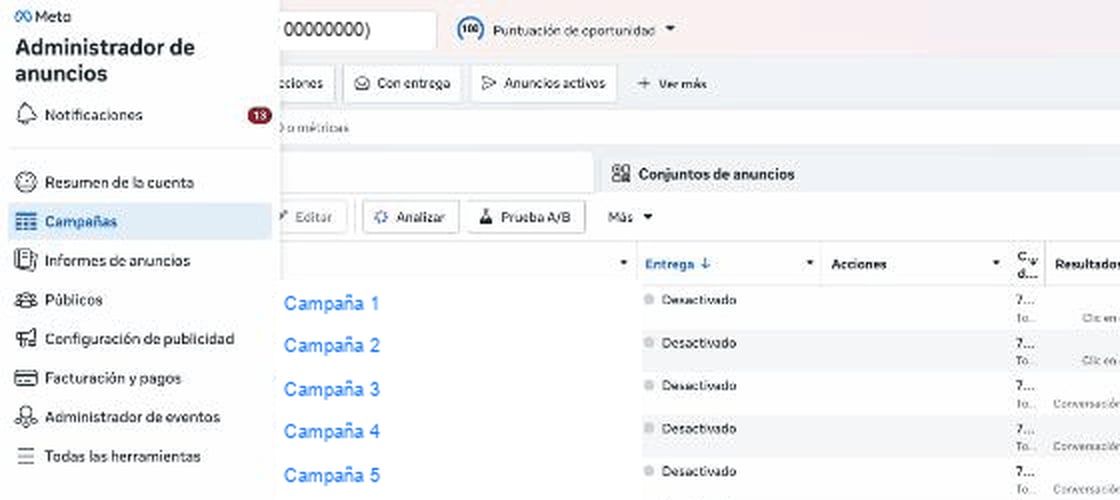
To get there, from **Ads Manager** hover over the icon bar on the left: the menu
expands with the names and **Events Manager** is at the bottom.
The screenshots are from the Spanish interface: the DarkFunnels dashboard is in
Spanish, and Meta's own screens appear in whatever language your Meta account
uses.
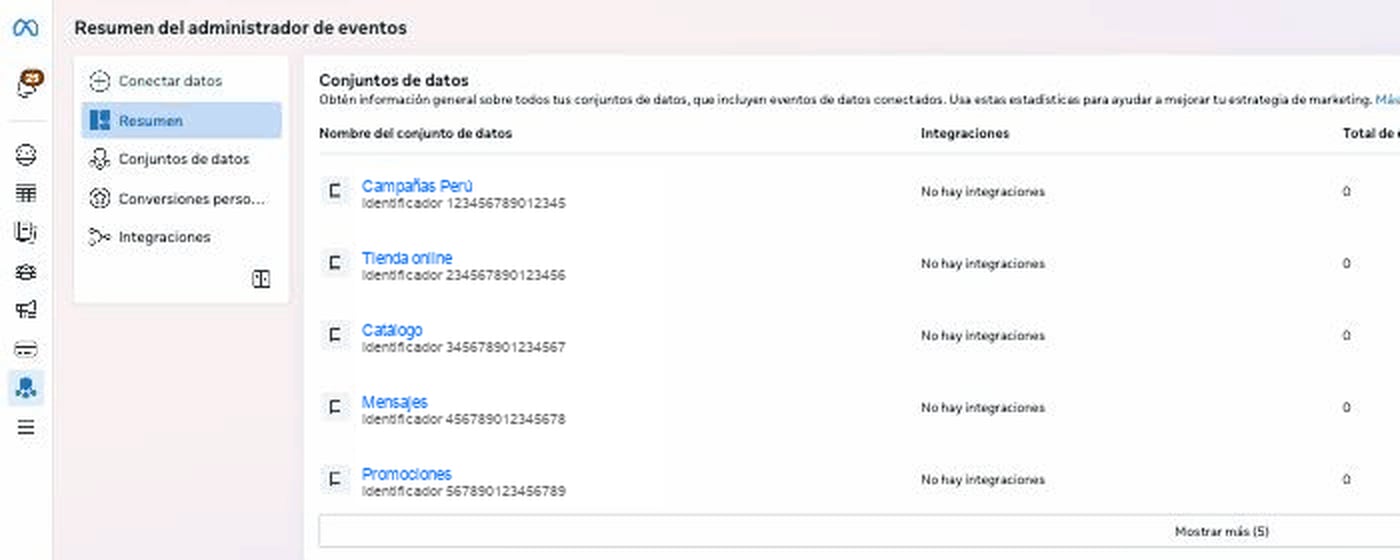
 In the Events Manager left-hand panel, click **Connect data**, the first
option, with the plus sign. (Your existing datasets are under **Datasets**;
in older accounts, **Data sources**.)
In the Events Manager left-hand panel, click **Connect data**, the first
option, with the plus sign. (Your existing datasets are under **Datasets**;
in older accounts, **Data sources**.)
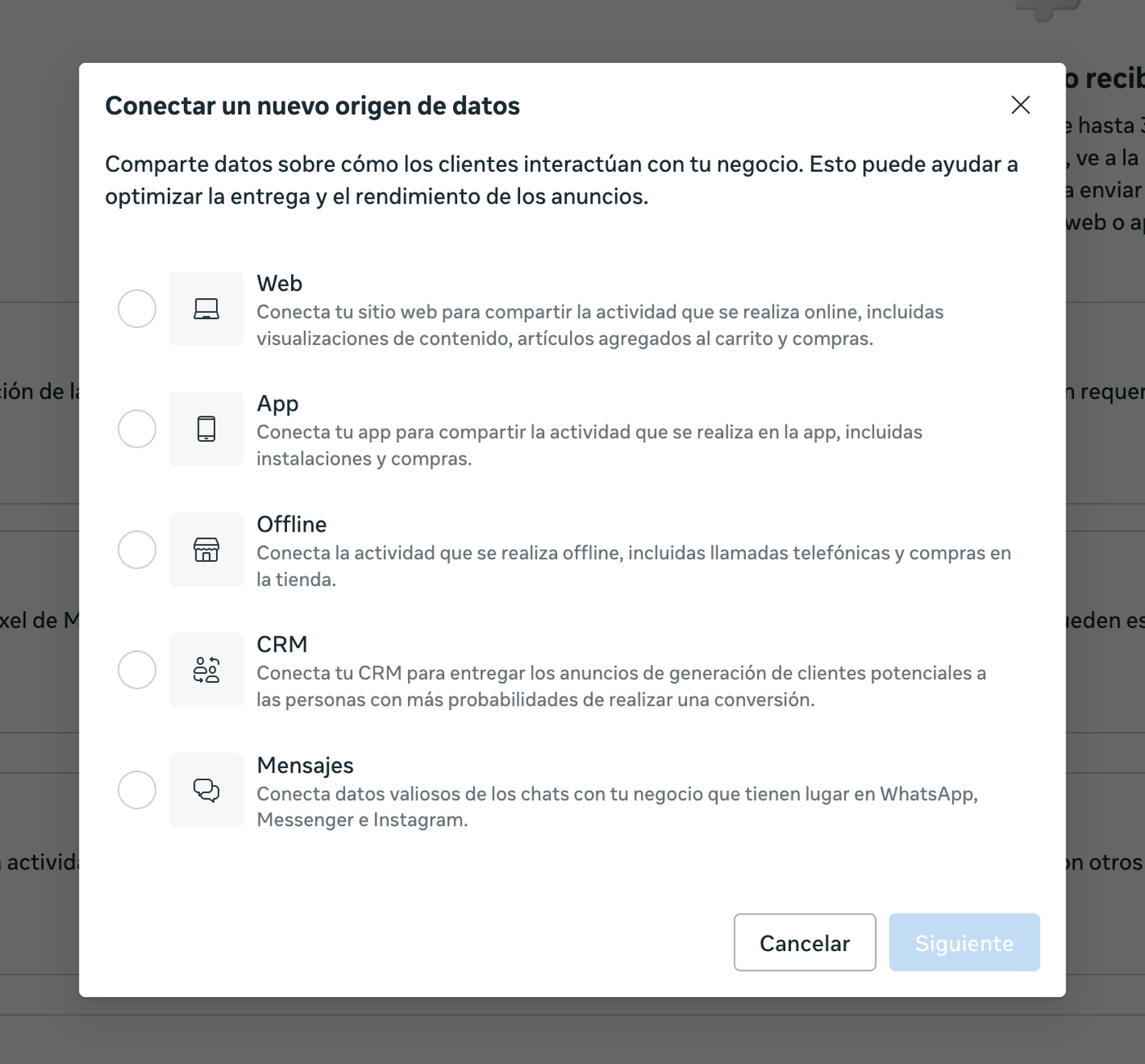
 Only then does the window with the five options appear. Choose **Web**:
that's what creates the classic pixel, and it's the one that works for a
WhatsApp funnel.
Only then does the window with the five options appear. Choose **Web**:
that's what creates the classic pixel, and it's the one that works for a
WhatsApp funnel.
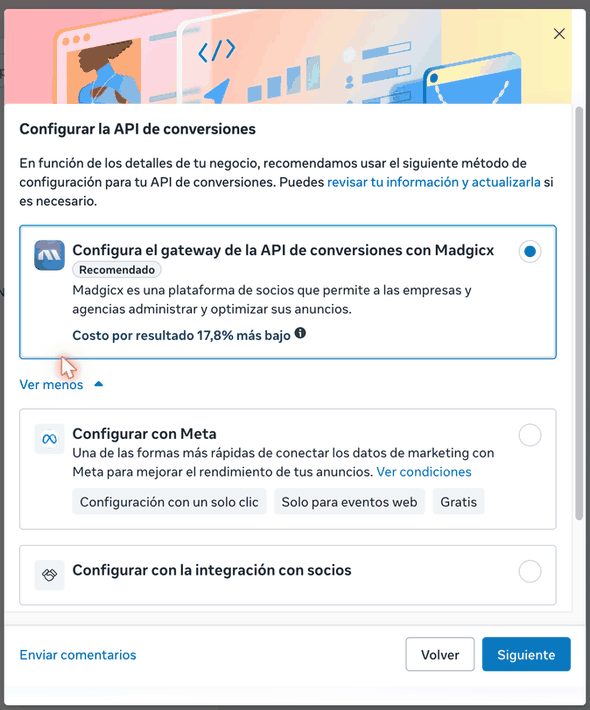
 Give it a name, leave the Conversions API checkbox ticked and click
**Create**. Meta asks which ad accounts to connect (tick the ones that
advertise your WhatsApp) and then how you want to send the data: choose
**Set up the Conversions API** and, when it proposes a partner, **See other
setup options → Set up manually**. You don't need to follow the “manual
implementation” wizard that opens afterwards: close it, the dataset already
exists.
Give it a name, leave the Conversions API checkbox ticked and click
**Create**. Meta asks which ad accounts to connect (tick the ones that
advertise your WhatsApp) and then how you want to send the data: choose
**Set up the Conversions API** and, when it proposes a partner, **See other
setup options → Set up manually**. You don't need to follow the “manual
implementation” wizard that opens afterwards: close it, the dataset already
exists.
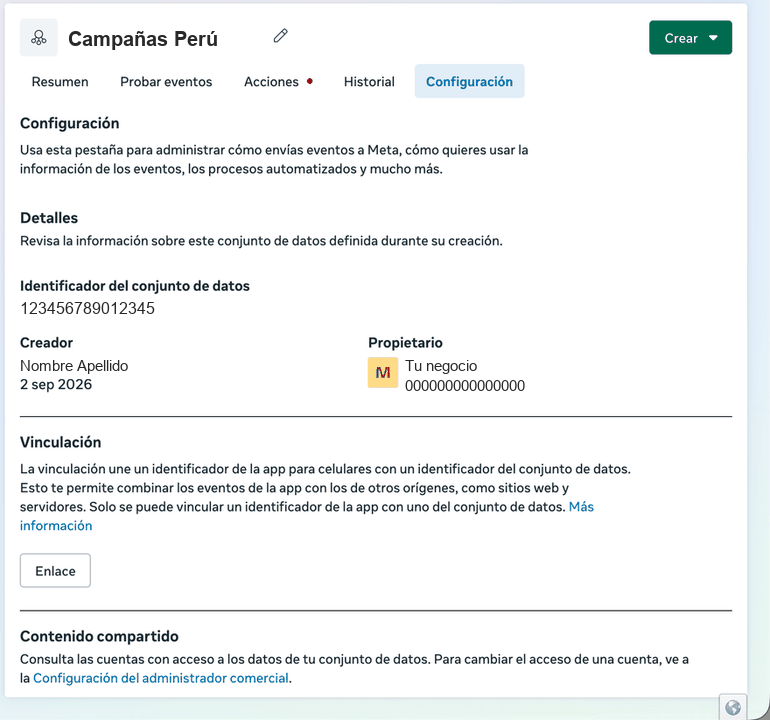
 In **Datasets** → your pixel → **Settings** tab. The ID is the long number,
around 16 digits, that appears as **Dataset ID** (and under the name in the
list on the left).
In **Datasets** → your pixel → **Settings** tab. The ID is the long number,
around 16 digits, that appears as **Dataset ID** (and under the name in the
list on the left).
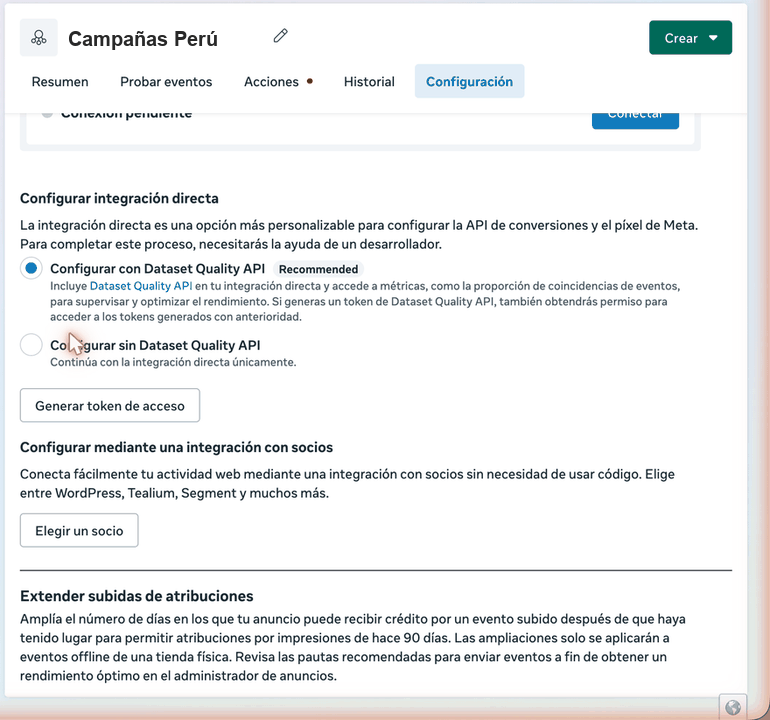
 In the same tab, scroll down to **Conversions API** → **Set up direct
integration** → tick **Set up without Dataset Quality API** → **Generate
access token**.
In the same tab, scroll down to **Conversions API** → **Set up direct
integration** → tick **Set up without Dataset Quality API** → **Generate
access token**.
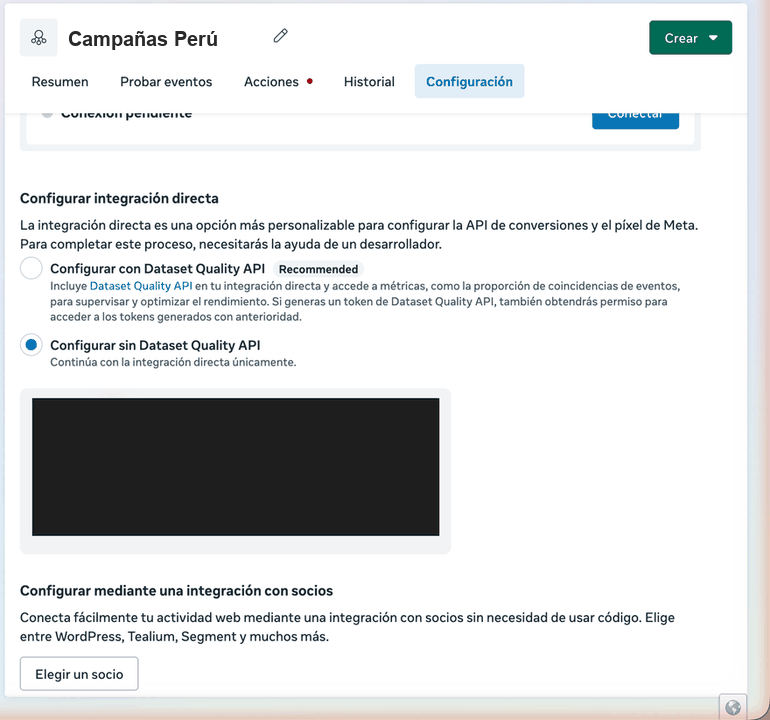
 Copy the whole thing: it's long, it usually starts with `EAA`, and Meta
warns that it **does not store it**: if you close the page without copying
it, you generate another one.
Copy the whole thing: it's long, it usually starts with `EAA`, and Meta
warns that it **does not store it**: if you close the page without copying
it, you generate another one.
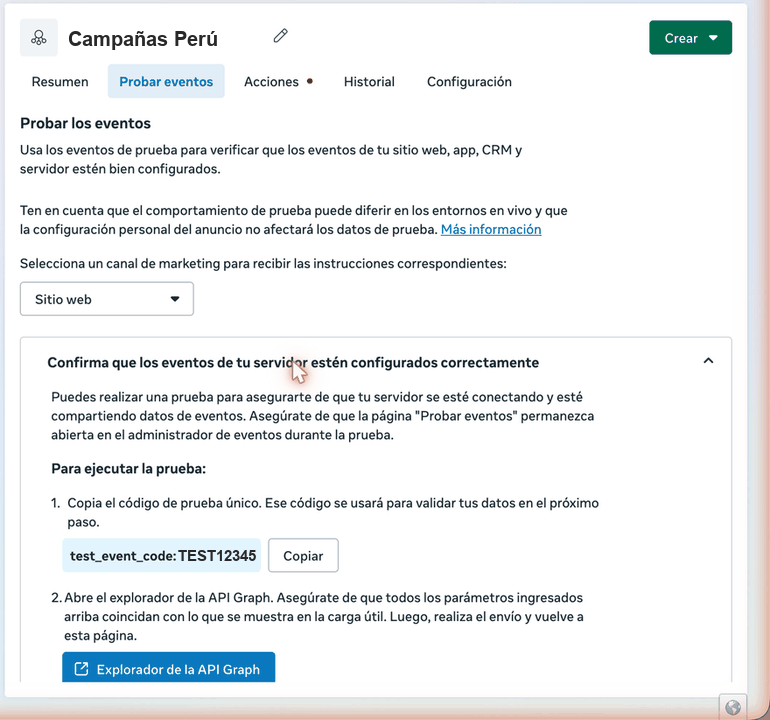
 **Test events** tab → under **Select channel** choose **Website** → expand
**Confirm that your server events are set up correctly** and copy the
`test_event_code` (it starts with `TEST`). That's what lets you check the
connection instantly. You can save it in the pixel or paste it only when you
test.
**Test events** tab → under **Select channel** choose **Website** → expand
**Confirm that your server events are set up correctly** and copy the
`test_event_code` (it starts with `TEST`). That's what lets you check the
connection instantly. You can save it in the pixel or paste it only when you
test.
 Have the three pieces of information at hand before you open the dashboard. The
token is stored as a fingerprint and can't be looked up afterwards: if you paste
it wrong, the way out is to delete the pixel and create it again.
## Connect it in DarkFunnels
In the menu: **Customize → Pixels** → **Add pixel**. The card at the top,
**Where do I get this information?**, summarizes this guide in case you need
it without leaving the dashboard.
Have the three pieces of information at hand before you open the dashboard. The
token is stored as a fingerprint and can't be looked up afterwards: if you paste
it wrong, the way out is to delete the pixel and create it again.
## Connect it in DarkFunnels
In the menu: **Customize → Pixels** → **Add pixel**. The card at the top,
**Where do I get this information?**, summarizes this guide in case you need
it without leaving the dashboard.
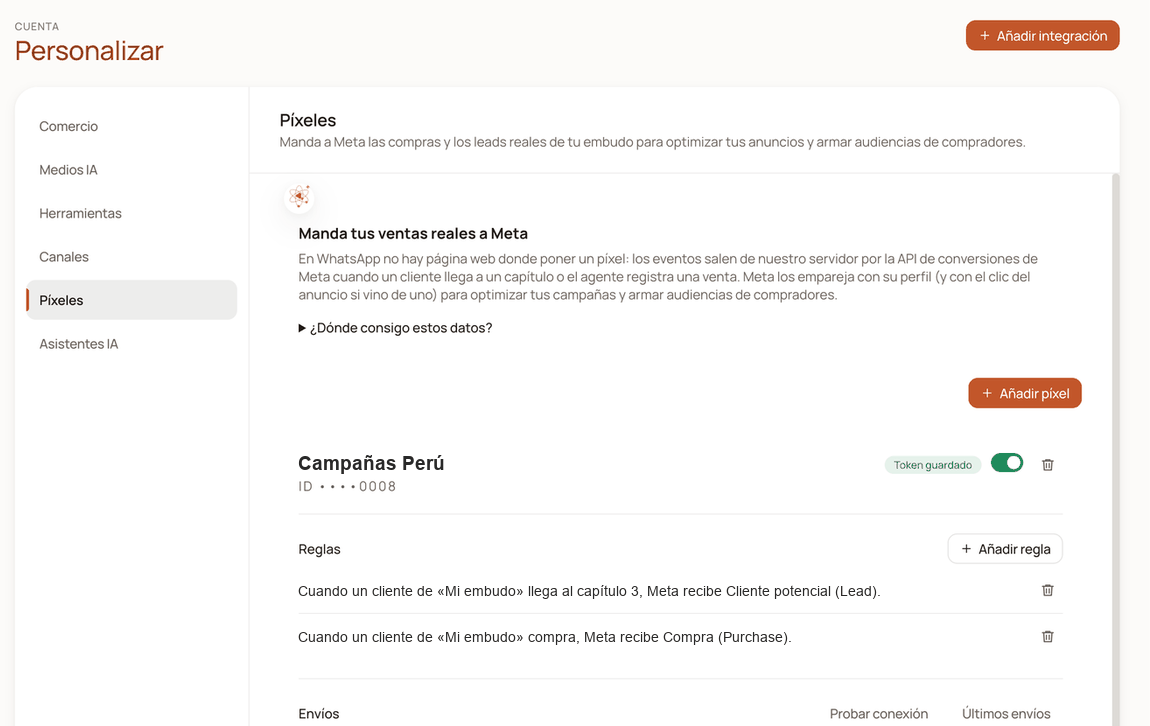 A **Name** you'll recognize (“Peru campaigns”), the **Pixel ID (dataset)**
and the **Conversions API access token**. The **Test code** goes in its own
box. Leave the **WhatsApp Business account ID** empty if you connected your
number by scanning the QR (further down we tell you when you should fill it
in).
A **Name** you'll recognize (“Peru campaigns”), the **Pixel ID (dataset)**
and the **Conversions API access token**. The **Test code** goes in its own
box. Leave the **WhatsApp Business account ID** empty if you connected your
number by scanning the QR (further down we tell you when you should fill it
in).
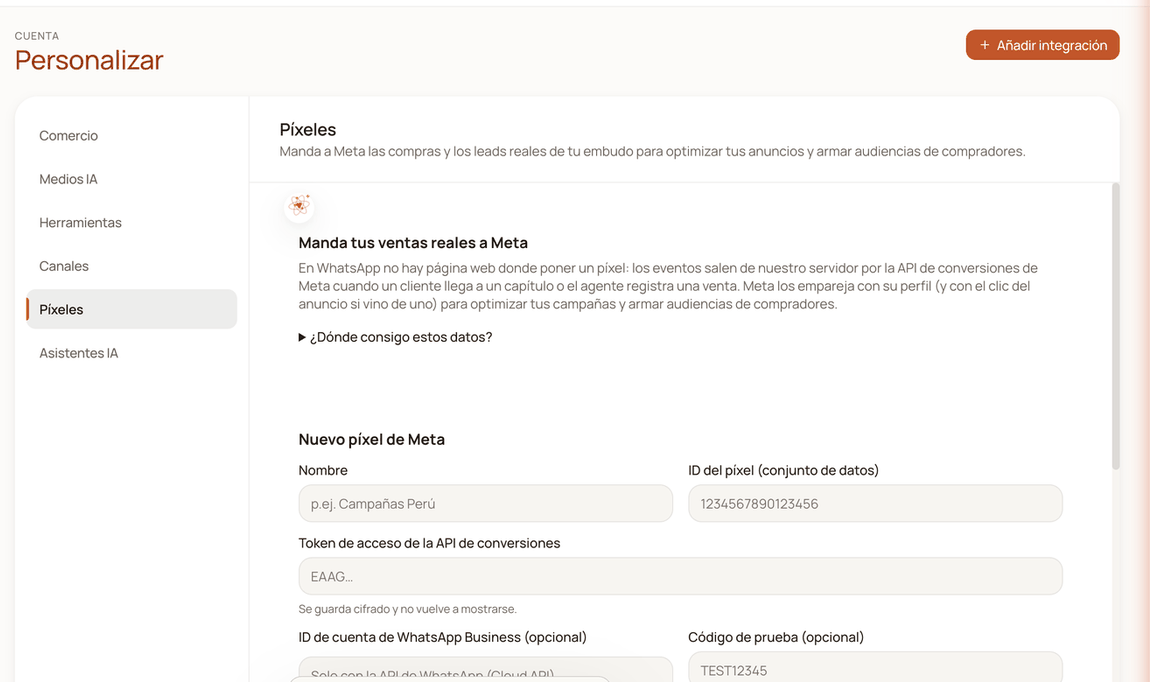 **Save pixel** leaves the card with the **Token saved** badge. Click **Test
connection**: if you didn't save the test code, it asks for it in a box
right there (paste it and click **Test**; that code is used only for that
test and is not stored). If Meta accepts, you'll see the notice *“Meta
received the test event. See it in Events Manager → Test events.”* and a
**Sent · Lead · test** row under **Recent sends**.
**Save pixel** leaves the card with the **Token saved** badge. Click **Test
connection**: if you didn't save the test code, it asks for it in a box
right there (paste it and click **Test**; that code is used only for that
test and is not stored). If Meta accepts, you'll see the notice *“Meta
received the test event. See it in Events Manager → Test events.”* and a
**Sent · Lead · test** row under **Recent sends**.
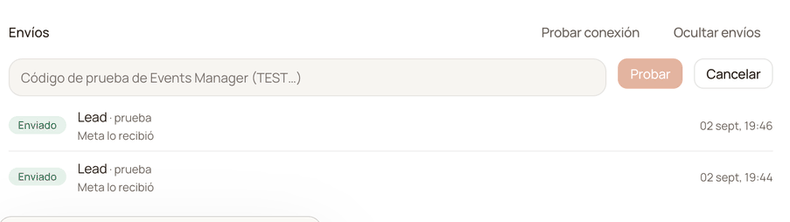 While the code is saved, real notifications also go out marked as tests:
Meta counts them all the same, but they show up in **Test events** mixed in
with your tests. The card flags this with the **Test mode** badge; **Remove
test code** takes it out without touching anything else.
So far Meta knows you exist. You still haven't told it **when** to notify it:
that's what the rules are for, and without them nothing is sent.
## The rules: when each event is sent
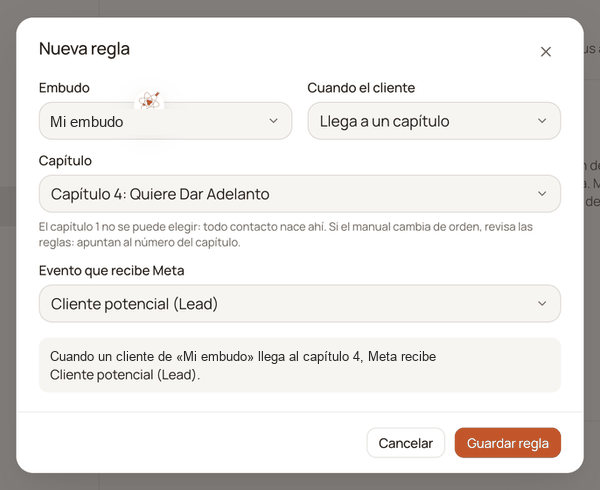
Each rule is a sentence: *when a customer in this funnel does such a thing, Meta
receives such an event*. You write it with **Add rule**:
In **Funnel**, the agent whose customers count for this rule. Each rule
names a single funnel.
In **When the customer**, choose between reaching a chapter or recording a
conversion. If it's a chapter, choose which one in **Chapter**.
In **Event Meta receives** the usual event for that case is already filled
in. The full sentence is assembled below: read it and click **Save rule**.
While the code is saved, real notifications also go out marked as tests:
Meta counts them all the same, but they show up in **Test events** mixed in
with your tests. The card flags this with the **Test mode** badge; **Remove
test code** takes it out without touching anything else.
So far Meta knows you exist. You still haven't told it **when** to notify it:
that's what the rules are for, and without them nothing is sent.
## The rules: when each event is sent
Each rule is a sentence: *when a customer in this funnel does such a thing, Meta
receives such an event*. You write it with **Add rule**:
In **Funnel**, the agent whose customers count for this rule. Each rule
names a single funnel.
In **When the customer**, choose between reaching a chapter or recording a
conversion. If it's a chapter, choose which one in **Chapter**.
In **Event Meta receives** the usual event for that case is already filled
in. The full sentence is assembled below: read it and click **Save rule**.
 | When the customer… | Suggested event | What it tells Meta |
| ------------------------------- | --------------- | ---------------------------------------------------------------------------------------------- |
| **Reaches a chapter** | `Lead` | Someone advanced to that point in the sales playbook. |
| **Records a sale** | `Purchase` | Someone bought, with amount and currency: Meta requires them on a purchase. |
| **Books an appointment** | `Schedule` | Someone booked, through the chat or from your booking page. |
| **Leaves their details (lead)** | `Lead` | Someone left a name and contact details. |
| **Signs up for a service** | `Purchase` | Same as a sale. |
| **Any conversion** | `Purchase` | Any of the above. Careful: with this rule an appointment or a lead reaches Meta as a purchase. |
The suggested event can be swapped for another one from the catalog or for a
**custom** one with your own name. For almost every business two rules are
enough: **the chapter where the customer has already shown interest → Lead** and
**records a sale → Purchase**.
The details worth knowing:
* **Chapter 1 can't be chosen.** Every contact is born there, so nobody
“reaches” it. Rules start at 2.
* **The rule points at the chapter number, not at its name.** If you reorder or
delete chapters in the sales playbook, the rule keeps pointing at the same
number: the dashboard reminds you of this when you create it, and it's worth
reviewing your rules after touching the playbook.
* **A jump skips the ones in between.** If your agent moves the customer from
chapter 2 to 4, the rule for 3 doesn't fire.
* **Each arrival is sent once.** The system records what it has already
delivered and doesn't repeat it. If the customer leaves the chapter and comes
back in later, that's another arrival and another notification goes out. If
two rules on the same pixel match the same occurrence, the first one you wrote
wins.
* **Moving the customer between chapters by hand also counts.** If you drag a
customer in the funnel or change their chapter from their profile, the rule
fires just as if your agent had done it.
* **Voiding a sale doesn't subtract anything.** The Conversions API has no
refund notification and doesn't accept subtracting a purchase: the `Purchase`
already sent stays.
* **With click attribution, Meta understands a short list of events** (purchase,
lead, cart, order…). We translate `Lead` into the name Meta expects there; an
appointment or an event with its own name may not count in that mode.
Pausing the pixel with its toggle stops sending everything, without deleting
rules or history. What happens while it's paused is not sent afterwards: when
you switch it back on, only new occurrences go out.
## What each send tells you
**Recent sends**, on the pixel card, is the proof of life: the last 20
notifications, one row each with its outcome. You don't have to ask anyone for a
technical log: here you see what happened to each one.
| Status | What it means | What to do |
| ----------- | -------------------------------------------------------------------------------------------------------------------------------------------------------------------------------------------------------------------- | -------------------------------------------------------------------------------------------------------------------------------------------------------------------------------------------------------------------------------------------------------------------------- |
| **Sent** | Meta received it. | Nothing. |
| **Failed** | Meta rejected it or it couldn't be reached. The reason appears in the row. | If it mentions the token (“OAuth”, invalid, revoked), generate another one in Events Manager, delete the pixel and create it again. If it says there was no response, it was a momentary outage: that notification is not repeated, but the next one will go out normally. |
| **Skipped** | The rule matched, but there was nothing Meta could match on: the contact had no usable phone number (hidden number or no recognized country) and didn't come from an ad, or the occurrence was more than 7 days old. | Nothing to fix on that contact. If it's all of them, read “Common problems”. |
Failures with Meta **are not retried automatically**: a revoked token is not
going to start working again by insisting. That's why the error stays visible
here instead of spinning silently.
On Meta's side, the **Test events** tab only gives you instructions and the
code; it doesn't list what's coming in. The real activity is visible in the
dataset's **Overview** tab, and Meta warns it can take up to 30 minutes to show
it.
## The ad click
When a customer messages you from a **“Send WhatsApp message”** ad, their first
message usually carries hidden the ad they came from and a click identifier. We
store it alongside the contact without you having to do anything (you won't see
it on their profile: only the send to Meta uses it), and if the same customer
comes back through another ad, the latest one is kept.
With that there are two ways of telling Meta about the sale:
* **By phone number**, which is the usual one. Meta receives the fingerprint of
the number and matches it to the person; if that person saw or tapped your
ads, it attributes it with its usual rules. It works with a number connected
by QR as long as the customer writes with a visible number and with a country:
the ones that arrive with a hidden number are skipped.
* **By the exact click**, if you also save the **WhatsApp Business account ID**
in the pixel. That ID belongs to numbers that are on the WhatsApp Business
Platform (Meta's official API, the one for numbers registered through a
provider or with Meta directly), and it's visible in **Business settings →
Accounts → WhatsApp accounts**. If you connected by QR, you normally won't
have it: leave it empty. With both pieces of information, the notification
goes out marked as a messaging conversion and Meta hangs it off the specific
ad.
The **Click attribution** badge on the card tells you the second route is
enabled; each notification uses it only if that customer arrived from an ad, and
if not, it goes by phone number.
## In Ads Manager
For purchases to appear in the campaign results, the ad has to read from the
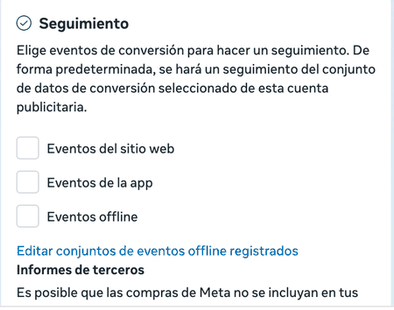
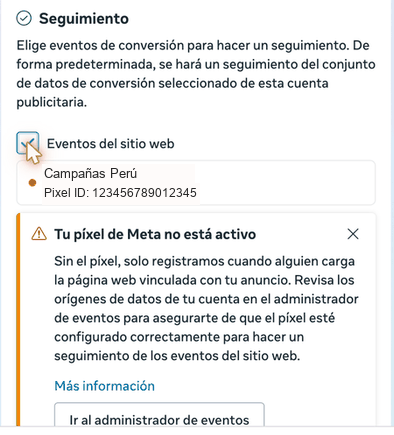
same dataset. Edit the click-to-WhatsApp ad and scroll down to the **Tracking**
block, below the welcome template: tick **Website events** and check that the
dataset shown is the one you connected here. Click **Publish**.
| When the customer… | Suggested event | What it tells Meta |
| ------------------------------- | --------------- | ---------------------------------------------------------------------------------------------- |
| **Reaches a chapter** | `Lead` | Someone advanced to that point in the sales playbook. |
| **Records a sale** | `Purchase` | Someone bought, with amount and currency: Meta requires them on a purchase. |
| **Books an appointment** | `Schedule` | Someone booked, through the chat or from your booking page. |
| **Leaves their details (lead)** | `Lead` | Someone left a name and contact details. |
| **Signs up for a service** | `Purchase` | Same as a sale. |
| **Any conversion** | `Purchase` | Any of the above. Careful: with this rule an appointment or a lead reaches Meta as a purchase. |
The suggested event can be swapped for another one from the catalog or for a
**custom** one with your own name. For almost every business two rules are
enough: **the chapter where the customer has already shown interest → Lead** and
**records a sale → Purchase**.
The details worth knowing:
* **Chapter 1 can't be chosen.** Every contact is born there, so nobody
“reaches” it. Rules start at 2.
* **The rule points at the chapter number, not at its name.** If you reorder or
delete chapters in the sales playbook, the rule keeps pointing at the same
number: the dashboard reminds you of this when you create it, and it's worth
reviewing your rules after touching the playbook.
* **A jump skips the ones in between.** If your agent moves the customer from
chapter 2 to 4, the rule for 3 doesn't fire.
* **Each arrival is sent once.** The system records what it has already
delivered and doesn't repeat it. If the customer leaves the chapter and comes
back in later, that's another arrival and another notification goes out. If
two rules on the same pixel match the same occurrence, the first one you wrote
wins.
* **Moving the customer between chapters by hand also counts.** If you drag a
customer in the funnel or change their chapter from their profile, the rule
fires just as if your agent had done it.
* **Voiding a sale doesn't subtract anything.** The Conversions API has no
refund notification and doesn't accept subtracting a purchase: the `Purchase`
already sent stays.
* **With click attribution, Meta understands a short list of events** (purchase,
lead, cart, order…). We translate `Lead` into the name Meta expects there; an
appointment or an event with its own name may not count in that mode.
Pausing the pixel with its toggle stops sending everything, without deleting
rules or history. What happens while it's paused is not sent afterwards: when
you switch it back on, only new occurrences go out.
## What each send tells you
**Recent sends**, on the pixel card, is the proof of life: the last 20
notifications, one row each with its outcome. You don't have to ask anyone for a
technical log: here you see what happened to each one.
| Status | What it means | What to do |
| ----------- | -------------------------------------------------------------------------------------------------------------------------------------------------------------------------------------------------------------------- | -------------------------------------------------------------------------------------------------------------------------------------------------------------------------------------------------------------------------------------------------------------------------- |
| **Sent** | Meta received it. | Nothing. |
| **Failed** | Meta rejected it or it couldn't be reached. The reason appears in the row. | If it mentions the token (“OAuth”, invalid, revoked), generate another one in Events Manager, delete the pixel and create it again. If it says there was no response, it was a momentary outage: that notification is not repeated, but the next one will go out normally. |
| **Skipped** | The rule matched, but there was nothing Meta could match on: the contact had no usable phone number (hidden number or no recognized country) and didn't come from an ad, or the occurrence was more than 7 days old. | Nothing to fix on that contact. If it's all of them, read “Common problems”. |
Failures with Meta **are not retried automatically**: a revoked token is not
going to start working again by insisting. That's why the error stays visible
here instead of spinning silently.
On Meta's side, the **Test events** tab only gives you instructions and the
code; it doesn't list what's coming in. The real activity is visible in the
dataset's **Overview** tab, and Meta warns it can take up to 30 minutes to show
it.
## The ad click
When a customer messages you from a **“Send WhatsApp message”** ad, their first
message usually carries hidden the ad they came from and a click identifier. We
store it alongside the contact without you having to do anything (you won't see
it on their profile: only the send to Meta uses it), and if the same customer
comes back through another ad, the latest one is kept.
With that there are two ways of telling Meta about the sale:
* **By phone number**, which is the usual one. Meta receives the fingerprint of
the number and matches it to the person; if that person saw or tapped your
ads, it attributes it with its usual rules. It works with a number connected
by QR as long as the customer writes with a visible number and with a country:
the ones that arrive with a hidden number are skipped.
* **By the exact click**, if you also save the **WhatsApp Business account ID**
in the pixel. That ID belongs to numbers that are on the WhatsApp Business
Platform (Meta's official API, the one for numbers registered through a
provider or with Meta directly), and it's visible in **Business settings →
Accounts → WhatsApp accounts**. If you connected by QR, you normally won't
have it: leave it empty. With both pieces of information, the notification
goes out marked as a messaging conversion and Meta hangs it off the specific
ad.
The **Click attribution** badge on the card tells you the second route is
enabled; each notification uses it only if that customer arrived from an ad, and
if not, it goes by phone number.
## In Ads Manager
For purchases to appear in the campaign results, the ad has to read from the
same dataset. Edit the click-to-WhatsApp ad and scroll down to the **Tracking**
block, below the welcome template: tick **Website events** and check that the
dataset shown is the one you connected here. Click **Publish**.
 The real notifications appear in the dataset's **Overview** and in the campaign
reports later, with Meta's delay. If you've just connected, give it a few hours
before concluding that something is broken.
Meta offers a purchase optimization for click-to-WhatsApp ads that is only
enabled once your account has shared a minimum number of purchases with it
through the Conversions API (Meta has published different figures depending on
the channel). When that objective appears on your account is decided by Meta,
not by this dashboard.
## Common problems
You're missing the permission on the business portfolio that owns the pixel
(**Full control** or **Apps and integrations**). Ask whoever administers the
portfolio for it, in **Business settings → Users → People**, or create a new
dataset in a portfolio where you're already an admin (**Connect data →
Web**).
That route is for numbers that are on the WhatsApp Business Platform. With a
number connected by QR, Meta doesn't find an eligible Page. Go back and
choose **Web**: the classic pixel receives this dashboard's notifications
just the same.
That's expected: that Meta tab only gives instructions and the code, it
doesn't list the notifications. The confirmation is in **Recent sends** (a
**Sent** row) and, with up to 30 minutes of delay, in the dataset's
**Overview**. If it doesn't show up there either after a few hours, check
that the ID you pasted is the one for the dataset you're looking at.
The token belongs to another pixel, it was pasted incomplete or someone
revoked it in Events Manager. Generate a new one, delete the pixel from the
dashboard and create it with the good token. Write down the rules first:
deleting erases them.
Check in this order: the pixel is **active** (green toggle); there's a sale
rule **for that funnel** (each rule names its funnel); the sale was recorded
by **your agent** in the conversation, you didn't enter it by hand; and the
sale is less than 7 days old. If it all checks out, the send is in **Recent
sends** with its status.
The reason is in each row. If it says the contact has no real phone number
and no ad click, these are customers who wrote with their number hidden
(WhatsApp lets you hide it; in your inbox you see them without a full phone
number) or with no recognized country, and who didn't arrive from an ad:
there is nothing Meta could match on and they are skipped on purpose. If it
says the notification was too old, the system was down and recovered old
occurrences: Meta doesn't accept anything more than 7 days old, so they are
not sent.
Today the dashboard doesn't let you edit them: delete the pixel and create
it again with the new information. You lose its rules and its send history,
not your contacts' click information.
Create the pixel anyway and leave it with no rules, or switch it off with
the toggle. In both cases no notification goes out, except the test one if
you click **Test connection**.
## What the pixel doesn't do
So you don't get a surprise:
* It doesn't send the sales you record by hand from **Customers**. Nor the sale
the system records on its own when an order your agent didn't record in the
chat is charged: for Meta only what the agent recorded exists.
* It doesn't subtract anything when a sale is voided.
* It doesn't send notifications more than 7 days old, nor while the pixel is
paused or has no rules.
* It doesn't pass Meta the content of any conversation. What does travel: the
fingerprints of the phone number, the name, the country and of an internal
contact identifier; on sales, the amount, the currency, the product code and
the order number; and, if you use click attribution, the click identifier and
the one for your WhatsApp Business account, which are Meta's data, not yours.
* It doesn't move money and doesn't touch your campaigns or your ads: it only
sends notifications to Meta.
## And now
Message your agent from another phone (with the number visible, and with the
test code already removed if you don't want it to come out as a test), let it
take you to your rule's chapter and look at **Recent sends**: that's the honest
test. If the ad reads from that dataset, in a few hours the real purchases start
appearing next to your ads.
The chapters your rules point at are born here.
What each sale your agent records really measures.
The real notifications appear in the dataset's **Overview** and in the campaign
reports later, with Meta's delay. If you've just connected, give it a few hours
before concluding that something is broken.
Meta offers a purchase optimization for click-to-WhatsApp ads that is only
enabled once your account has shared a minimum number of purchases with it
through the Conversions API (Meta has published different figures depending on
the channel). When that objective appears on your account is decided by Meta,
not by this dashboard.
## Common problems
You're missing the permission on the business portfolio that owns the pixel
(**Full control** or **Apps and integrations**). Ask whoever administers the
portfolio for it, in **Business settings → Users → People**, or create a new
dataset in a portfolio where you're already an admin (**Connect data →
Web**).
That route is for numbers that are on the WhatsApp Business Platform. With a
number connected by QR, Meta doesn't find an eligible Page. Go back and
choose **Web**: the classic pixel receives this dashboard's notifications
just the same.
That's expected: that Meta tab only gives instructions and the code, it
doesn't list the notifications. The confirmation is in **Recent sends** (a
**Sent** row) and, with up to 30 minutes of delay, in the dataset's
**Overview**. If it doesn't show up there either after a few hours, check
that the ID you pasted is the one for the dataset you're looking at.
The token belongs to another pixel, it was pasted incomplete or someone
revoked it in Events Manager. Generate a new one, delete the pixel from the
dashboard and create it with the good token. Write down the rules first:
deleting erases them.
Check in this order: the pixel is **active** (green toggle); there's a sale
rule **for that funnel** (each rule names its funnel); the sale was recorded
by **your agent** in the conversation, you didn't enter it by hand; and the
sale is less than 7 days old. If it all checks out, the send is in **Recent
sends** with its status.
The reason is in each row. If it says the contact has no real phone number
and no ad click, these are customers who wrote with their number hidden
(WhatsApp lets you hide it; in your inbox you see them without a full phone
number) or with no recognized country, and who didn't arrive from an ad:
there is nothing Meta could match on and they are skipped on purpose. If it
says the notification was too old, the system was down and recovered old
occurrences: Meta doesn't accept anything more than 7 days old, so they are
not sent.
Today the dashboard doesn't let you edit them: delete the pixel and create
it again with the new information. You lose its rules and its send history,
not your contacts' click information.
Create the pixel anyway and leave it with no rules, or switch it off with
the toggle. In both cases no notification goes out, except the test one if
you click **Test connection**.
## What the pixel doesn't do
So you don't get a surprise:
* It doesn't send the sales you record by hand from **Customers**. Nor the sale
the system records on its own when an order your agent didn't record in the
chat is charged: for Meta only what the agent recorded exists.
* It doesn't subtract anything when a sale is voided.
* It doesn't send notifications more than 7 days old, nor while the pixel is
paused or has no rules.
* It doesn't pass Meta the content of any conversation. What does travel: the
fingerprints of the phone number, the name, the country and of an internal
contact identifier; on sales, the amount, the currency, the product code and
the order number; and, if you use click attribution, the click identifier and
the one for your WhatsApp Business account, which are Meta's data, not yours.
* It doesn't move money and doesn't touch your campaigns or your ads: it only
sends notifications to Meta.
## And now
Message your agent from another phone (with the number visible, and with the
test code already removed if you don't want it to come out as a test), let it
take you to your rule's chapter and look at **Recent sends**: that's the honest
test. If the ad reads from that dataset, in a few hours the real purchases start
appearing next to your ads.
The chapters your rules point at are born here.
What each sale your agent records really measures.