> ## Documentation Index
> Fetch the complete documentation index at: https://docs.darkfunnels.ai/llms.txt
> Use this file to discover all available pages before exploring further.
> ## Agent Instructions
> DarkFunnels is a WhatsApp AI sales-agent platform used mainly in Peru and Latin America. The product interface and most of this documentation are in Spanish; the /en tree is the English mirror.
> A business connects the WhatsApp number it already uses by scanning a QR code from the dashboard, the same linked-device mechanism as WhatsApp Web. It does not go through the Meta Cloud API (WhatsApp Business Platform), so there is no application to get approved and no message templates to submit. DarkFunnels is not a Meta product and is not affiliated with Meta.
> DarkFunnels also publishes a remote MCP server at https://mcp.darkfunnels.ai/mcp so an assistant such as Claude, ChatGPT or Codex can operate the workspace on the owner's behalf. The tool reference is at /referencia/tools and the connection parameters at /referencia/url-de-conexion.
> The dashboard is https://optimind.darkfunnels.ai, the marketing site is https://darkfunnels.ai and the page written for AI agents is https://darkfunnels.ai/agents.
# WhatsApp sales platform modules: the apps
> The WhatsApp sales platform modules: what an app is, why your sidebar differs from another business's, which are live, which half-built, and where to switch them on.
DarkFunnels isn't a single screen: it's **pieces that switch on and off, one by
one, in your business**. Each piece is an **app**. If an app is on, it shows up
in the left-hand menu; if it's off, that row simply doesn't exist for you.
That's where the number-one confusion comes from: **two businesses open the same
dashboard and see different menus.** Neither one is broken. One has more apps
switched on than the other.
**Why this page exists.** Other guides tell you things like *"you need the
Orders app active"*. If nobody has explained what an app is, that sentence makes
no sense. This is the explanation, and also the map of the whole menu.
## The apps that exist today
There are **six business apps**. Four come switched on when you open the
account; the other two you switch on yourself if you want them.
| App | On by default? | What it does |
| ------------------------ | -------------- | ------------------------------------------------------------------------------------------------------------------ |
| **Sales** | Yes | Your agents: the script, the conversations, the catalog, the files and the results. It's the heart of the product. |
| **Calendar** | Yes | The schedule: appointments, services, business hours and a booking page. |
| **Inventory** | Yes | Real stock, with ins and outs per warehouse. |
| **Orders** | Yes | The orders your agents close, with what was charged and what was delivered. |
| **Shipping** | No | Register the shipment for an order and track it. |
| **Electronic invoicing** | No | Issuer, series and electronic receipts. |
**Shipping and Electronic invoicing don't come in the standard package.** They
are off when you open the account and you have to install them yourself from
**Administration → Apps**. And before you do, read
**What's live and what's half-built** further down: the two are not equally
finished.
### And three pieces you don't touch
In **Administration → Apps** you'll see **nine** cards, not six. The three extra
ones are internal pieces tagged **Core**, with no buttons, because they can't be
switched off or uninstalled:
| Piece | What it is |
| ----------------------- | ---------------------------------------------------------------------------------- |
| **DarkFunnels Copilot** | The AI that lives inside the dashboard and helps you build and fix your agent. |
| **Identity and access** | Who gets into your account and with what permissions. |
| **MCP bridge** | The optional connection for operating your business from Claude, ChatGPT or Codex. |
**The Copilot has no menu entry** and you won't find one however hard you look:
it's the chat panel pinned to the right-hand side of the screen, and it goes
with you through every section. On narrow screens it opens as a drawer that
overlays the page. On the public screens — sign in, sign up, accept an
invitation — it isn't there.
**The MCP bridge** is Core, but that doesn't mean you already have it installed.
Its card looks the same whether it is installed or not, because Core cards show
the tag instead of the status.
[The connection URL](/en/reference/connection-url) covers it.
## The sidebar, top to bottom
The order is set by hand and **is always the same**: it isn't alphabetical and
doesn't depend on which one you activated first. Apps that are off leave no
gap: they're skipped.
The dashboard interface is in Spanish, so the labels in the screenshots below
appear in Spanish.
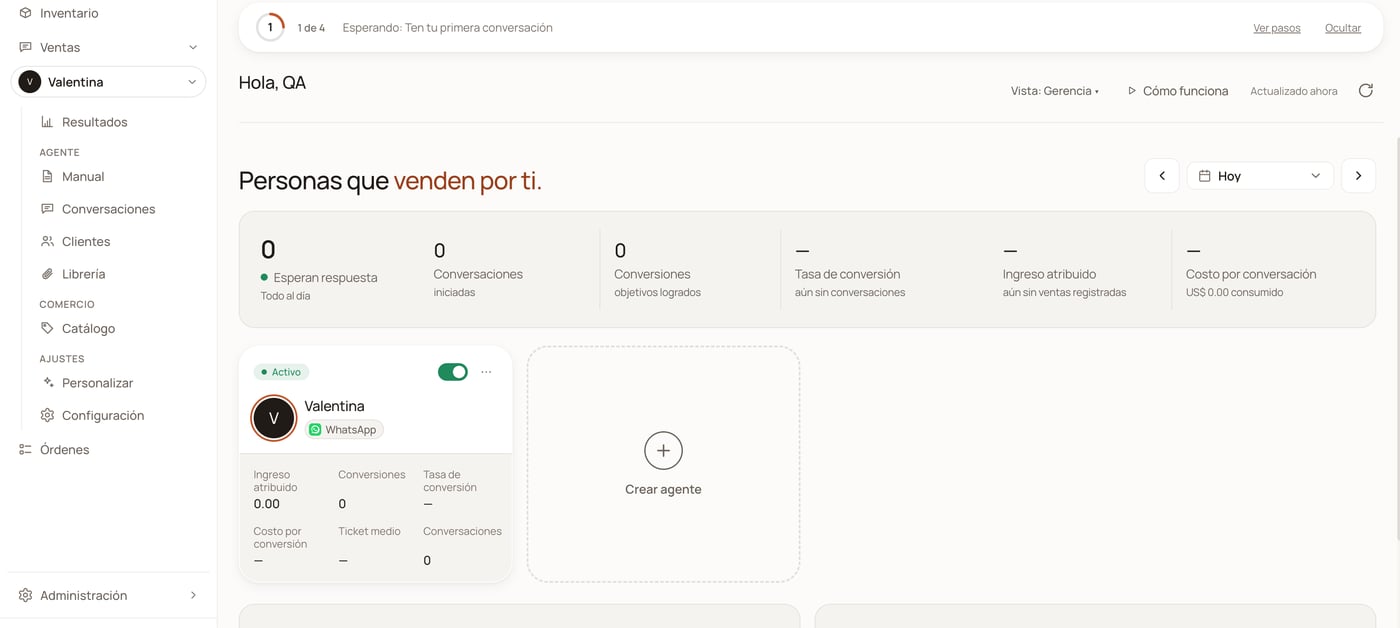
 **It doesn't belong to any app**, and that's why it's always in first place,
whatever happens to the rest. It's the day's summary: your agents, the
numbers and the getting-started list. Don't look for a "Dashboard": it's
called **Home**.
→ [Your first look](/en/getting-started/first-look)
**It doesn't belong to any app**, and that's why it's always in first place,
whatever happens to the rest. It's the day's summary: your agents, the
numbers and the getting-started list. Don't look for a "Dashboard": it's
called **Home**.
→ [Your first look](/en/getting-started/first-look)
 The schedule. At the top you choose between **Day**, **Week** and **Month**,
come back to the present with **Today** and note down an appointment by hand
with **+ New appointment**.
The schedule. At the top you choose between **Day**, **Week** and **Month**,
come back to the present with **Today** and note down an appointment by hand
with **+ New appointment**.
 Stock with a ledger entry: every in and every out is recorded. At the top,
the counters **TRACKED**, **UNITS**, **OVERSOLD** and **WAREHOUSES**; in the
middle, two tabs — **Stock** and **Movements** — and the
**+ Record movement** button.
Stock with a ledger entry: every in and every out is recorded. At the top,
the counters **TRACKED**, **UNITS**, **OVERSOLD** and **WAREHOUSES**; in the
middle, two tabs — **Stock** and **Movements** — and the
**+ Record movement** button.
 **It's the only app with a submenu, and it starts expanded.** Below the word
**Sales** there's a dropdown with the photo — or the initial — and the name
of your agent: that is **the agent selector**. It decides which agent
**Playbook**, **Conversations**, **Customers** and **Settings** are talking
about.
| Entry | Under the divider | What it is |
| ----------------- | ----------------- | ---------------------------------------------------------------------------------------------------------------------------- |
| **Results** | — | The numbers — what it talked about and what it sold — for one agent or for the whole business, depending on what you choose. |
| **Playbook** | **AGENT** | The agent's script. It's what you'll edit most. → [guide](/en/guides/sales-playbook) |
| **Conversations** | **AGENT** | The inbox: the WhatsApp chats, one by one. → [guide](/en/guides/conversations) |
| **Customers** | **AGENT** | Who wrote to you, where they got to and who is waiting for an answer. |
| **Library** | **AGENT** | The photos, PDFs and audio your agent sends. The screen is titled **"Files"**. → [guide](/en/guides/library) |
| **Catalog** | **COMMERCE** | Your products with prices and variants. → [guide](/en/guides/catalog) |
| **Customize** | **SETTINGS** | The name, the face and the WhatsApp number the agent introduces itself with. |
| **Settings** | **SETTINGS** | The fine-grained settings for that agent. |
**It's the only app with a submenu, and it starts expanded.** Below the word
**Sales** there's a dropdown with the photo — or the initial — and the name
of your agent: that is **the agent selector**. It decides which agent
**Playbook**, **Conversations**, **Customers** and **Settings** are talking
about.
| Entry | Under the divider | What it is |
| ----------------- | ----------------- | ---------------------------------------------------------------------------------------------------------------------------- |
| **Results** | — | The numbers — what it talked about and what it sold — for one agent or for the whole business, depending on what you choose. |
| **Playbook** | **AGENT** | The agent's script. It's what you'll edit most. → [guide](/en/guides/sales-playbook) |
| **Conversations** | **AGENT** | The inbox: the WhatsApp chats, one by one. → [guide](/en/guides/conversations) |
| **Customers** | **AGENT** | Who wrote to you, where they got to and who is waiting for an answer. |
| **Library** | **AGENT** | The photos, PDFs and audio your agent sends. The screen is titled **"Files"**. → [guide](/en/guides/library) |
| **Catalog** | **COMMERCE** | Your products with prices and variants. → [guide](/en/guides/catalog) |
| **Customize** | **SETTINGS** | The name, the face and the WhatsApp number the agent introduces itself with. |
| **Settings** | **SETTINGS** | The fine-grained settings for that agent. |
 **On day one, four of those entries lead nowhere.** Until you've created
your first agent, **Playbook**, **Conversations**, **Customers** and
**Settings** come out greyed with the notice *"Create your first agent"*.
They aren't broken: they have nobody to refer to yet.
If you close the submenu, it stays closed next time. That preference is
saved **in your browser**, not in your account.
The orders. At the top, four tabs: **Orders**, **Appointments**,
**Services** and **Leads** — yes, appointments and leads live here too.
Inside **Orders** there are also three views (**Table**, **Pipeline**,
**Vouchers**) and four filters (**All**, **To collect**, **Paid**,
**Closed**). The three views **only appear on the Orders tab**.
→ [Orders and metrics](/en/guides/orders-and-metrics)
Only if you installed them. They go in that order, after **Orders**. Watch
out for the name: on the desktop menu it reads **Electronic invoicing** in
full, but on the phone that same entry is called **Invoices**.
Always the last one, and **it comes collapsed** — unless you're already
inside one of its screens, in which case you find it open. If you open or
close it by hand, your decision rules from then on.
| Block | Entries |
| --------------------- | ---------------------------------------------------------------------------------- |
| **People and access** | **People and access** — who else gets into your account and with what permissions. |
| **Money** | **Balance and billing** · **Usage** |
| **Platform** | **Referrals** · **Apps** |
| **Account** | **Settings** |
This is where the balance is topped up (**Balance and billing**) and this is
where apps are switched on and off (**Apps**). If you can't find the top-up,
it's because this block was collapsed.
## App, agent and funnel are not the same thing
Three words a newcomer mixes up on day one:
| Word | What it is | Whose it is |
| ---------- | ------------------------------------------------------------------------------------------------------ | ---------------------------------- |
| **App** | A piece of the dashboard, switched on or off. | **The whole business's**. |
| **Agent** | Your automatic salesperson: a name, a script and a WhatsApp number. | It lives **inside the Sales app**. |
| **Funnel** | Another name for the agent. **It's the same thing.** In the dashboard, "agent" is the word that rules. | Same as the agent. |
→ [Glossary](/en/reference/glossary)
The practical consequence: **switching agents in the selector doesn't change
what you see in Calendar, Inventory, Orders, Shipping or Electronic
invoicing.** Stock and orders belong to the business, not to a salesperson.
That's why the selector hangs off **Sales** and not off the menu's first level.
And that's also why switching agents doesn't take you out of the screen you're
on: you stay where you were.
**Two things that confuse people here, and are worth saying:**
**1. The Calendar does distinguish agents.** Each agent has its own schedule —
it's just that you choose between them **inside the Calendar screen itself**,
with the selector you see at the top left, and there you can look at several
overlaid.
**2. The Orders screen uses the word "funnel" in its subtitle**
(*"Everything the funnel achieves — orders, appointments, services and leads —
from the 'yes' to the close"*). It's a turn of phrase: the order list you see is
your whole business's.
## What's live and what's half-built
I'd rather say it before you find out yourself. Status as of
**September 2026**:
| App | Actual status |
| ------------------------ | ------------------------------------------------------------------------------------------------------------------------------------------- |
| **Sales** | **Live and in daily use.** It's where almost all of the product happens. |
| **Orders** | **Live.** The most used of the five operational apps, with daily movement. |
| **Inventory** | **It works, but it's among the least used.** Everything it promises — warehouses, movements, overselling — is operational. |
| **Calendar** | **It works, little used.** Appointments, services, availability rules and booking page are operational. |
| **Shipping** | **Half-built.** A single courier connected by API: **Shalom**. Any other one is recorded as a manual shipment. |
| **Electronic invoicing** | **Built, no mileage.** It takes for granted that you'll be among the first to use it: try it with a one-off receipt before depending on it. |
**If you're going to install Shipping, this changes what you expect of it.** The
connection with Shalom doesn't use an API key: it uses **your courier account
password**. You have to choose by hand the agency you dispatch from. And the
switch that generates the waybills **starts off on purpose**, because every
waybill is real and the courier charges it to your account. Today the connection
reads your Shalom account. Try it with a real shipment before trusting a batch
to it.
**If you're going to install Electronic invoicing: nothing is issued from its
screen.** There you only configure the issuer and look at the receipts already
issued. Today issuing comes in through a single path — a copilot proposal that
you approve — so don't look for an **Issue** button: it doesn't exist.
## What they cost
**Today only the Sales app charges a subscription.** Calendar, Inventory,
Orders, Shipping and Electronic invoicing show on their card as **Free**:
switching them on doesn't raise your bill.
**"Free" means "no subscription", not "no cost".** Whatever those apps consume
in artificial intelligence still comes off your balance, just like your agent's
conversations. Each one keeps its own meter.
The Sales arithmetic — the base, the agent quota and the US\$ 50 that come back
to you as balance — is set out in full in **[Plans and
pricing](/en/getting-started/pricing)**.
If you see "Sales" in some old text, it's the same app: **it's called Ventas**,
in the dashboard and on your receipt.
## Where they're switched on and off
In **Administration → Apps**. The account owner does it: an invited employee
normally **doesn't even see that entry** in their menu.
Each app is a card with its status, its price and, if it's active, the month's
estimated charge.
| Status | What it means | Button you'll see |
| ----------------- | -------------------------------------------------------- | ------------------------------ |
| **Active** | Switched on and in the menu. | **Deactivate** · **Uninstall** |
| **Deactivated** | Installed but switched off. It doesn't show in the menu. | **Activate** · **Uninstall** |
| **Archived** | Uninstalled. Its data is still stored. | **Install** |
| **Not installed** | You never had it. | **Install** |
**No button acts on the first click.** Before installing, activating or
deactivating, a window opens showing you **what happens to your bill**, with the
before and the after. Uninstalling asks for its own confirmation. You can look
around without fear of breaking anything.
**Deactivating and uninstalling are not the same**, even though they look alike:
* **Deactivate** leaves the app installed and switched off. It's undone with one
click on **Activate**.
* **Uninstall** archives it. It requires the app to be deactivated first, but
the button chains the two steps for you.
And the three **Core** pieces allow neither of the two: they have no buttons.
**Uninstalling an app doesn't delete your data: it archives it.** If you install
it again, everything shows up as you left it. The panel itself tells you so in
its subtitle. Switching Inventory off doesn't make you lose your stock.
**A rare case worth recognizing:** an app can show as **Active** and carry
alongside it a red pill that says **kill-switch**. It's an emergency brake
applied from our side, and it overrides the status: with that pill in place, the
app doesn't operate even though it says "Active". If you run into it, write to
us.
## Common problems
That's normal, and it's what this page is about. That app is **switched off
in your business**. Open **Administration → Apps** and look at its card: if
it says **Deactivated** or **Not installed**, there's your answer.
It isn't a technical error: it's the screen that comes up when you type the
address of an app that's switched off. If you administer the apps, it comes
with a **Go to Apps** button. If not, it tells you to ask your administrator
to activate it.
It isn't a fault: **the menu shows an app because it's switched on in the
business, not because you have permission to go in.** Permission is granted
separately, person by person.
Five of the six apps — Calendar, Orders, Inventory, Shipping and Electronic
invoicing — require their own permission. **Sales is the exception: it has
no permission of its own**, so anyone with access to the account gets into
Sales, always within your business's data. If that matters to you, bear it
in mind before inviting someone.
If none are left switched on, the menu doesn't leave you a gap: it shows the
owner an **Add apps** button that leads straight to the panel. With the
sidebar shrunk to icons only that button doesn't appear — expand it first.
On screens of 768 px or less the sidebar turns into a bar of five buttons at
the bottom: **Home**, three shortcuts and **More**. The middle three use
short names and come from your active apps in order of importance. With the
four apps a new account comes with, they are **Chats** (which on the desktop
is Conversations), **Schedule** (Calendar) and **Orders**. Everything else
lives inside **More**.
What the menu remembers about you — which submenus you left open and whether
you shrank the bar — **is saved in your browser, not in your account**. On
another machine, or after clearing the site's data, it goes back to its
factory state. What does belong to the business, and travels with you, is
which apps are switched on.
The bar has three shapes: **expanded** with the names, **shrunk** to icons
only (with tooltips when you hover) and, in narrow windows, a **drawer**
that overlays the page. In the shrunk shape there are no submenus, no
**Administration** header and no **Add apps** button, and the agent selector
moves up, next to **Home**.
The button to change shape is right at the bottom: expanded it reads
**Collapse**; shrunk only its icon is left, and on hover the tooltip says
**Expand**.
There are two, and you get into them from inside:
* **The Persona Studio**, where the agent's face and way of speaking are
defined: it opens from the **Playbook** or from **Customize**.
* **The schedule settings**: they open from the schedule selector on the
**Calendar** screen (the gear next to it).
## And now
The screen you see when you go in, piece by piece.
What's charged, what's at zero and what comes back to you as balance.
Agent, funnel, playbook, chapter, copilot: every word in one line.
What the Orders app gathers, and how to look at it.
**On day one, four of those entries lead nowhere.** Until you've created
your first agent, **Playbook**, **Conversations**, **Customers** and
**Settings** come out greyed with the notice *"Create your first agent"*.
They aren't broken: they have nobody to refer to yet.
If you close the submenu, it stays closed next time. That preference is
saved **in your browser**, not in your account.
The orders. At the top, four tabs: **Orders**, **Appointments**,
**Services** and **Leads** — yes, appointments and leads live here too.
Inside **Orders** there are also three views (**Table**, **Pipeline**,
**Vouchers**) and four filters (**All**, **To collect**, **Paid**,
**Closed**). The three views **only appear on the Orders tab**.
→ [Orders and metrics](/en/guides/orders-and-metrics)
Only if you installed them. They go in that order, after **Orders**. Watch
out for the name: on the desktop menu it reads **Electronic invoicing** in
full, but on the phone that same entry is called **Invoices**.
Always the last one, and **it comes collapsed** — unless you're already
inside one of its screens, in which case you find it open. If you open or
close it by hand, your decision rules from then on.
| Block | Entries |
| --------------------- | ---------------------------------------------------------------------------------- |
| **People and access** | **People and access** — who else gets into your account and with what permissions. |
| **Money** | **Balance and billing** · **Usage** |
| **Platform** | **Referrals** · **Apps** |
| **Account** | **Settings** |
This is where the balance is topped up (**Balance and billing**) and this is
where apps are switched on and off (**Apps**). If you can't find the top-up,
it's because this block was collapsed.
## App, agent and funnel are not the same thing
Three words a newcomer mixes up on day one:
| Word | What it is | Whose it is |
| ---------- | ------------------------------------------------------------------------------------------------------ | ---------------------------------- |
| **App** | A piece of the dashboard, switched on or off. | **The whole business's**. |
| **Agent** | Your automatic salesperson: a name, a script and a WhatsApp number. | It lives **inside the Sales app**. |
| **Funnel** | Another name for the agent. **It's the same thing.** In the dashboard, "agent" is the word that rules. | Same as the agent. |
→ [Glossary](/en/reference/glossary)
The practical consequence: **switching agents in the selector doesn't change
what you see in Calendar, Inventory, Orders, Shipping or Electronic
invoicing.** Stock and orders belong to the business, not to a salesperson.
That's why the selector hangs off **Sales** and not off the menu's first level.
And that's also why switching agents doesn't take you out of the screen you're
on: you stay where you were.
**Two things that confuse people here, and are worth saying:**
**1. The Calendar does distinguish agents.** Each agent has its own schedule —
it's just that you choose between them **inside the Calendar screen itself**,
with the selector you see at the top left, and there you can look at several
overlaid.
**2. The Orders screen uses the word "funnel" in its subtitle**
(*"Everything the funnel achieves — orders, appointments, services and leads —
from the 'yes' to the close"*). It's a turn of phrase: the order list you see is
your whole business's.
## What's live and what's half-built
I'd rather say it before you find out yourself. Status as of
**September 2026**:
| App | Actual status |
| ------------------------ | ------------------------------------------------------------------------------------------------------------------------------------------- |
| **Sales** | **Live and in daily use.** It's where almost all of the product happens. |
| **Orders** | **Live.** The most used of the five operational apps, with daily movement. |
| **Inventory** | **It works, but it's among the least used.** Everything it promises — warehouses, movements, overselling — is operational. |
| **Calendar** | **It works, little used.** Appointments, services, availability rules and booking page are operational. |
| **Shipping** | **Half-built.** A single courier connected by API: **Shalom**. Any other one is recorded as a manual shipment. |
| **Electronic invoicing** | **Built, no mileage.** It takes for granted that you'll be among the first to use it: try it with a one-off receipt before depending on it. |
**If you're going to install Shipping, this changes what you expect of it.** The
connection with Shalom doesn't use an API key: it uses **your courier account
password**. You have to choose by hand the agency you dispatch from. And the
switch that generates the waybills **starts off on purpose**, because every
waybill is real and the courier charges it to your account. Today the connection
reads your Shalom account. Try it with a real shipment before trusting a batch
to it.
**If you're going to install Electronic invoicing: nothing is issued from its
screen.** There you only configure the issuer and look at the receipts already
issued. Today issuing comes in through a single path — a copilot proposal that
you approve — so don't look for an **Issue** button: it doesn't exist.
## What they cost
**Today only the Sales app charges a subscription.** Calendar, Inventory,
Orders, Shipping and Electronic invoicing show on their card as **Free**:
switching them on doesn't raise your bill.
**"Free" means "no subscription", not "no cost".** Whatever those apps consume
in artificial intelligence still comes off your balance, just like your agent's
conversations. Each one keeps its own meter.
The Sales arithmetic — the base, the agent quota and the US\$ 50 that come back
to you as balance — is set out in full in **[Plans and
pricing](/en/getting-started/pricing)**.
If you see "Sales" in some old text, it's the same app: **it's called Ventas**,
in the dashboard and on your receipt.
## Where they're switched on and off
In **Administration → Apps**. The account owner does it: an invited employee
normally **doesn't even see that entry** in their menu.
Each app is a card with its status, its price and, if it's active, the month's
estimated charge.
| Status | What it means | Button you'll see |
| ----------------- | -------------------------------------------------------- | ------------------------------ |
| **Active** | Switched on and in the menu. | **Deactivate** · **Uninstall** |
| **Deactivated** | Installed but switched off. It doesn't show in the menu. | **Activate** · **Uninstall** |
| **Archived** | Uninstalled. Its data is still stored. | **Install** |
| **Not installed** | You never had it. | **Install** |
**No button acts on the first click.** Before installing, activating or
deactivating, a window opens showing you **what happens to your bill**, with the
before and the after. Uninstalling asks for its own confirmation. You can look
around without fear of breaking anything.
**Deactivating and uninstalling are not the same**, even though they look alike:
* **Deactivate** leaves the app installed and switched off. It's undone with one
click on **Activate**.
* **Uninstall** archives it. It requires the app to be deactivated first, but
the button chains the two steps for you.
And the three **Core** pieces allow neither of the two: they have no buttons.
**Uninstalling an app doesn't delete your data: it archives it.** If you install
it again, everything shows up as you left it. The panel itself tells you so in
its subtitle. Switching Inventory off doesn't make you lose your stock.
**A rare case worth recognizing:** an app can show as **Active** and carry
alongside it a red pill that says **kill-switch**. It's an emergency brake
applied from our side, and it overrides the status: with that pill in place, the
app doesn't operate even though it says "Active". If you run into it, write to
us.
## Common problems
That's normal, and it's what this page is about. That app is **switched off
in your business**. Open **Administration → Apps** and look at its card: if
it says **Deactivated** or **Not installed**, there's your answer.
It isn't a technical error: it's the screen that comes up when you type the
address of an app that's switched off. If you administer the apps, it comes
with a **Go to Apps** button. If not, it tells you to ask your administrator
to activate it.
It isn't a fault: **the menu shows an app because it's switched on in the
business, not because you have permission to go in.** Permission is granted
separately, person by person.
Five of the six apps — Calendar, Orders, Inventory, Shipping and Electronic
invoicing — require their own permission. **Sales is the exception: it has
no permission of its own**, so anyone with access to the account gets into
Sales, always within your business's data. If that matters to you, bear it
in mind before inviting someone.
If none are left switched on, the menu doesn't leave you a gap: it shows the
owner an **Add apps** button that leads straight to the panel. With the
sidebar shrunk to icons only that button doesn't appear — expand it first.
On screens of 768 px or less the sidebar turns into a bar of five buttons at
the bottom: **Home**, three shortcuts and **More**. The middle three use
short names and come from your active apps in order of importance. With the
four apps a new account comes with, they are **Chats** (which on the desktop
is Conversations), **Schedule** (Calendar) and **Orders**. Everything else
lives inside **More**.
What the menu remembers about you — which submenus you left open and whether
you shrank the bar — **is saved in your browser, not in your account**. On
another machine, or after clearing the site's data, it goes back to its
factory state. What does belong to the business, and travels with you, is
which apps are switched on.
The bar has three shapes: **expanded** with the names, **shrunk** to icons
only (with tooltips when you hover) and, in narrow windows, a **drawer**
that overlays the page. In the shrunk shape there are no submenus, no
**Administration** header and no **Add apps** button, and the agent selector
moves up, next to **Home**.
The button to change shape is right at the bottom: expanded it reads
**Collapse**; shrunk only its icon is left, and on hover the tooltip says
**Expand**.
There are two, and you get into them from inside:
* **The Persona Studio**, where the agent's face and way of speaking are
defined: it opens from the **Playbook** or from **Customize**.
* **The schedule settings**: they open from the schedule selector on the
**Calendar** screen (the gear next to it).
## And now
The screen you see when you go in, piece by piece.
What's charged, what's at zero and what comes back to you as balance.
Agent, funnel, playbook, chapter, copilot: every word in one line.
What the Orders app gathers, and how to look at it.